Last updated: January 2, 2024
How does a barcode or QR code scanner question work?
A barcode or QR code scanner question allows frontline users to quickly and accurately capture information by scanning barcodes or QR codes directly within inspections. Adding these questions to your templates helps your team reduce errors and saves time by eliminating the need for manual data entry with the built-in scanner.
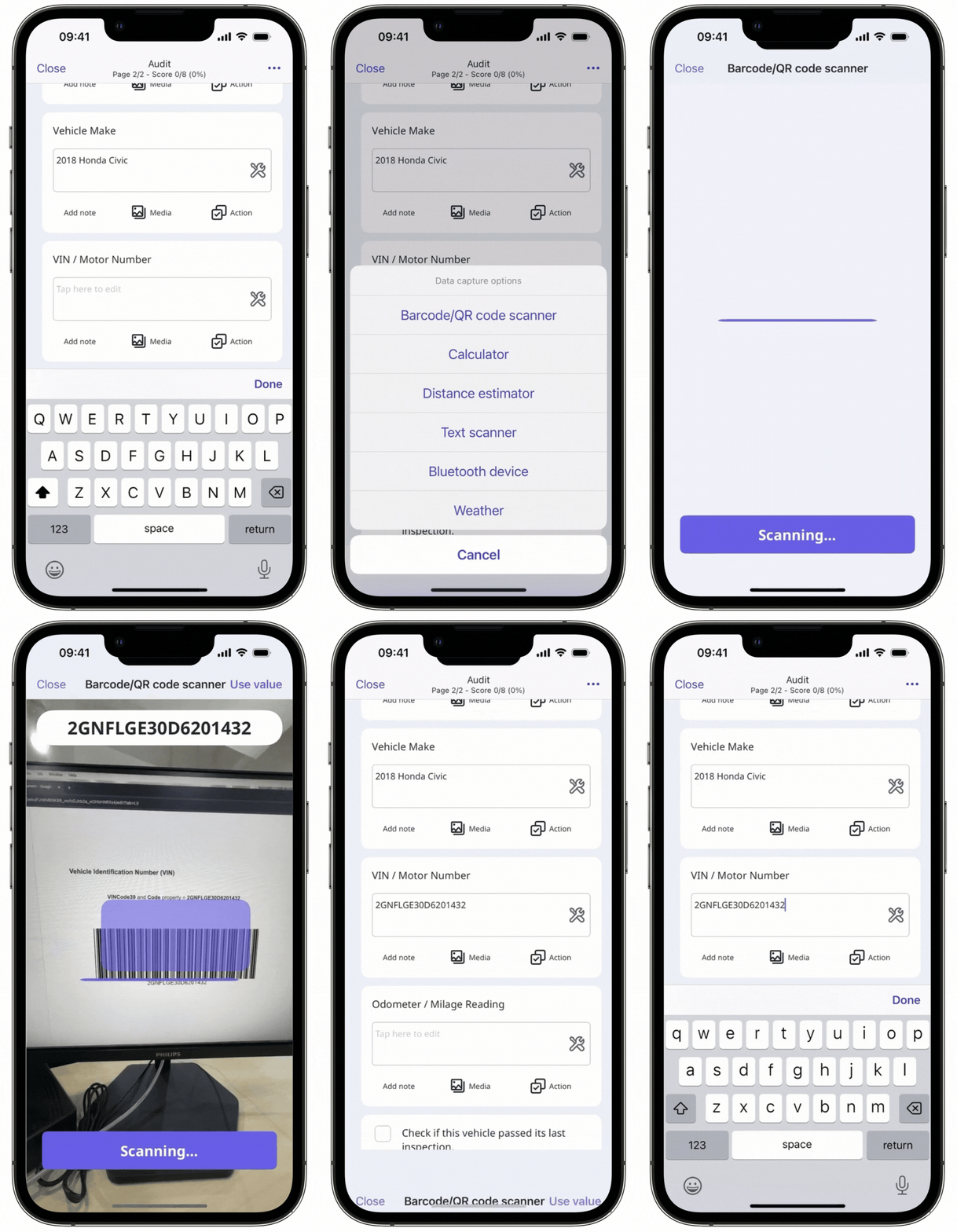
You can only scan barcodes via the mobile app.
What you'll need
Supported codes and response types
Barcode code support
QR codes and the following types of 1D and 2D barcodes can be scanned using our built-in scanner in inspections via the mobile app:
EAN-13/UPC-A
UPC-E
EAN-8
Code 128
Code 39
Interleaved 2 of 5
Response types
The following response types support barcode scanning in inspections:
Person (title page): Accepts alphanumeric input.
Document number (title page): Accepts alphanumeric input.
Text answer (title page and other pages): Accepts alphanumeric input.
Number (title page and other pages): Accepts numeric input only.
Published changes made to templates only apply to new inspections moving forward.
Add a barcode or QR code scanner question
Select Templates in the sidebar or in More.
Click the template and select Edit template in the side panel.
Add a new question or select an existing one.
Click under the "Type of response" column on the right-hand side and select a supported response type.
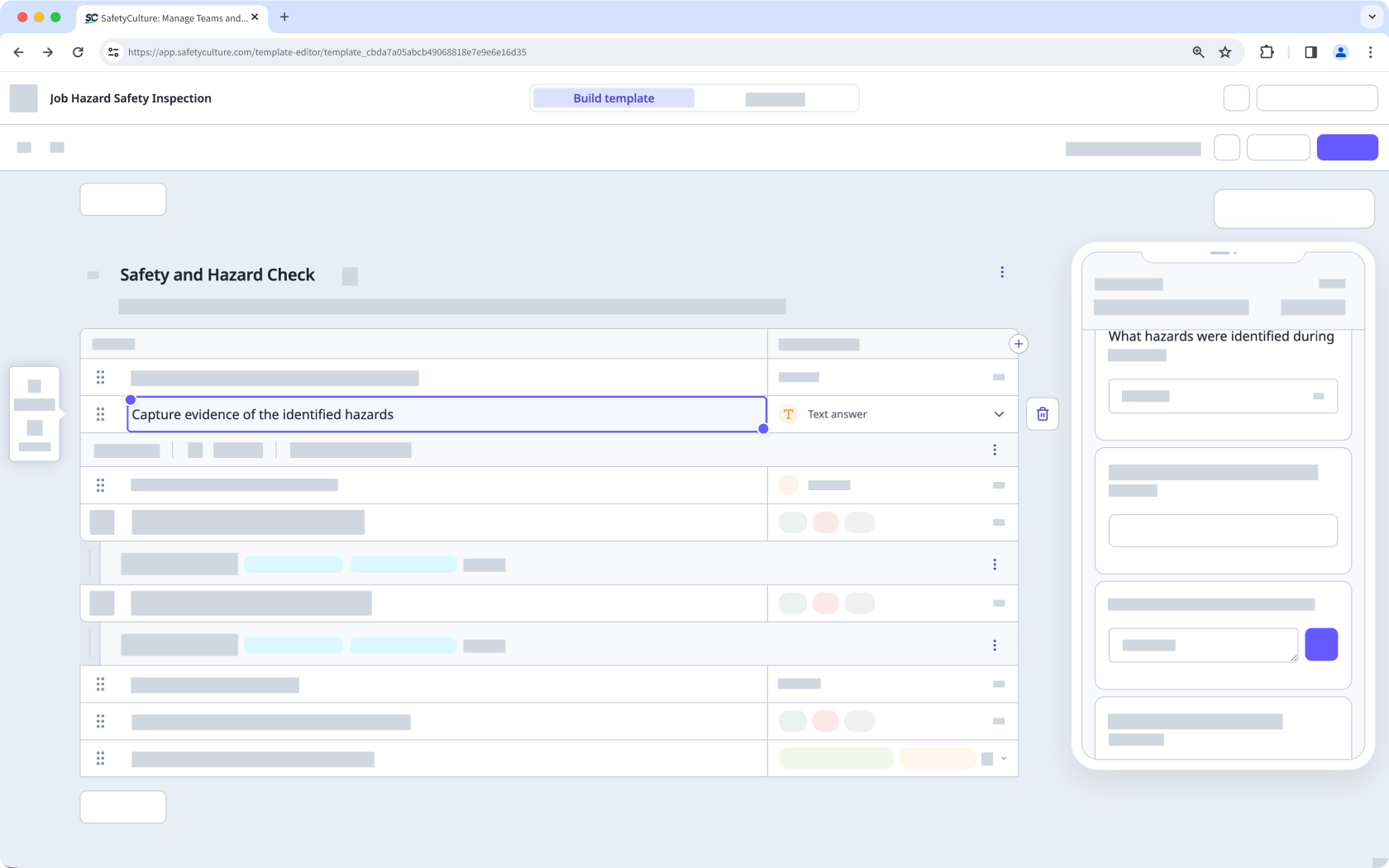
Click Publish on the upper-right of the page to publish the template. If you're not ready to publish the template, you can go back to the templates list and come back when you're ready.
Open the mobile app.
Tap Inspections in the navigation bar or select it from More.
Select Templates tab at the top of your screen.
Tap the template and select Edit template from the pop-up options.
Add a new question or select an existing one.
Tap below the question label and select a supported response type.
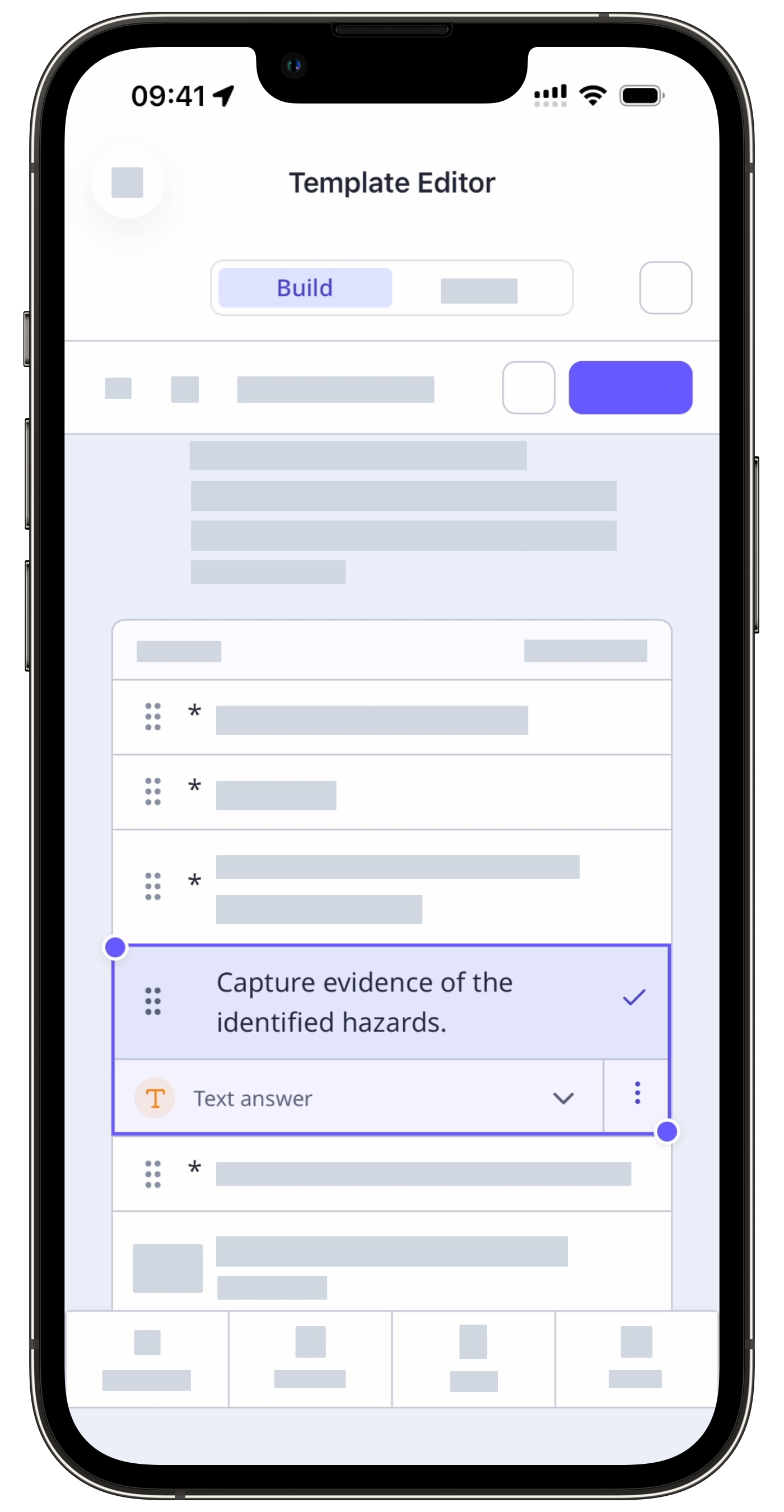
Tap Publish on the upper-right of screen to publish the template. If you're not ready to publish the template, you can go back to the templates list and come back when you're ready.
Need more help?
Was this page helpful?
