Last updated: June 27, 2024
What you'll need
Add or update your profile picture
Click your username on the lower-left corner of the page and select My profile.
Click Settings on the upper-right side of the page, next to your username, to view user settings.
Click on the upper-left of the page, next to your username.
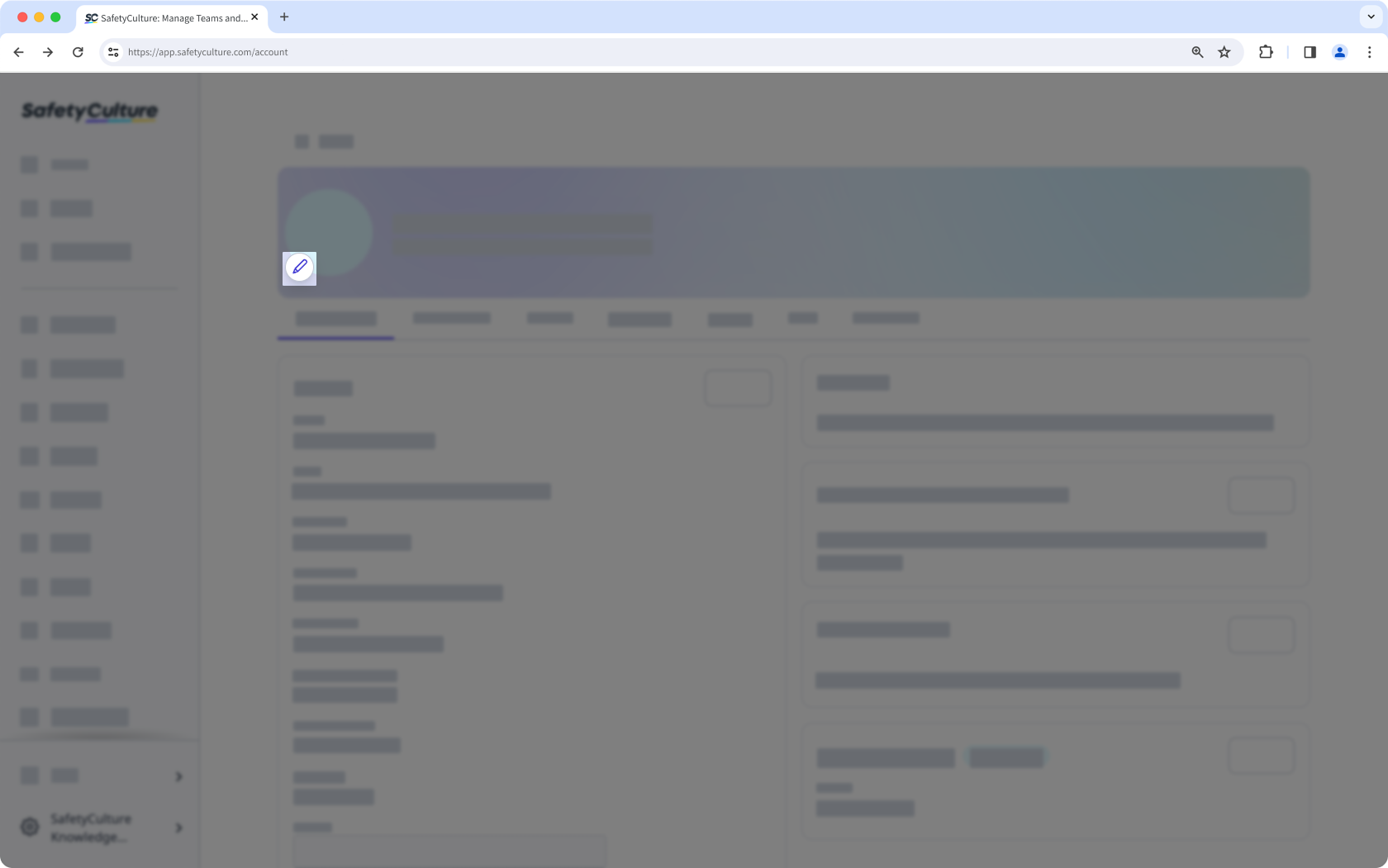
In the pop-up window, upload the photo you want to use as your profile picture. If there's an existing profile picture, click Upload photo first.
Adjust the dimension of your profile picture. For the best visual experience, we recommend uploading an image sized 500x500 pixels.
Click Upload.
Open the mobile app.
Tap your user profile icon at the upper-right corner of your screen.
In the pop-up menu, tap next to your name and email.
Tap on the lower-right part of your profile picture.
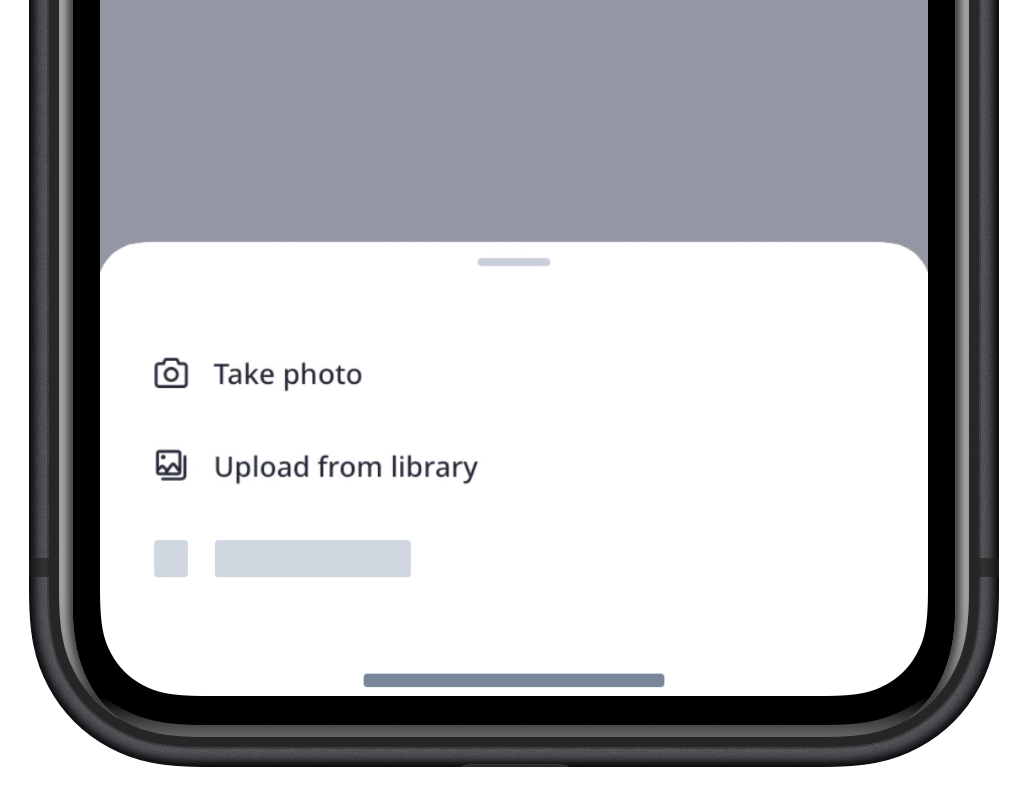
In the pop-up window, tap Take photo if you want to take a new photo to use as a profile picture. You can also tap Upload from library if you want to use an already existing photo.
Account profile pictures can only be added and removed by users themselves. Administrators cannot make profile picture changes for users.
Remove your profile picture
Click your username on the lower-left corner of the page and select My profile.
Click Settings on the upper-right side of the page, next to your username to view user settings.
Click on the upper-left side of the page, next to your username.
In the pop-up window, click Remove.
Open the mobile app.
Tap your user profile icon at the upper-right corner of your screen.
In the pop-up menu, tap next to your name and email.
Tap on the lower-right part of your profile picture.
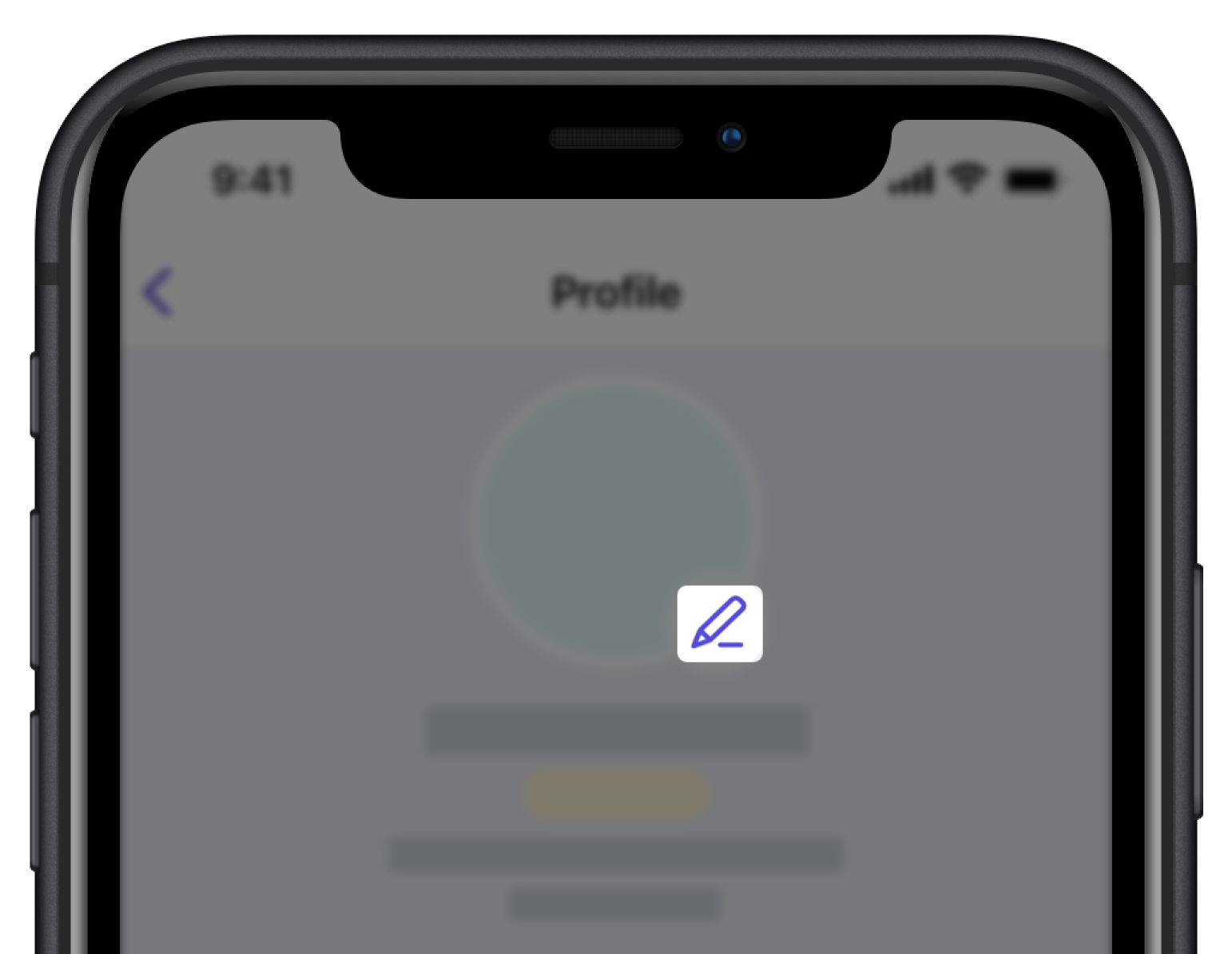
In the pop-up window, select Remove photo.
Need more help?
Was this page helpful?
