Last updated: June 6, 2025
What you'll need
You can only reorder pages in templates with more than one inspection page, excluding the title page.
Reorder template pages
Select Templates in the sidebar or in More.
Click the template and select Edit template in the side panel.
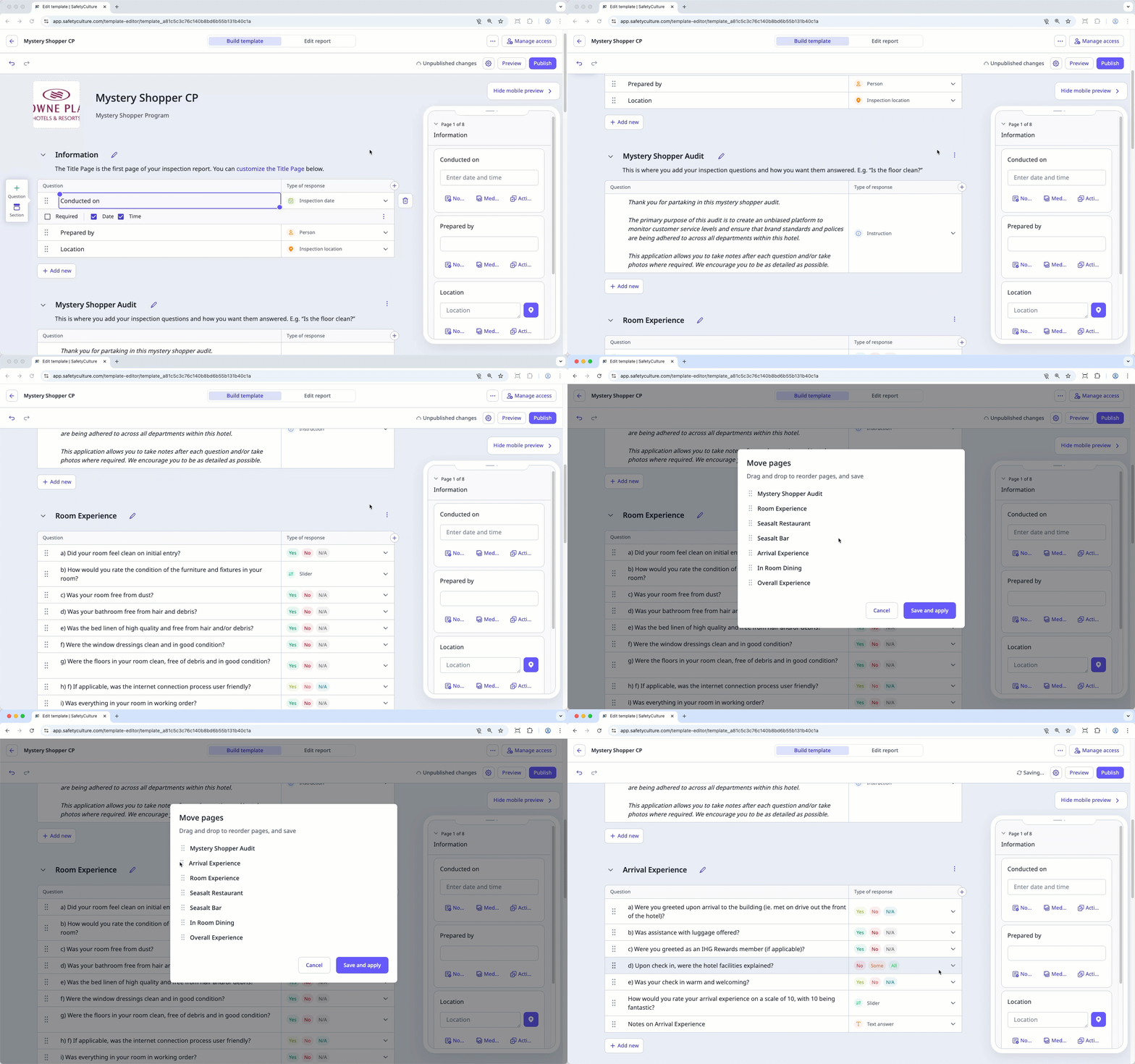
Click on the upper-right corner of an inspection page, above the "Type of response" column.
Select Move page.
In the pop-up window, click and hold on the page name's left-hand side to drag and drop it into your desired order.
Click Save and apply.
Click Publish on the upper-right of the page to publish the template. If you're not ready to publish the template, you can go back to the templates list and come back when you're ready.
Open the mobile app.
Tap Inspections in the navigation bar or select it from More.
Select Templates tab at the top of your screen.
Tap the template and select Edit template from the pop-up options.
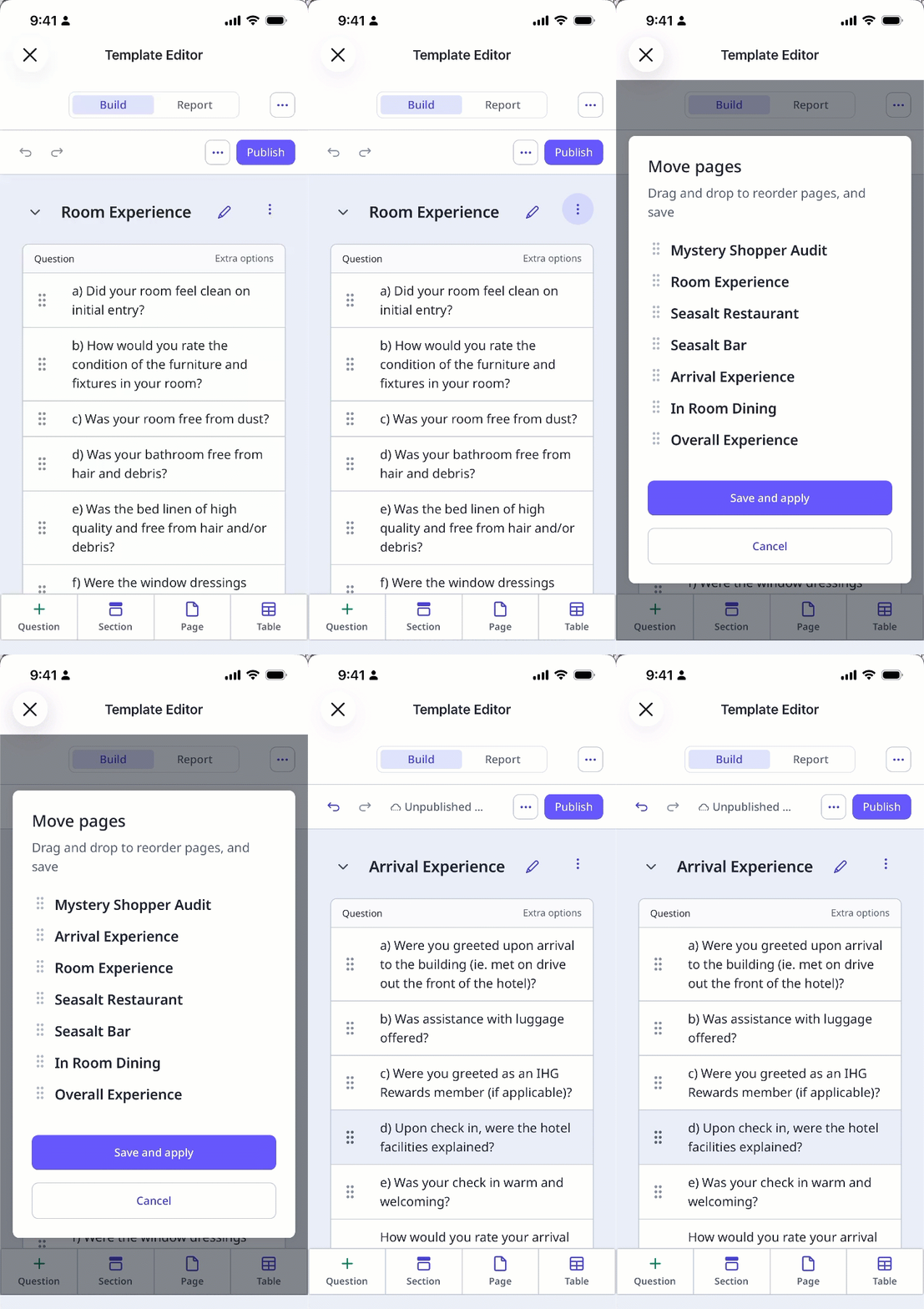
Tap on the upper-right corner of an inspection page.
Select Move page.
In the pop-up window, tap and hold on the page name's left-hand side to drag and drop it into your desired order.
Tap Save and apply.
Tap Publish on the upper-right of your screen to publish the template. If you're not ready to publish the template, you can go back to the templates list and come back when you're ready.
Published changes made to templates only apply to new inspections moving forward.
Need more help?
Was this page helpful?
