Last updated: June 18, 2025
What you'll need
Assign an action
Create an action or select an existing one.
In the side panel, select Add assignees or the existing assignee in the "Assignees" field.
In the dropdown menu, select either Groups or Users.
Check the groups' or users' boxes and click Done.
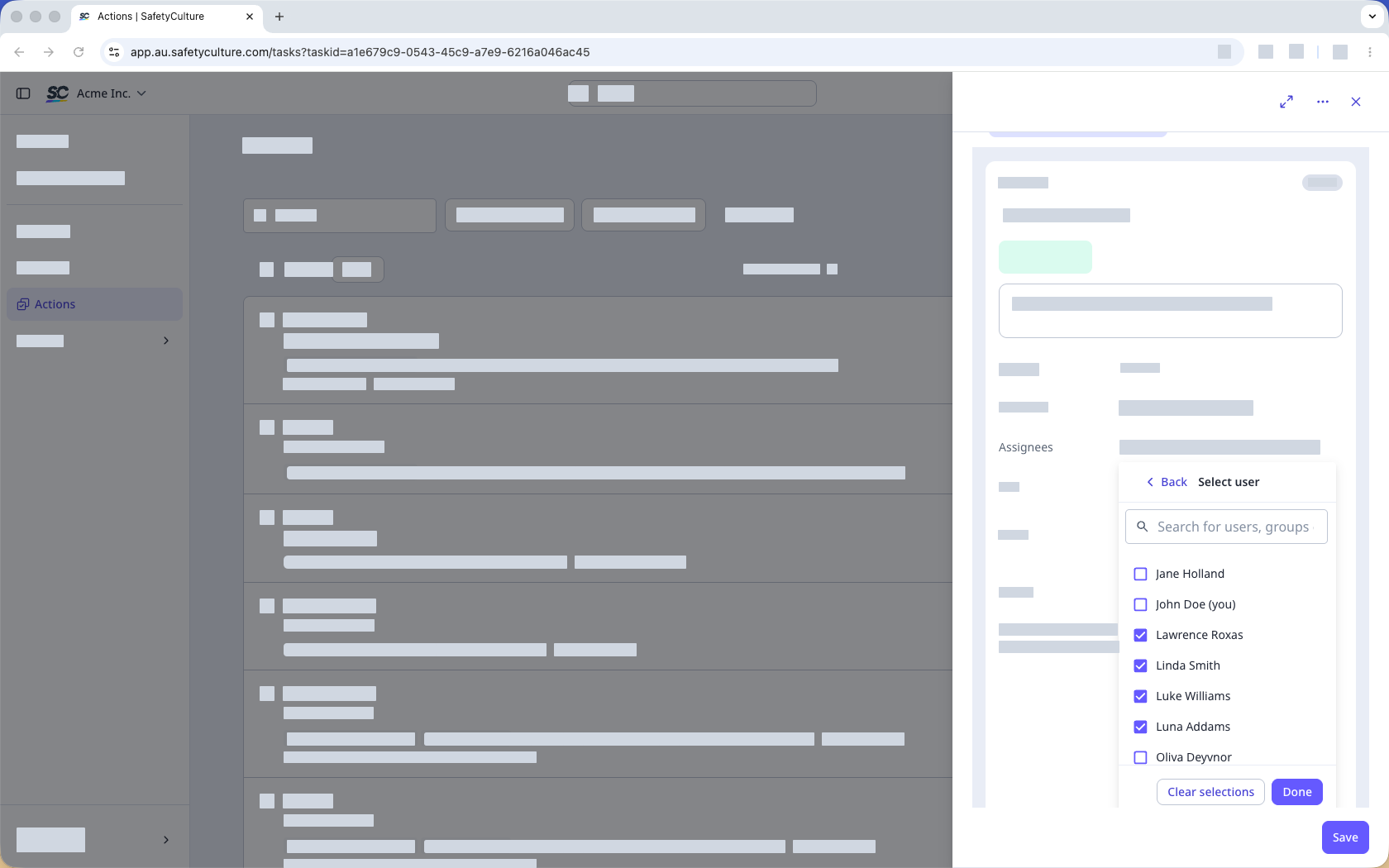
Click Save on the lower-right of the page.
Open the mobile app.
Create an action or select an existing one.
In Details, tap Add assignees or the existing assignees.
In the pop-up menu, select the users and groups.
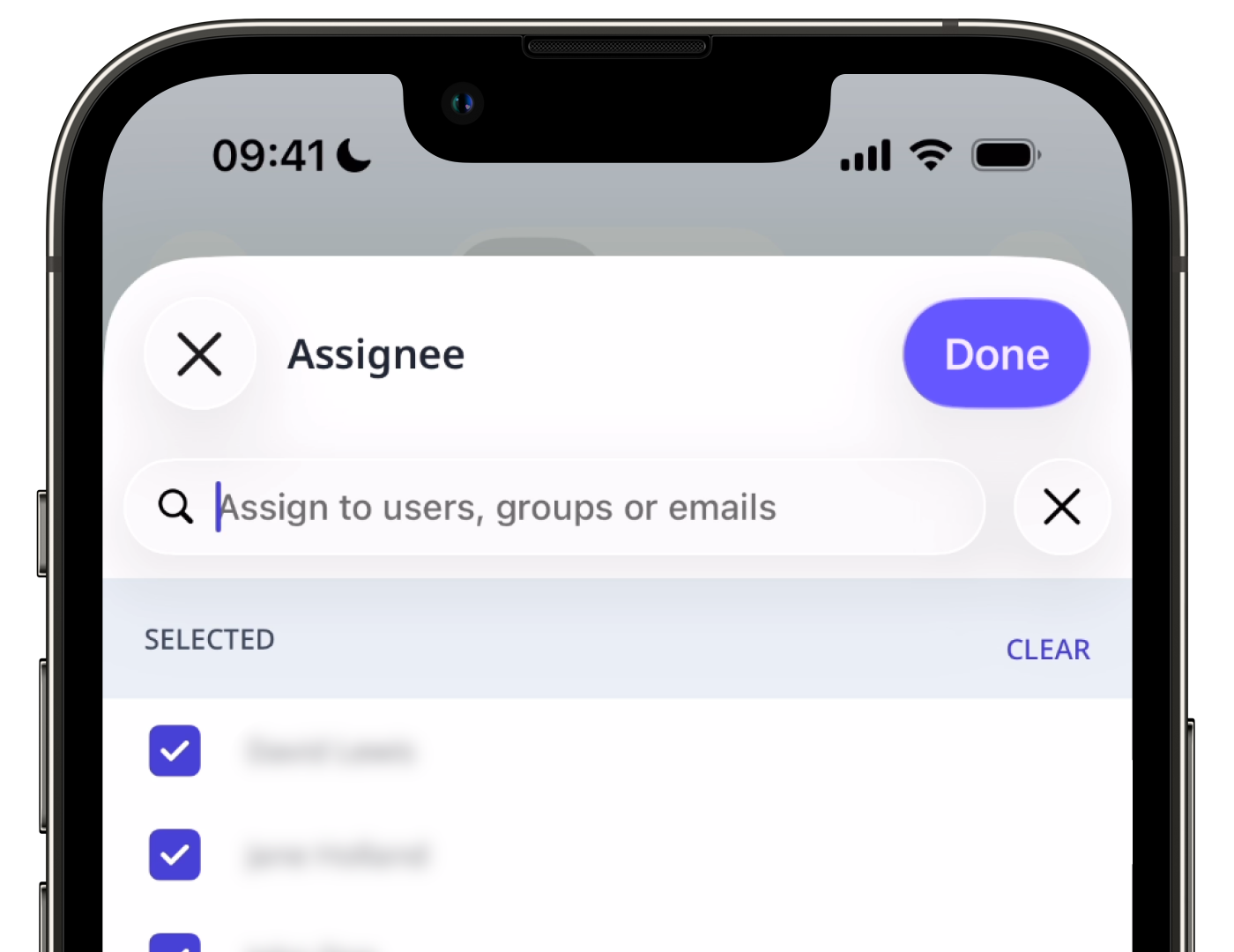
Tap Done at the upper-right of your screen.
Assigning an action to a group notifies all users in that group, so be sure you're assigning it to the correct one.
Unassign an action
Select Actions in the sidebar or select it in More.
Select the action.
In the side panel, click the existing assignees.
In the dropdown menu, select either Groups or Users.
Click Clear selections to unassign everyone or unassign users or groups individually by unchecking each boxes in the "Selected" section.
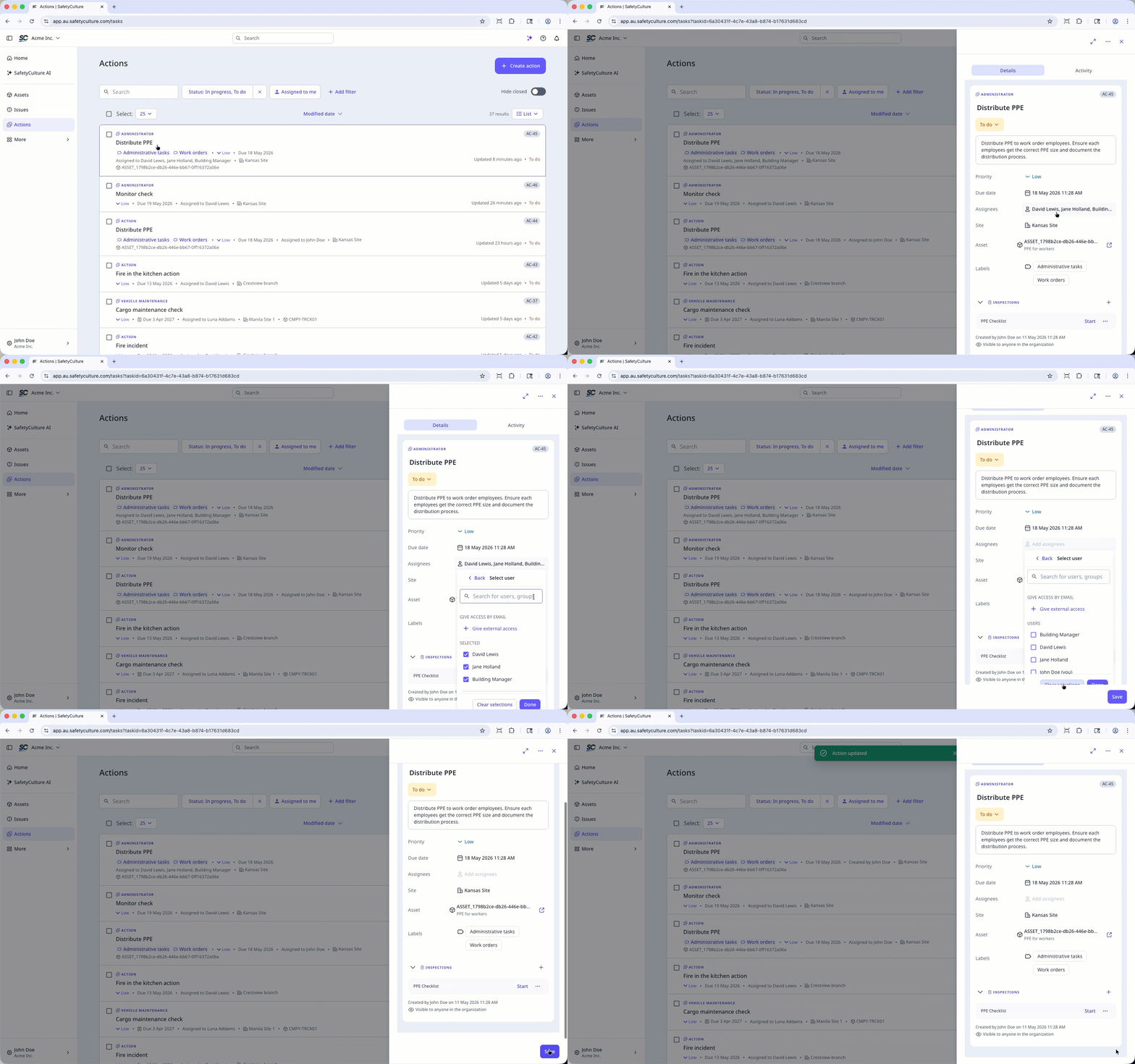
Click Done.
Click Save on the lower-right of the page.
Open the mobile app.
Select an action.
In Details, tap the existing assignees.
In the pop-up menu, uncheck each boxes in the “Selected” section or tap CLEAR to unassign all users or groups.
Tap Done at the upper-right of your screen.
Bulk assign and unassign actions
Select Actions in the sidebar or in More.
Check the actions' boxes. Remember that you can only bulk assign up to 100 actions at a time.
Click Assign to on the lower-right corner of the page
Select the users or groups and click Done.
In the pop-up window, click Assign actions to confirm.
If you're assigning the action to a group with 10 or more users, click Continue in the pop-up window.
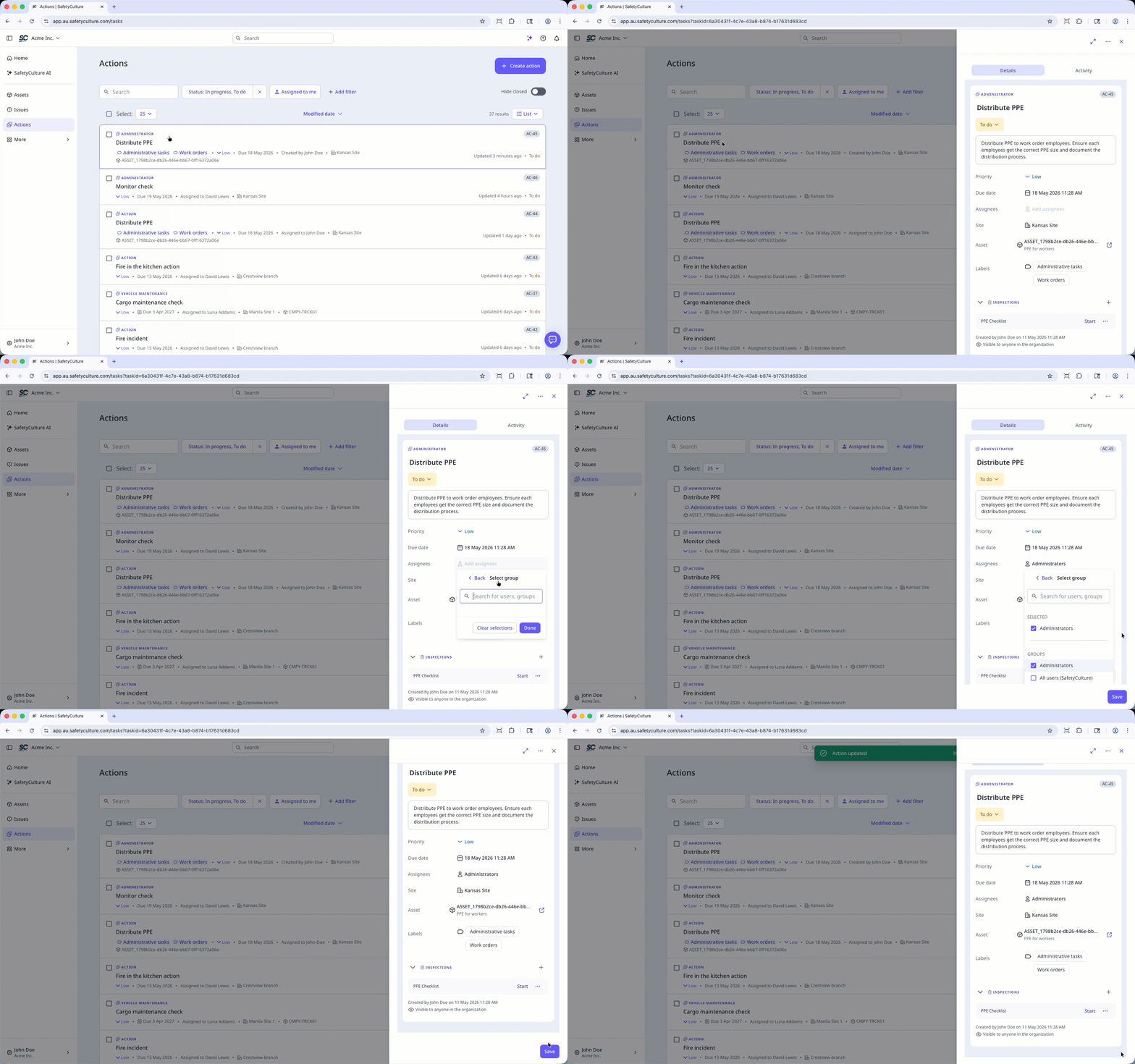
Select Actions in the sidebar or select it in More.
Check the actions' boxes. Remember that you can only bulk unassign up to 100 actions at a time.
Click Assign to on the lower-right corner of the page.
Select Groups or Users and uncheck all groups and users in the "Selected" section.
Click .
In the pop-up window, click Unassign actions.
Assigning and unassigning actions in bulk is only available in List view. If you're on Calendar view, switch List on the upper-right of the page.
Please also note that you can only bulk manage up to 100 actions at a time.
Frequently asked questions
Need more help?
Was this page helpful?
