Last updated: August 11, 2026
What you'll need
Filters and sorting orders you apply on the web app and mobile app will stay in place, even if you navigate between pages or log out and log in.
What inspection filters are available?
Filter | Description |
|---|---|
Access | Filter based on which inspections you have access to. You can select "Owned by me" to filter based on inspections you own, or "Shared with me" to filter based on which inspections you have at least "View" access level to. Filtering by access is only available on the web app. |
Template | Filter based on the template used to conduct inspections. You can only select multiple templates at a time on the web app. |
Template folders | Filter by templates used to conduct inspections based on the folder they're added to. Filtering by template folders is only available on the web app. |
Site | Filter by sites selected in inspections. Filtering inspections by levels, such as areas or regions, is unsupported. |
Asset | Filter by assets selected in inspections. |
Status | Filter by whether inspections are "In progress", "Pending approval", or "Completed". |
Conducted date | Filter by the selected conducted date range. |
Completed date | Filter by the selected completed date range. |
Conducted by | Filter inspections based on the user or group that started or last edited them. Selecting a group includes inspections from any user in that group. |
Approved by | Filter by the users or groups that approved the inspections. |
Filter inspections
Click Inspections from the sidebar or in More.
Click Add filter on the upper-left of the list and select from the filter options.
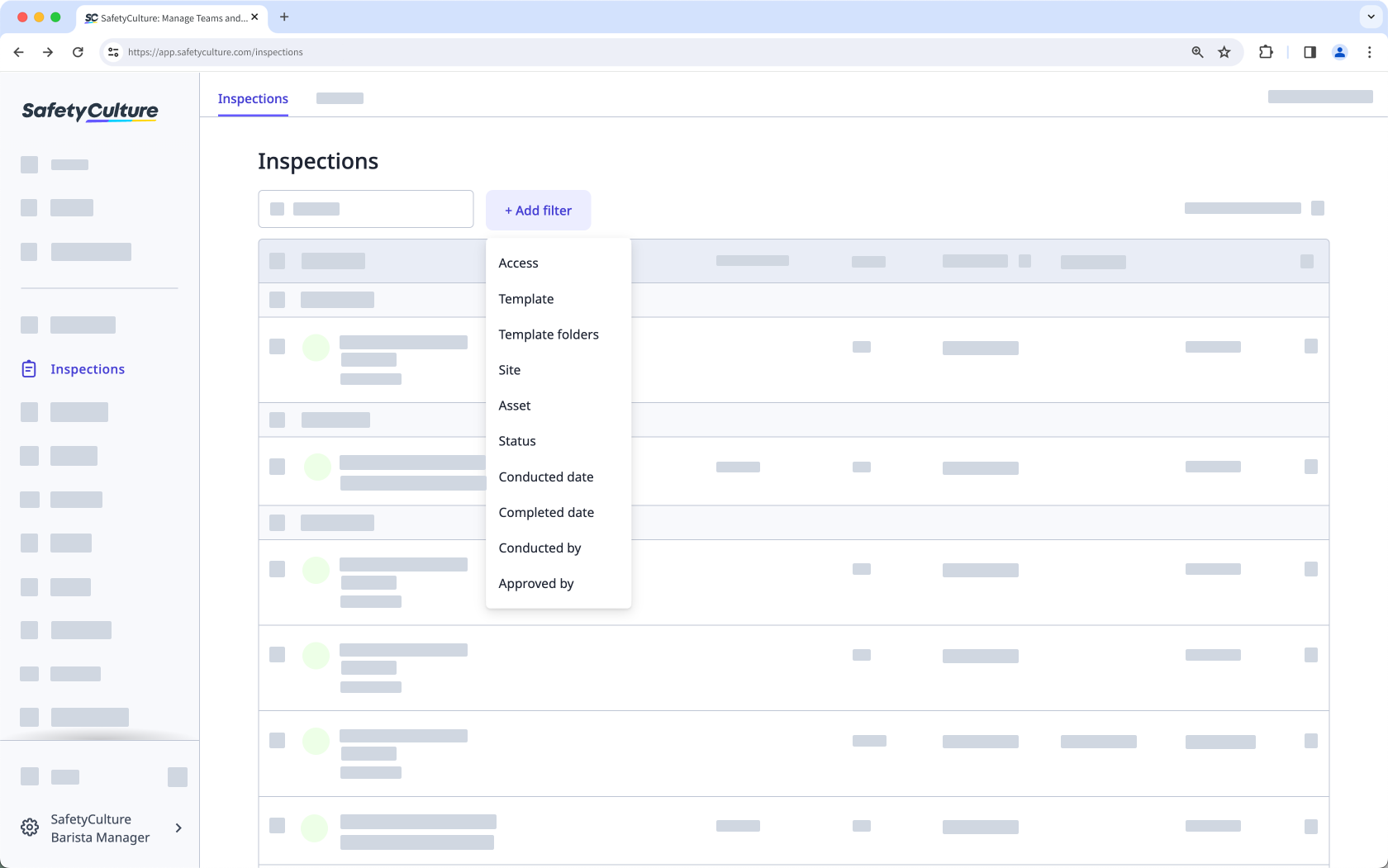
Once you've selected your filters, click Done to refresh the list and show only inspections that match your filters.
To narrow your results further, repeat step 3 to add more filters, or click on existing filters to remove them and start again.
Open the mobile app.
Tap Inspections from the navigation bar or in More.
Select Inspections at the top of your screen.
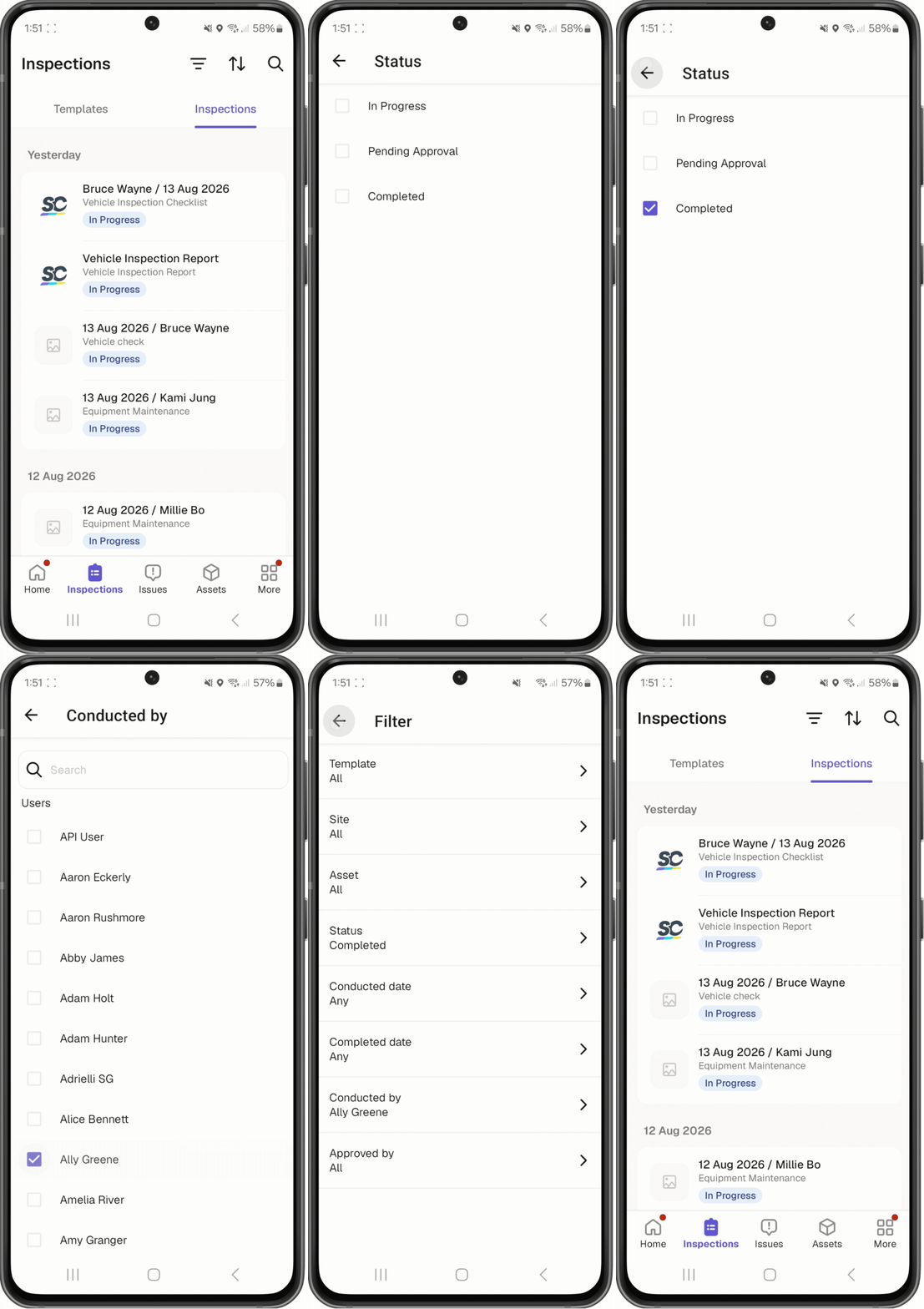
Tap at the upper-right of your screen.
Select from the filtering options.
After selecting the relevant filters, tap on the upper-left of your screen to return to the inspections list.
Open the mobile app.
Tap Inspections from the navigation bar or in More.
Select In Progress & Complete tab at the top of your screen.
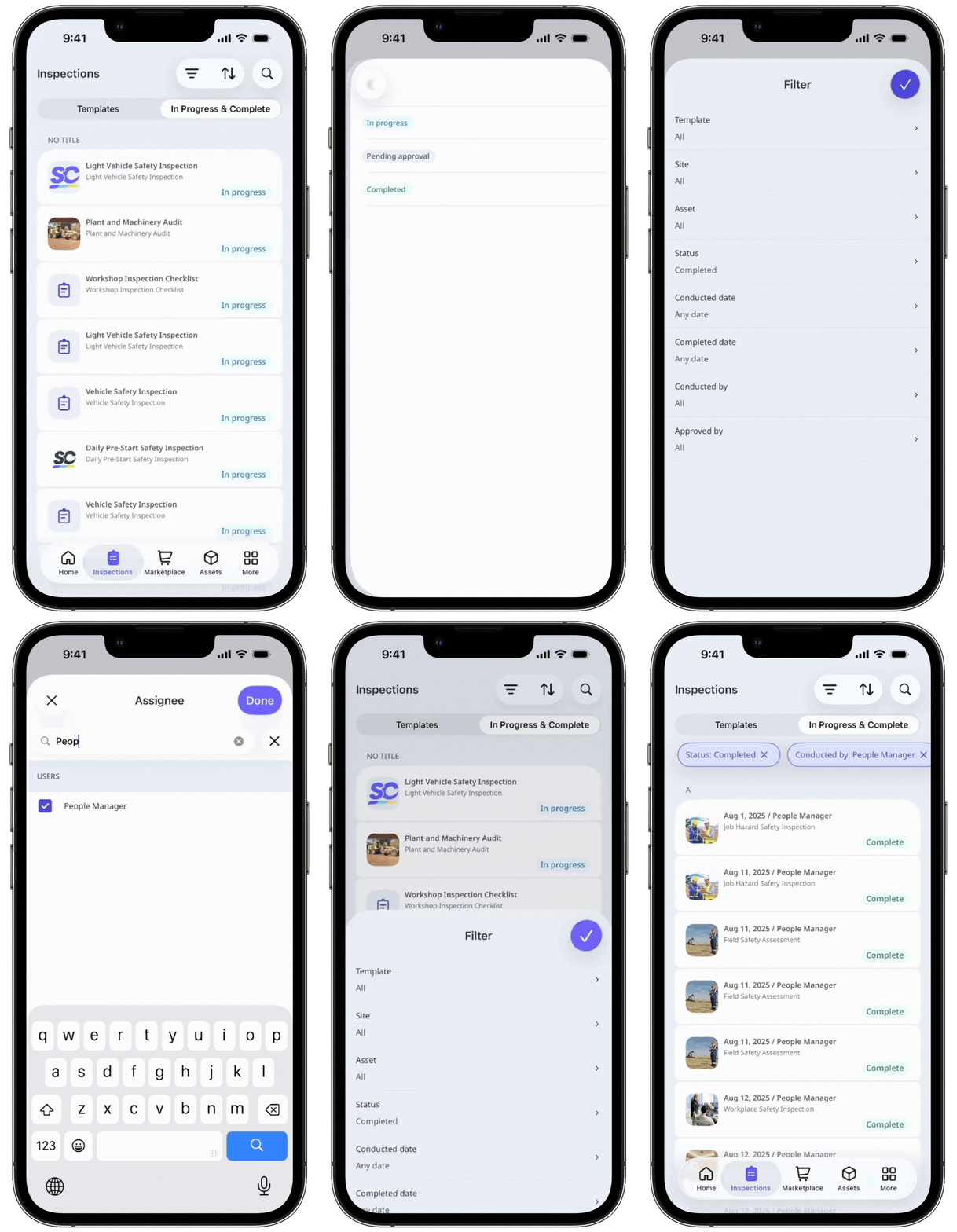
Tap at the top of your screen.
Select from the filtering options.
After selecting the relevant filters, tap to return to the inspections list.
Sort inspections
Click Inspections from the sidebar or in More.
Sort from the column headers. You can also click the arrow to sort the list in order based on the option you've selected.
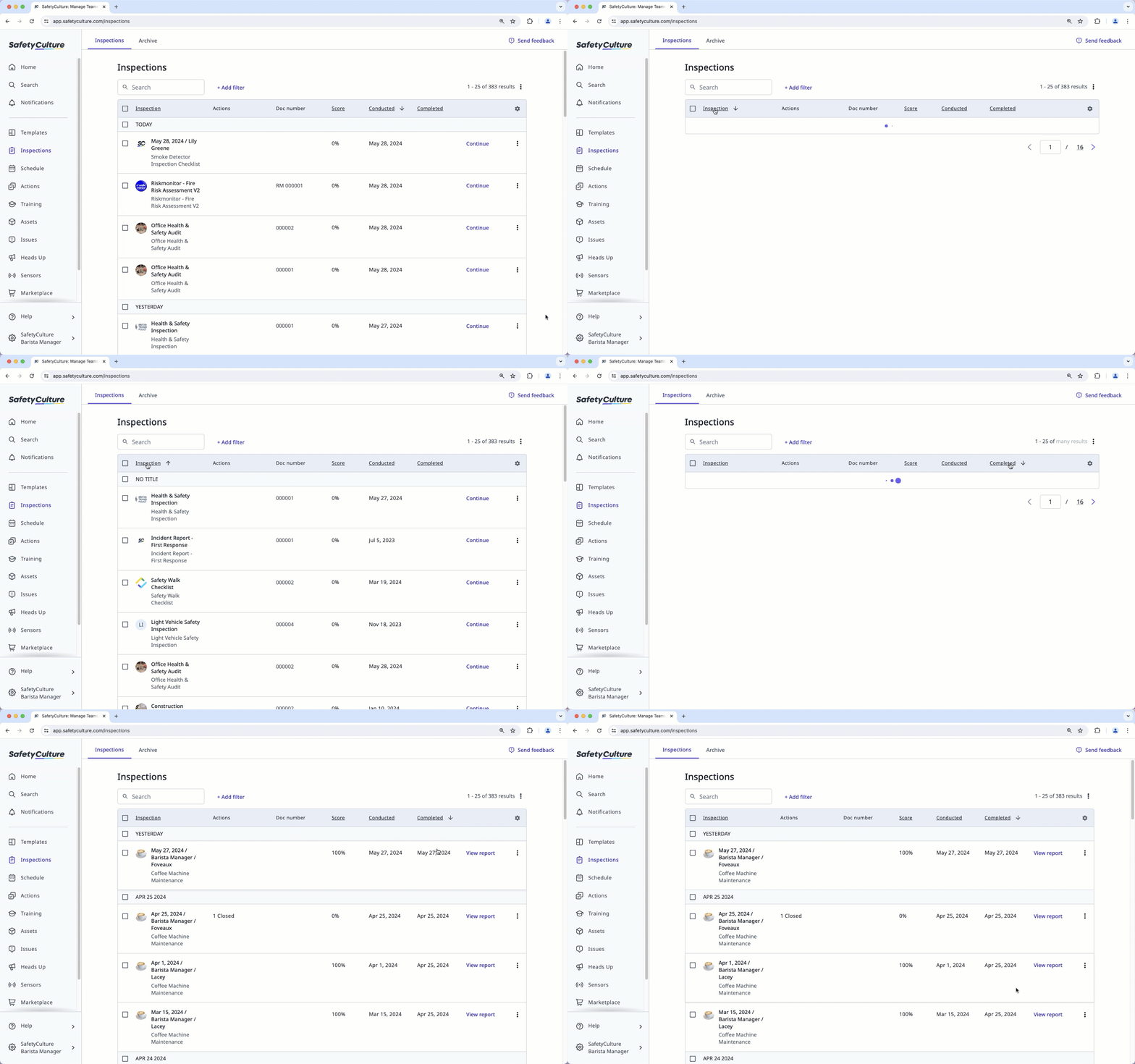
Inspection: Sort by inspection title. sorts from inspections that start with symbols, and sorts from inspections without titles. If you're sorting by , inspections will be sorted by their names in the following order:
No title
Numbers
Alphabetically from A to Z
Symbols
Score: Sort by inspection score. sorts from the inspection with the highest score, and sorts from the inspection with the lowest score.
Conducted: Sort by inspection start date. sorts from the most recent inspection by start date, and from the oldest inspection by start date.
Completed: Sort by inspection completion date. sorts from the most recent inspection by completion date, and sorts from incomplete inspections.
Repeat from step 3 to sort your list in different orders.
Open the mobile app.
Tap Inspections from the navigation bar or in More.
Select Inspections at the top of your screen.
Tap at the upper-right of your screen.
Select from the sorting options:
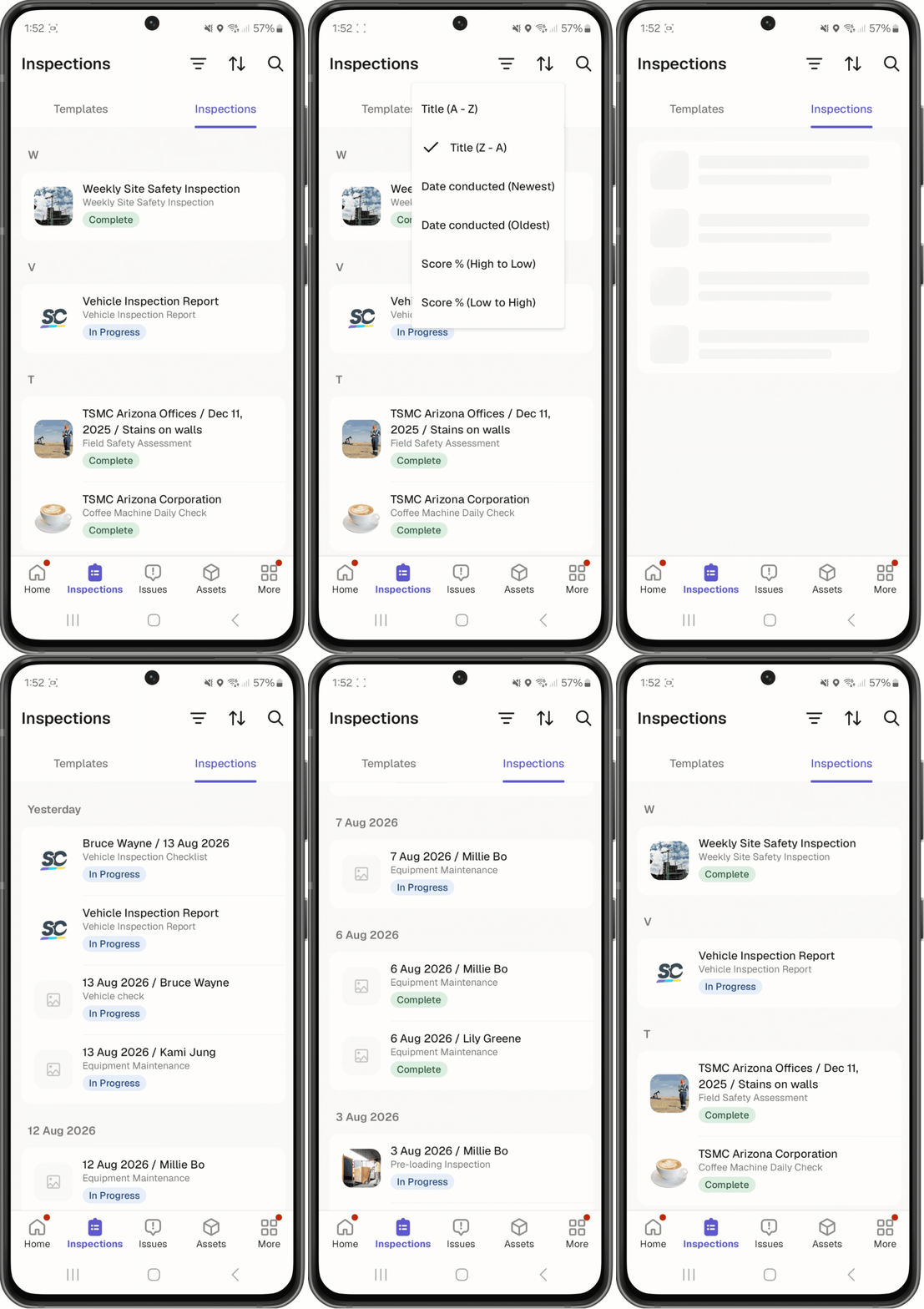
Title (A-Z): Sort by inspection title, from A to Z.
Title (Z-A): Sort by inspection title, from Z to A.
Date conducted (Newest): Sort by start date, with the most recent inspection first.
Date conducted (Oldest): Sort by start date, with the oldest inspection first.
Score % (High to Low): Sorts with the inspection that has the highest score first.
Score % (Low to High): Sorts with the inspection that has the lowest score first.
Repeat from step 4 to sort your list in different orders.

Open the mobile app.
Tap Inspections from the navigation bar or in More.
Select In Progress & Complete at the top of your screen.
Tap at the upper-right of your screen.
Select from the sorting options:
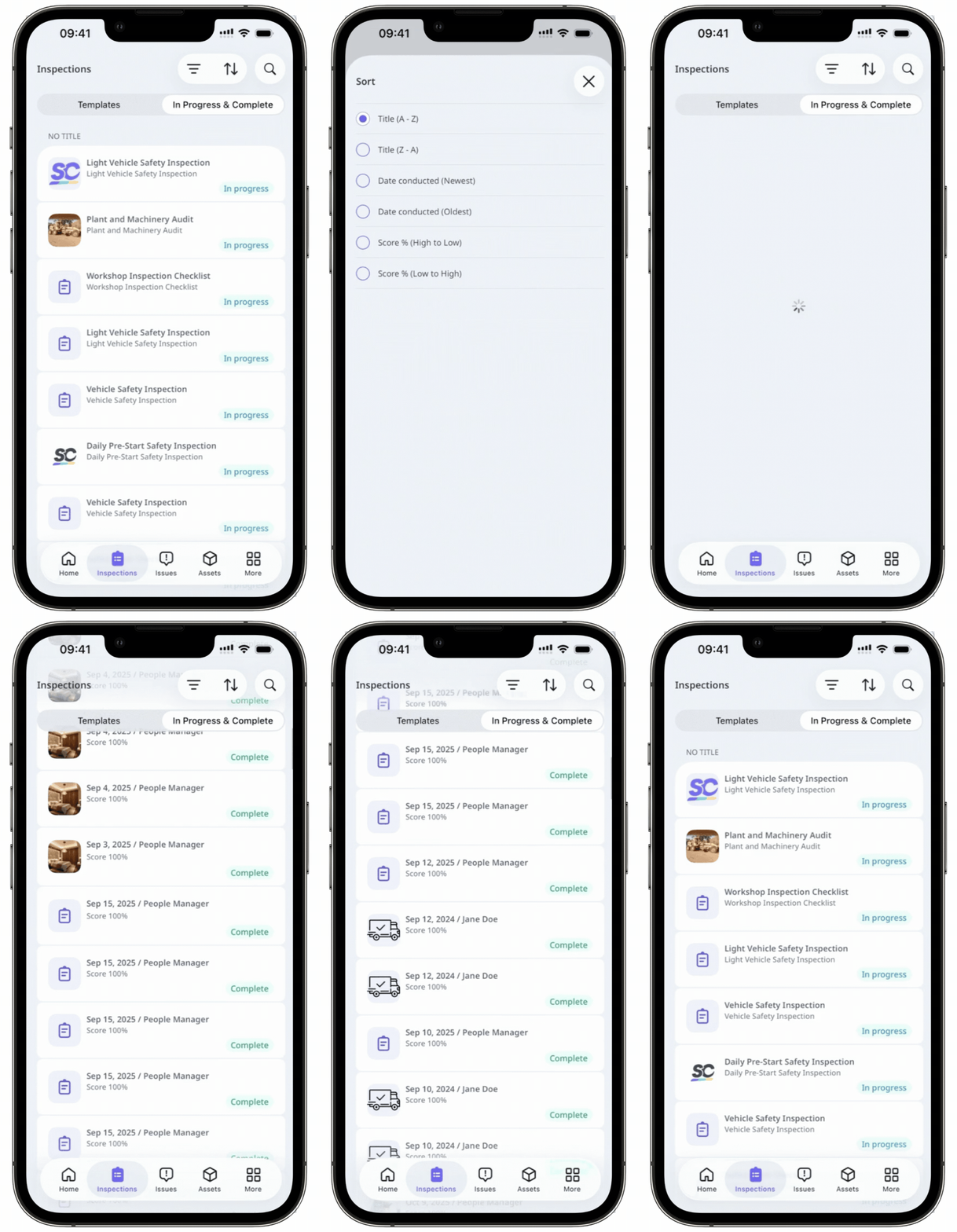
Title (A-Z): Sort by inspection title, from A to Z.
Title (Z-A): Sort by inspection title, from Z to A.
Date conducted (Newest): Sort by start date, with the most recent inspection first.
Date conducted (Oldest): Sort by start date, with the oldest inspection first.
Score % (High to Low): Sorts with the inspection that has the highest score first.
Score % (Low to High): Sorts with the inspection that has the lowest score first.
Repeat from step 4 to sort your list in different orders.
Need more help?
Was this page helpful?
