Last updated: November 3, 2025
What you'll need
Published changes made to templates only apply to new inspections moving forward.
Rename a template page
Select Templates in the sidebar or in More.
Click the template and select Edit template in the side panel.
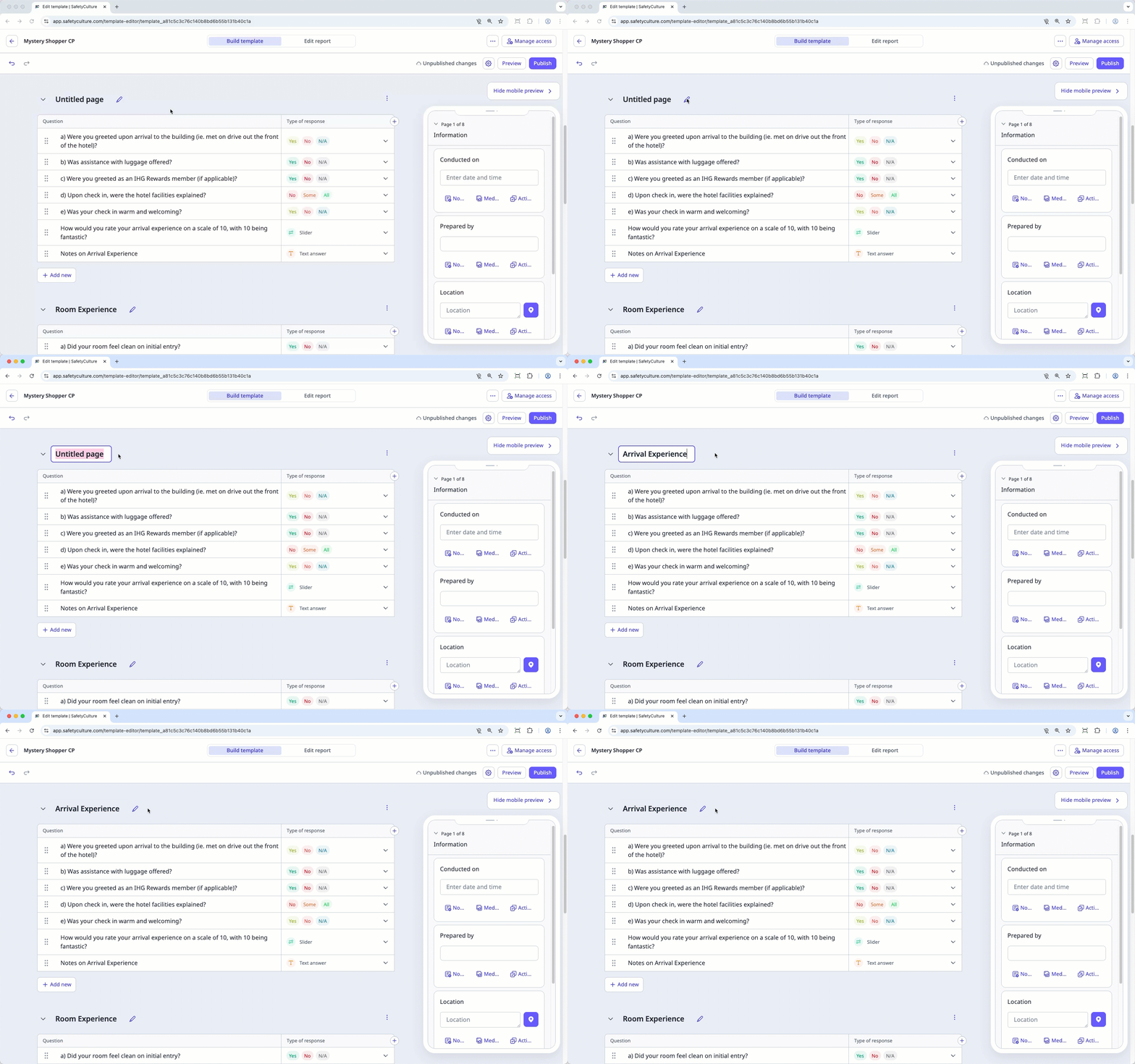
Click on the existing page name and rename it accordingly. Then, press the enter or return key on your keyboard or click anywhere in the Template Editor.
Click Publish on the upper-right of the page to publish the template. If you're not ready to publish the template, you can go back to the templates list and come back when you're ready.
Open the mobile app.
Tap Inspections in the navigation bar or select it from More.
Select Templates tab at the top of your screen.
Tap the template and select Edit template from the pop-up options.
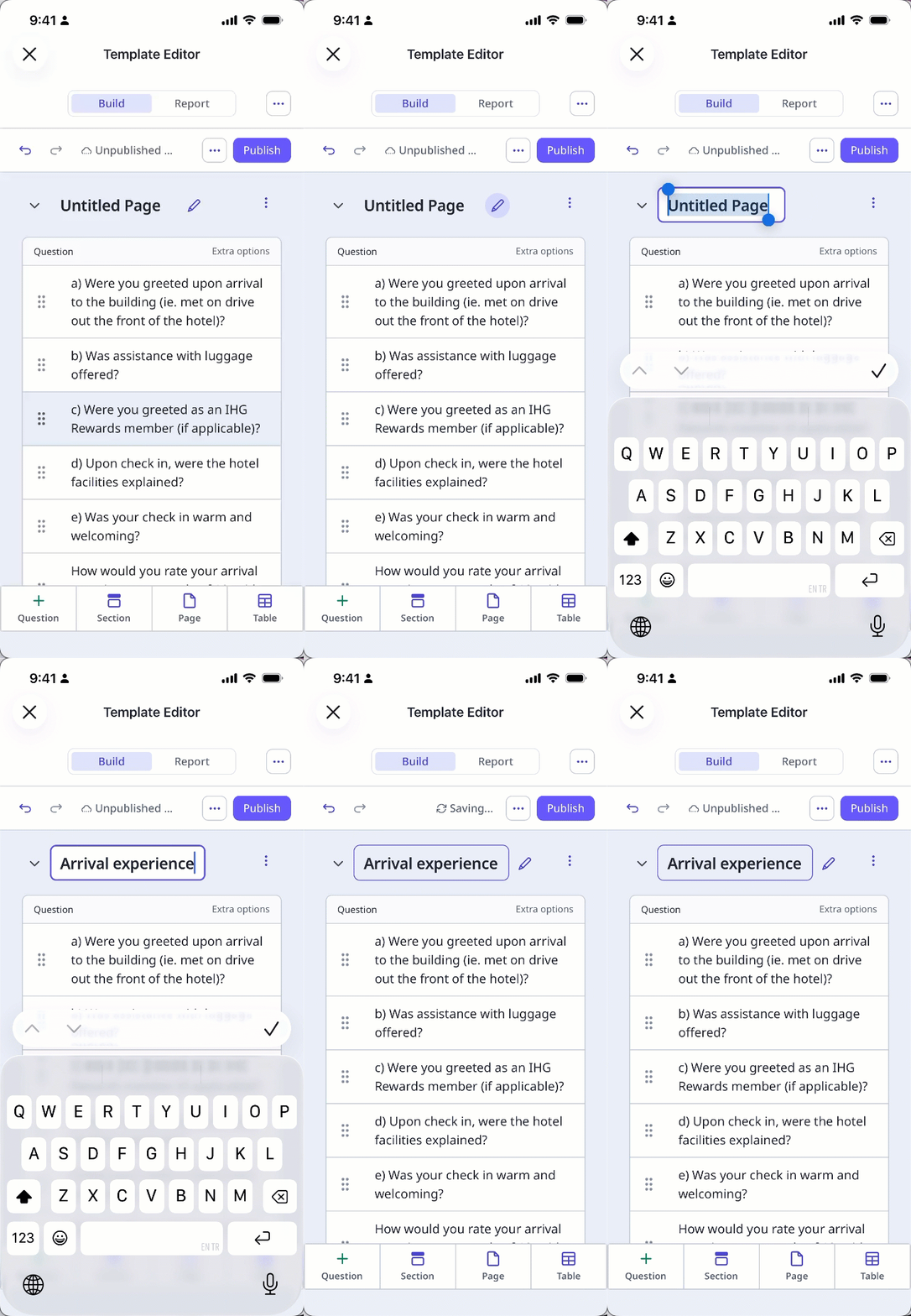
Tap on the existing page name and rename it accordingly. Then, tap Done or tap anywhere in the Template Editor.
Tap Publish on the upper-right of your screen to publish the template. If you're not ready to publish the template, you can go back to the templates list and come back when you're ready.
You can only add up to 250 characters when renaming the template title page.
Need more help?
Was this page helpful?
