Last updated: October 28, 2025
Why use number response questions?
Number response questions are great for capturing precise and quantifiable data while conducting an inspection. You can even specify the unit of measurement you want to use, such as distance, volume, time, weight, or electricity. Standardizing units in your number response questions eliminates guesswork and misinterpretation and ensures everyone in your team records every piece of critical information in the same way.
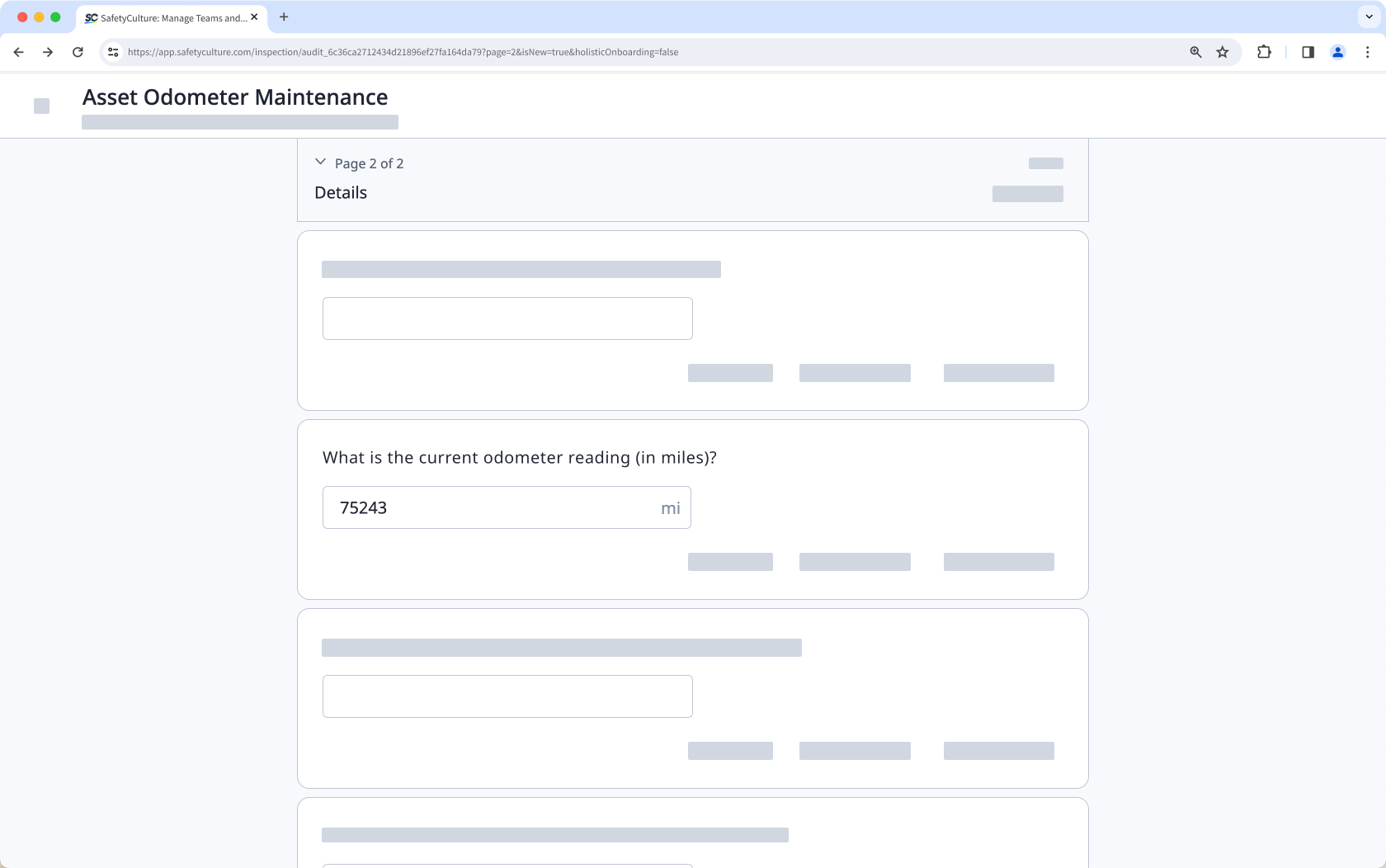
Supported units of measurement
You can use the following units in your number response questions to standardize captured values.
Category | Unit |
|---|---|
Distance | inches, feet, miles, millimeters, centimeters, meters, kilometers |
Volume | milliliters, liters, gallons, cubic meters |
Time | hours, minutes, seconds |
Temperature | Fahrenheit, Celsius, Kelvin |
Weight | ounces, pounds, tonnes, grams, kilograms |
Electricity | amperes, hertz, ohms, volts, watts |
Others | candelas, cycles, percent, pounds per square inch, mole |
Units are optional and not applicable for temperature and calculation response questions.
What you'll need
Published changes made to templates only apply to new inspections moving forward.
Create number response questions
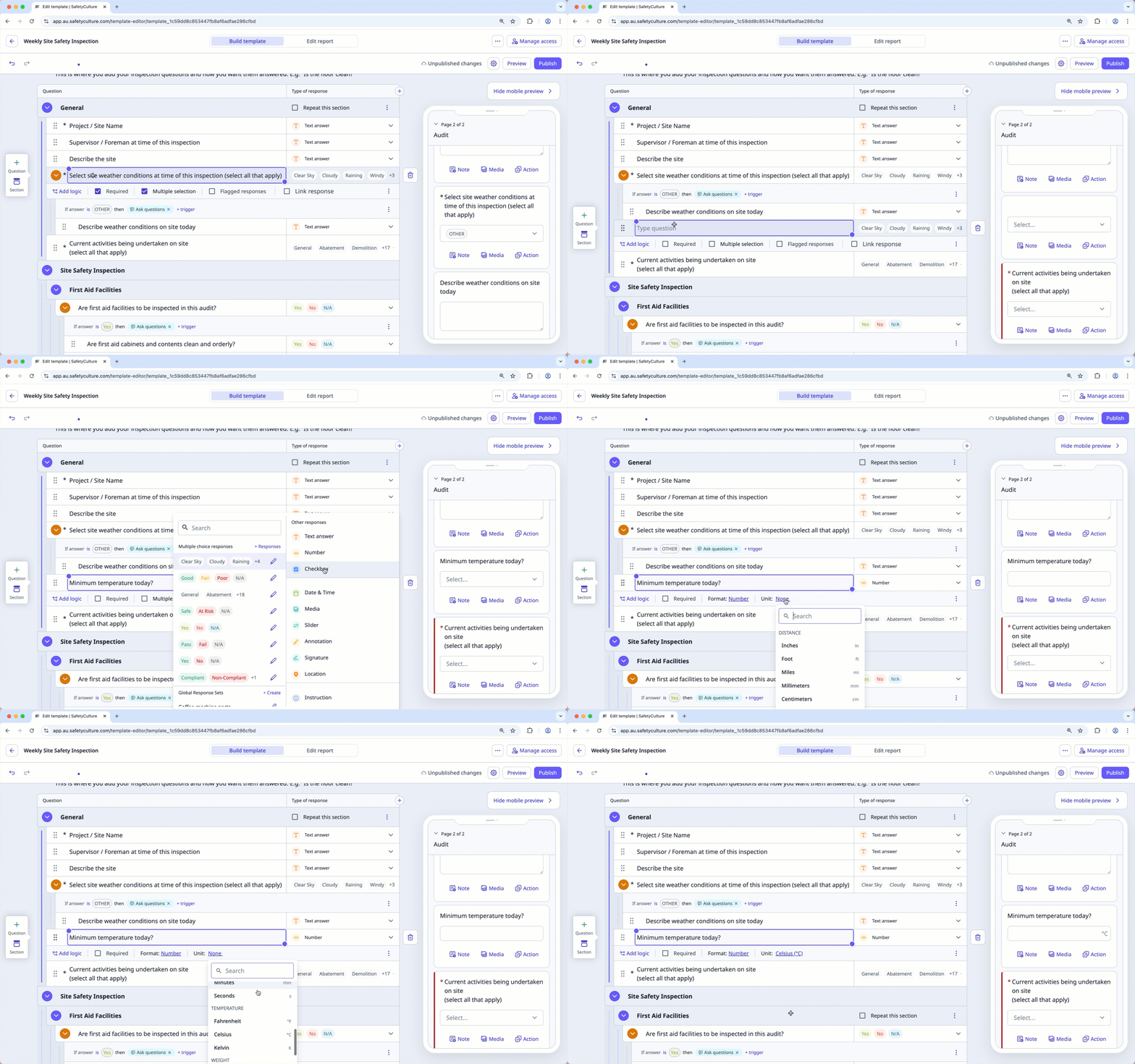
Select Templates in the sidebar or in More.
Click the template and select Edit template in the side panel.
Add a new question or select an existing one.
Click under the "Type of response" column on the right-hand side and select Number.
By default, the Number format is selected below the question label.
Select an applicable unit or click Clear to remove the unit.
Click Publish on the upper-right of the page to publish the template. If you're not ready to publish the template, you can go back to the templates list and come back when you're ready.
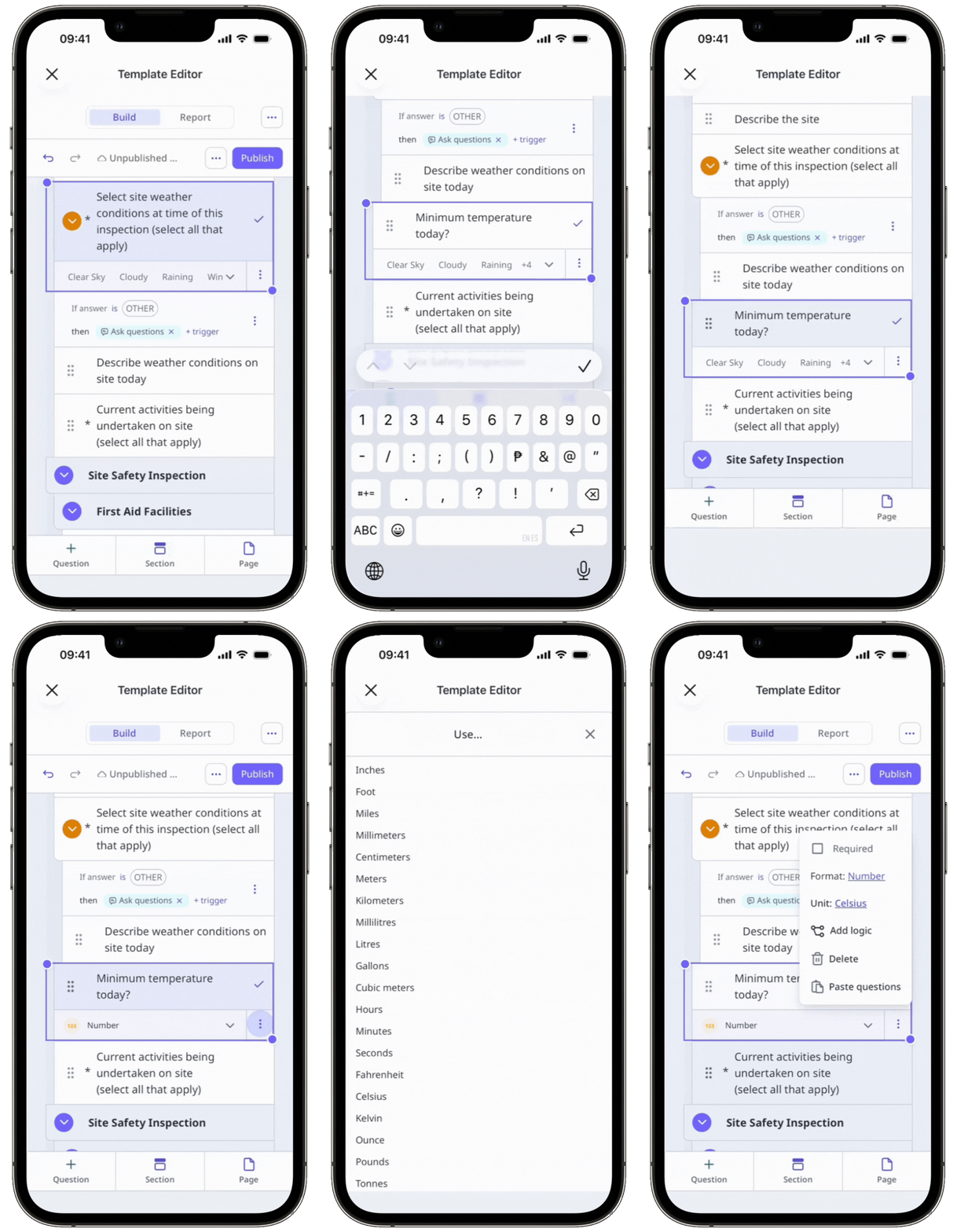
Open the mobile app.
Tap Inspections in the navigation bar or select it from More.
Select Templates tab at the top of your screen.
Tap the template and select Edit template from the pop-up options.
Add a new question or select an existing one.
Tap below the question label and select Number.
Tap at the lower-right of the question. By default, the Number format is selected.
Select an applicable unit or click Clear to remove the unit.
Tap Publish on the upper-right of your screen to publish the template. If you're not ready to publish the template, you can go back to the templates list and come back when you're ready.
Frequently asked questions
Need more help?
Was this page helpful?
