Last updated: September 15, 2026
Why bookmark files or folders?
Bookmarking files or folders is a great way to keep important documents at the top of your list. Instead of searching through hundreds or even thousands of files, your most-used resources are always just a click away.
What you'll need
Your bookmarked files and folders are only visible only to you.
Bookmark a file or folder
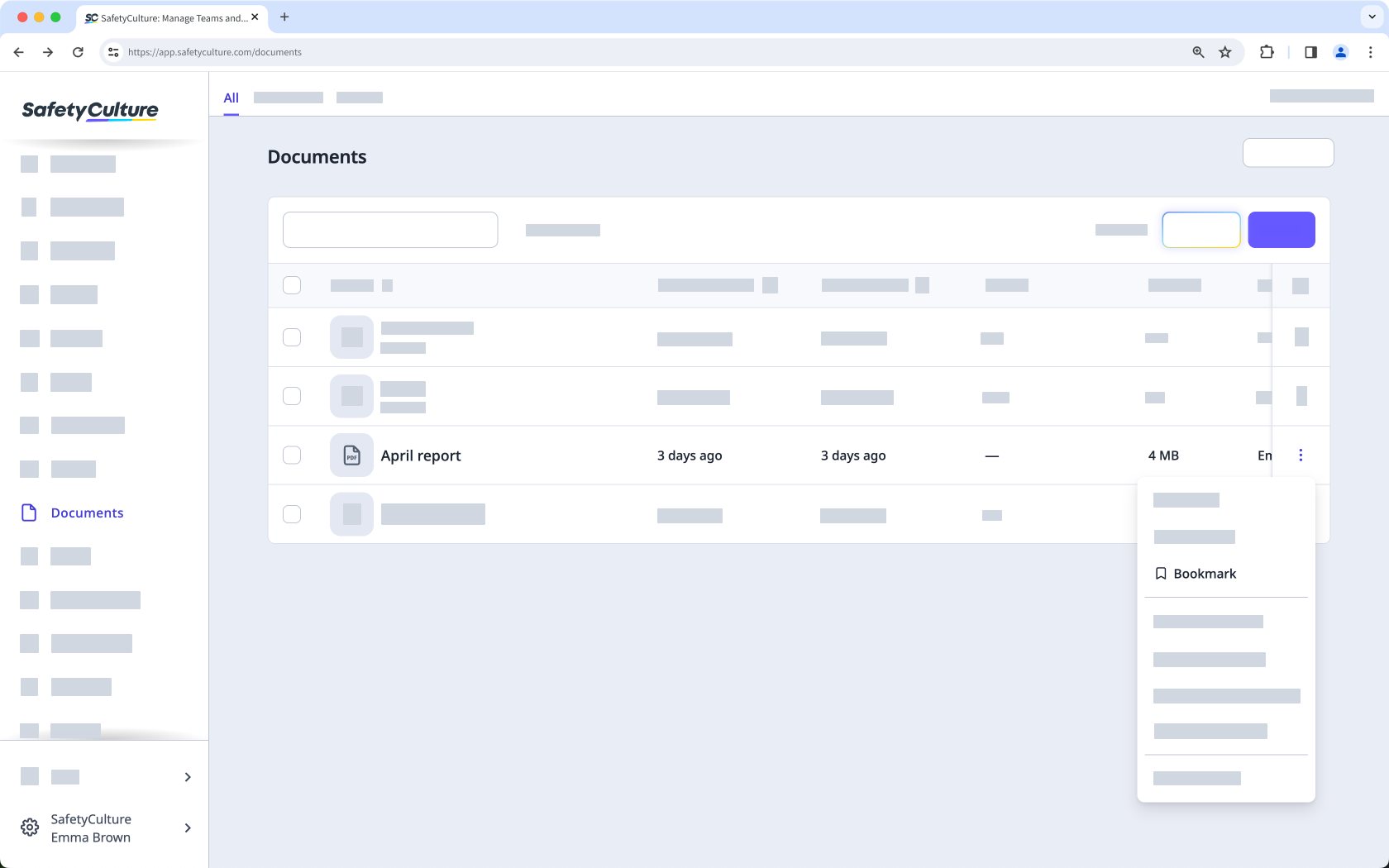
Select Documents in the sidebar or in More.
Click on the right-hand side of the file or folder.
Select Bookmark.
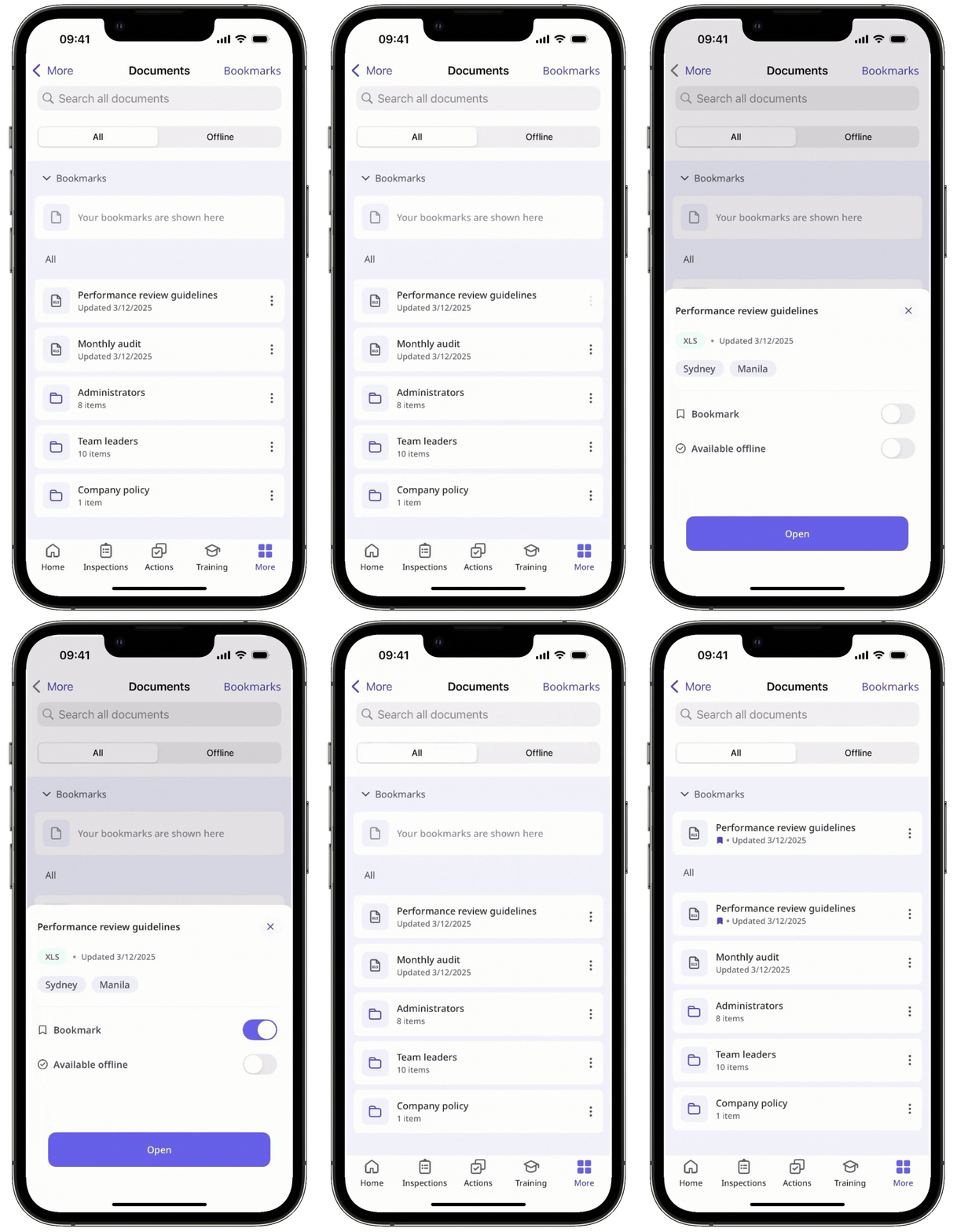
Open the mobile app.
Tap More and select Documents.
If you're on the Offline tab, tap All at the top of your screen.
Tap on the right-hand side of the file or folder.
Turn "Bookmark" on.
Unbookmark a file or folder
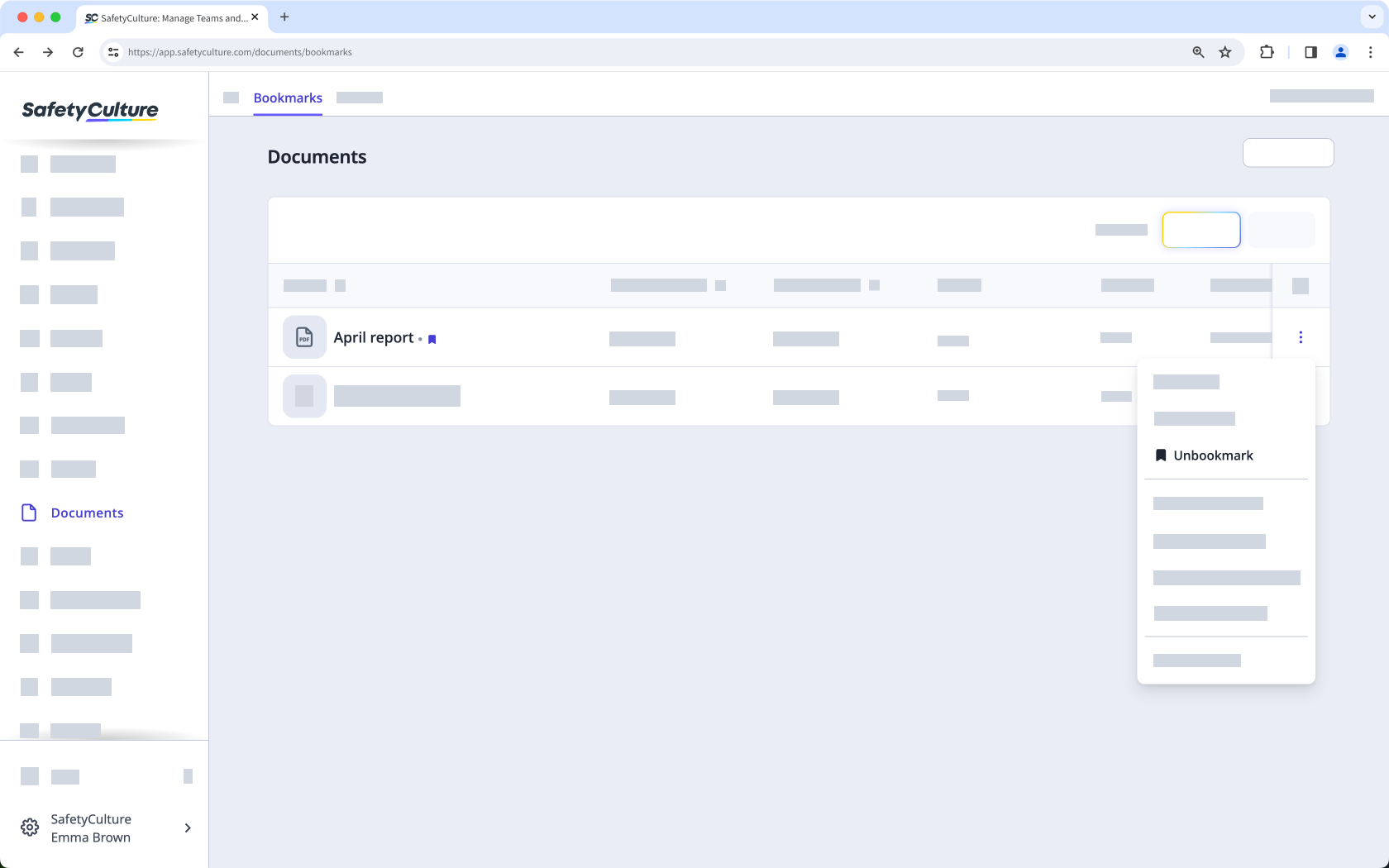
Select Documents in the sidebar or in More.
Select Bookmarks at the top of the page.
Click on the right-hand side of the file or folder.
S elect Unbookmark.
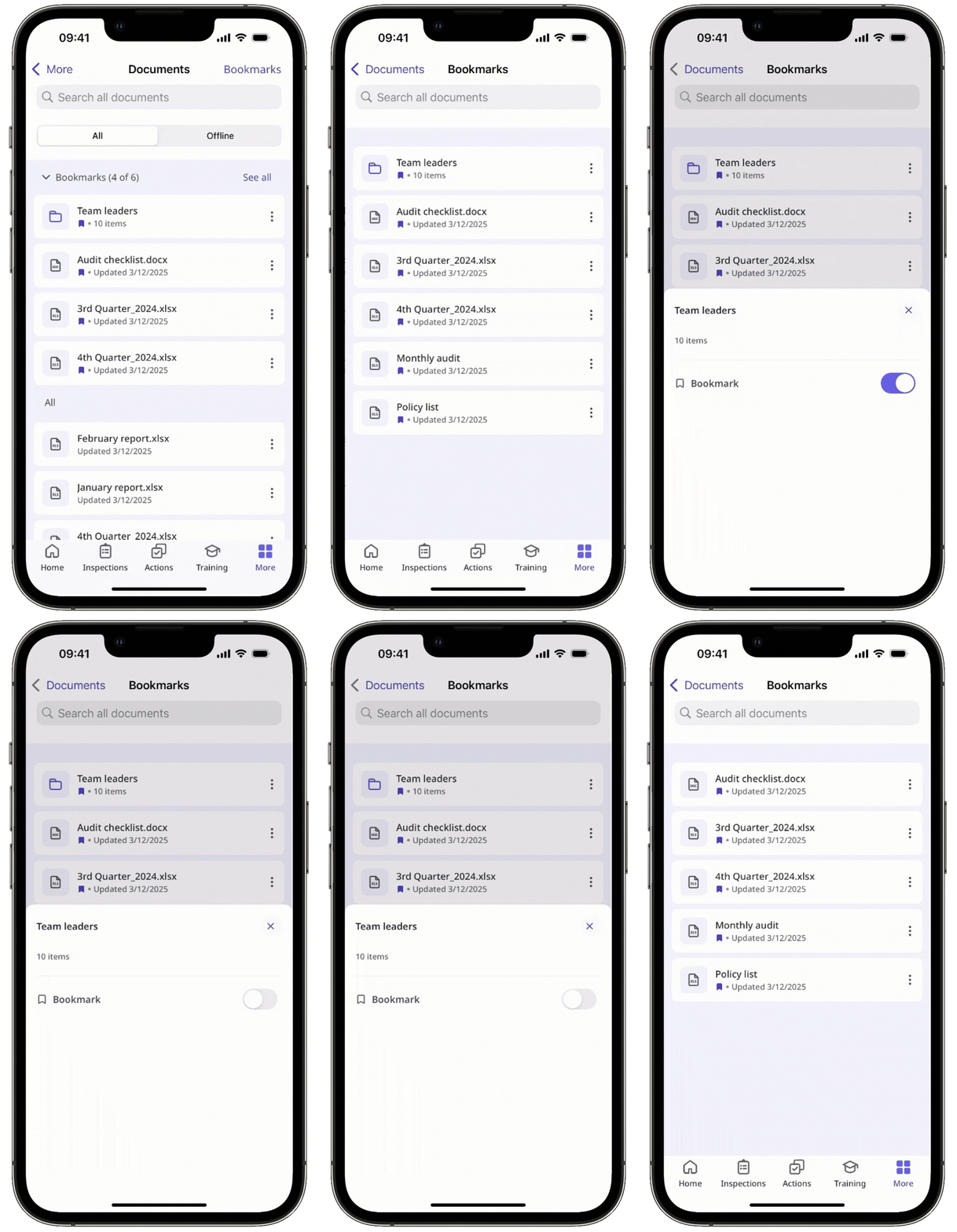
Open the mobile app.
Tap More and select Documents.
Tap Bookmarks at the upper-right of your screen.
Tap at the right-hand side of the file or folder.
Turn "Bookmark" off.
You can only bookmark or unbookmark files or folders in bulk on the web app.
Bulk bookmark or unbookmark files or folders
Select Documents in the sidebar or in More.
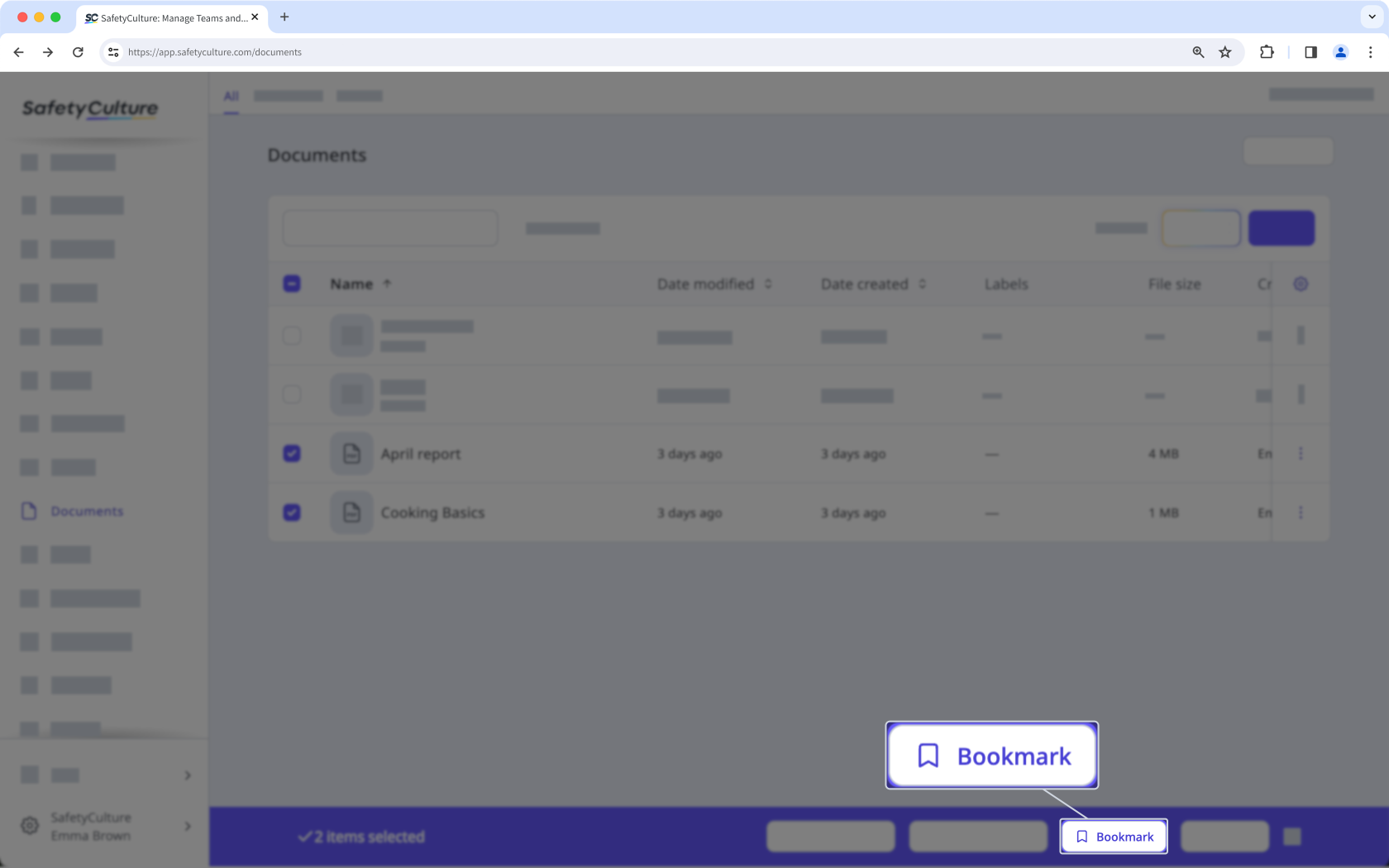
Select the files or folders you want to bookmark or unbookmark by checking the box of each item on the left-hand side of the page.
Select Bookmark or Unbookmark at the bottom of the page.
Need more help?
Was this page helpful?
