Last updated: July 2, 2026
What are inspection report links?
Inspection report links are public links or URLs that you can create for each inspection report and share with anyone so that they can view the report on a web browser. Unlike an inspection report's PDF or Word export, which includes the data at the time of exporting, viewing the report via a link offers a real-time view. This means updates made to the inspection are reflected via the report immediately, without the need to export it again.
What you'll need
Create an inspection report link
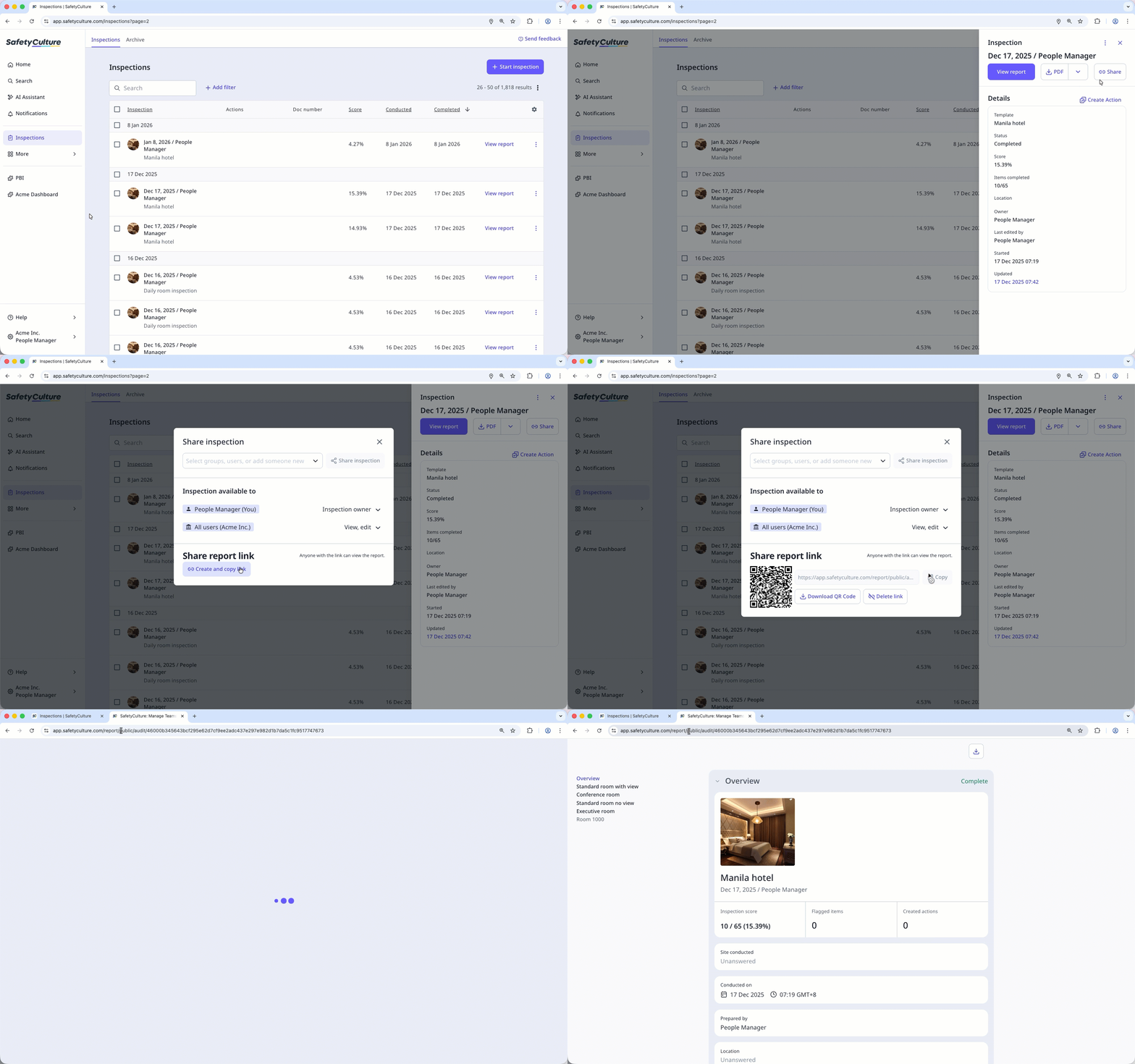
Select Inspections in the sidebar or in More.
Click the inspection and click Share in the side panel.
In the pop-up window, click Create and copy link. If there's an existing link, click Copy.
5. Share the link with anyone who needs to view the inspection report. If you need to copy the link again, click Copy.
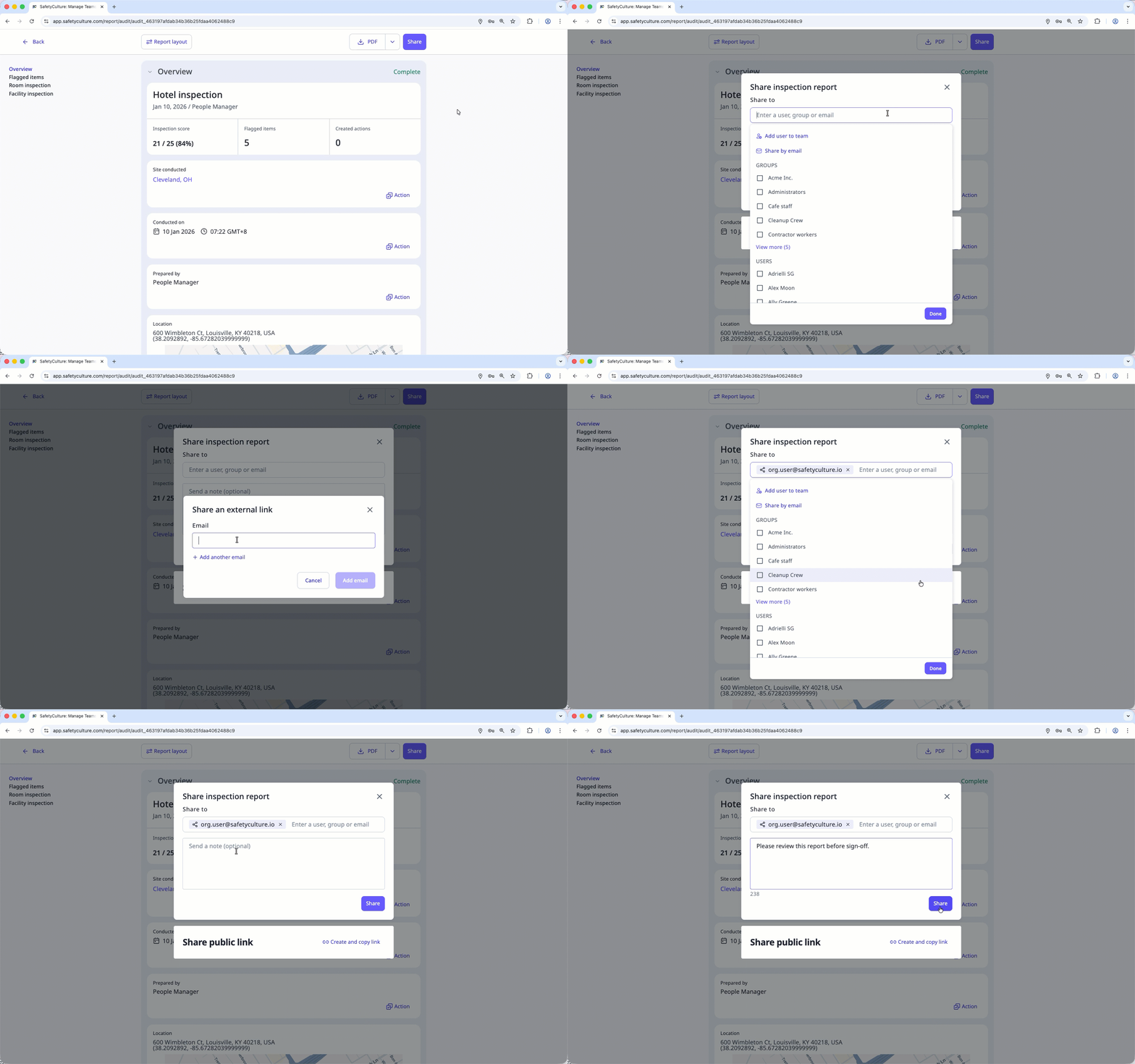
Select Inspections in the sidebar or in More.
Click View report to the right of the inspection. For incomplete inspections, click and select View report.
Click Share on the upper-right of the page.
In the pop-up window, click the search box below the "Share to" section, then select Share by email.
Enter the email address. You can add 4 more email addresses by clicking Add another email.
Click Add email, then click Done.
If needed, add a note to provide more context to the inspection report link and click Share to send the inspection report link in an email.
Open the mobile app.
Tap Inspections in the navigation bar or select it from More.
Select In Progress & Complete tab at the top of your screen.
Tap the inspection and select View report. For incomplete inspections, tap or at the upper-right of your screen and select View report.
Tap or at the upper-right of your screen and select Copy link or Save web report link from the pop-up options.
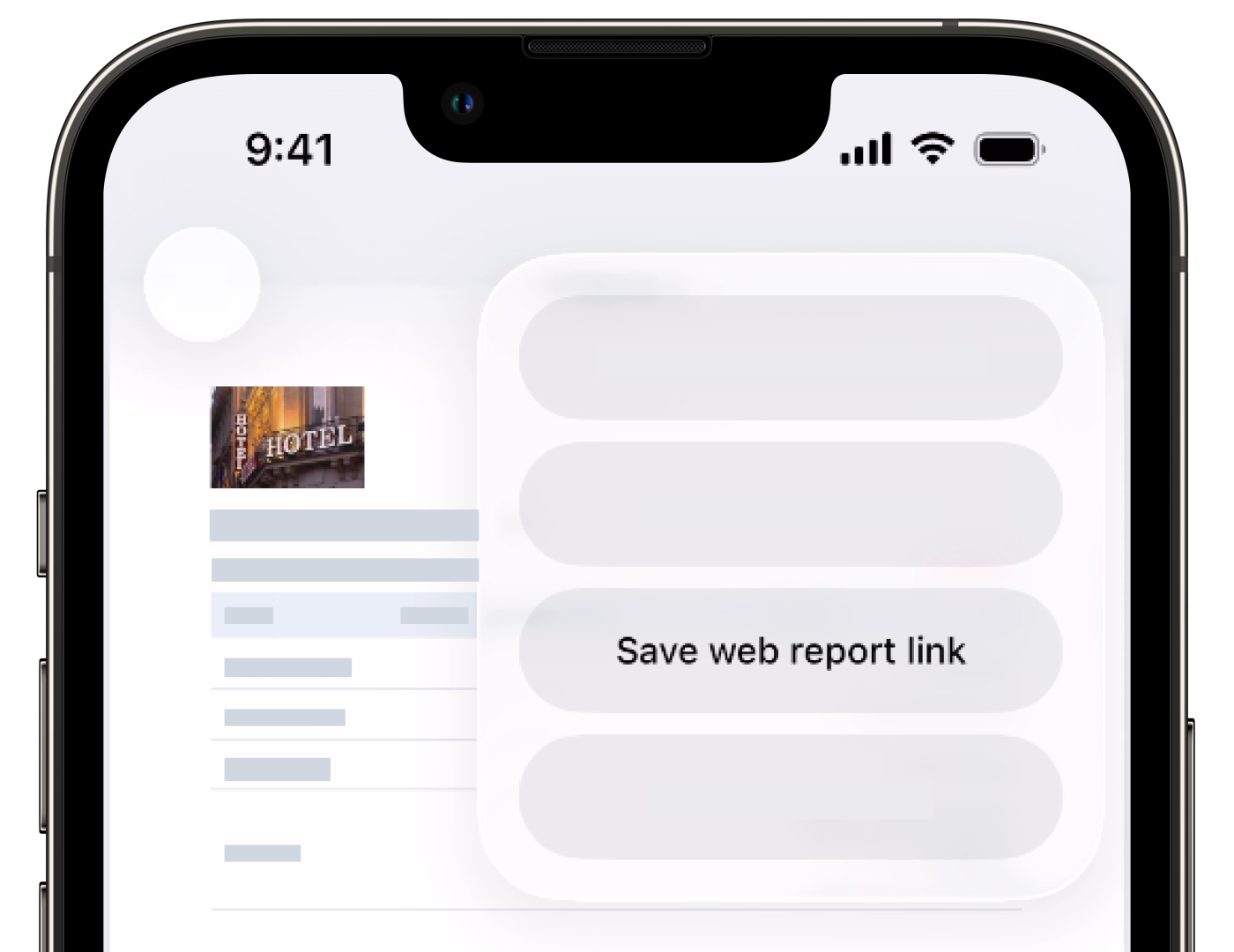
In the share menu, select the sharing method and proceed accordingly.
Delete an inspection report link
Select Inspections in the sidebar or in More.
Click the inspection and click Share in the side panel.
In the pop-up window, click Delete link.
Click Delete link to confirm.
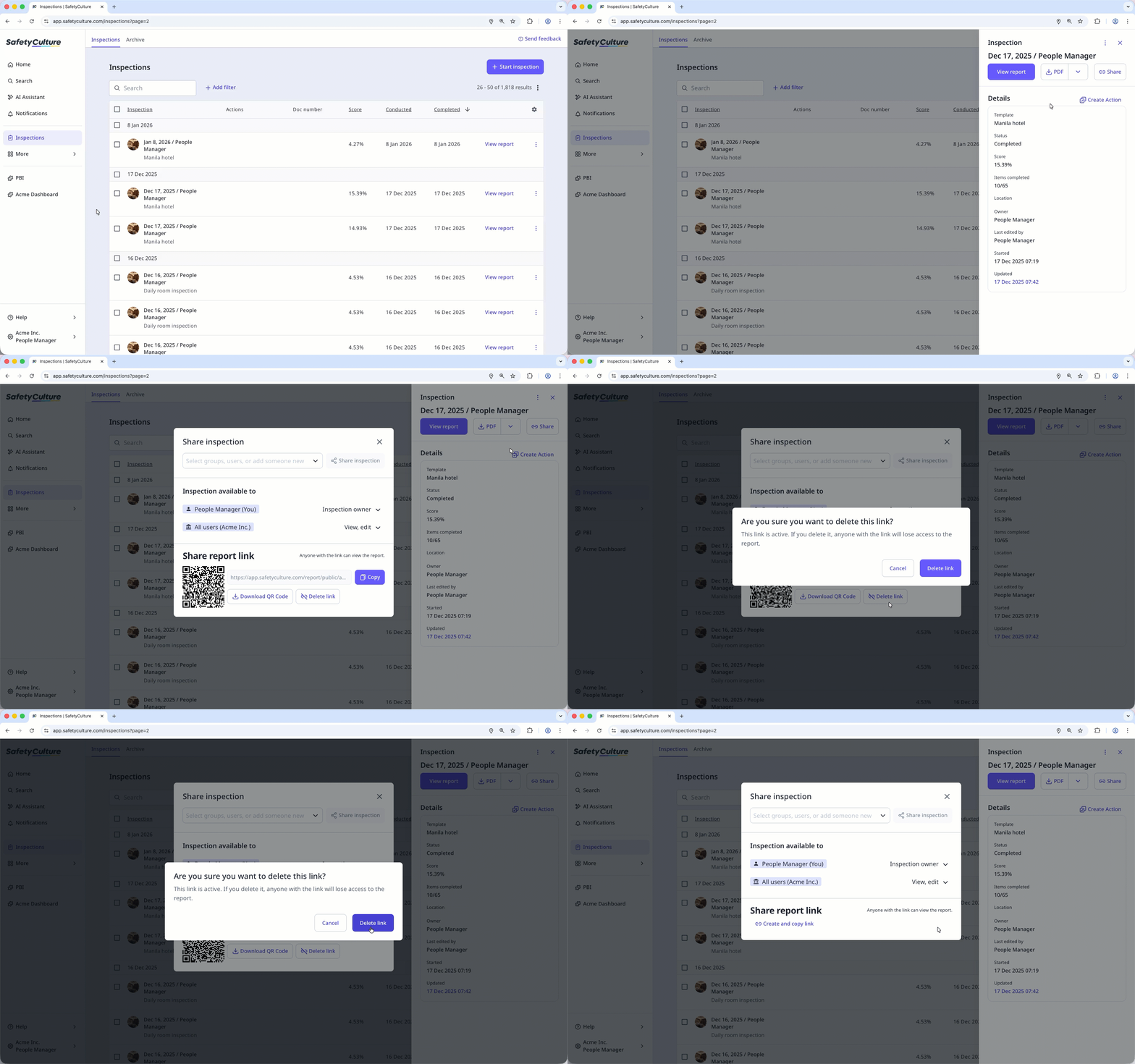
If you delete a report link for an inspection, you'll need to create a new link before you can share the report again. Make sure to share the updated link with your team.
If you don't want your organization to use inspection report links for any reason, you can turn them off for the entire organization instead of disabling links for individual reports.
Frequently asked questions
Need more help?
Was this page helpful?
