Last updated: April 22, 2026
What is inspection access?
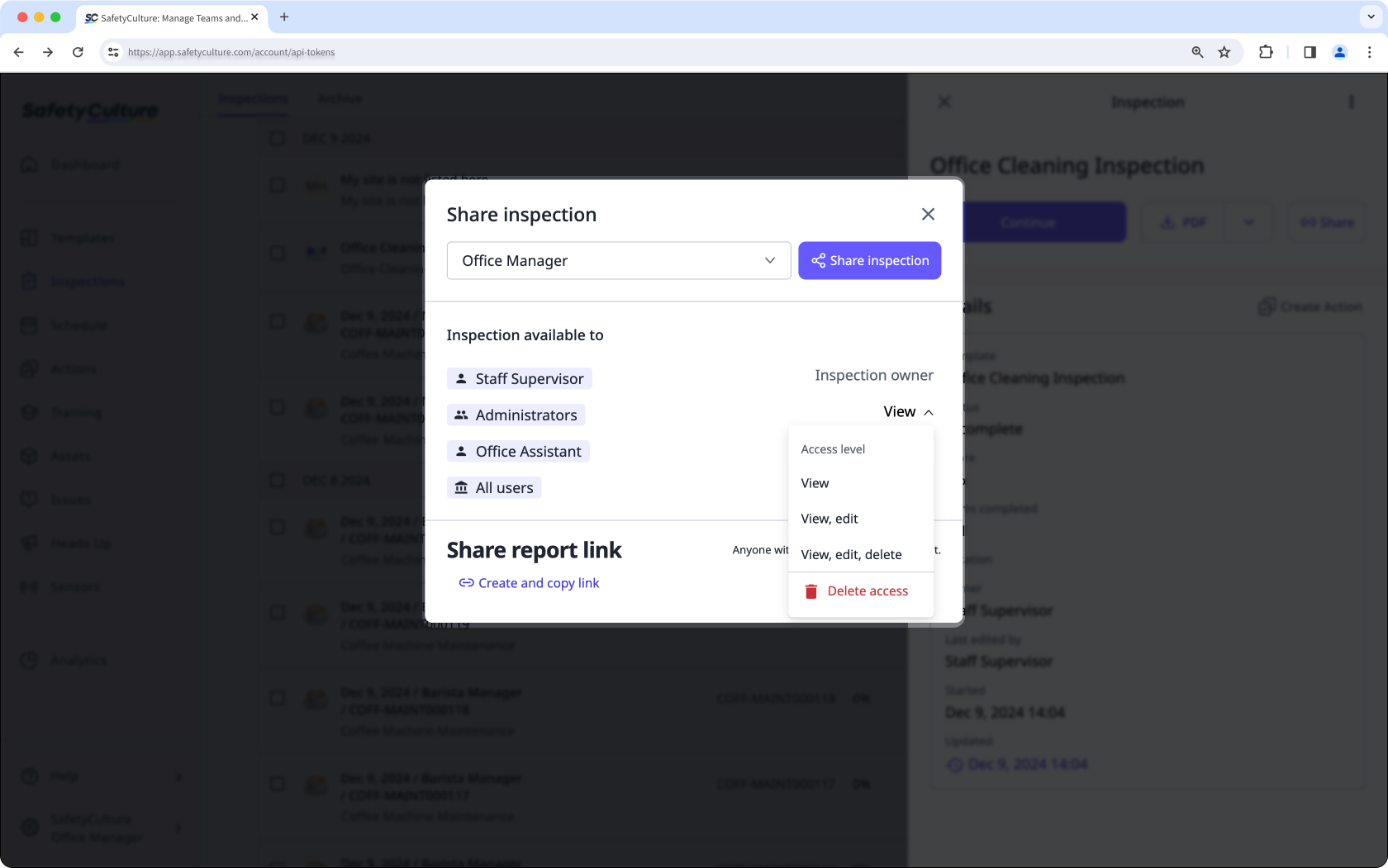
Inspection access controls who can view and modify inspections in Mitti. Access levels define what users can do with an inspection, from viewing the inspection report to editing its content or removing it entirely. This helps organizations ensure that only the right people can view, edit, or delete inspection results.
There are three access levels:
View: Allows users to view (read-only) the inspection report.
View, edit: Allows users to view the inspection report, edit its content, and manage access.
View, edit, delete: Allows users to view the inspection report, edit its content and manage access, as well as archive and delete it. This access level can only be given by users who already have it.
You can also create advanced access rules to give template and inspection access based on site membership.
What you'll need
Give access to an inspection
Select Inspections in the sidebar or in More.
Click the inspection and click Share in the side panel.
In the pop-up window, click the "Select groups, users, or add someone new" dropdown menu.
Select the groups or users you want to give access to, then click Done.
Click Share inspection next to the dropdown menu. Individual users will be notified of the inspection access given to them.
By default, each group or user is given the "View" access level for the inspection. You can click the dropdown next to each group or user to update this access level.
View: Allows users to only view the inspection report.
View, edit: Allows users to view, edit, and manage access to the inspection report.
View, edit, delete: Allows users to view, edit, manage access, archive, and delete the inspection report.
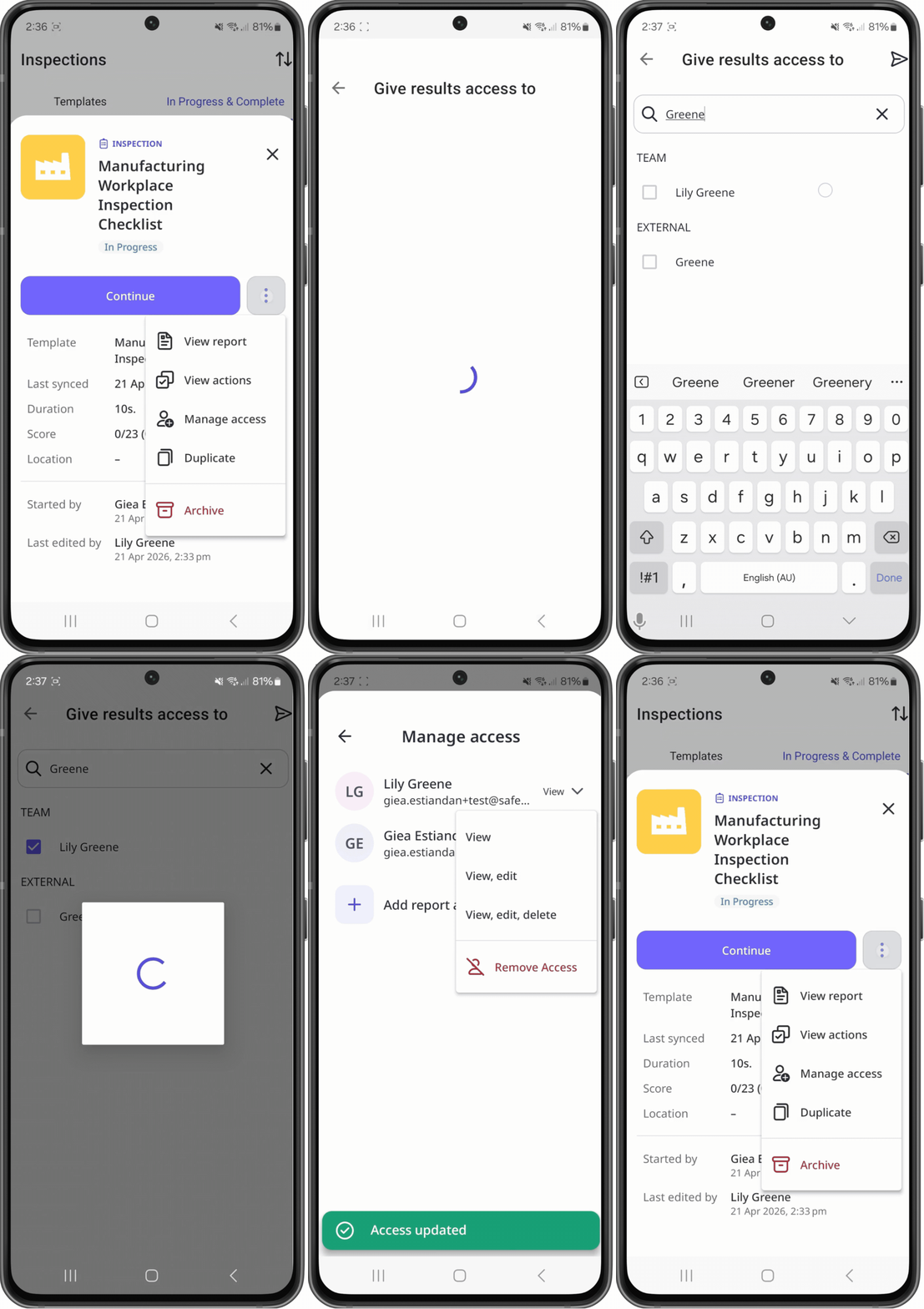
Open the mobile app.
Tap Inspections in the navigation bar or select it from More.
Select In Progress & Complete tab at the top of your screen.
Tap the inspection.
Tap and select Manage access.
Tap Add report access and select the user or group you want to give access to.
Tap at the upper-right corner of your screen.
By default, each user or group is given the "View" access level to the inspection. You can tap next to the user or group to update their access level.
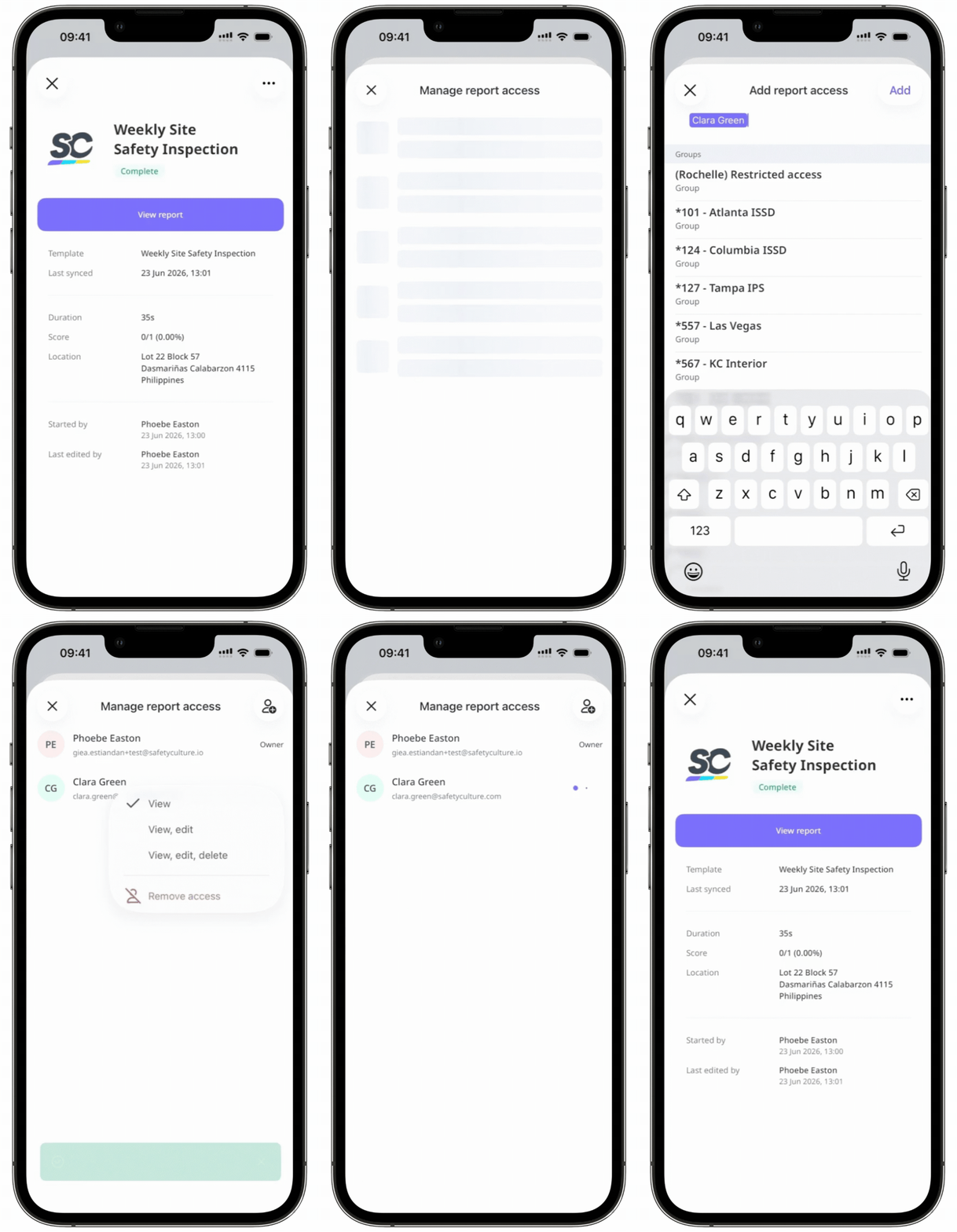
Open the mobile app.
Tap Inspections in the navigation bar or select it from More.
Select In Progress & Complete tab at the top of your screen.
Tap the inspection.
Select at the upper-right of your screen and select Manage access.
On the upper-right corner of your screen, tap .
Select the groups or users you want to give access to.
Tap Add at the upper-right of your screen. If you've given inspection access to individual users, each user will be notified of the access.
By default, each group or user gets given the "View" access level to the inspection. You can tap next to the user or group to update their access level.
Remove access to an inspection
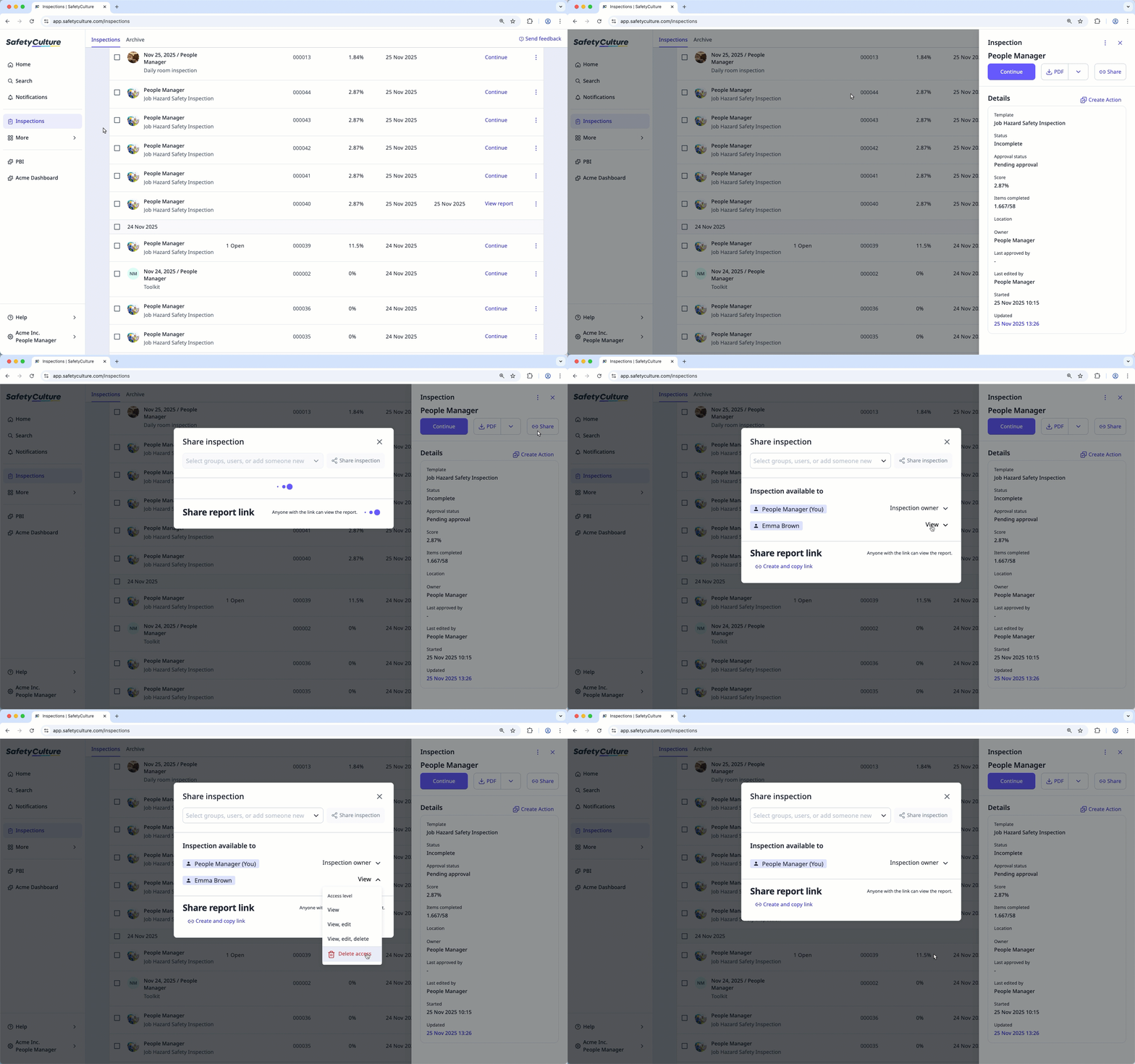
Select Inspections in the sidebar or in More.
Click the inspection and click Share in the side panel.
In the pop-up window, click the group or user's access level and select Delete access.
Open the mobile app.
Tap Inspections in the navigation bar or select it from More.
Select In Progress & Complete tab at the top of your screen.
Tap the inspection.
Tap or and select Manage access.
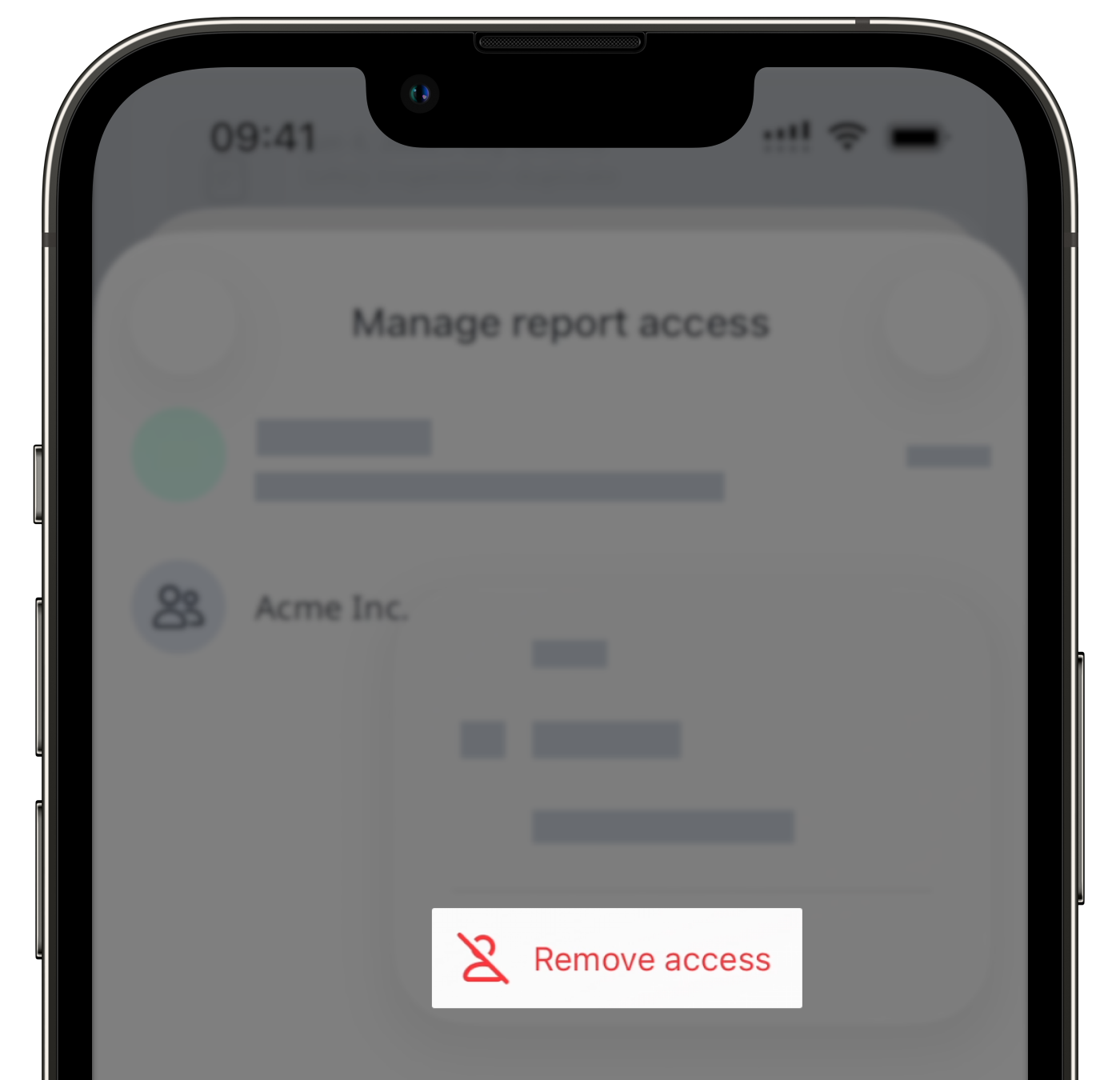
Tap next to the user or group and select Remove Access or Remove access.
If you have the "Conduct, edit" access level over a template, you can only remove access from groups or users who have the same access level as you or lower.
If you need to collaborate with other organizations to accomplish your team's work goals, you can also share inspection access with external users who aren't part of your organization.
Need more help?
Was this page helpful?
