Last updated: April 14, 2026
Before deleting a template, you need to archive it first.
What you'll need
Deleting is irreversible, and we cannot restore permanently deleted items. Confirmation is always required before any deletion, so be sure you're not accidentally deleting the wrong item.
Delete a template
Select Templates in the sidebar or in More.
Select Archive on the top of the page.
Click on the template's right-hand side and click Delete.
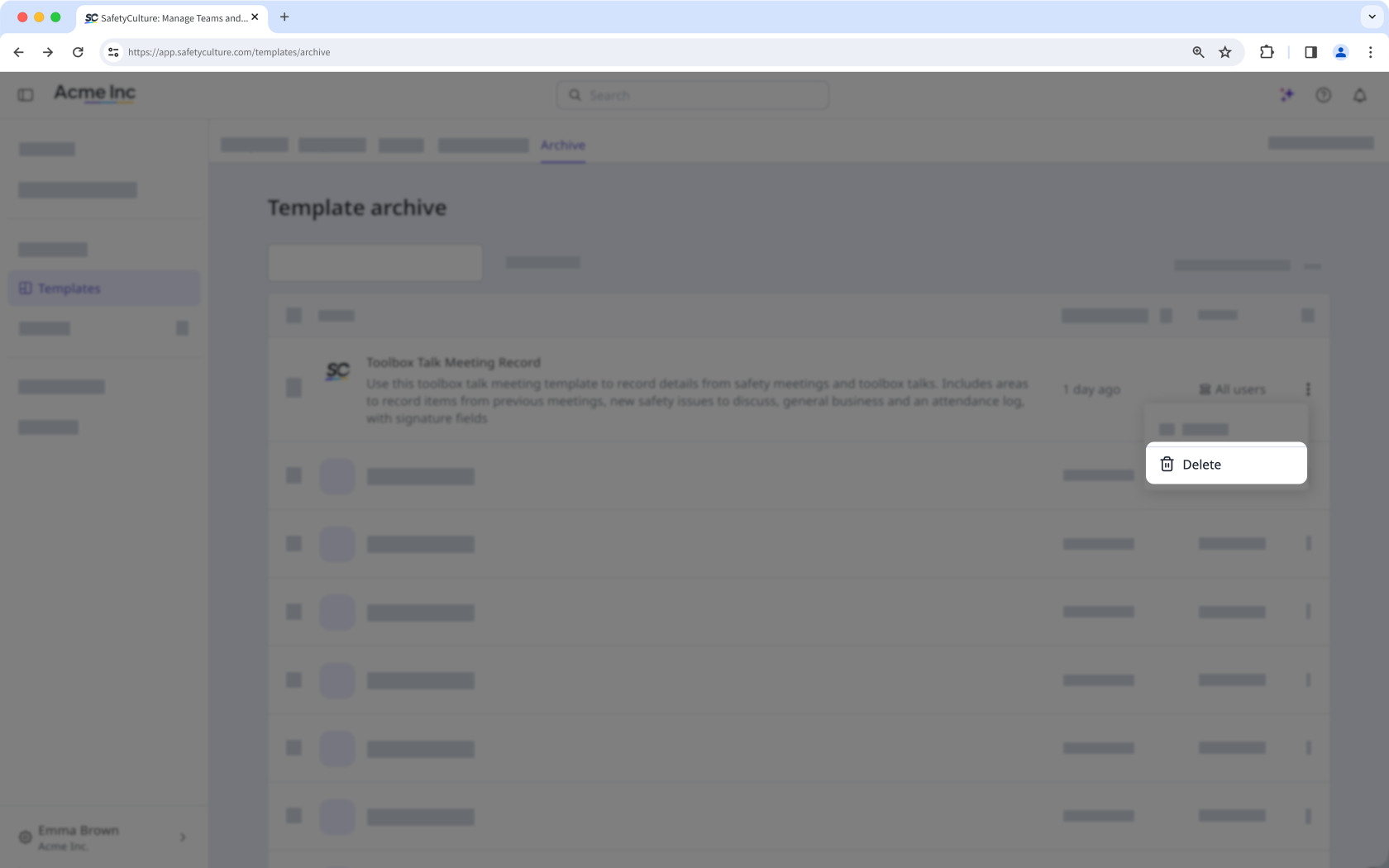
In the pop-up window, select Delete.
Bulk delete templates
Select Templates in the sidebar or in More.
Select Archive at the top of the page.
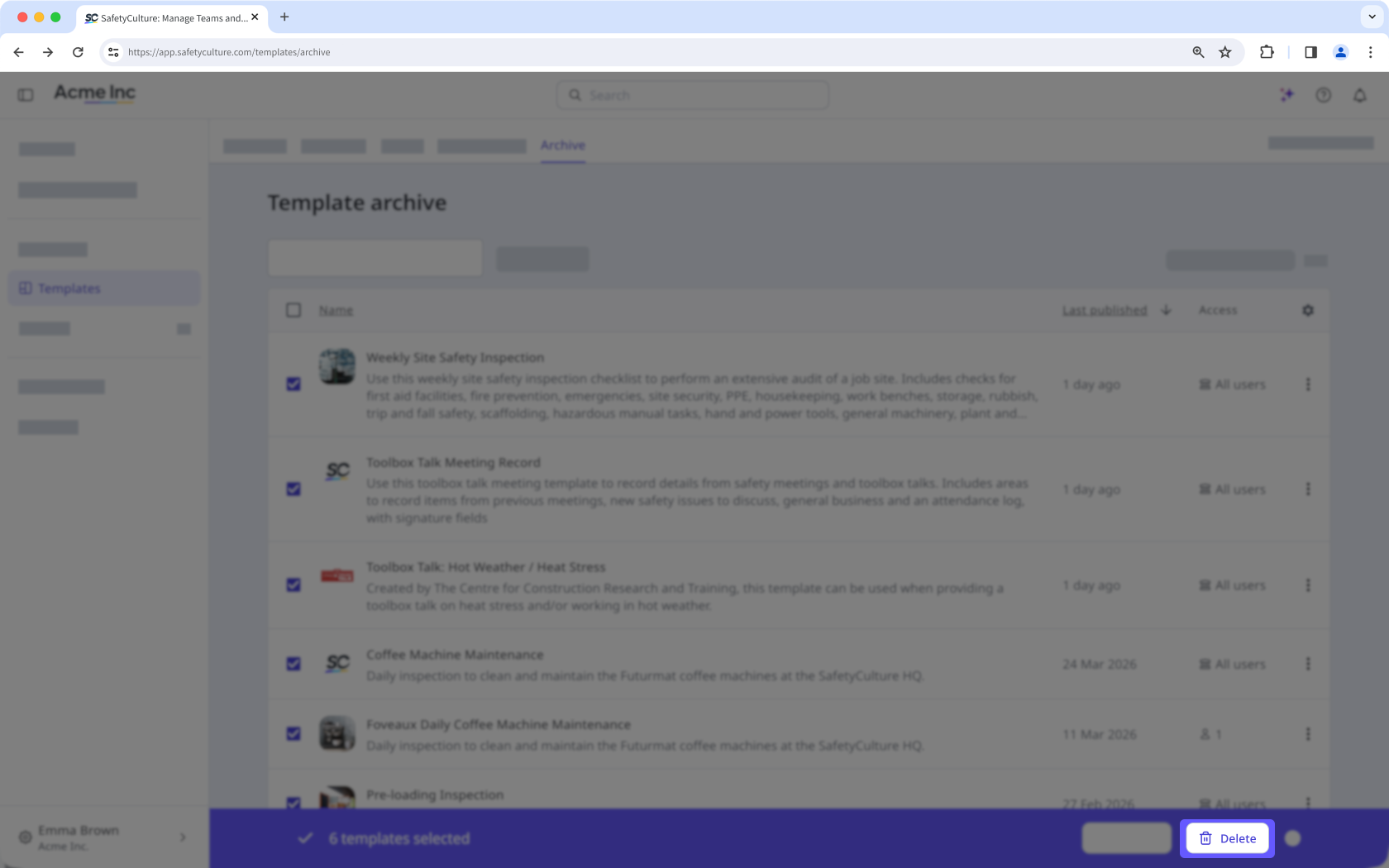
Check the templates' boxes and click Delete on the lower-right of the page.
In the pop-up window, click Delete.
Frequently asked questions
Need more help?
Was this page helpful?
