Last updated: February 19, 2026
What you'll need
If you've accidentally archived the wrong inspections, you can restore them at any time via the web app. You can also export archived inspections individually or in bulk if you want to collect more data from previous reports.
Archive an inspection
Select Inspections in the sidebar or in More.
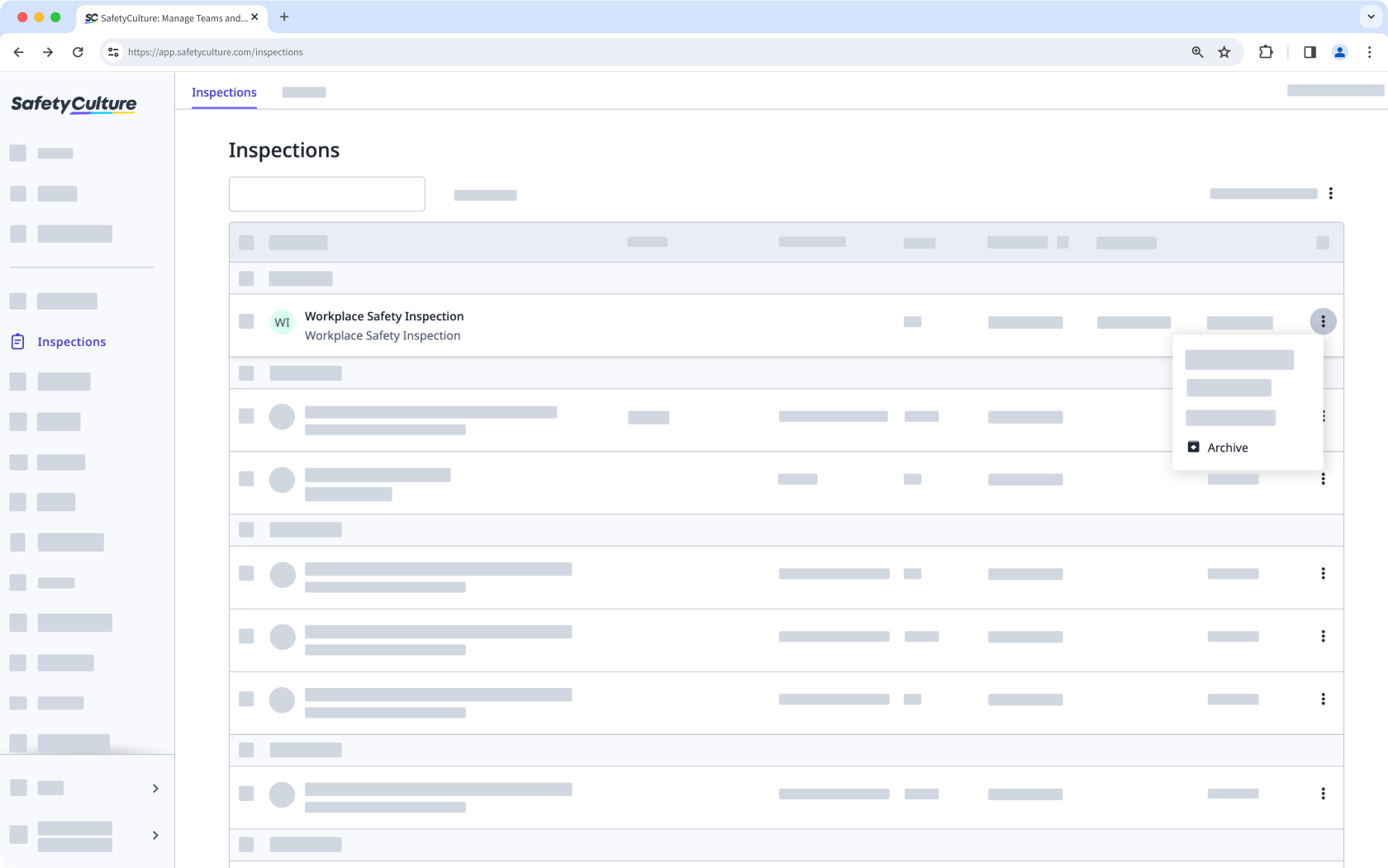
Click on the inspection's right-hand side and select Archive.
Open the mobile app.
Tap Inspections in the navigation bar or select it from More.
Select In Progress & Complete tab at the top of your screen.
Tap the inspection you want to archive.
Tap or at the upper-right of your screen and select Archive.
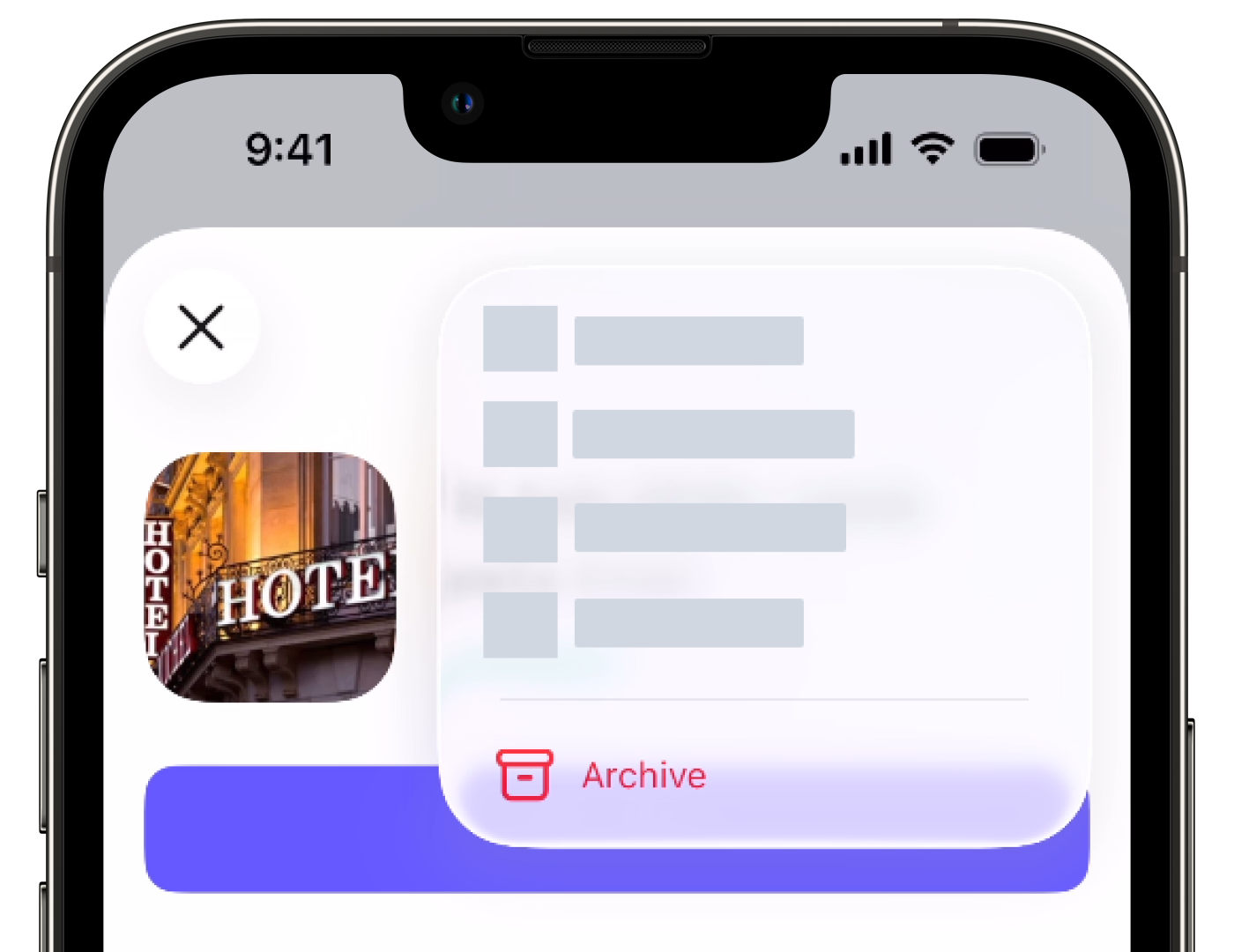
In the pop-up window, tap Archive.
Bulk archive inspections
Select Inspections in the sidebar or in More.
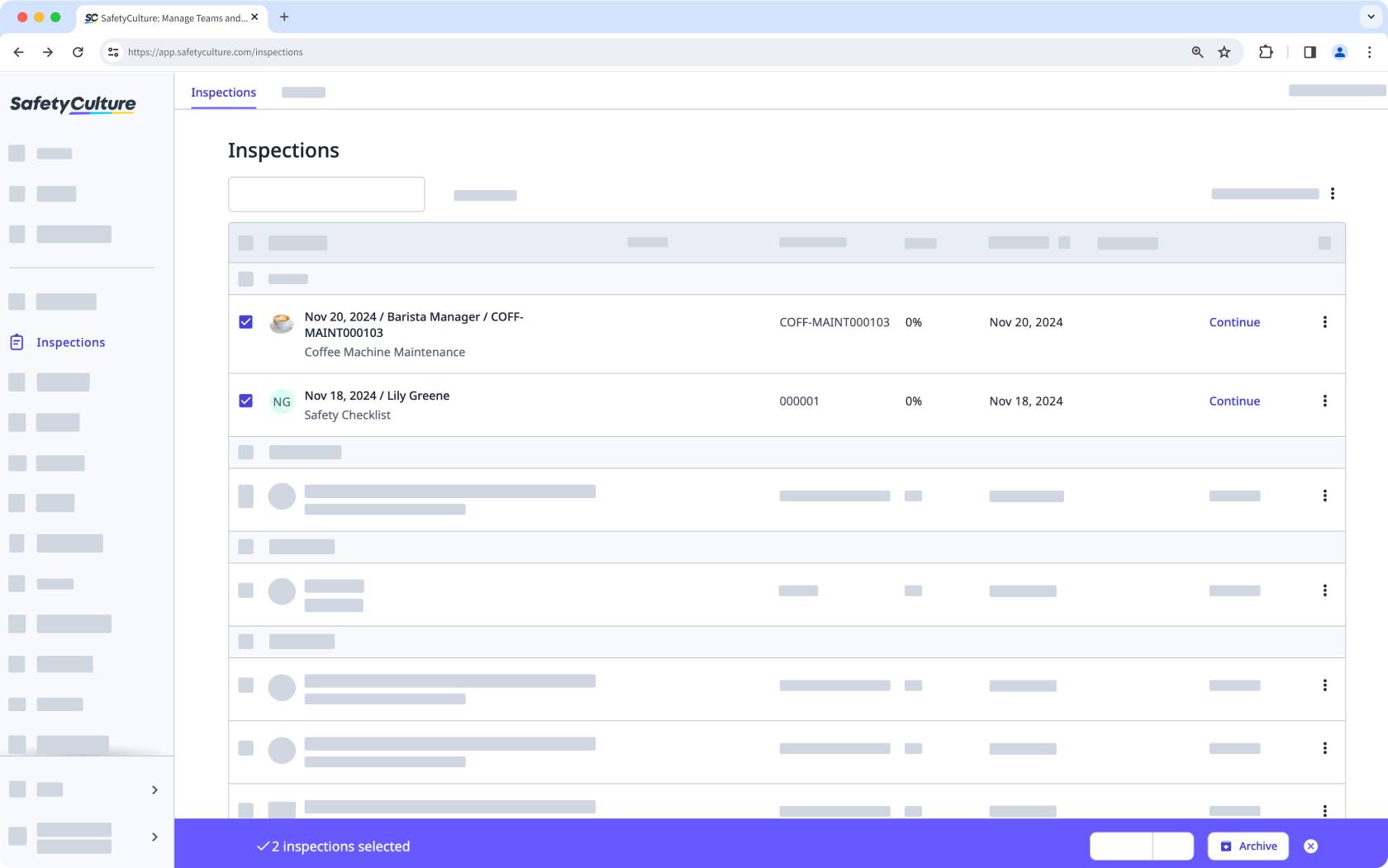
Select the inspections you want to archive by checking each inspection's box on the left-hand side of the page. You can narrow down the inspections using the search box on the upper-left of the page or by clicking Add filter and selecting filter options.
Click Archive on the bottom of the page.
Bulk archiving of inspections is only available on the web app.
If inspections are taking up a lot of space on the mobile app, consider clearing templates and inspections to free up space.
Need more help?
Was this page helpful?
