Last updated: October 31, 2024
How does clearing templates and inspections on the mobile app work?
Clearing templates and inspections removes locally stored data on your mobile device and ensures you are working with the latest updates. This is helpful when your organization makes frequent changes, when updates have not appeared on your device, or when preparing to work offline. This prevents outdated information and keeps your team on the same page.
What you'll need
Clear templates and inspections
Open the mobile app.
Tap your user profile icon at the upper-right corner of your screen.
In the pop-up menu, select Settings.
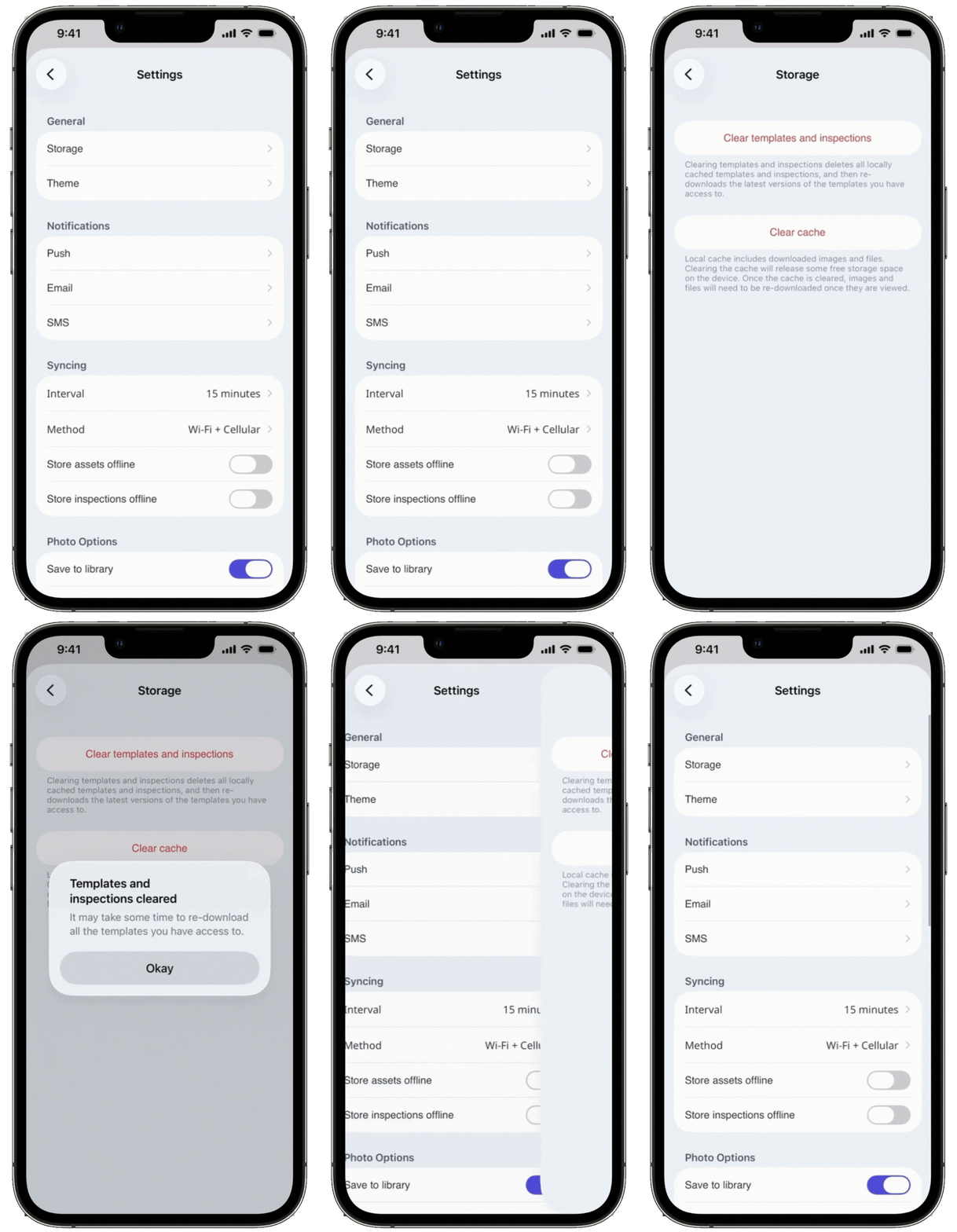
In the General section, select Storage.
Tap Clear templates and inspections. Please note that templates and inspections locally stored on your device will be cleared and replaced with their latest versions.
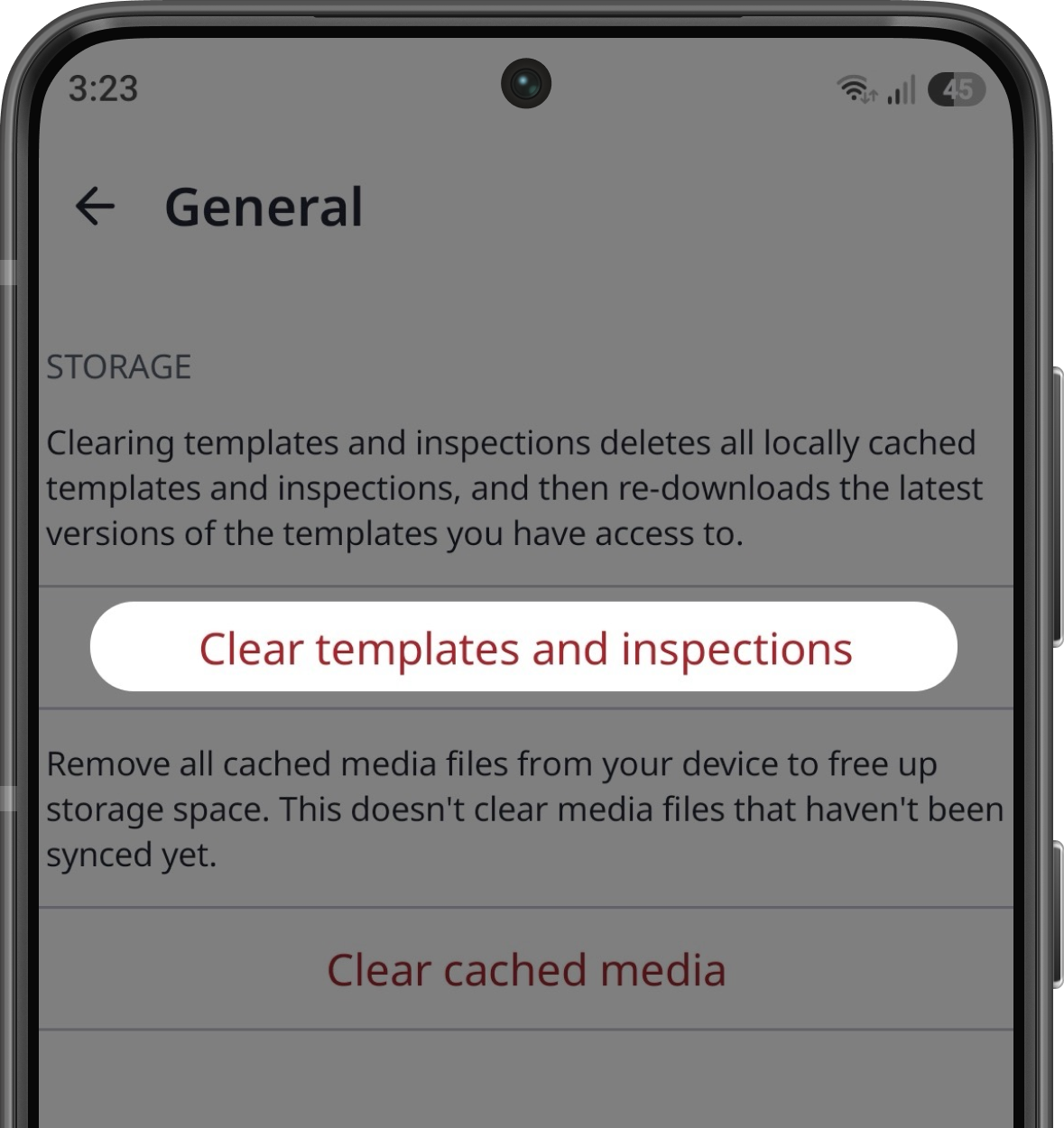
In the pop-up window, tap Okay.
Open the mobile app.
Tap your user profile icon at the upper-right corner of your screen.
In the pop-up menu, select Settings.
Select Storage from the list of options.
Tap Clear templates and inspections. Please note that templates and inspections locally stored on your device will be cleared and replaced with their latest versions.
In the pop-up window, tap Okay.
You can also manually sync your mobile app to ensure your templates and inspections are cleared.
Need more help?
Was this page helpful?
