Last updated: August 6, 2026
What you'll need
Reset your password
Enter your account email and click Continue.
This sends out an email to your address. Check your email inbox for an email titled "Mitti Password Reset".
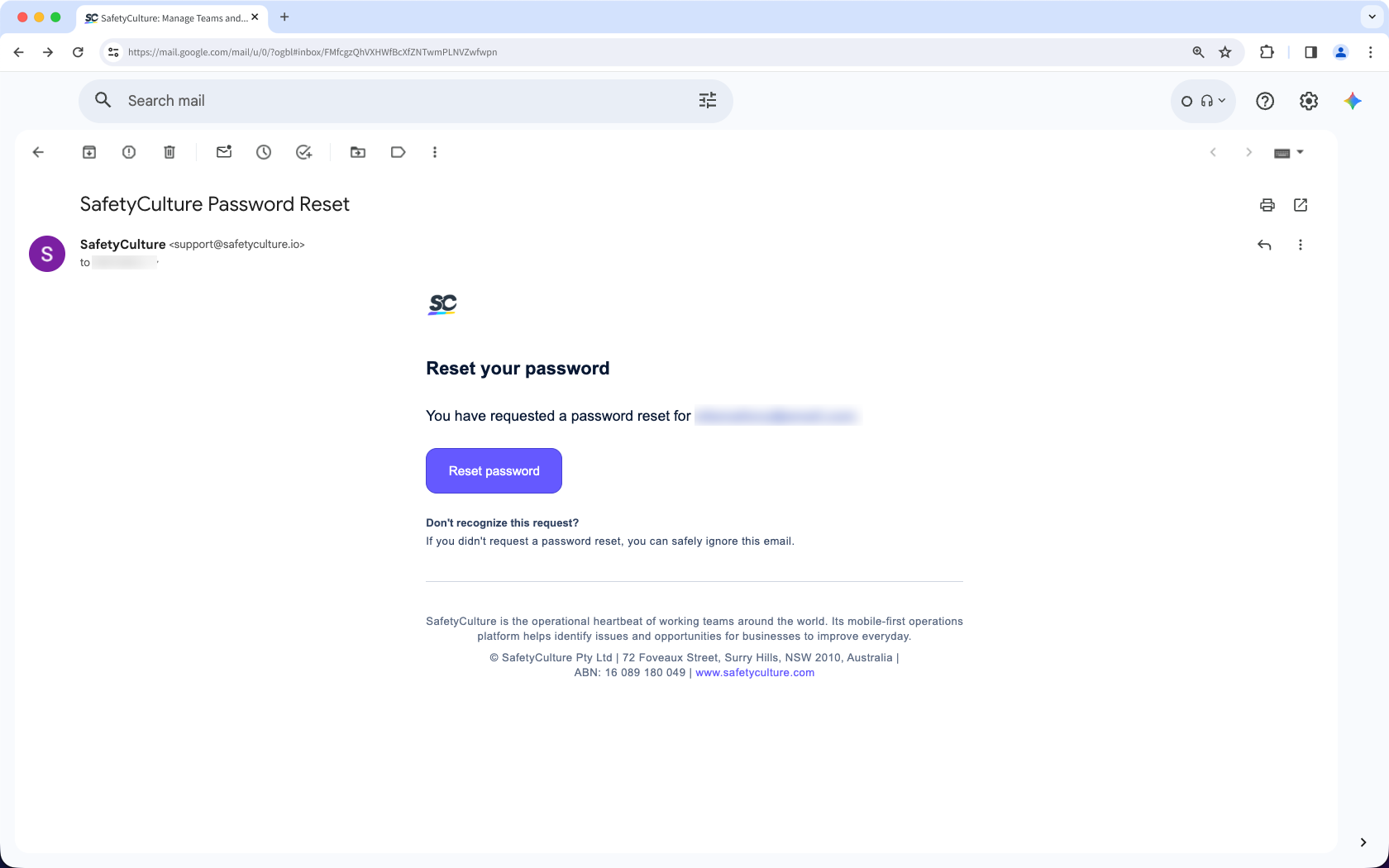
Click Reset password on the email to open a web page.
Enter your new password and click Reset password.
You can now log into Mitti with the new password.
Open the mobile app.
Tap Log in.
Enter your account email and tap Forgot password?.
On the password reset screen, enter your account email and tap Continue.
This sends out an email to your address. Check your email inbox for an email titled "Mitti Password Reset."
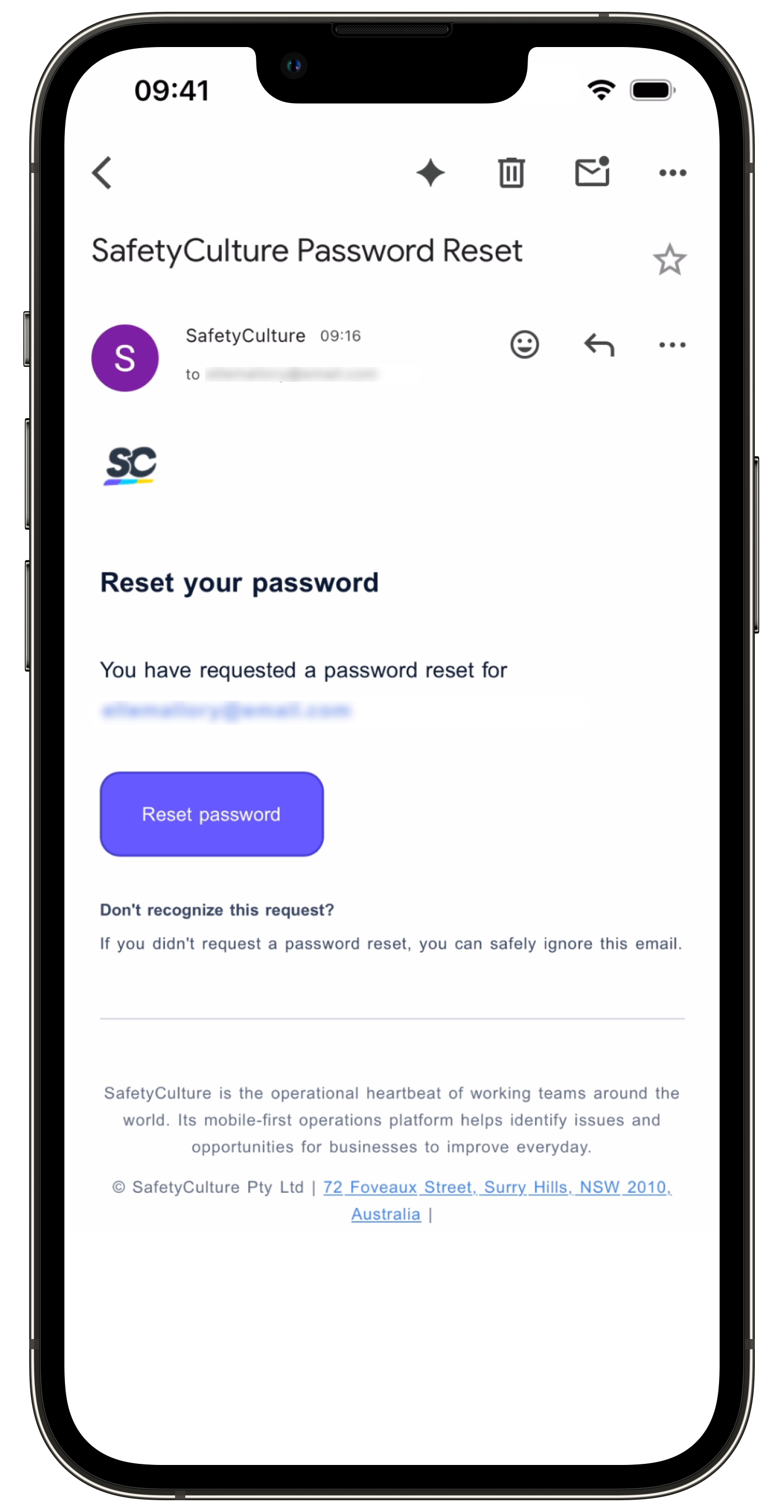
Tap Reset password in the email to open a web page.
Enter your new password and tap Reset password.
You can now log into Mitti with the new password.
For security purposes, you must have access to the email address associated with your account to reset your password. If you don't, please contact your Mitti admin to update your email address or contact our customer support team.
Change your password
Click your username on the lower-left corner of the page and select My profile.
Click Settings on the upper-right of the page.
In the "Password" section, click Edit.
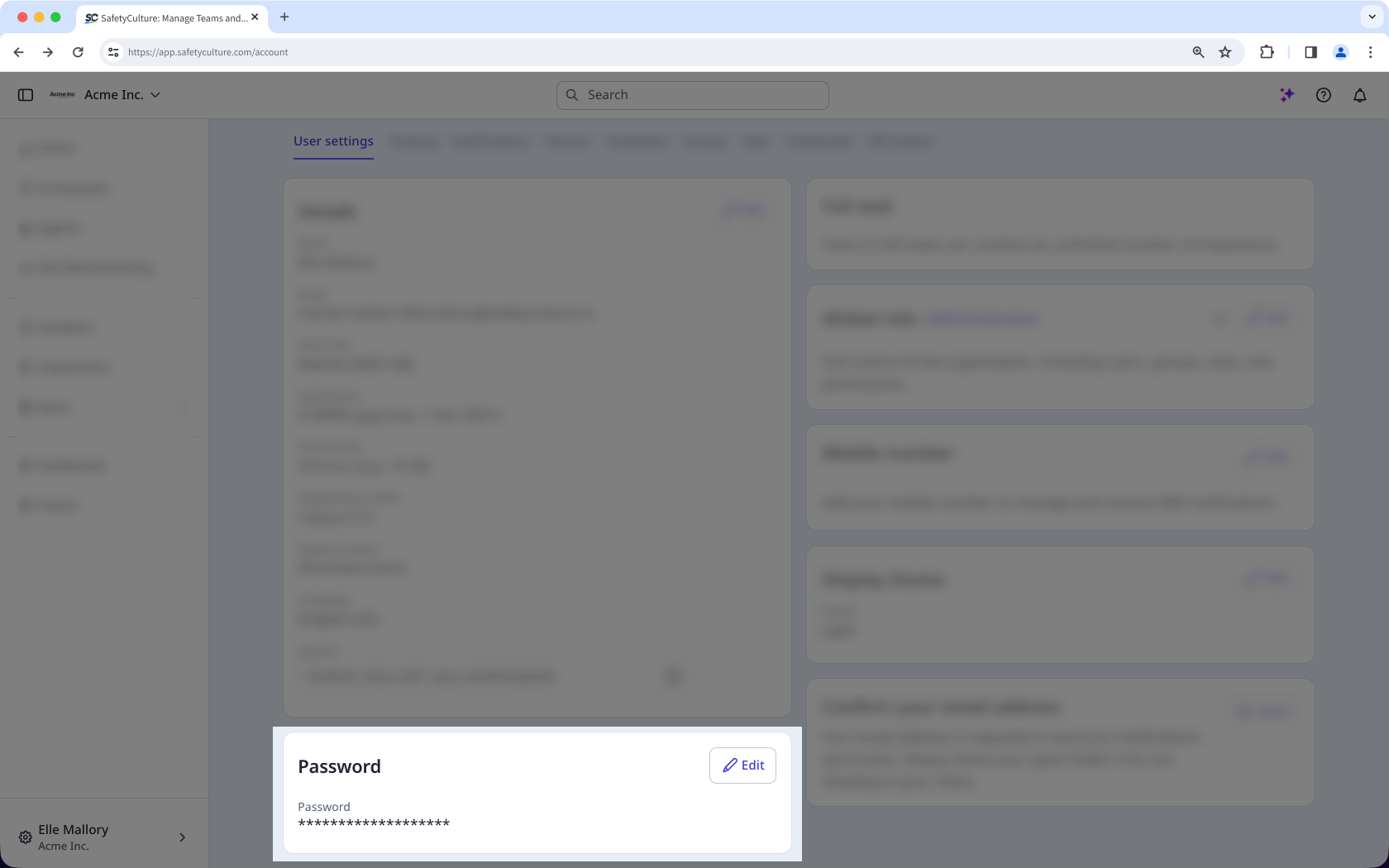
Enter your current password in the "Old password" field and set your new one in the "New password" field.
Click Change password.
This logs you out from existing logins for both the web app and the mobile app, prompting you to log in with your new password.
Limitations
How you reset your password depends on your organization's sign-in setup:
Single sign-on (SSO) only: reset or change your password through your organization's SSO portal.
SSO with password login turned on: use the standard password reset email.
Spam filters or firewalls can block password reset emails. If you don't receive one from support@mitti.com, contact our customer support team.
You can only change your account password via the web app.
You can only send password reset emails or set new passwords for your users if you have "Platform management: Users" permission.
Need more help?
Was this page helpful?
