Last updated: November 1, 2026
What are roles in Mitti?
Roles define what users can do in Mitti. In most organizations, team members have different responsibilities and need different permissions. For example, a site supervisor shouldn't have the same permissions as a global admin, and a frontline worker shouldn't have the same permissions either. Roles let organizations match each user's permissions to their actual job. There are two types of roles:
Global roles apply across your entire organization.
Group and site roles apply only within the sites or groups a user is assigned to.
Assigning these roles allows organizations to delegate user and document management to site supervisors or regional managers without giving them full admin permissions. Control stays with the people who run each group or site, while admins focus on the wider organization.
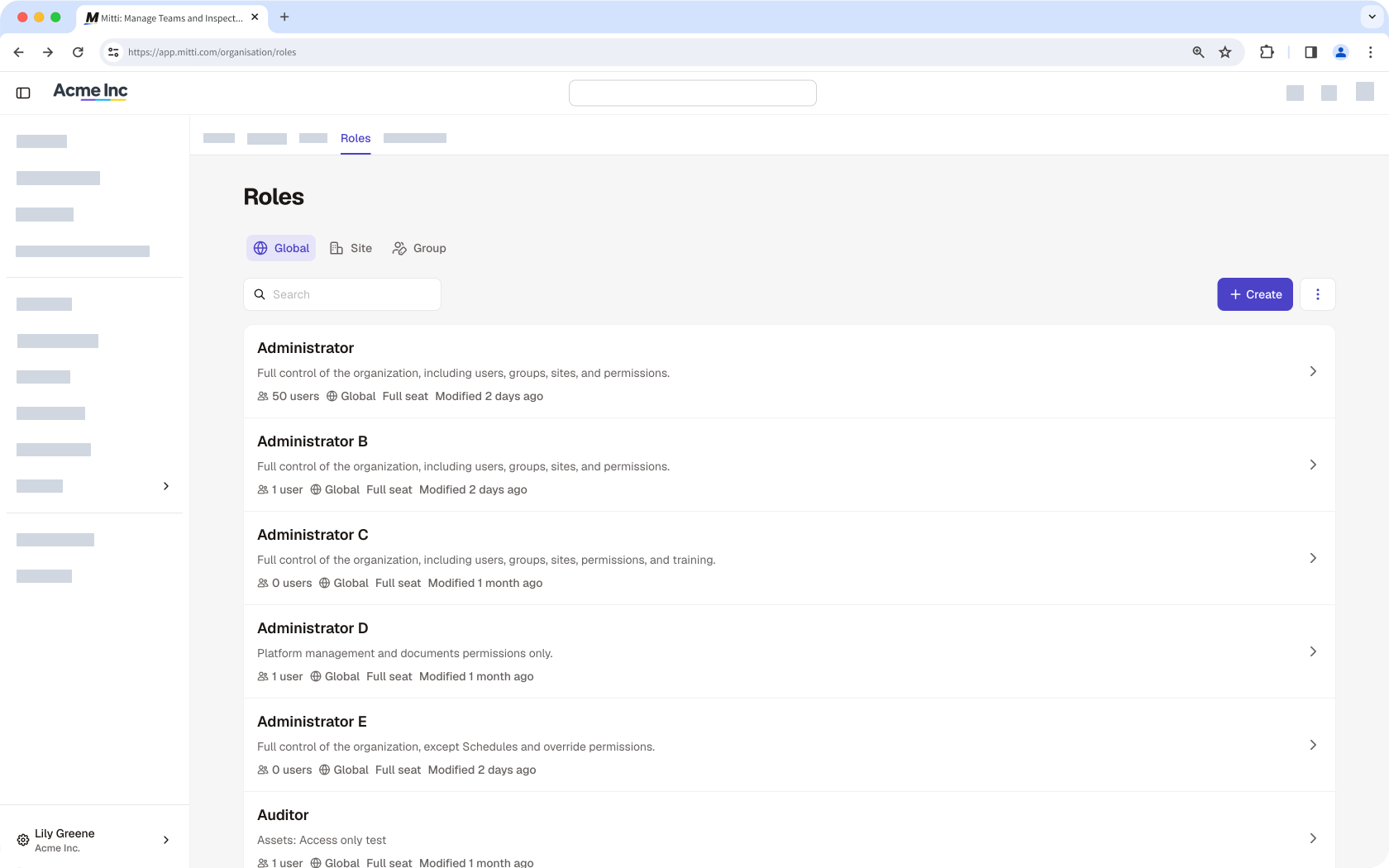
For existing users, the Permissions tab is now called Roles, and permission sets are now called global roles that work exactly the same way.
Managing site or group roles is only available to organizations on Enterprise Plan. By default, all users in an organization on Free Plan have the "Administrator" global role.
Exploring roles in Mitti
Global roles
Global roles are a set of permissions assigned to users at the organization level. They control what a user can do across the entire organization, including which features they can access and what actions they can perform. The permissions available for a global role depend on the user's seat type.
Users with "Platform management: Permissions" permission can manage global roles. This includes creating roles, configuring each role’s permissions, setting default global roles for seat types, and assigning roles to users.
Default global roles
By default, each organization comes with the following global roles, which you can use as a foundation for new global roles:
Administrator: This global role gives a user full control of their organization, including management of users, groups, sites, and permissions.
Manager: This global role gives a user functionalities that a manager might need, including creating templates and training content, managing feature settings, and more.
Standard: This is the default global role for users in full seats, which gives a user the permissions they need to conduct inspections, report issues, create actions, and more.
Basic: This is the default global role for users in lite seats, which gives a user the permissions they need to take assigned training, and more.
Guest: This is the default global role for users in guest seats, which gives a user the permissions they need to report issues, create actions, view Heads Ups, and more.
Your organization's default global role for full seats can't include "Platform management" or "Override permissions" permissions while your organization has users without an email address.
This restriction applies for as long as the username login setting is on for your organization, including when you add new users who have an email address. If needed, users with an email address can be assigned another global role after they're added to your organization.
Group and site roles
Group and site roles are a set of permissions assigned to users at a group or site level. Unlike global roles, which apply across the entire organization, group and site roles only apply within the specific sites or groups a user is assigned to.
Granular permissions
Create roles to delegate tasks to your team members based on their assigned groups and sites. Currently, site roles are limited to user and document management permissions, and group roles are limited to user management permissions. These roles can only be assigned to users in a full seat. The actions available to users with an assigned role depend on which permissions are configured for their role.
User management
Permission | Description |
|---|---|
Add users | Add new users to the organization by adding them directly to their assigned group or site. Managers can also view and share existing invite links for their assigned group or site if an admin has already created them. New users added to the organization are assigned the default global role for the seat type selected. |
Manage membership | Add or remove existing users' membership in their assigned group or site. |
Edit user details | View users' profiles, reset their passwords, and update their details, including name, time, notification and device settings, and user fields. |
View users | View a list of members in their assigned group or site. |
Deactivate users | Deactivate users in the organization. Deactivation applies across the entire organization, not just the assigned group or site. Deactivated users lose access to Mitti and their seat is freed up. Only global admins can activate deactivated users. |
Documents
Permission | Description |
|---|---|
Manage documents | Add files and folders in their assigned site. Managers can also edit and archive files from their home site. |
Link documents | Link or unlink existing files and folders from the Documents feature in their assigned site. |
View documents | View a list of files and folders in their assigned site. Managers can also download files. |
Delegated user management
Group and site roles let managers handle user management within their assigned sites or groups, without needing global roles. Depending on the permissions configured for their role, managers can add users, manage membership, edit user details, view users, and deactivate users.
Group and site roles are additive, which means they add on top of a user's existing global permissions and only apply within their assigned sites or groups. A user can be assigned different roles across multiple sites or groups, but they can only be assigned one role per group or site.
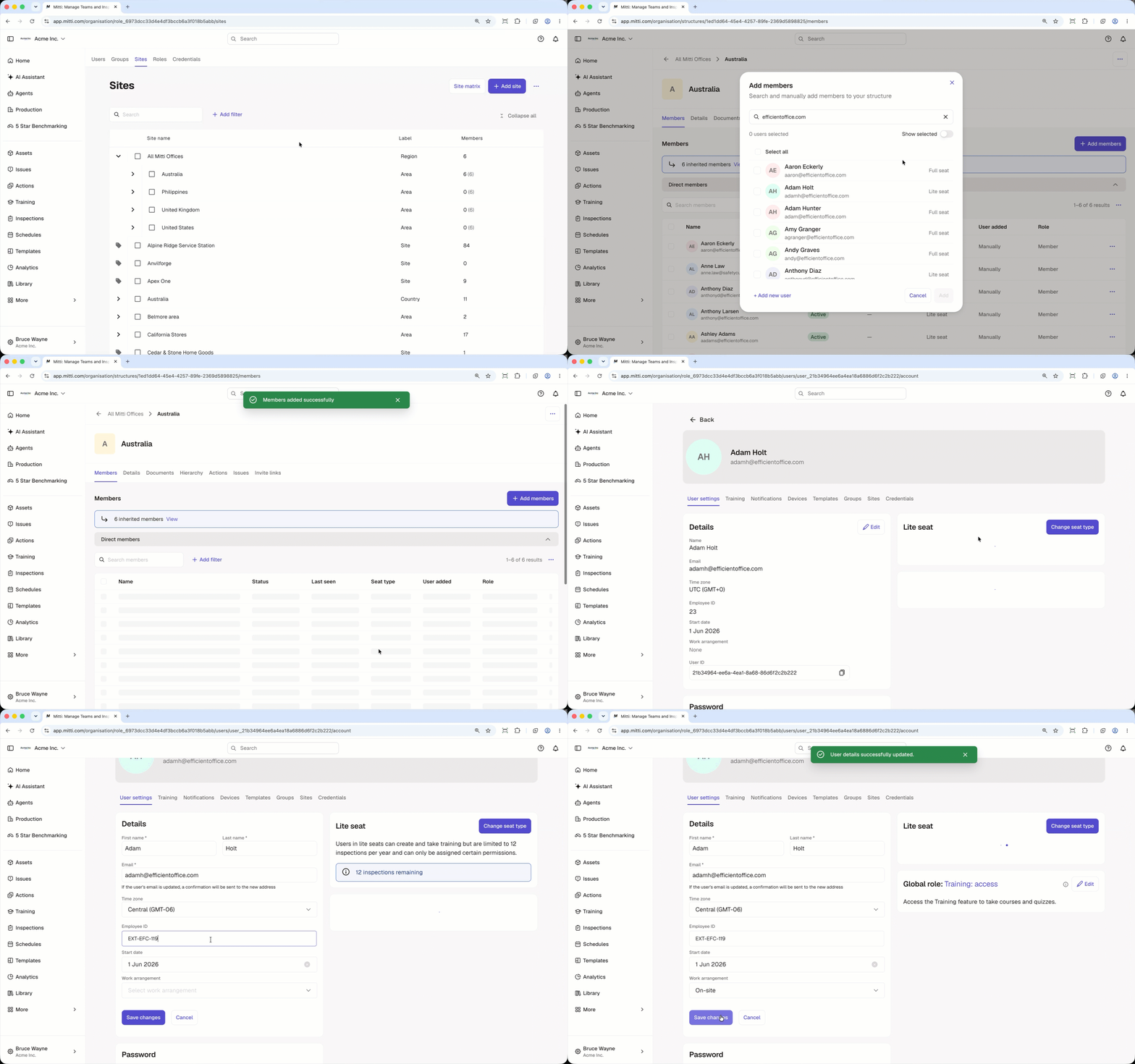
Delegated document management
Site roles give managers control over documents in the sites they're assigned to, so they don't need a global role. Based on the permissions set for their role, managers can manage documents, including editing and archiving them. They can also link and unlink documents, and view the documents that have been added or linked to their sites.
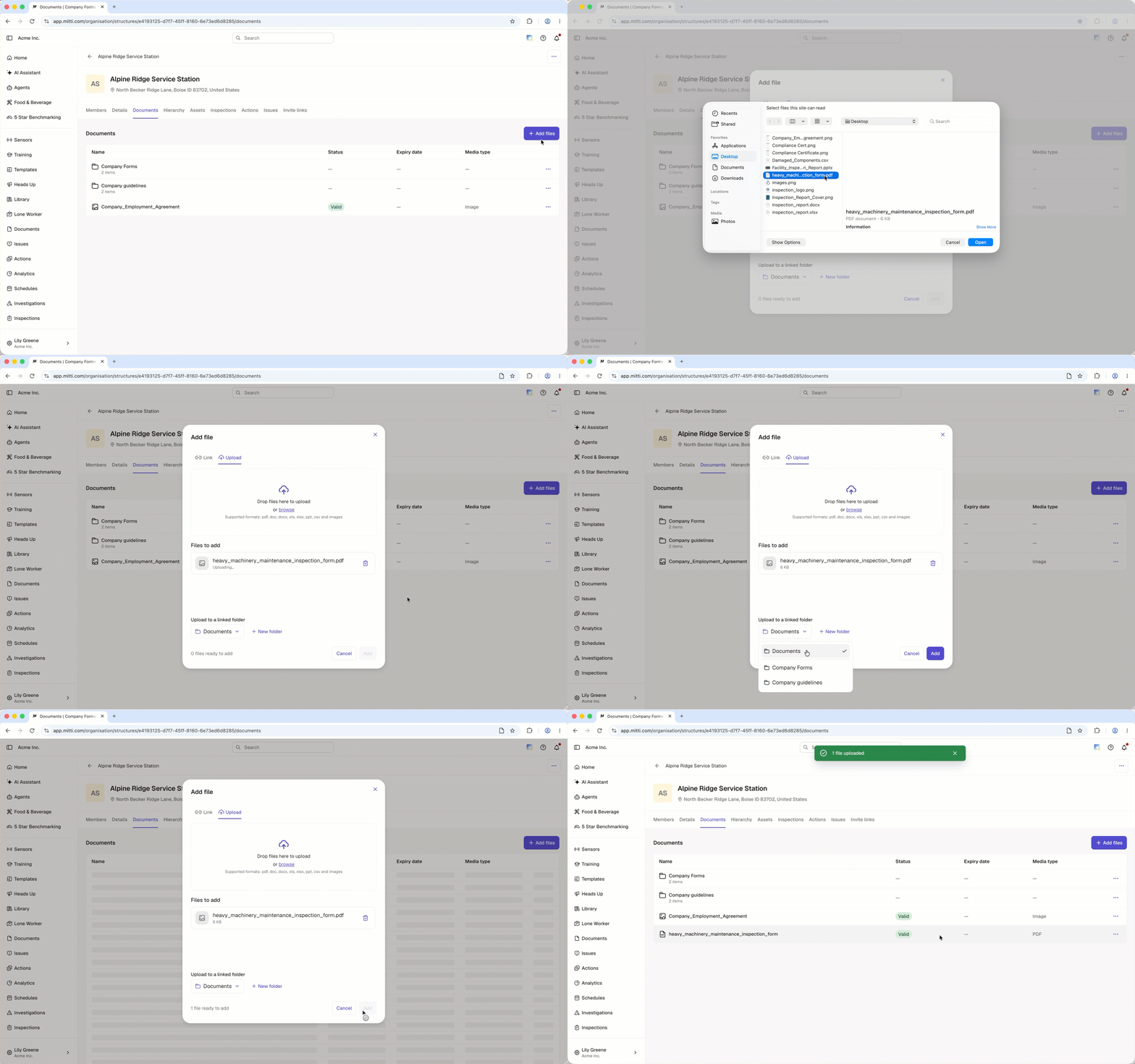
Role inheritance
Role inheritance lets you assign a role once and have it apply automatically down the site hierarchy, so you don't have to set access site by site. Site role inheritance follows the same rules as a user's site membership. For example, if a user is assigned a role at a higher-level site, they automatically inherit that role for all nested sites below it in the hierarchy. Users can't be assigned a different role for sites below the higher-level site.
If you own a file, you can edit, archive, delete, and manage access to it, regardless of your Documents permissions. The user who uploads a file is its owner.
Permissions in the Mitti Supply are managed separately from global roles.
What permissions are available to global roles?
Frequently asked questions
Need more help?
Was this page helpful?