Last updated: November 1, 2026
This feature is currently in Early Access. If you're interested, please contact your customer success manager to check if your organization is eligible.
What’s the difference between adding and linking files and folders?
Whether you add or link files and folders to a site profile, you give your team the documentation a site needs to operate. This can include compliance certificates, floor plans, or work instructions. Keeping these files on the site profile means site members and managers can find what they need in one place.
You can add a new file from your device. This saves the file to the site you upload it to and to the Documents feature. You can also link existing files and folders already stored in the Documents feature. Either way, updates to the file carry through to every site profile the file is added or linked to.
Ways to add or link files and folders
The following table shows where each method is available, what you can do, and where files are stored.
Where | What you can do | File types | Storage location |
|---|---|---|---|
Documents tab in the site profile | Upload files from your device or link existing files and folders already stored in Documents. | CSV, DOC, DOCX, GIF, JPEG, JPG, PDF, PNG, WEBP, XLS, and XLSX | • Uploaded files stay in the site and Documents, and update everywhere they're linked. |
Manage linked items page in Documents | Link a file or folder to multiple sites. | CSV, DOC, DOCX, GIF, JPEG, JPG, PDF, PNG, WEBP, XLS, and XLSX | Linked files and folders stay in Documents and update everywhere they're linked. |
What you'll need
Add a file and a folder to a site
Click your organization name on the lower-left corner of the page and select Sites.
Select a site.
Click Documents tab at the top of the page.
Click Add files on the upper-right of the page.
In the pop-up window, click Upload.
Drag your files into the pop-up window, or click browse to select files from your device.
To save your files in a linked folder, click the dropdown menu and select an existing folder, or click New folder to create a new one.
Click Add.
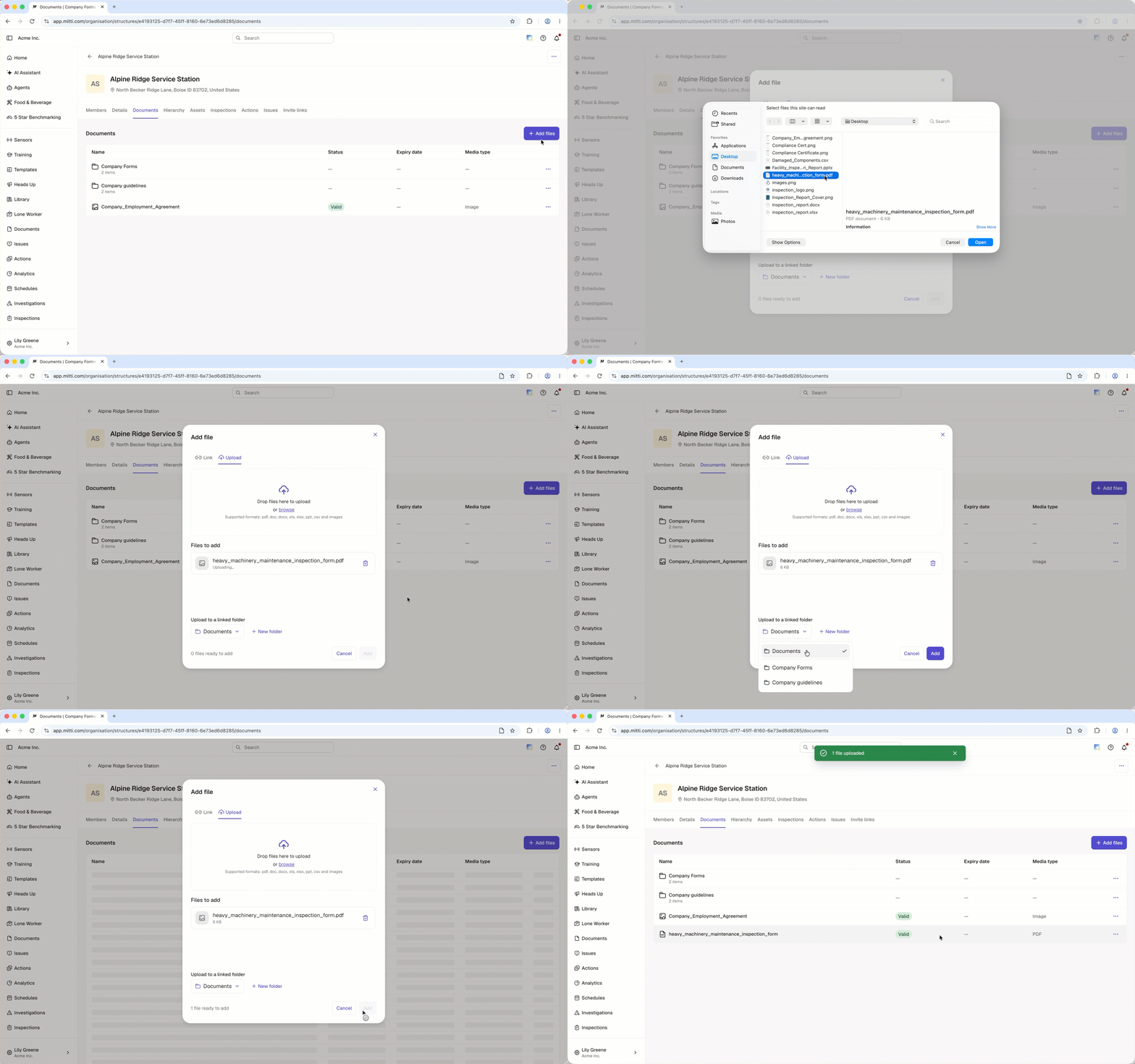
The site you upload a file or folder to becomes its home site. If you have “Documents: Manage documents” permission in a site role, you can edit or archive a file only from its home site.
To link files and folders from the Documents tab in a site profile, you need the “Documents: Link documents” permission in your site role.
Link a file and a folder to a site
Click your organization name on the lower-left corner of the page and select Sites.
Select a site.
Click Documents tab at the top of the page.
Click Add files on the upper-right of the page.
In the pop-up window, click Link.
Check the box next to the file or folder you want to link.
Click Add files.
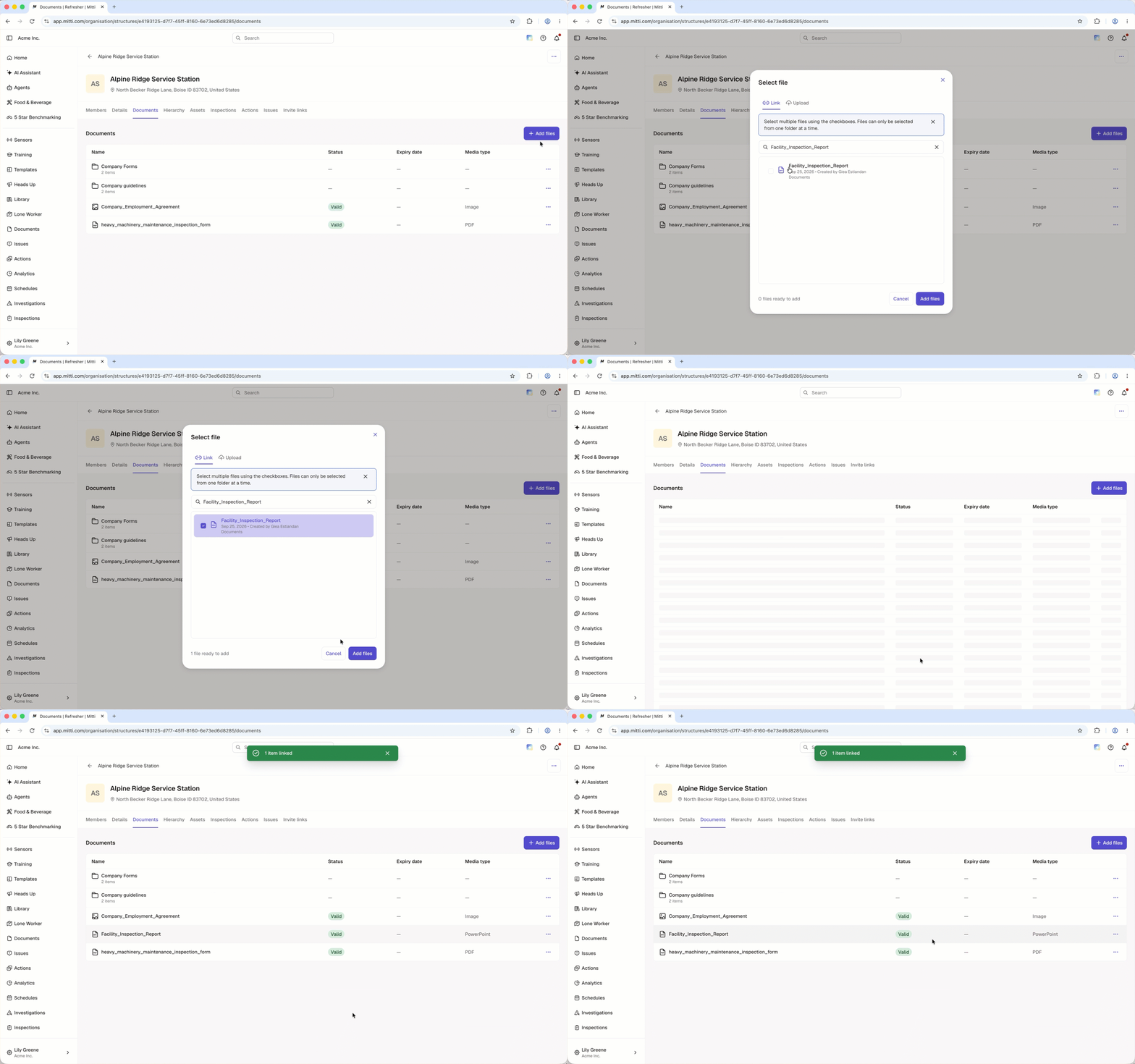
You need "View" file access at a minimum to link a file or folder to a site.
Limitations
When uploading files, you can only select folders that are already linked to the site.
When linking files, you can only select from one folder at a time.
Only folders linked directly to the site can be unlinked. Subfolders and files inside a linked folder can't be unlinked individually.
You can't delete files or folders with a site role, unless you're the owner.
You can't change the home site of a file or folder. If you unlink a file or folder from its home site, it's stored in Documents instead.
Frequently asked questions
Need more help?
Was this page helpful?