Last updated: September 20, 2026
Why view site profiles?
Site profiles help managers and administrators access the information they need about a specific site from a single location. Instead of repeatedly applying filters or navigating between different pages to find site-related information, you can open a site profile to review key details and other relevant information in one place. This makes it easier to understand the current state of a site, find the information you need more efficiently, and spend less time switching between different areas of the platform. Depending on your permission set, you can also view and manage site membership directly from the site profile.
What you'll need
Depending on your organization's site selection settings, you'll be able to see all sites or levels in your organization or only ones you're a member of.
View a site profile
Click your organization name on the lower-left corner of the page and select Sites.
Click the name of the site, indicated by on its left-hand side.
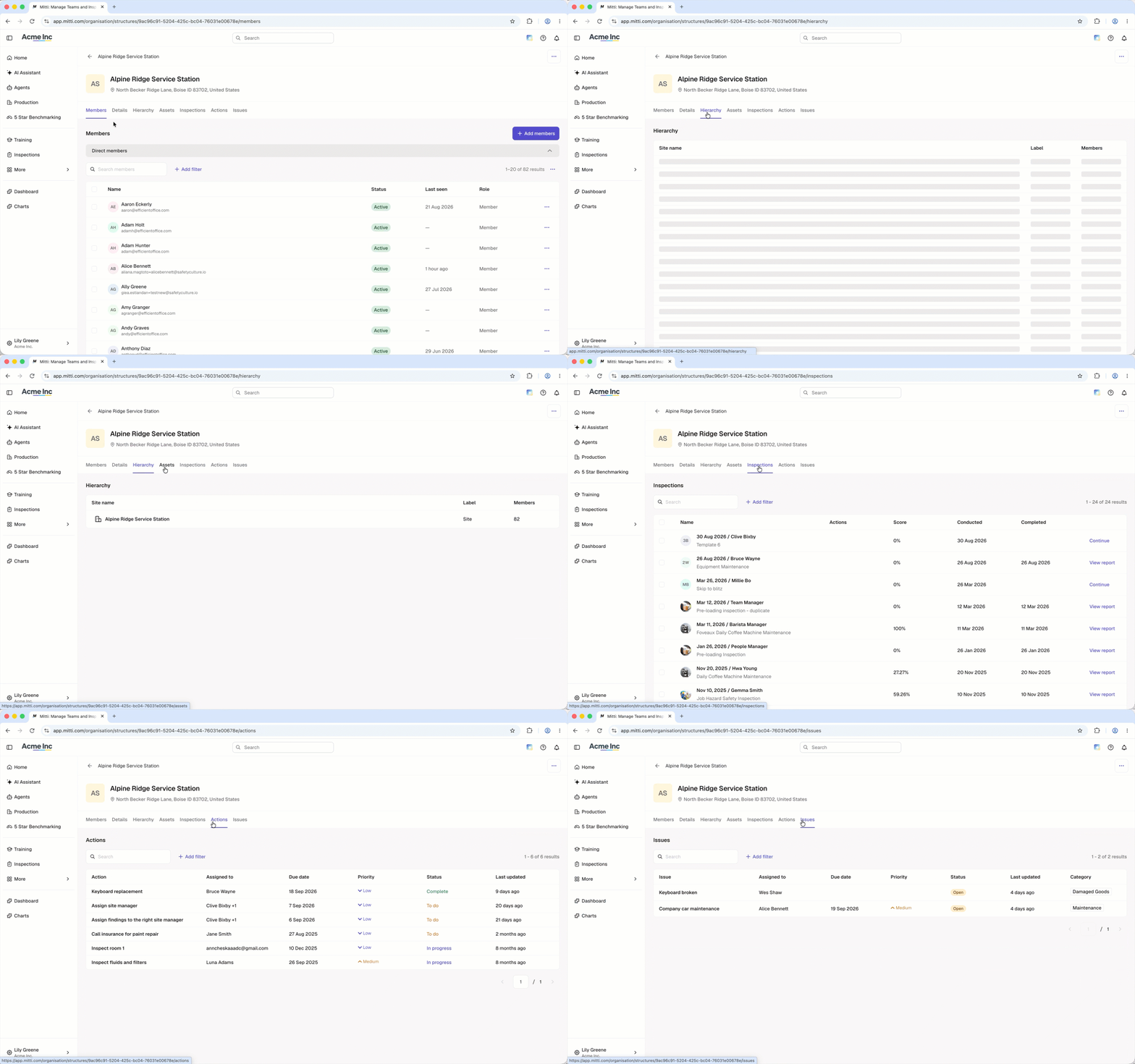
On this page, you have the option to view and manage site information depending on your permissions in the following tabs:
Members: View and manage which users have been added as members to the site. Managing site membership requires "Platform management: Sites" permission and a Full seat.
Details: View the site ID, description, and additional details set up for your site based on organization fields. Deleting or renaming sites requires "Platform management: Sites" permission. Managing organization fields for your group or site requires "Platform management: Fields" permission.
Hierarchy: View a site's full hierarchy including the number of members in each site, area, region, state, or country.
Assets: View and manage assets that are assigned to the site. "Assets: Access" permission is needed to view assets that are linked to the site.
Inspections: View and manage inspections conducted at the site, depending on your access. You can also change the site of each inspection by checking their boxes on the left-hand side and selecting Change site. Managing these inspections or changing their site association requires "View, edit" inspection access level at a minimum.
Actions: View and manage actions that have been created at the site.
Issues: View and manage issues created at any sites under the level, depending on your access. You need "Issues: Access" permission to view issues and "Issues: Settings" permission to manage them.
View a level profile
Click your organization name on the lower-left corner of the page and select Sites.
Click the name of the level.
On this page, you have the option to view and manage level information depending on your permissions in the following tabs:
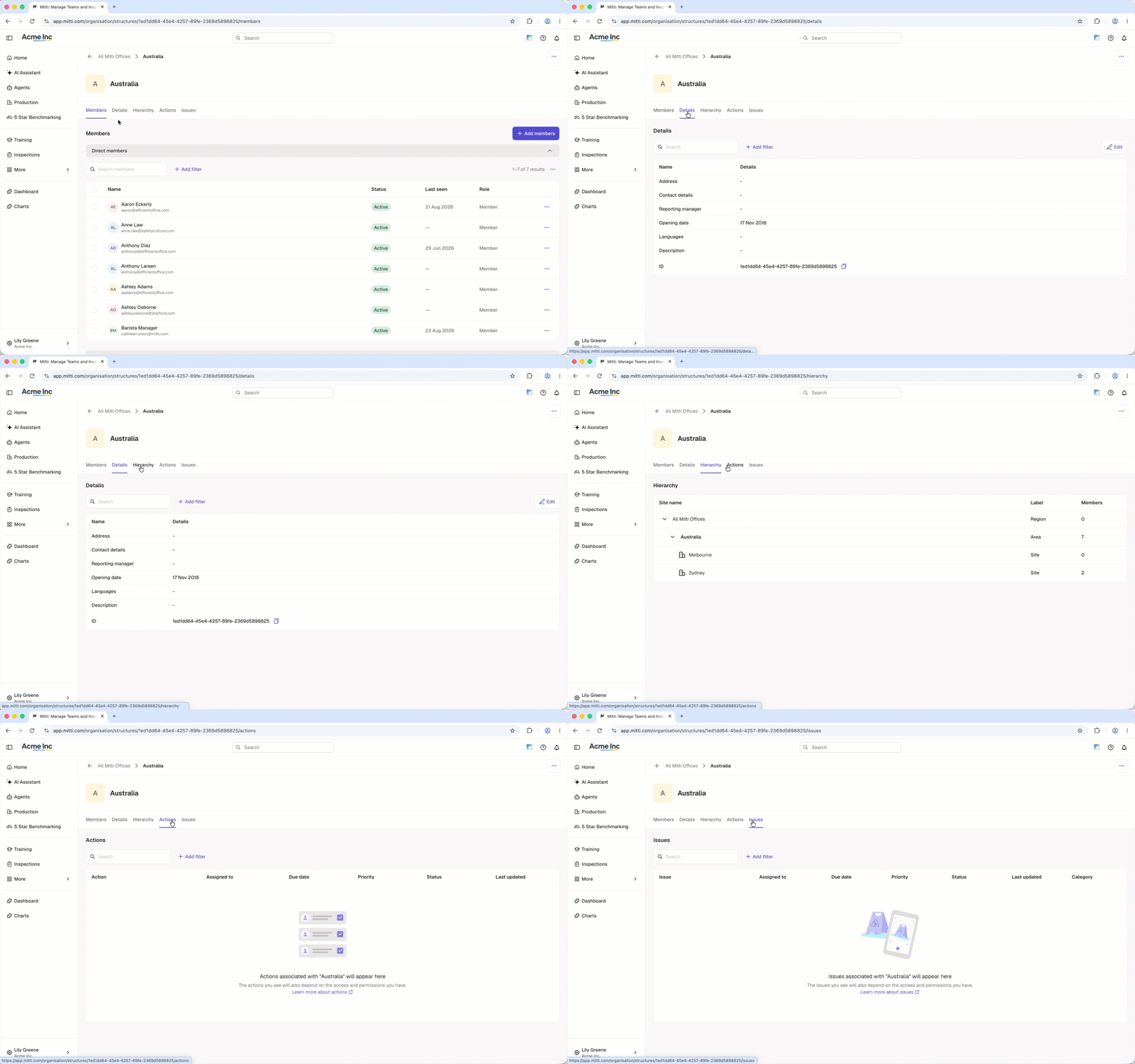
Members: View and manage which users have been added as members to the level. Managing level membership requires "Platform management: Sites" permission and a Full seat.
Details: View the site ID, description, and additional details set up for your site based on organization fields. Deleting or renaming sites requires "Platform management: Sites" permission. Managing organization fields for your group or site requires "Platform management: Fields" permission.
Hierarchy: View a site's full hierarchy including the number of members in each site, area, region, state, or country.
Actions: View and manage actions that have been created at any sites under the level.
Issues: View and manage issues created at any sites under the level, depending on your access. You need "Issues: Access" permission to view issues and "Issues: Settings" permission to manage them.
Need more help?
Was this page helpful?
