Last updated: November 12, 2025
If you have "Documents: Administrator" permission, you can archive any files and folders in your organization.
Archive a file or a folder
Select Documents in the sidebar or in More.
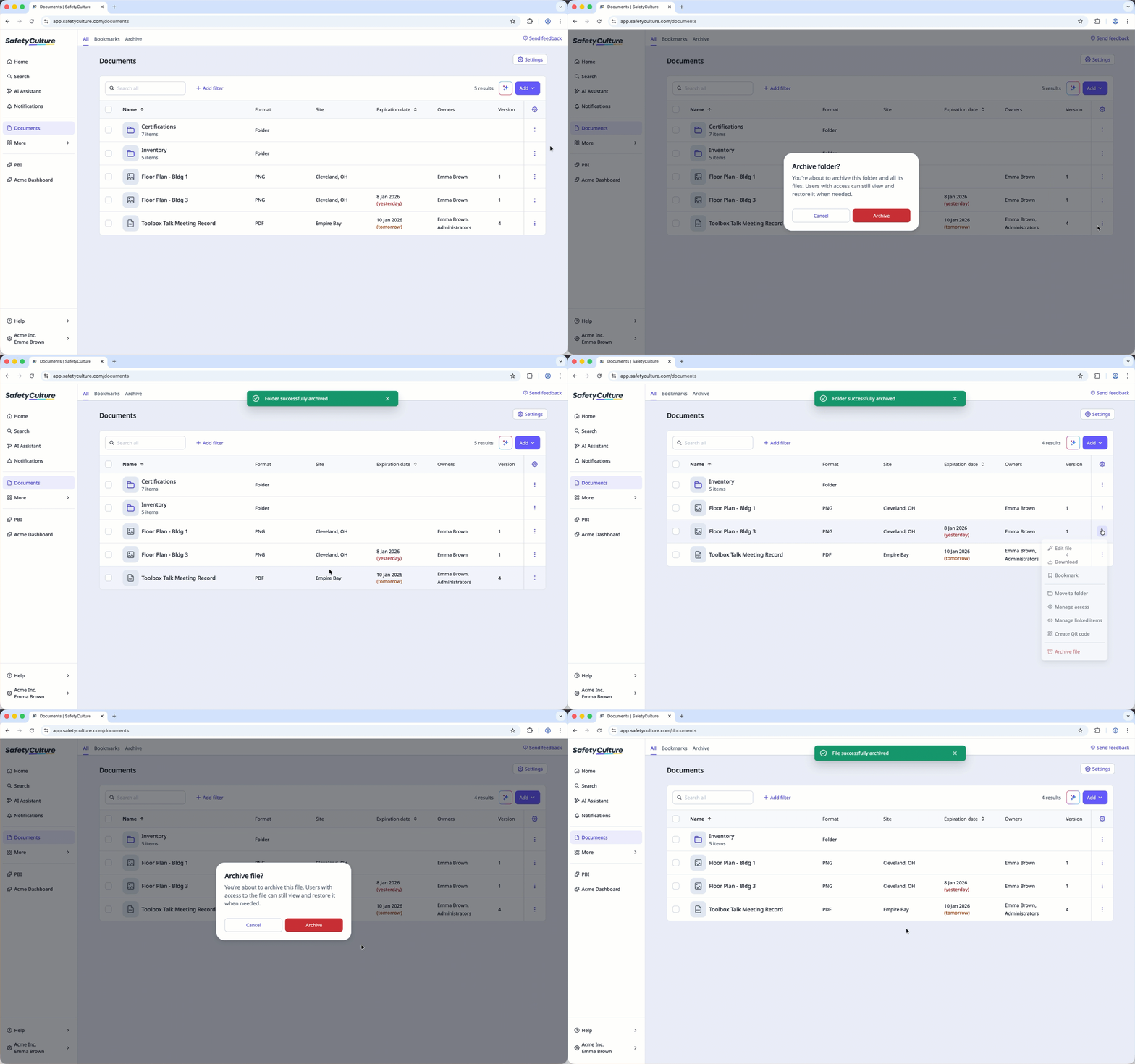
Click on the right-hand side of the file or folder.
Select Archive file or Archive folder.
In the pop-up window, click Archive.
Bulk archive files or folders
Select Documents in the sidebar or in More.
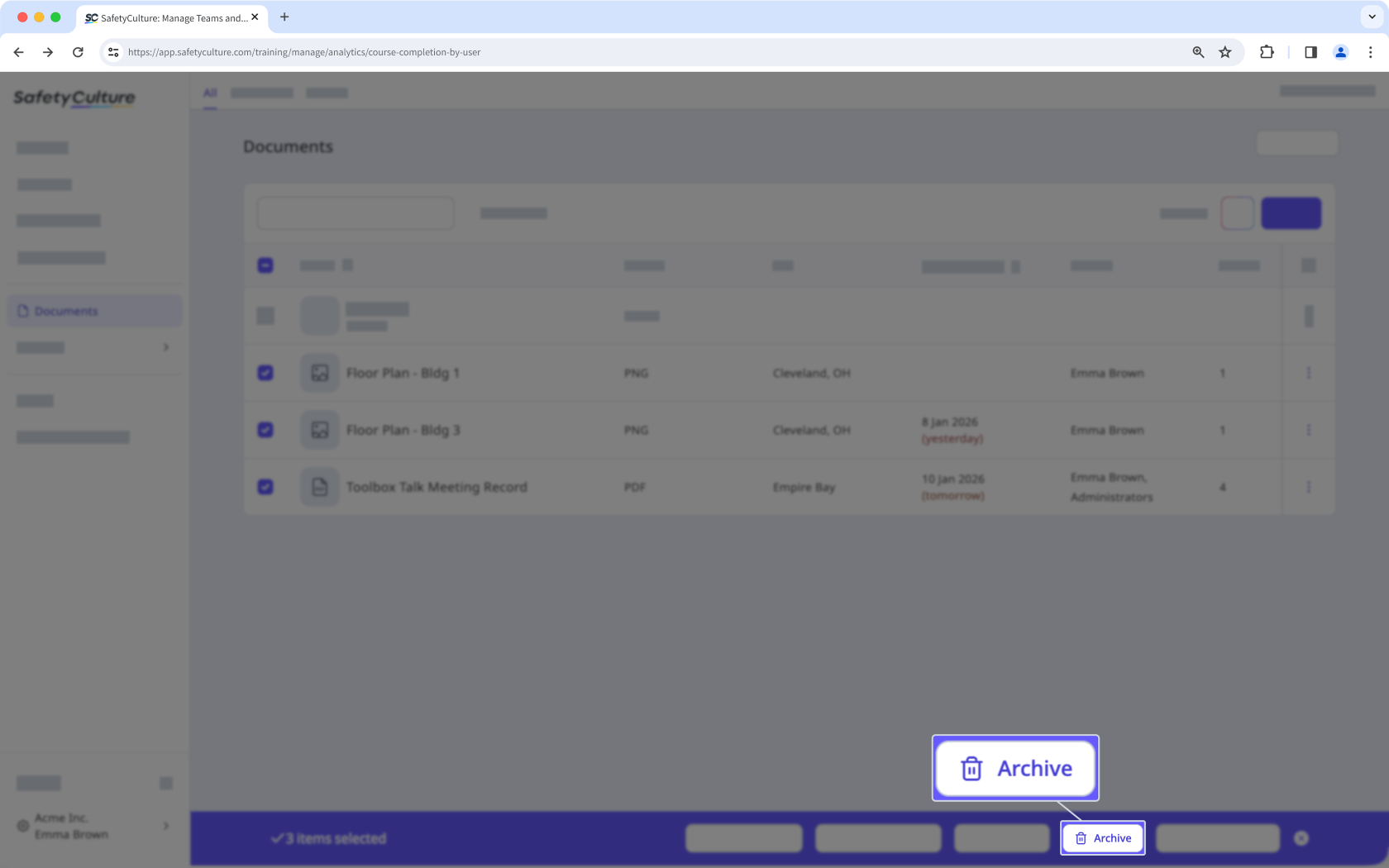
Select the files or folders you want to archive by checking the box of each item on the left-hand side of the page.
Select Archive at the bottom of the page.
In the pop-up window, click Archive.
You can only archive files that aren't linked anywhere.
If you’ve accidentally archived the wrong file or folder, you can always restore it via the web app.
Frequently asked questions
Need more help?
Was this page helpful?
