Last updated: September 24, 2026
This feature is currently in Early Access. If you're interested, please contact your customer success manager to check if your organization is eligible.
What does it mean to link sites to files and folders?
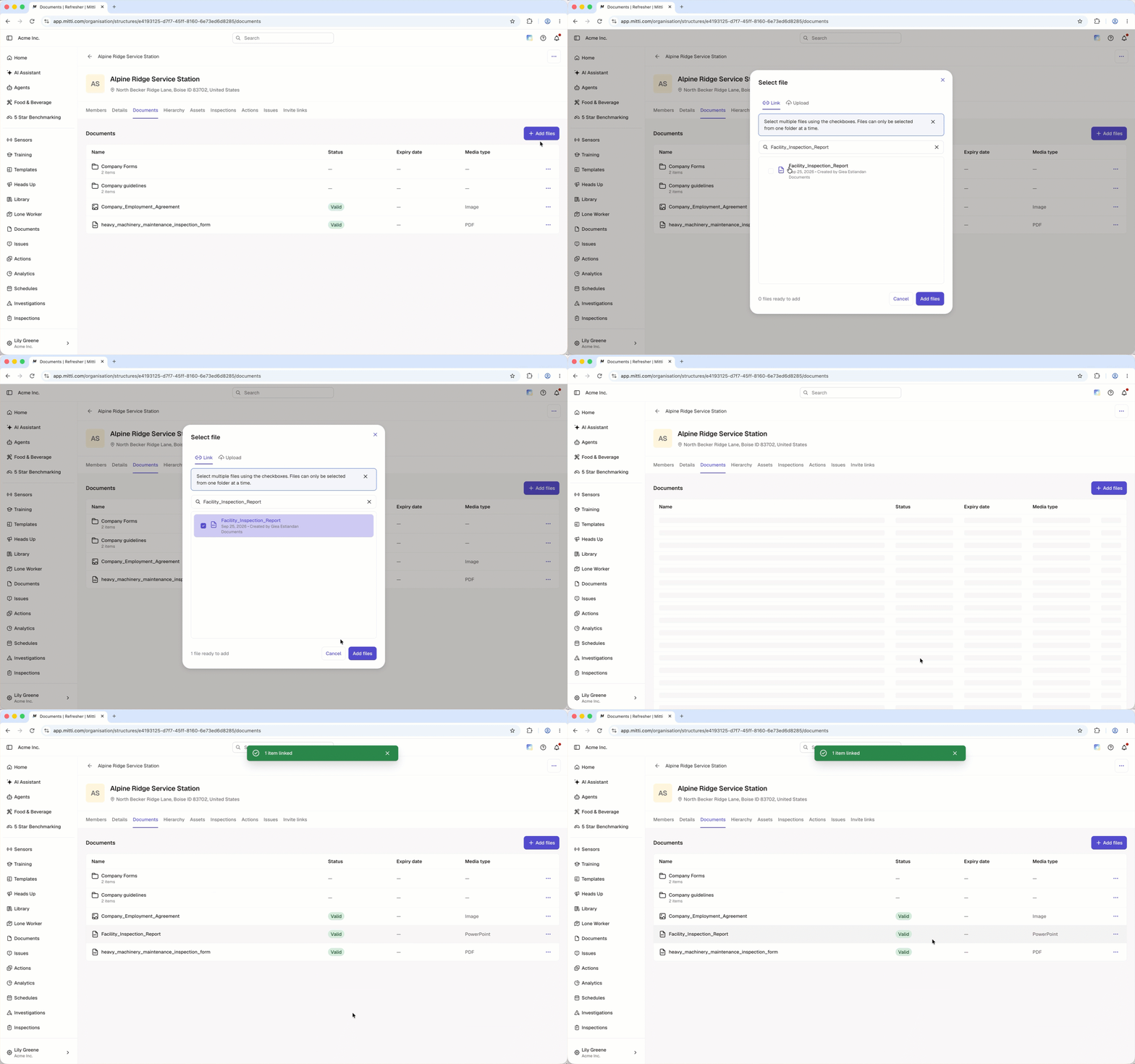
When you link sites to a file or folder in Documents, that file or folder appears on the profile of every site you link it to. The file or folder stays in Documents, so linking creates a reference rather than a copy, and any edits you make show up on all of those sites.
Linking from Documents lets you connect one file or folder to several sites at a time. That helps when the same documentation applies to more than one location, such as a company-wide policy or a standard operating procedure. Site members can then view the files and folders in one place on the site profile.
What you'll need
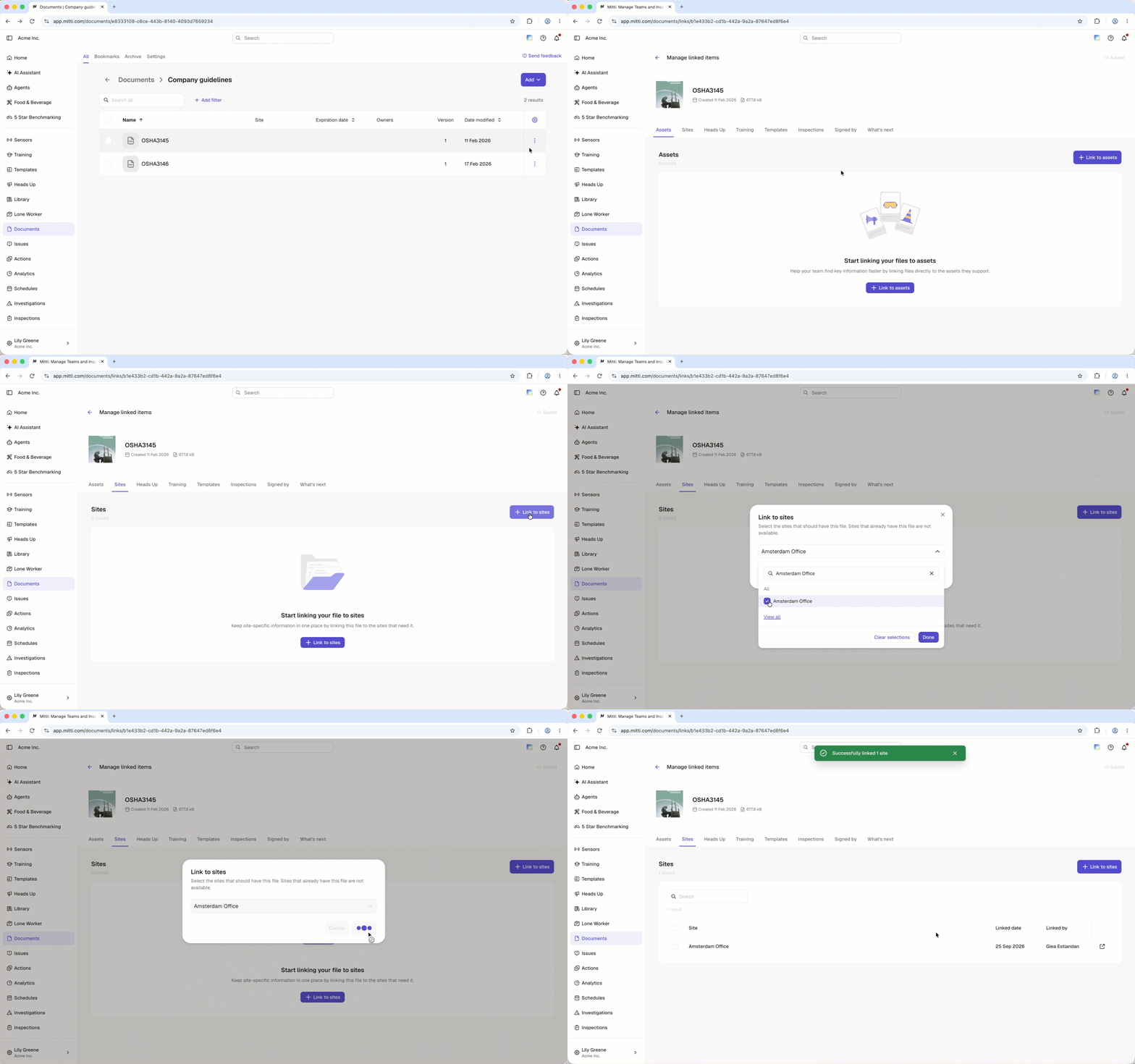
Link a site to a file or folder
Click Documents in the sidebar or in More.
Click on the file or folder's right-hand side and select Manage linked items.
Select the Sites tab at the top of the page.
Click Link to sites on the upper-right of the page.
In the pop-up window, select the site you want to link from the dropdown menu and click Done.
Click Link.
Unlink a site from a file or folder
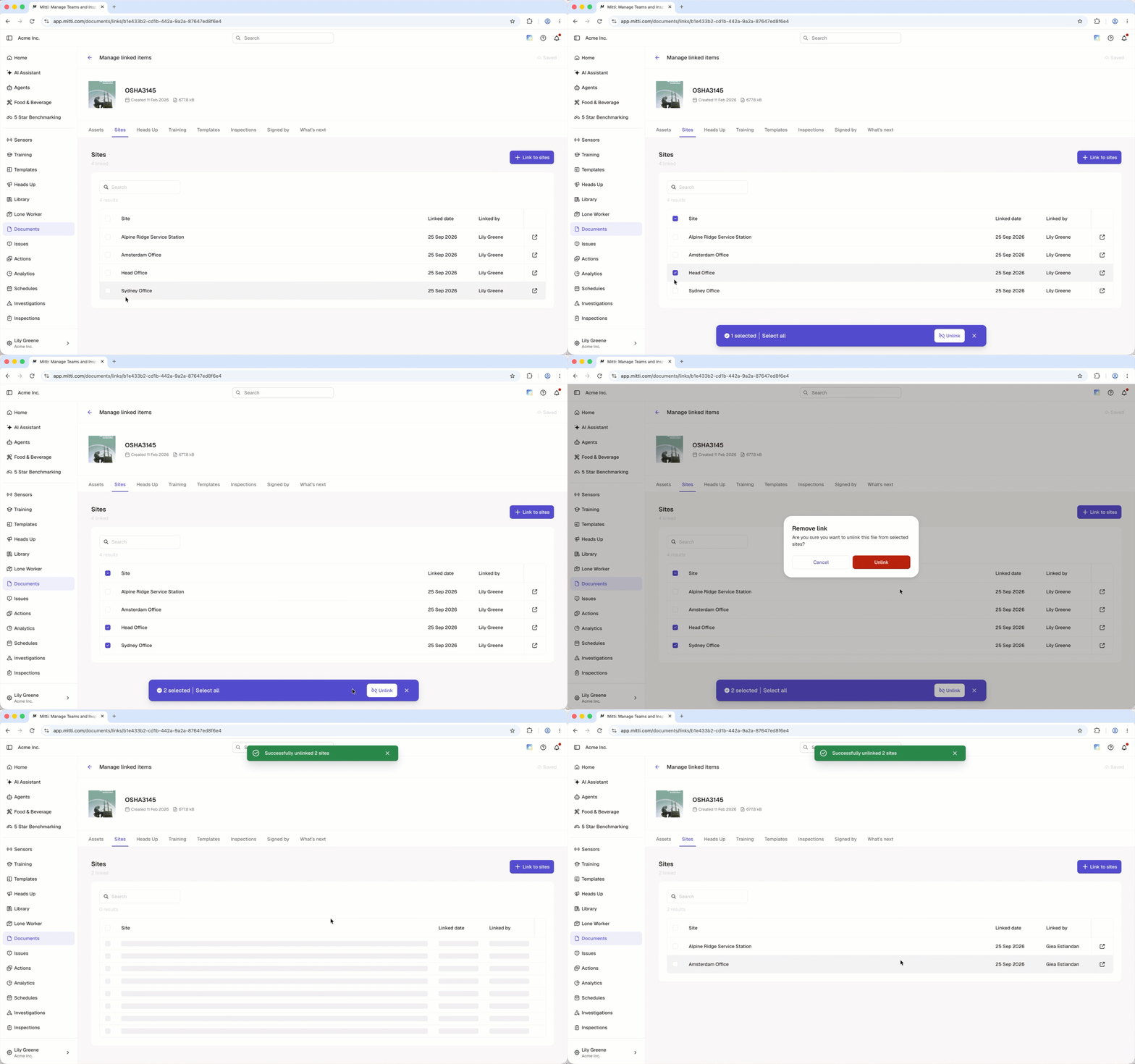
Click Documents in the sidebar or in More.
Click on the file or folder's right-hand side and select Manage linked items.
Select the Sites tab at the top of the page.
Check the box on the site's left-hand side.
Click Unlink at the bottom of the page.
In the pop-up window, click Unlink.
Click What's next and select up to 2 features you want Documents to link with next. Your feedback helps shape the future of Documents.
Frequently asked questions
Need more help?
Was this page helpful?
