Last updated: October 25, 2026
What are roles in Mitti?
Roles define what users can do in Mitti. In most organizations, team members need different levels of access depending on their responsibilities. For example, a site supervisor shouldn't have the same controls as a global admin, and a frontline worker shouldn't have the same access as either. Roles let organizations match each user's permissions to their actual job. There are two types of roles:
Global roles apply across your entire organization.
Group and site roles apply only within the sites or groups a user is assigned to.
Assigning these roles allows organizations to hand user management to site supervisors or regional managers without giving them full admin access. It keeps control close to the people who run each group or site, while admins stay focused on the wider organization.
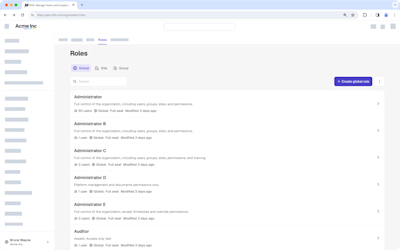
For existing users, the Permissions tab is now called Roles, and permission sets are now called global roles that work exactly the same way.
Managing site or group roles is only available to organizations on Enterprise Plan. By default, all users in an organization on Free Plan have the "Administrator" global role.
What you'll need
Set default global roles
Click your organization name on the lower-left corner of the page and select Roles.
Click on the upper-right of the page and select Set default global roles.
In the pop-up window, select the default global role for each seat type.
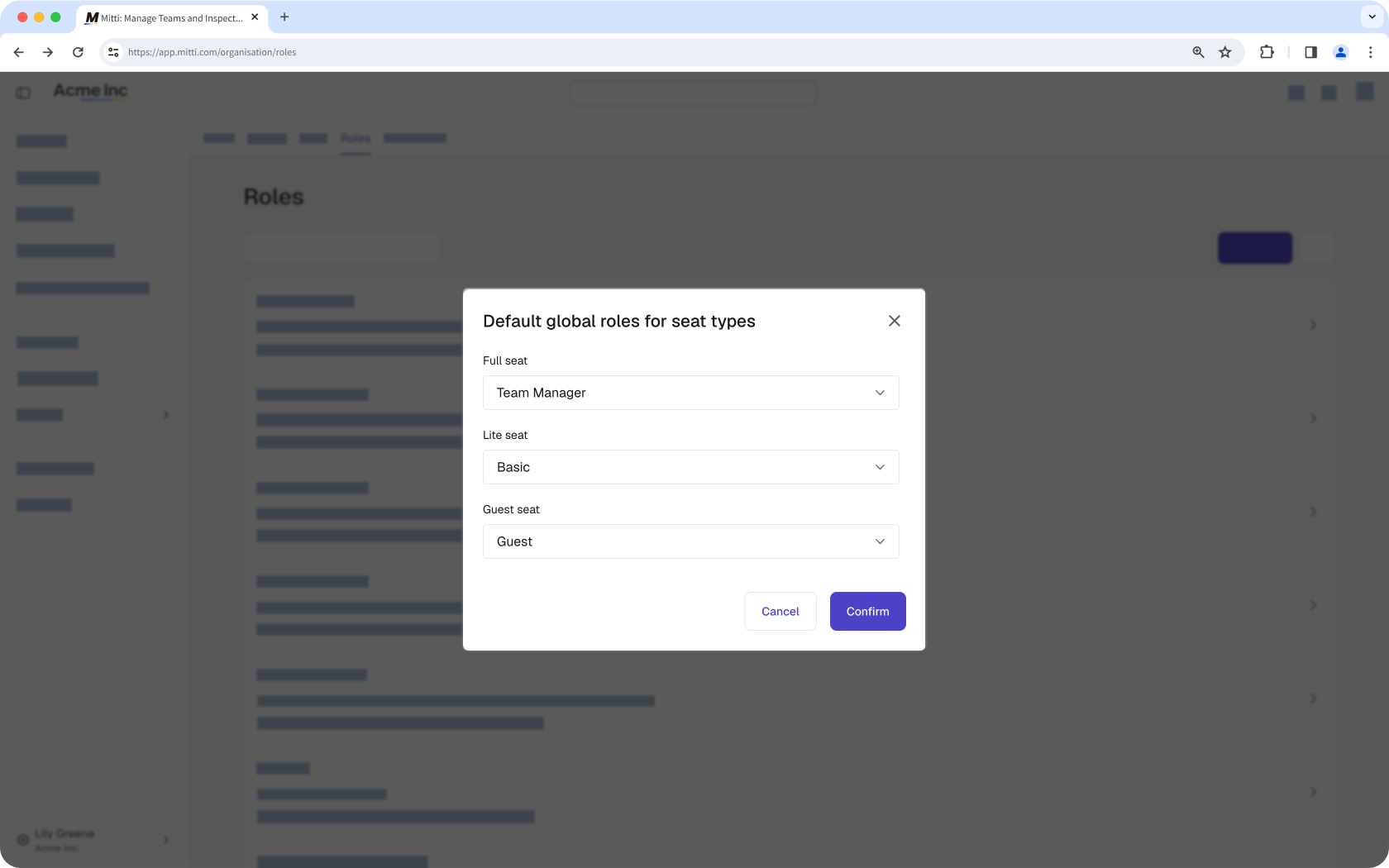
Click Confirm.
Need more help?
Was this page helpful?