Last updated: June 29, 2026
What you'll need
Create a course
Select Training in the sidebar or in More.
If you're on the "Learn" page, click Content at the top of the page and select Courses.
Click Create on the upper-right of the page and select how you want to create your course:
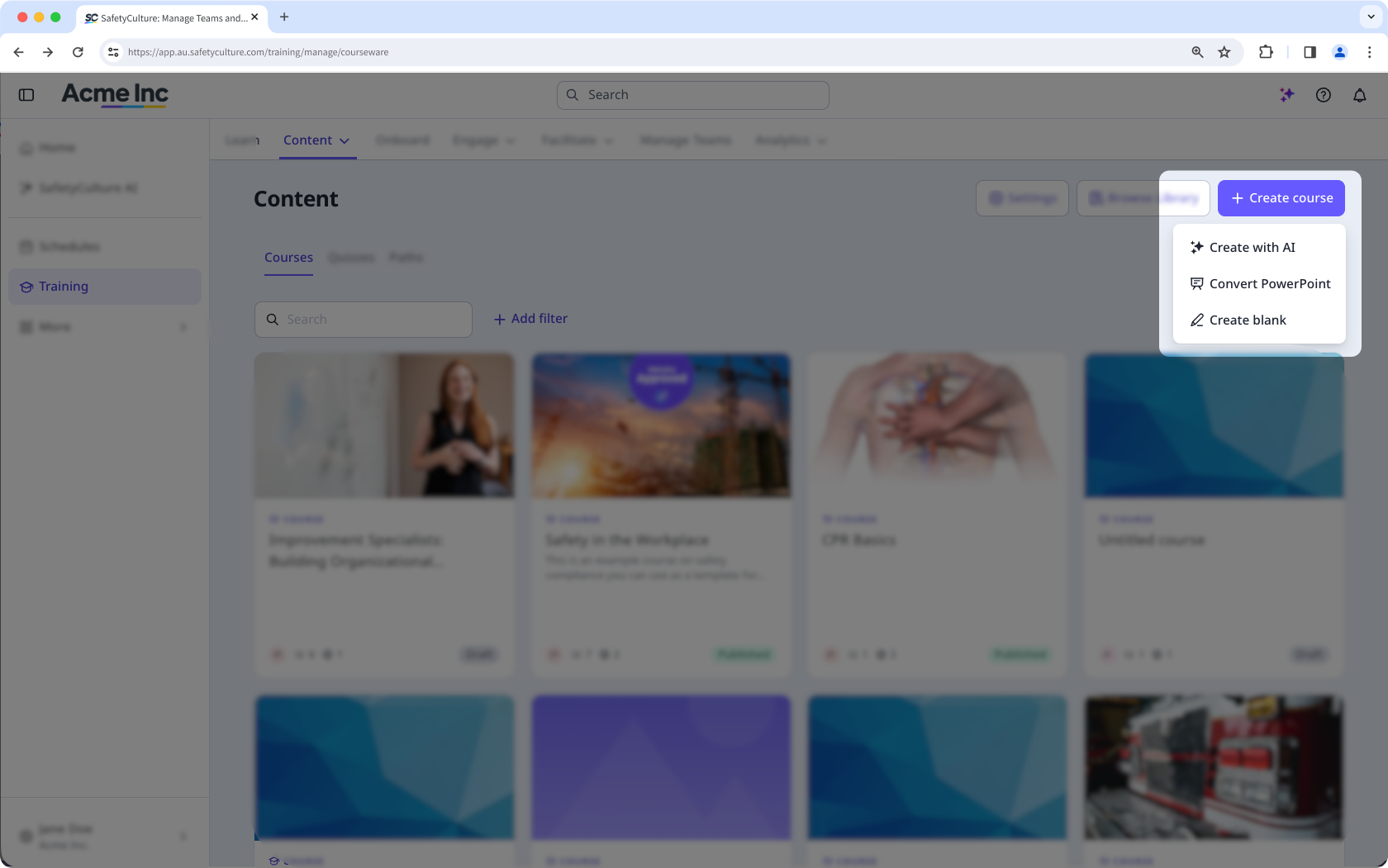
Create with AI: Describe the course you want to create, and the Al Assistant will generate suggested lessons to help you get started. You can also upload a PPTX, PDF, or DOCX file, and it'll convert it into a course.
Convert PowerPoint: Upload PPTX files and directly convert them into interactive, bite-size training courses.
Create blank: Start from scratch and tailor your course to your needs.
Continue to create lessons.
Open the mobile app.
Tap Training in the navigation bar or select it from More.
In Create tab, tap at the lower-right of your screen.
In the pop-up, select how you want to create your course:
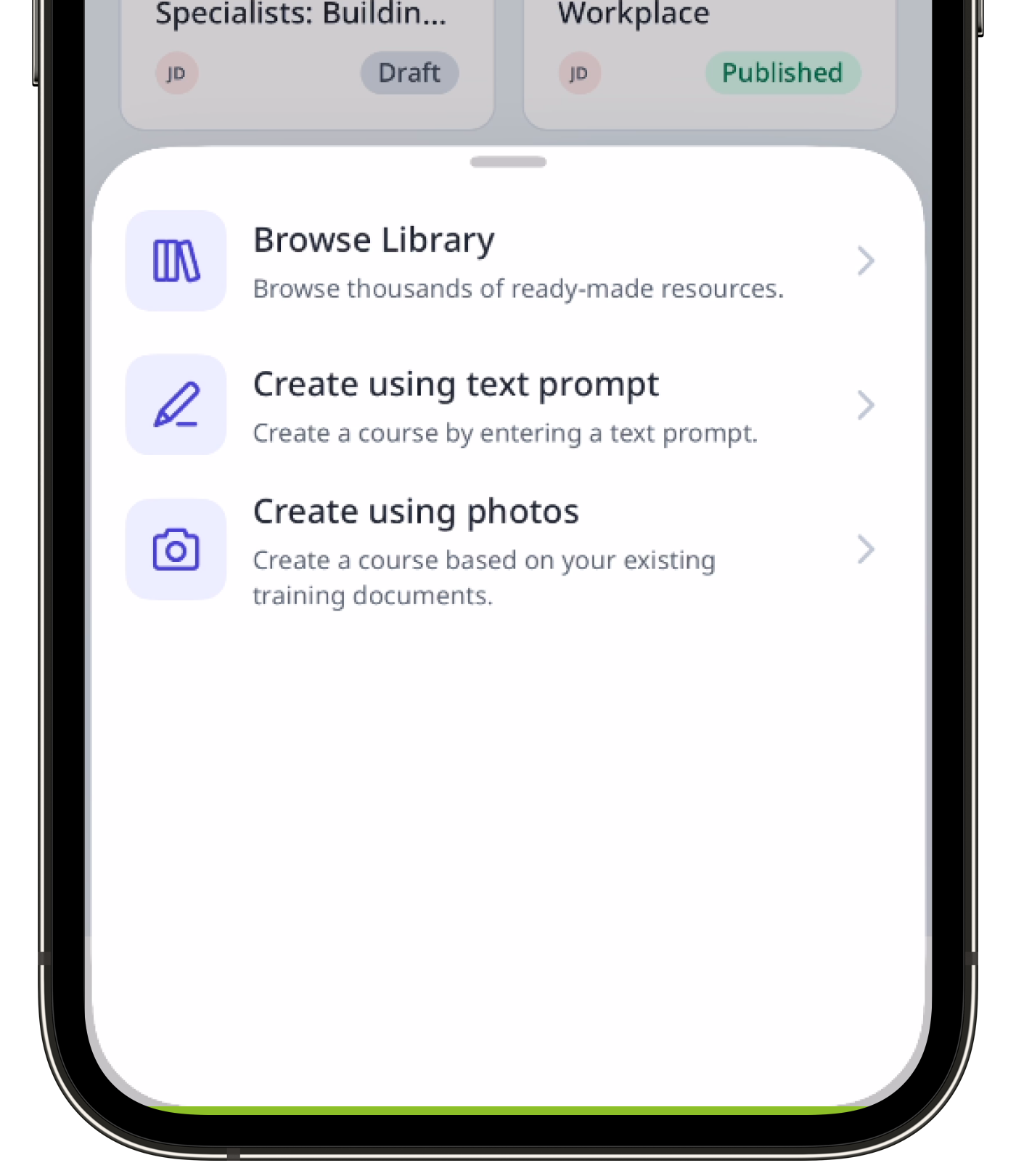
Browse Library: Browse and import pre-built content from our Course Library.
Create using text prompt: Describe your training topic. Then, tap Create with AI.
Create using photos or Create using media: Take up to six photos of your training materials. Then, at the upper-right of your screen, tap Next, and tap Done.
Once your course is created, you can share it by creating a course preview link, so that anyone can preview your course on a web browser.
If you're creating a course via the mobile app, we currently only support editing and publishing courses via the web app. If your course is created using AI, log in to the web app to create or edit lessons and publish the course when ready.
If you have SCORM (Sharable Content Object Reference Model) packages from existing learning management systems, you can also import them as lesson slides to your courses.
Create a lesson
Select Training in the sidebar or in More.
If you're on the "Learn" page, click Content at the top of the page and select Courses.
Create a new course or click View or Edit on an existing one.
If you're editing an existing course and it's published, click Edit on the upper-right of the page.
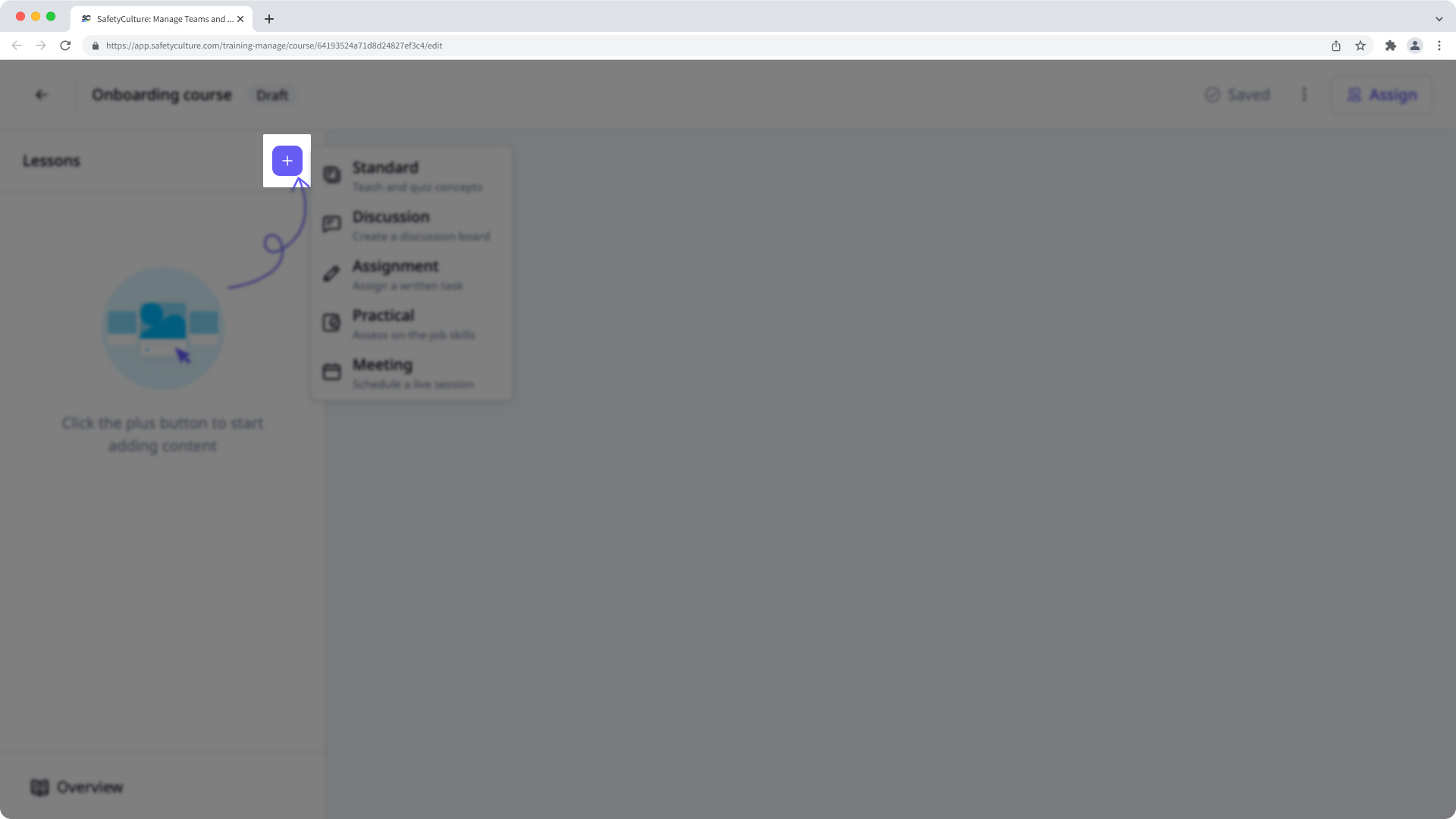
Click on the upper-left and select the lesson type. If you need some help to get started, you can create a lesson or lesson slide using AI.
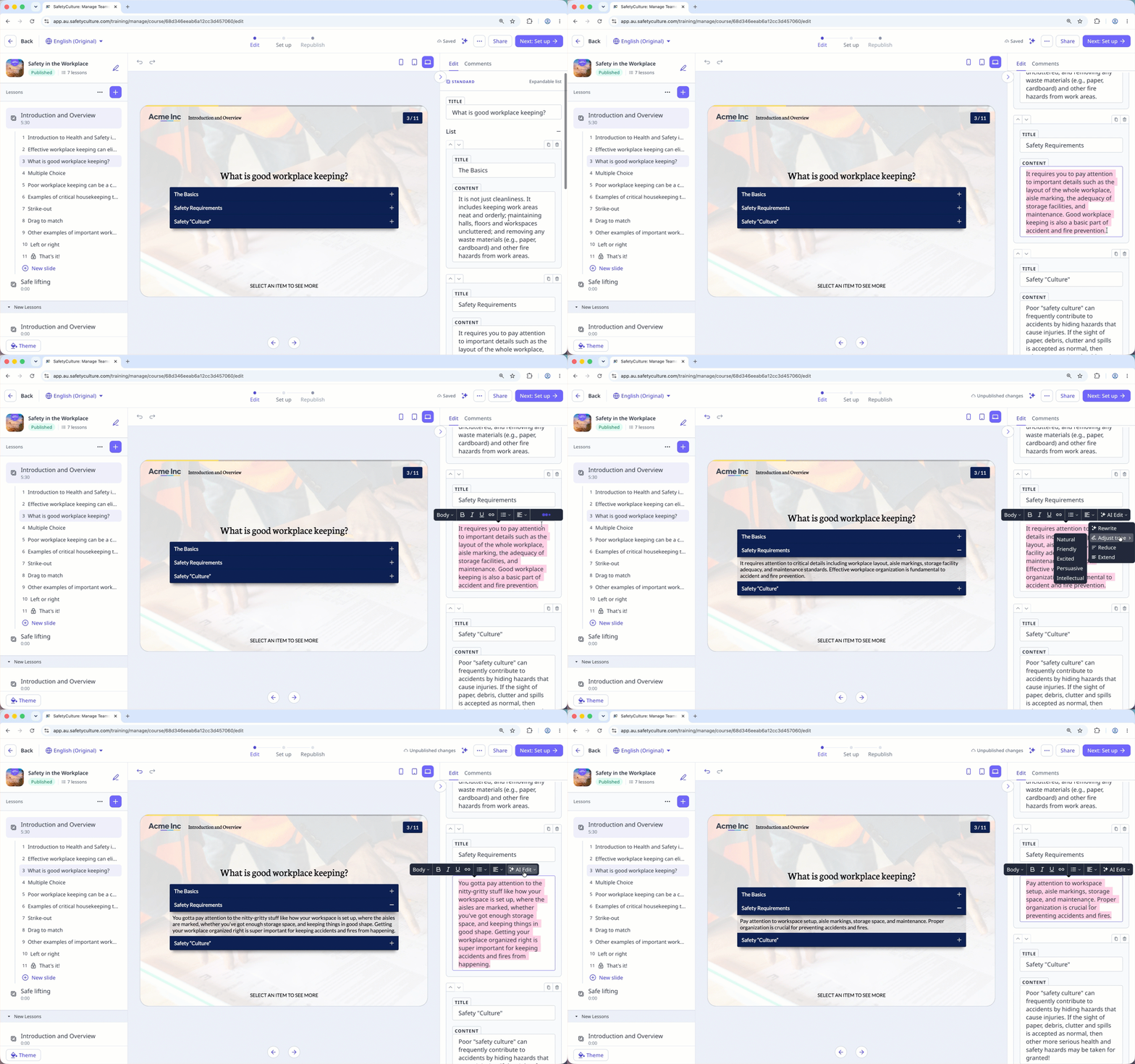
Configure each lesson you create accordingly. For text fields, you can highlight your text and edit its text format, alignment, and style. You can also improve texts using AI Edit with these options:
Rewrite: Transform text into more engaging content.
Adjust tone: Adjust the tone of the text and make it Natural, Friendly, Excited, Persuasive, and Intellectual to suit your audience better.
Reduce: Trim down lengthy passages to keep your content concise and impactful.
Extend: Expand on ideas without rewriting entire paragraphs.
Changes are saved automatically.
If your course is currently a draft, remember to publish it to make your changes available to your team.
Frequently asked questions
Need more help?
Was this page helpful?
