Last updated: August 21, 2026
What is the AI Assistant in Mitti?
The AI Assistant in Mitti is a conversational interface that brings together the tools and information users need in one place. It saves short facts about a user and their work and uses them in later conversations, so memory carries over automatically. It helps users work more efficiently across safety, quality, compliance, training, and day-to-day operations. Instead of navigating between features, users can find answers, surface the right context, and take action directly in the platform.
This co-pilot experience saves time on repetitive tasks and makes it easier to stay focused on the work that drives outcomes. With the AI Assistant, you can work smarter, get support when you need it, and spend more time on the work that matters most.
The AI Assistant is turned on by default for all users in your organization. They are automatically granted the "AI Assistant: Access" permission. You can modify your users'permission sets at any time.
Usage is also measured in credits. View your organization's AI credit usage to track consumption against your plan's allocation.
What you'll need
Start a conversation
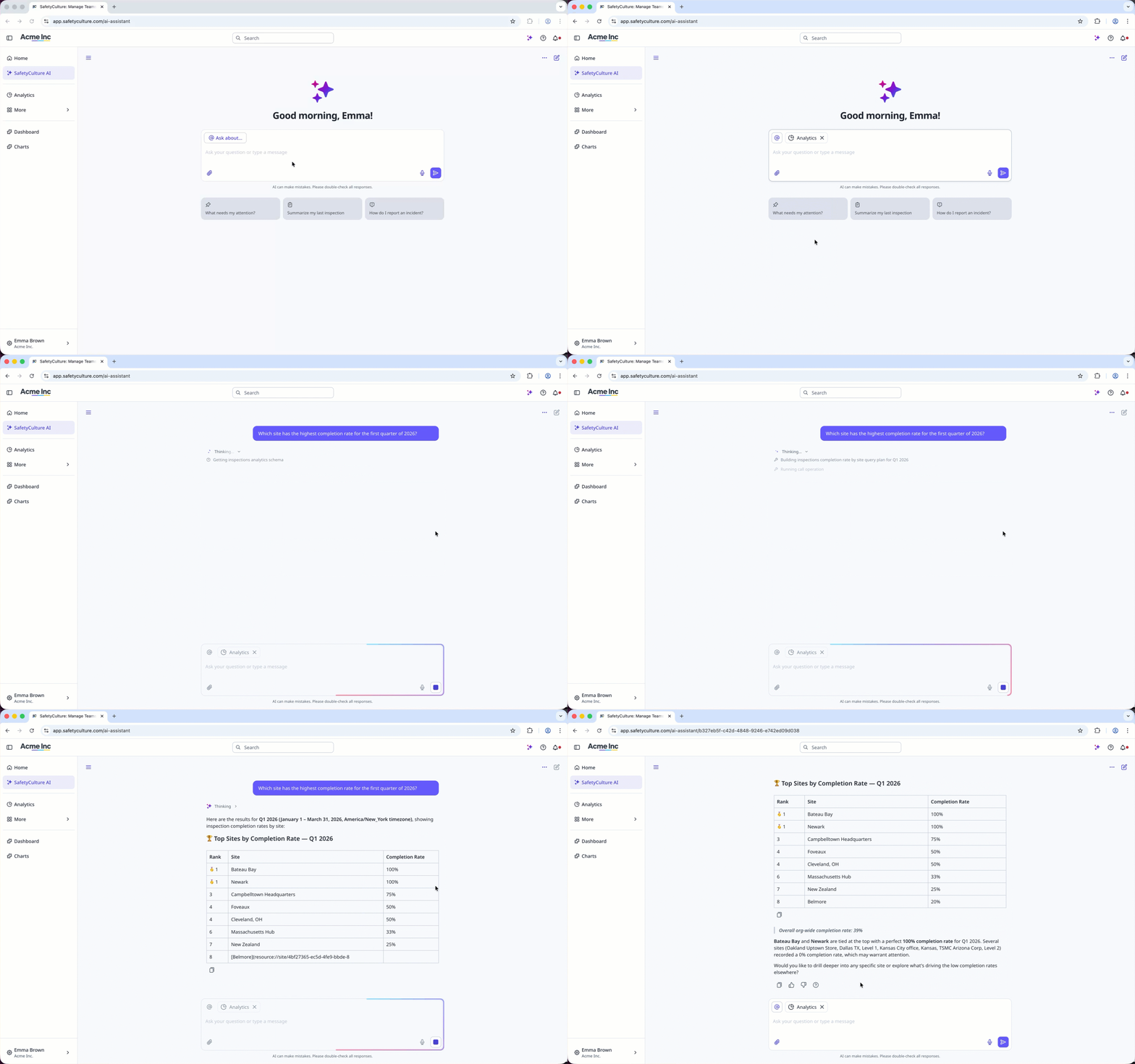
Click AI Assistant in the sidebar or click on the right-hand side of the top bar.
Click Ask about... to choose the feature areas you want the AI Assistant to use in your chat.
Enter your question or prompt. Alternatively, click to start or stop voice input.
You can also click to upload one or more files to guide how the AI Assistant responds.
Depending on the prompt, the AI Assistant will return text-based responses, create or modify data, generate downloadable files, or perform operations within your organization.
Open the mobile app.
Tap Home at the bottom of your screen.
Tap at the upper-right corner of your screen.
Tap Ask about... to choose the feature areas you want the AI Assistant to use in your chat.
Enter your question or prompt. Alternatively, tap to start or stop voice input.
You can also tap to upload one or more files to guide how the AI Assistant responds.
Depending on the prompt, the AI Assistant will return text-based responses, create or modify data, generate downloadable files, or perform operations within your organization.
Add custom contexts to tailor the AI Assistant’s responses to your organization’s workflows and terminology.
Delete a conversation
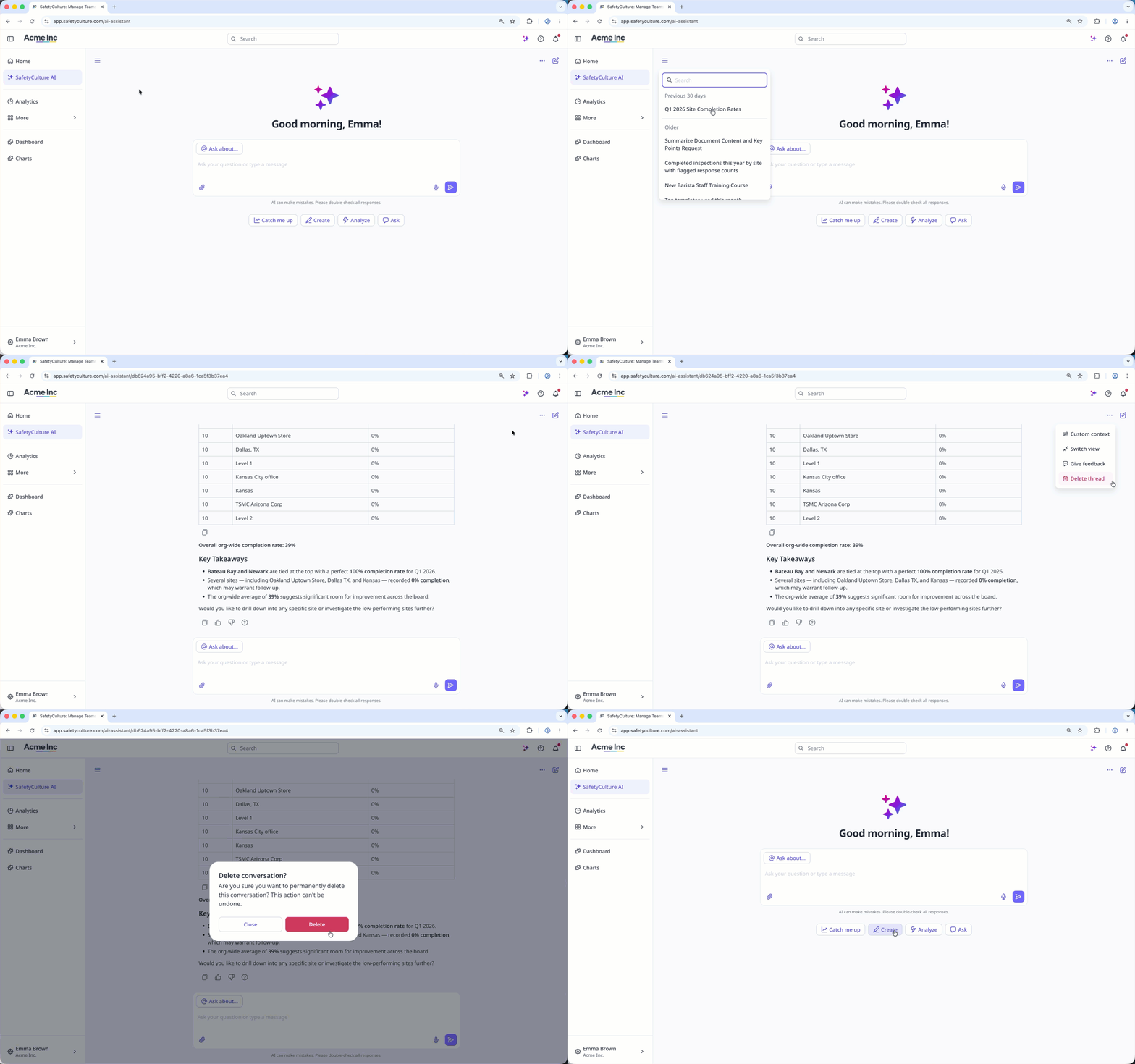
Click AI Assistant in the sidebar or click on the right-hand side of the top bar.
Click on the upper-left of the page, and select the chat you want to delete.
Click on the upper-right of the chat and select Delete thread.
In the pop-up window, click Delete.
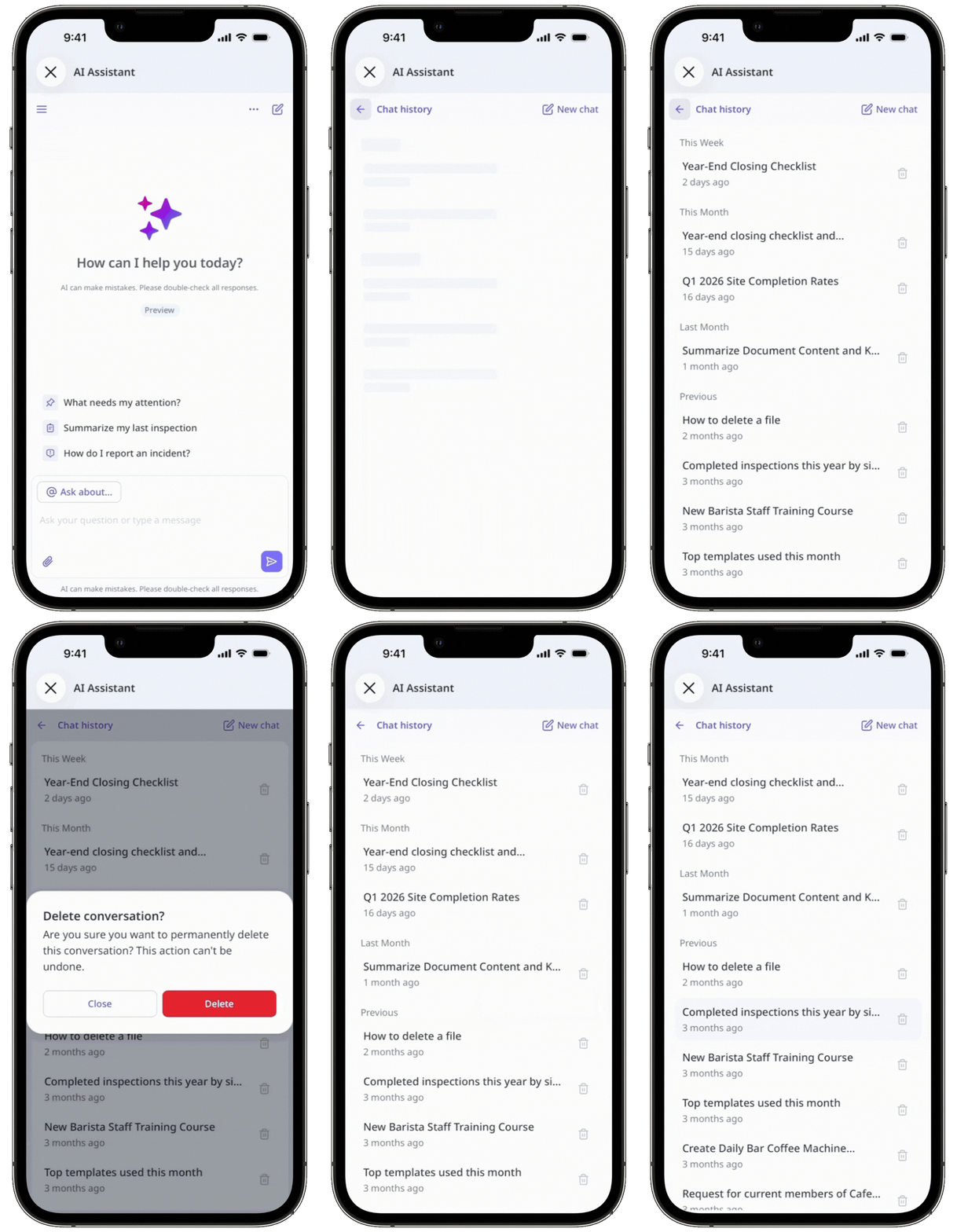
Open the mobile app.
Tap Home at the bottom of your screen.
Tap at the upper-right corner of your screen.
Tap at the upper-left of your screen.
Tap on the right-hand side of the chat.
In the pop-up menu, tap Delete.
Deleting is irreversible, and we cannot restore permanently deleted items. Confirmation is always required before any deletion, so be sure you're not accidentally deleting the wrong item.
The AI Assistant can only help with tasks based on the access and permissions assigned to you.
What can the AI Assistant do?
The AI Assistant helps you get quick answers from your data, but it may not always be accurate. Make sure to check the response and source to confirm the information is correct.
Supported languages
Arabic
Bengali
Chinese (Simplified)
English
French
German
Hindi
Indonesian
Italian
Japanese
Korean
Portuguese (Brazil)
Spanish
Swahili
Frequently asked questions
Need more help?
Was this page helpful?
