Last updated: September 13, 2026
How does memory work in AI Assistant?
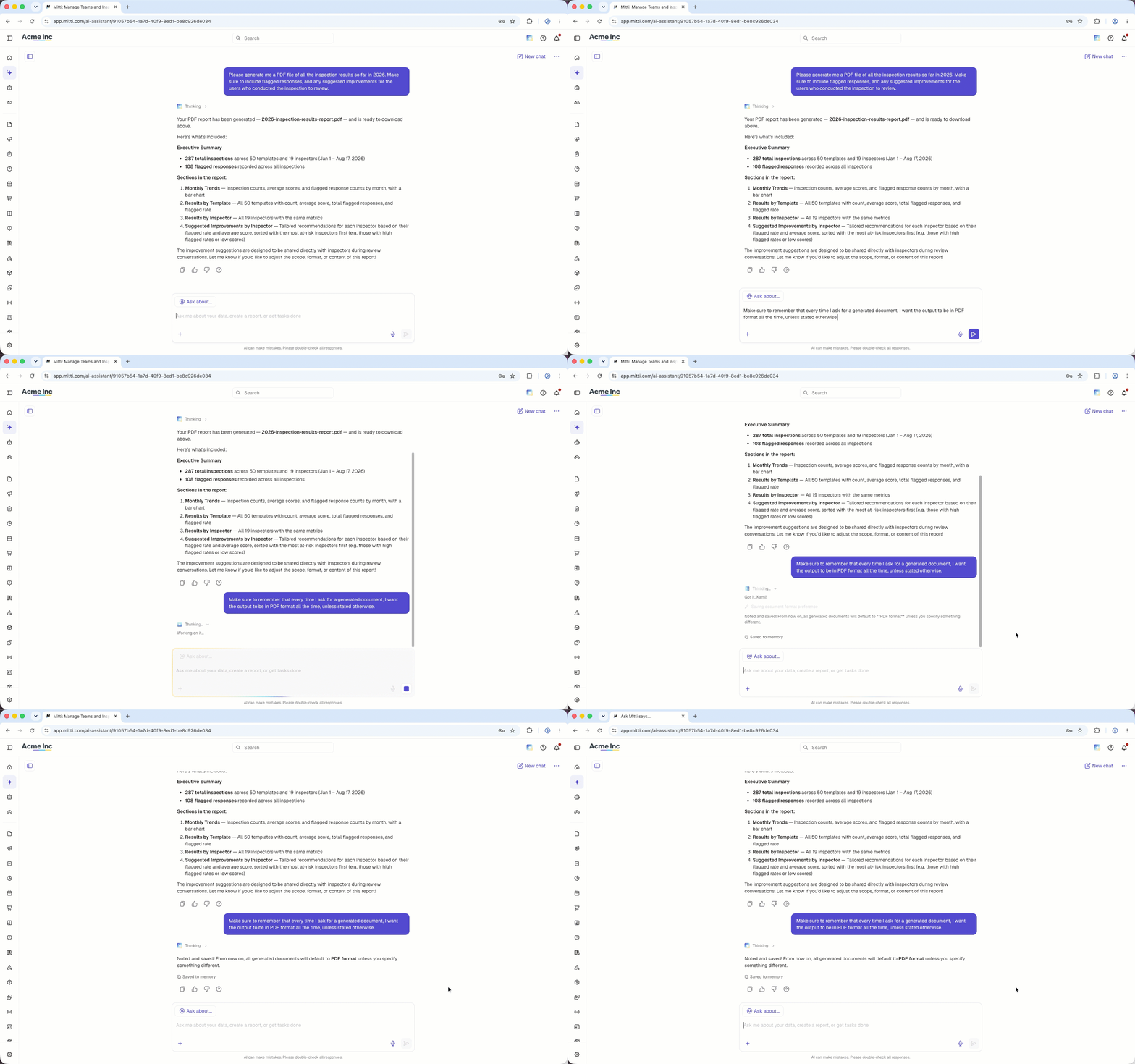
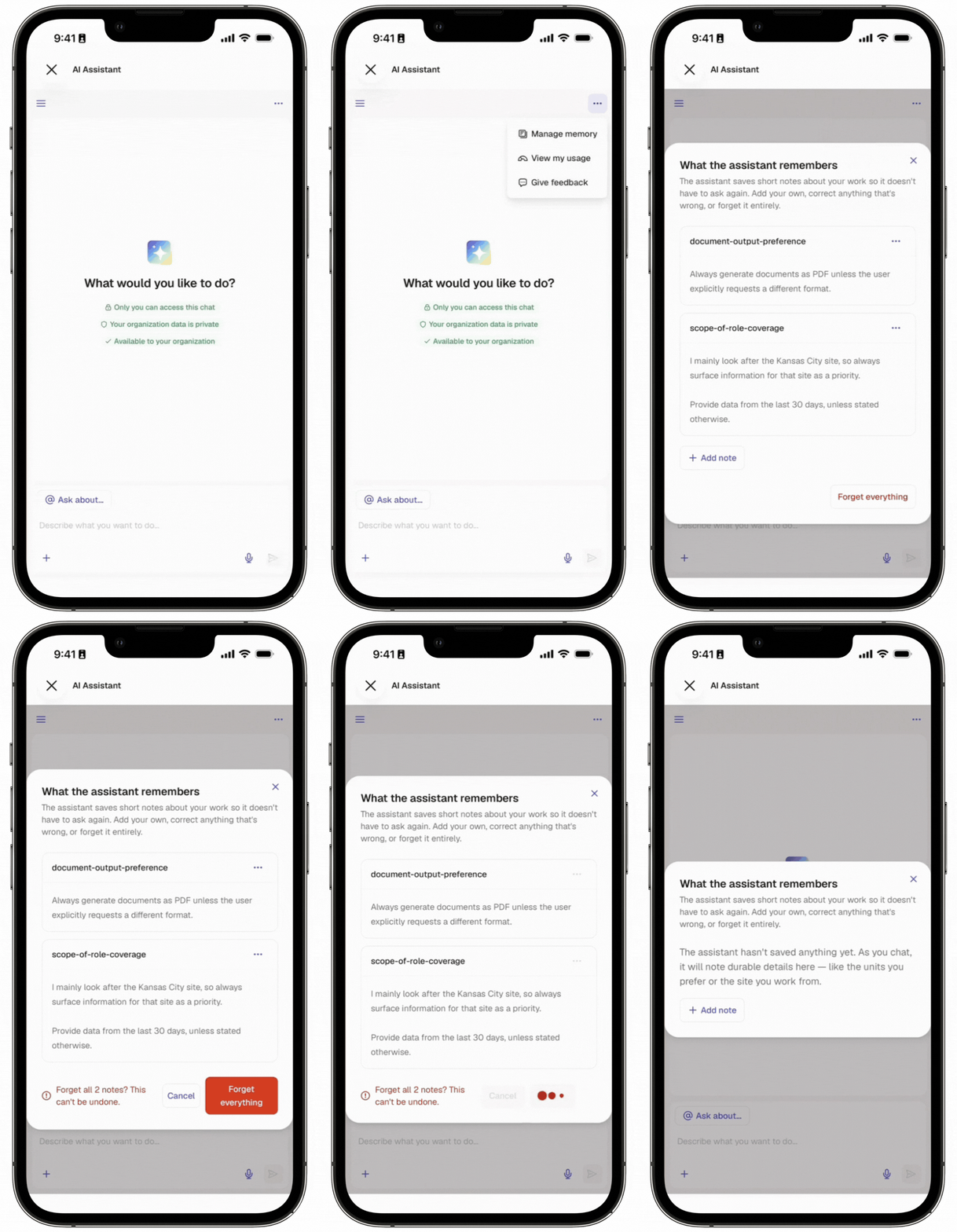
Chat memory lets the AI Assistant remember short facts about you and your work, such as your role or the site you manage. The AI Assistant saves these details as you chat, and a "Saved to memory" note appears each time so you know what's been kept. You can view, edit, or clear what the AI Assistant remembers at any time by managing its memory. As a result, you don't need to repeat your context in every conversation, and answers stay relevant to your work.
What you'll need
Add a memory
Click AI Assistant in the sidebar or click on the right-hand side of the top bar.
On the upper-right of the page, click then select Manage memory.
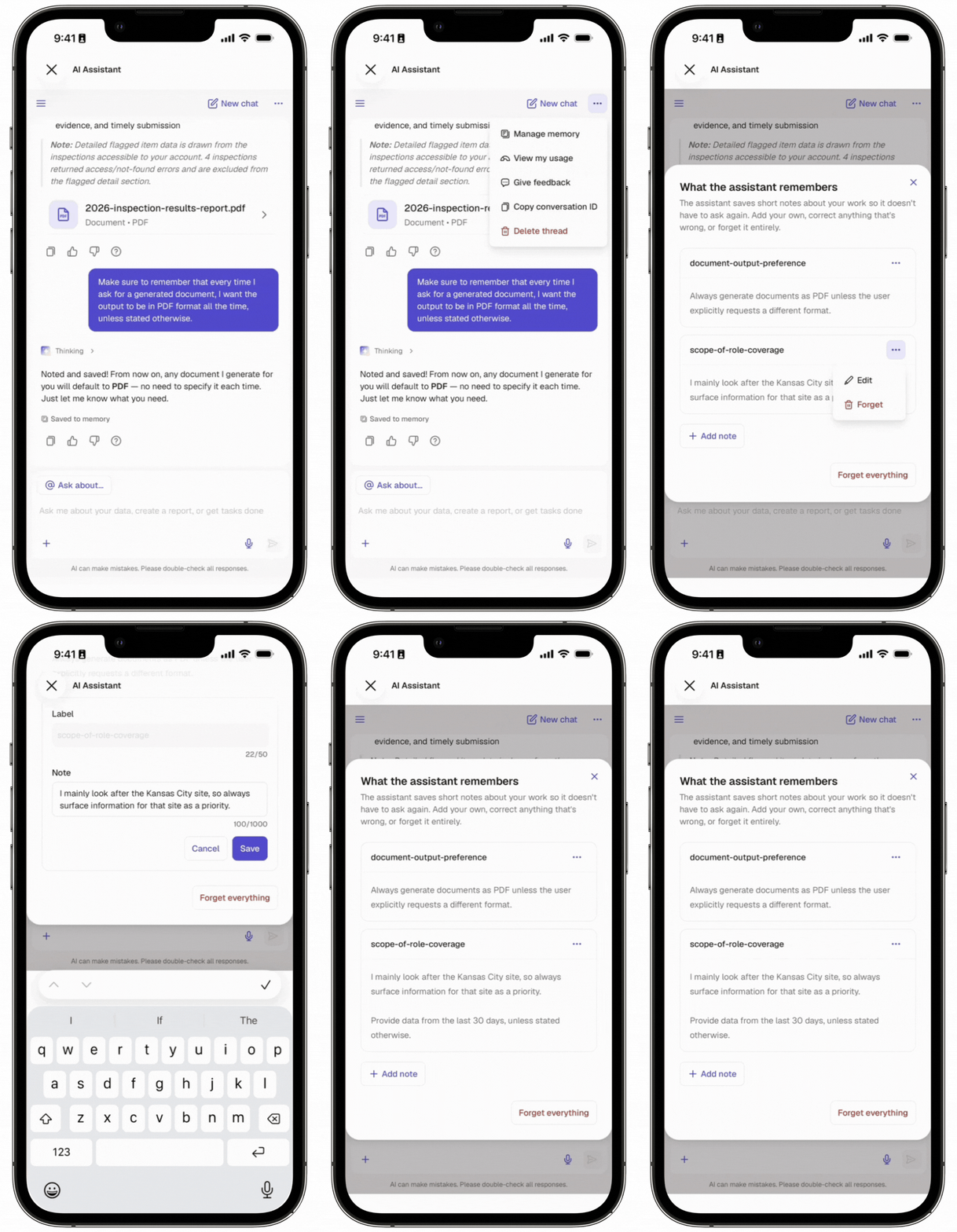
In the pop-up window, click Add note.
Enter a label and a note.
Label: Enter a short name for the note.
Note: Enter the information you want the AI Assistant to remember, such as the site you manage or your preferred output format.
Click Save.
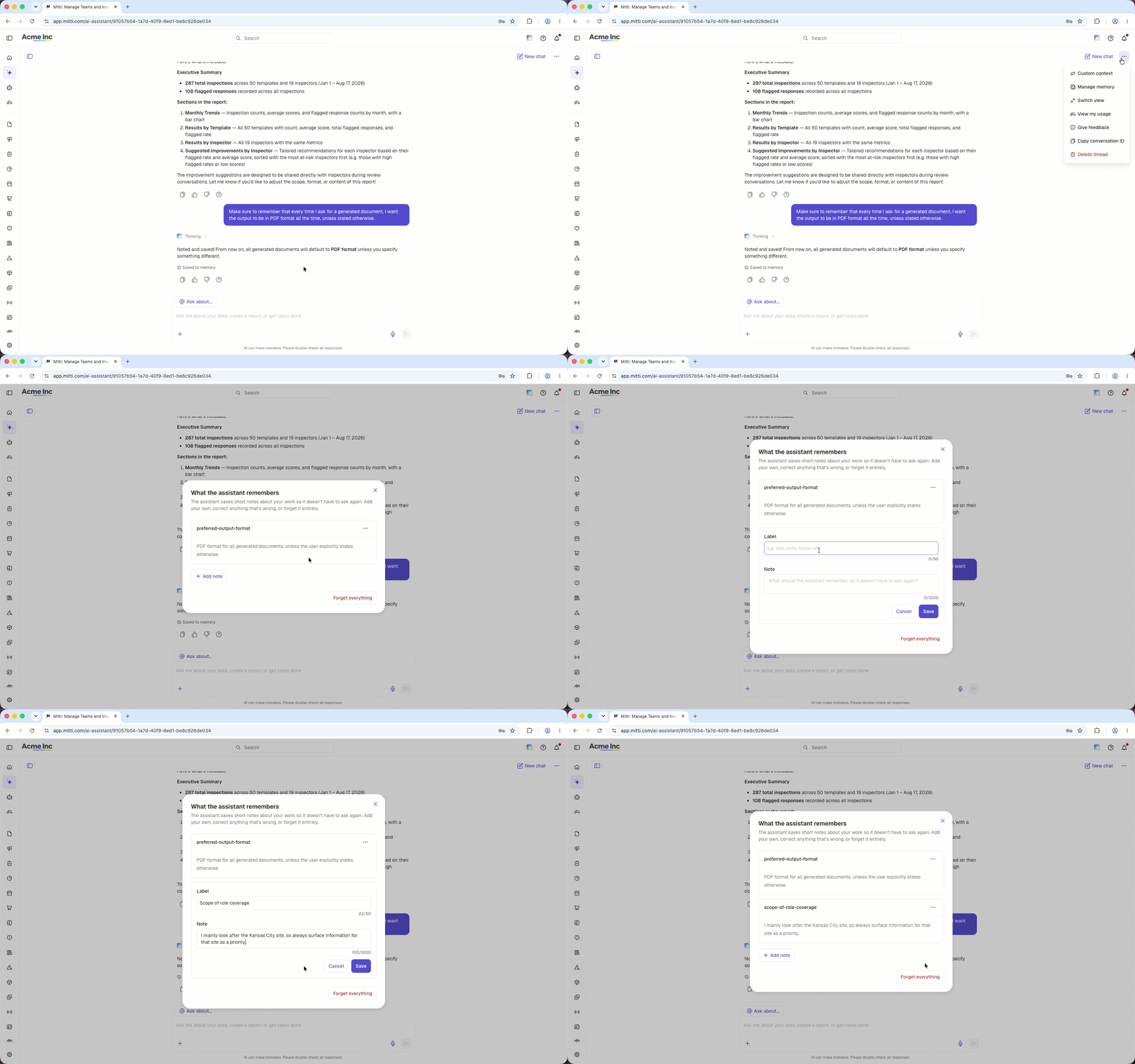
Open the mobile app.
Tap Home at the bottom of your screen.
Tap at the upper-right of your screen.
Tap at the upper-right of your screen then select Manage memory.
In the pop-up window, tap Add note.
Enter a label and a note.
Label: Enter a short name for the note.
Note: Enter the information you want the AI Assistant to remember, such as the site you manage or your preferred output format.
Tap Save.
Edit a memory
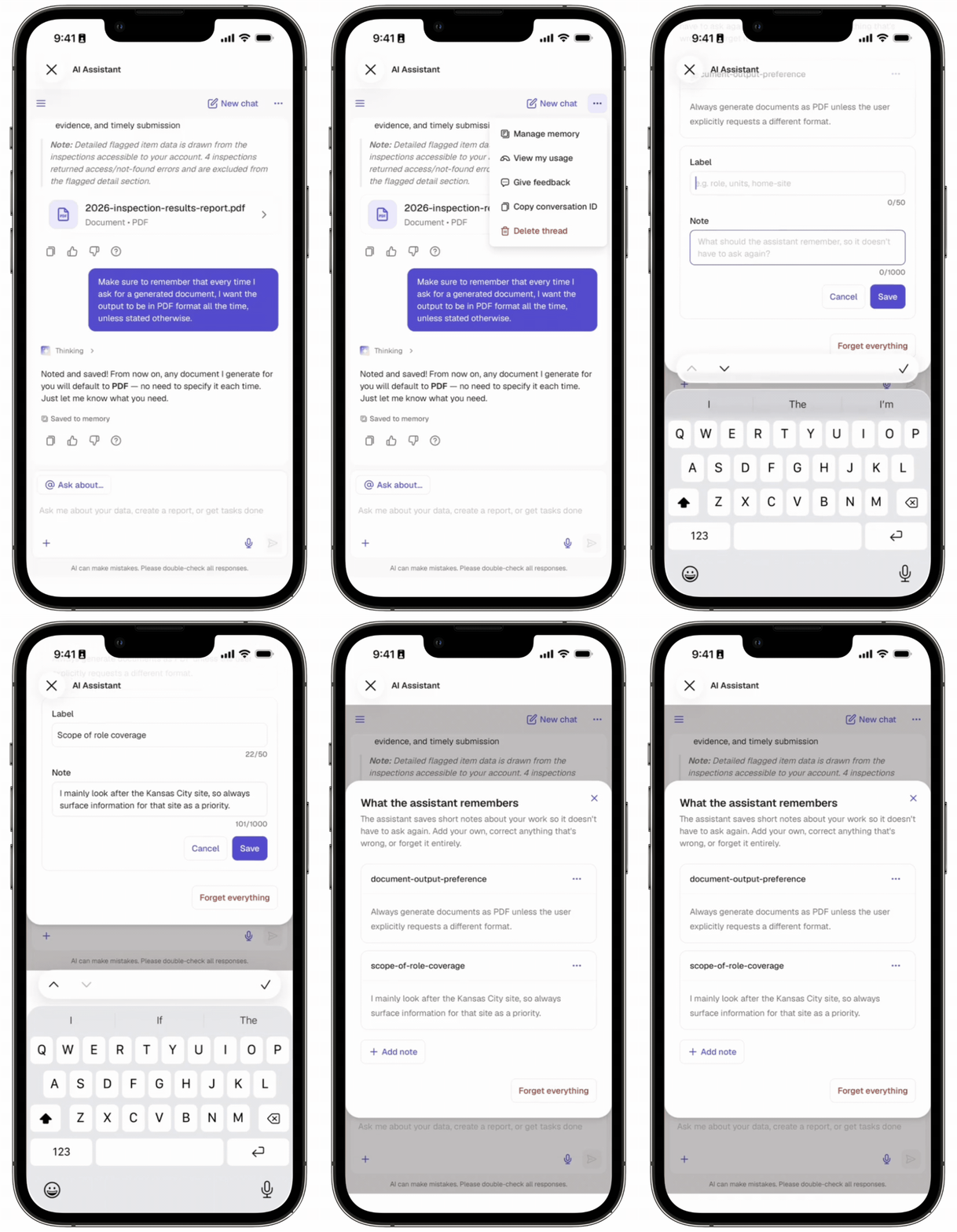
Click AI Assistant in the sidebar or click on the right-hand side of the top bar.
On the upper-right of the page, click then select Manage memory.
In the pop-up window, click on the note's right-hand side then select Edit.
Edit the note accordingly.
Click Save.
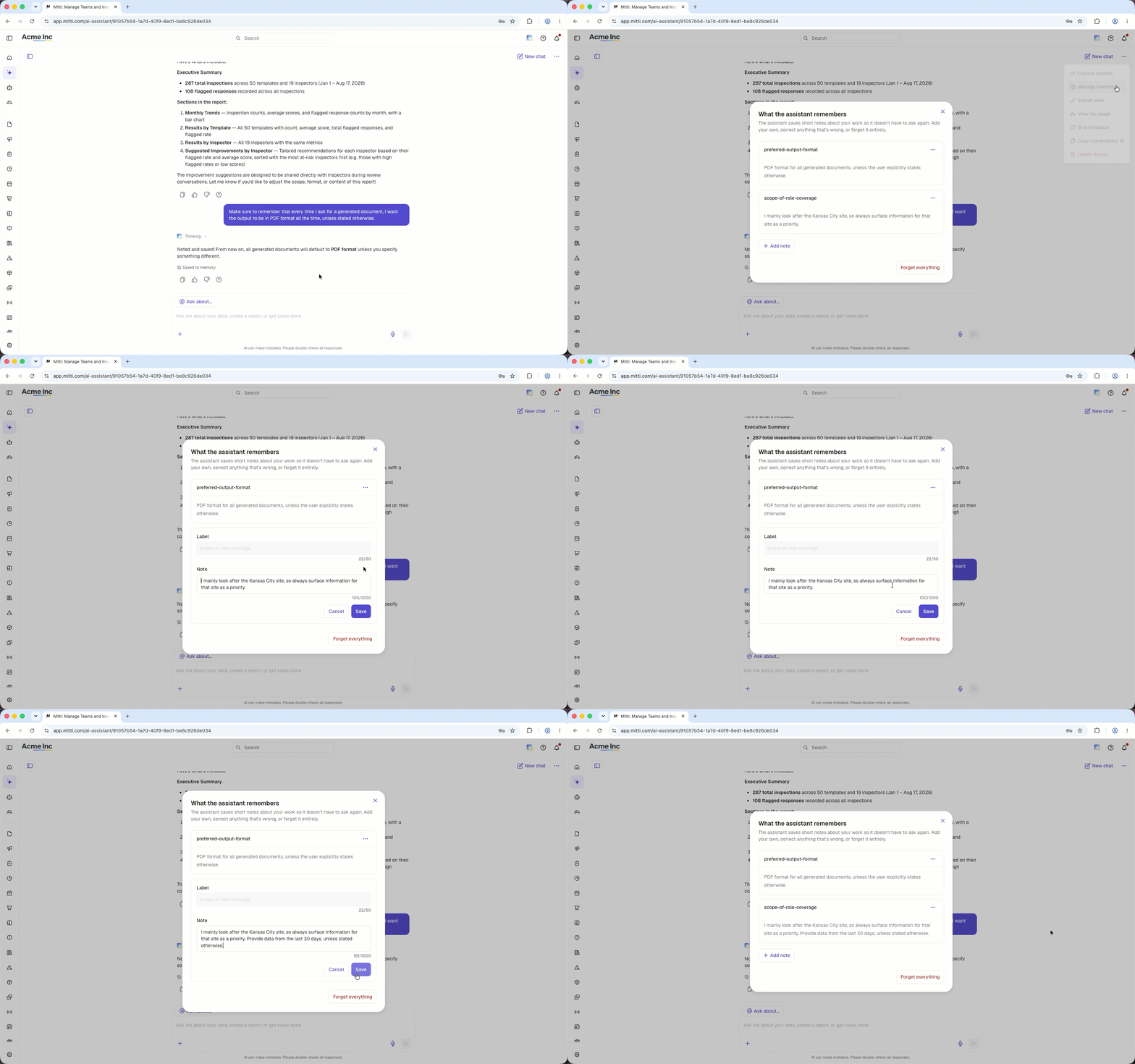
Open the mobile app.
Tap Home at the bottom of your screen.
Tap at the upper-right of your screen.
Tap at the upper-right of your screen then select Manage memory.
In the pop-up window, tap on the note's right-hand side then select Edit.
Edit the note accordingly.
Tap Save.
Deleting is irreversible, and we cannot restore permanently deleted items. Confirmation is always required before any deletion, so be sure you're not accidentally deleting the wrong item.
Delete a memory
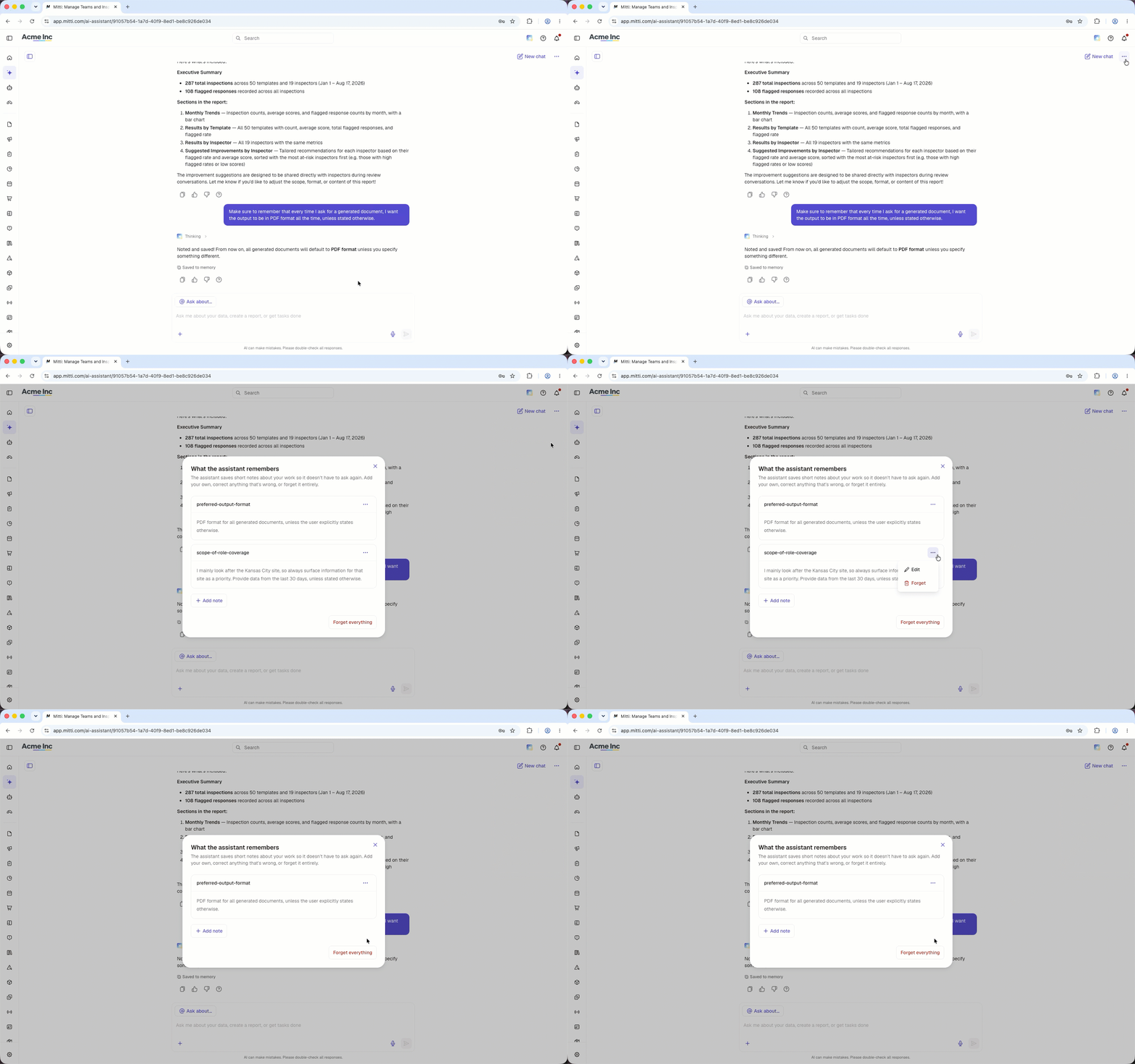
Click AI Assistant in the sidebar or click on the right-hand side of the top bar.
On the upper-right of the page, click then select Manage memory.
In the pop-up window, click on the note's right-hand side then select Forget.
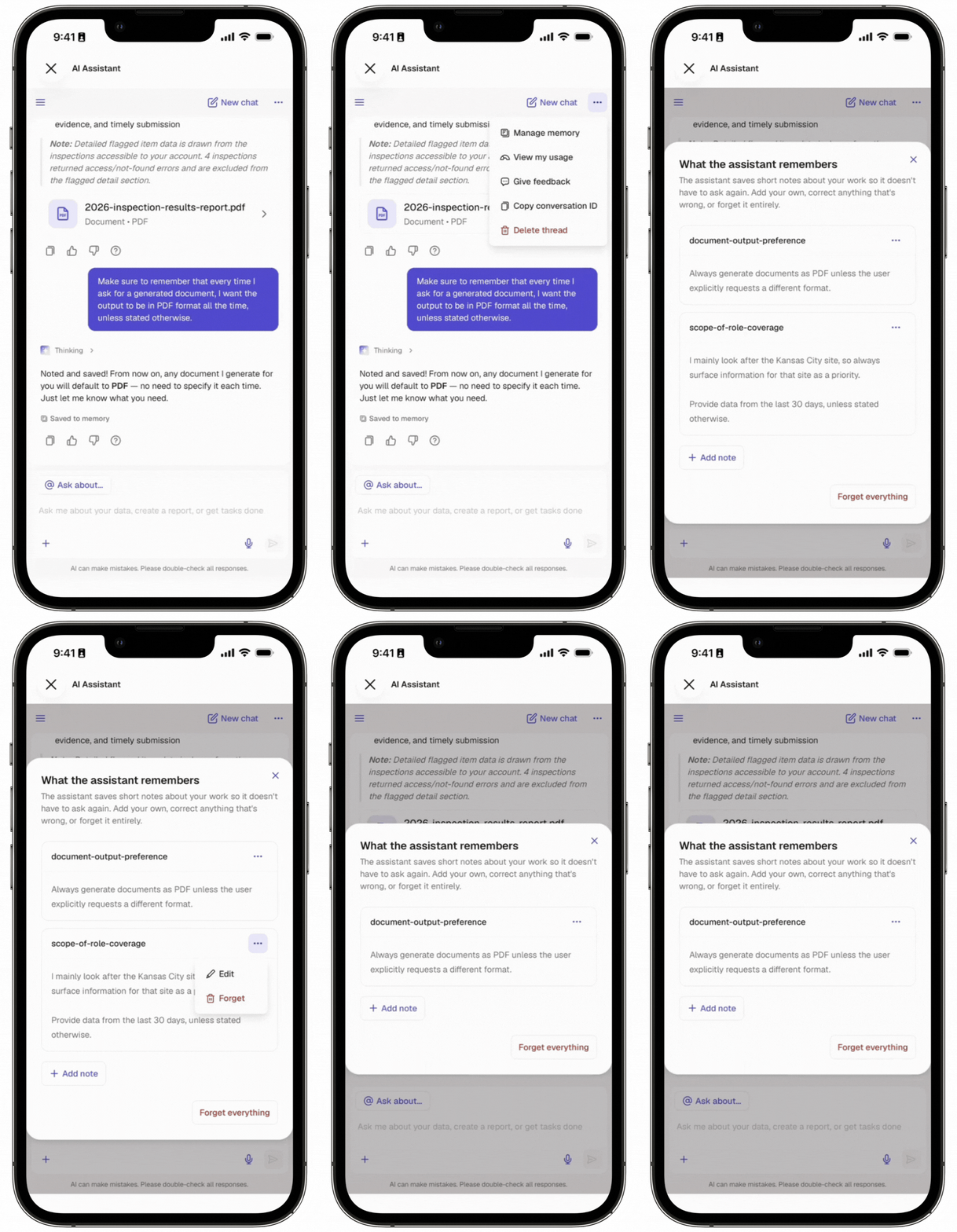
Open the mobile app.
Tap Home at the bottom of your screen.
Tap at the upper-right of your screen.
Tap at the upper-right of your screen then select Manage memory.
In the pop-up window, tap on the note's right-hand side then select Forget.
Clear memory
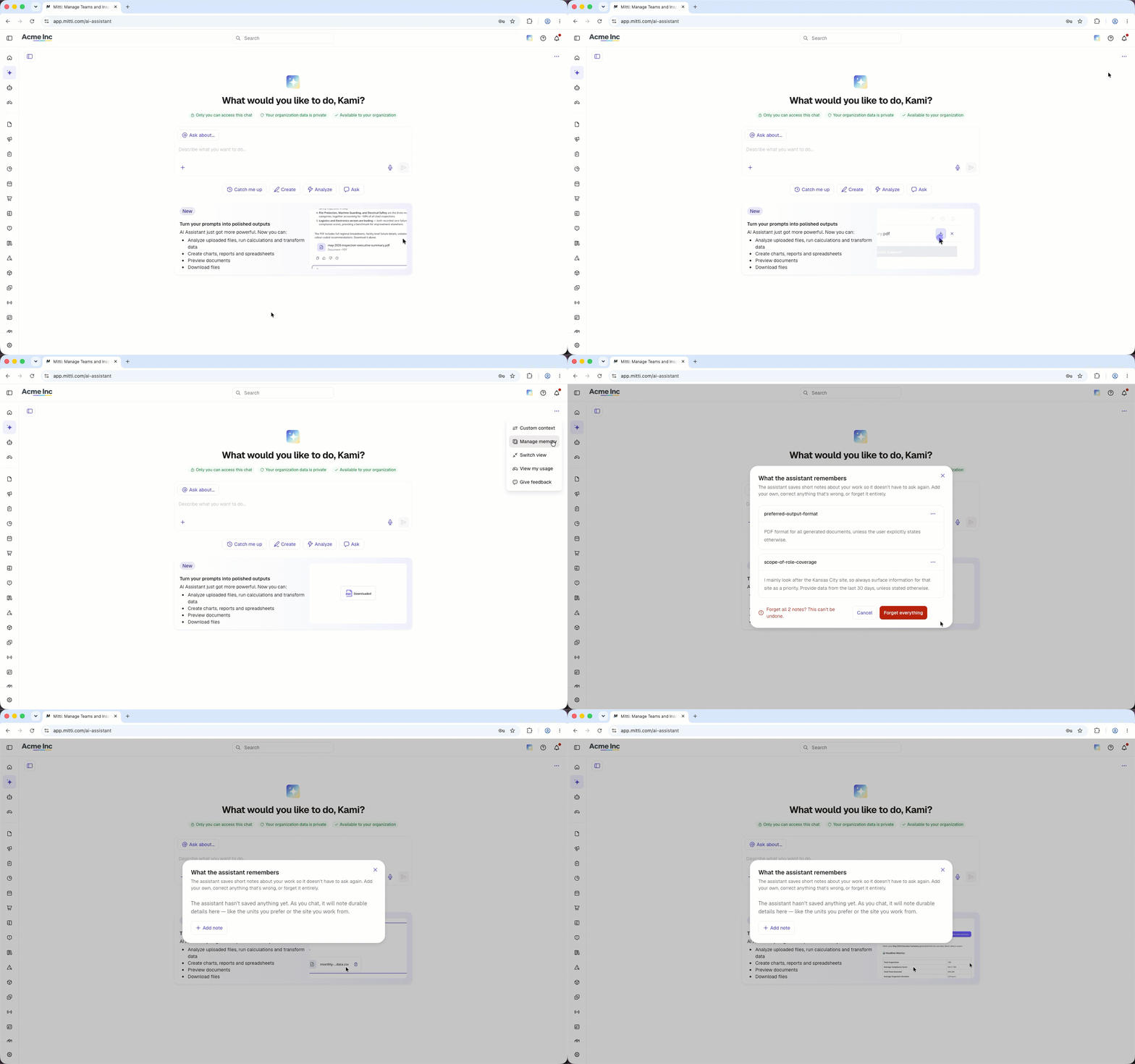
Click AI Assistant in the sidebar or click on the right-hand side of the top bar.
On the upper-right of the page, click then select Manage memory.
In the pop-up window, click Forget everything.
Click Forget everything.
Open the mobile app.
Tap Home at the bottom of your screen.
Tap at the upper-right of your screen.
Tap at the upper-right of your screen then select Manage memory.
In the pop-up window, tap Forget everything.
Tap Forget everything.
Limitations
A note's label can have up to 50 characters, and the note itself up to 1,000 characters.
Labels can't be edited.
Memory isn't shared with agents.
AI Assistant memory is separate in each organization a user belongs to.
Admins can't view or clear a user's AI Assistant memory on their behalf.
Frequently asked questions
Need more help?
Was this page helpful?