Last updated: August 4, 2026
What are users in Mitti?
Every person who logs in to Mitti is a user, and every user needs a seat to access features. A user is identified either by an email address or, if your organization uses username login, a username.
You can organize users into groups and assign them to sites to control what they can see and do across your organization. Pairing these with permission sets gives you a flexible way to scale your team's access as your organization grows.
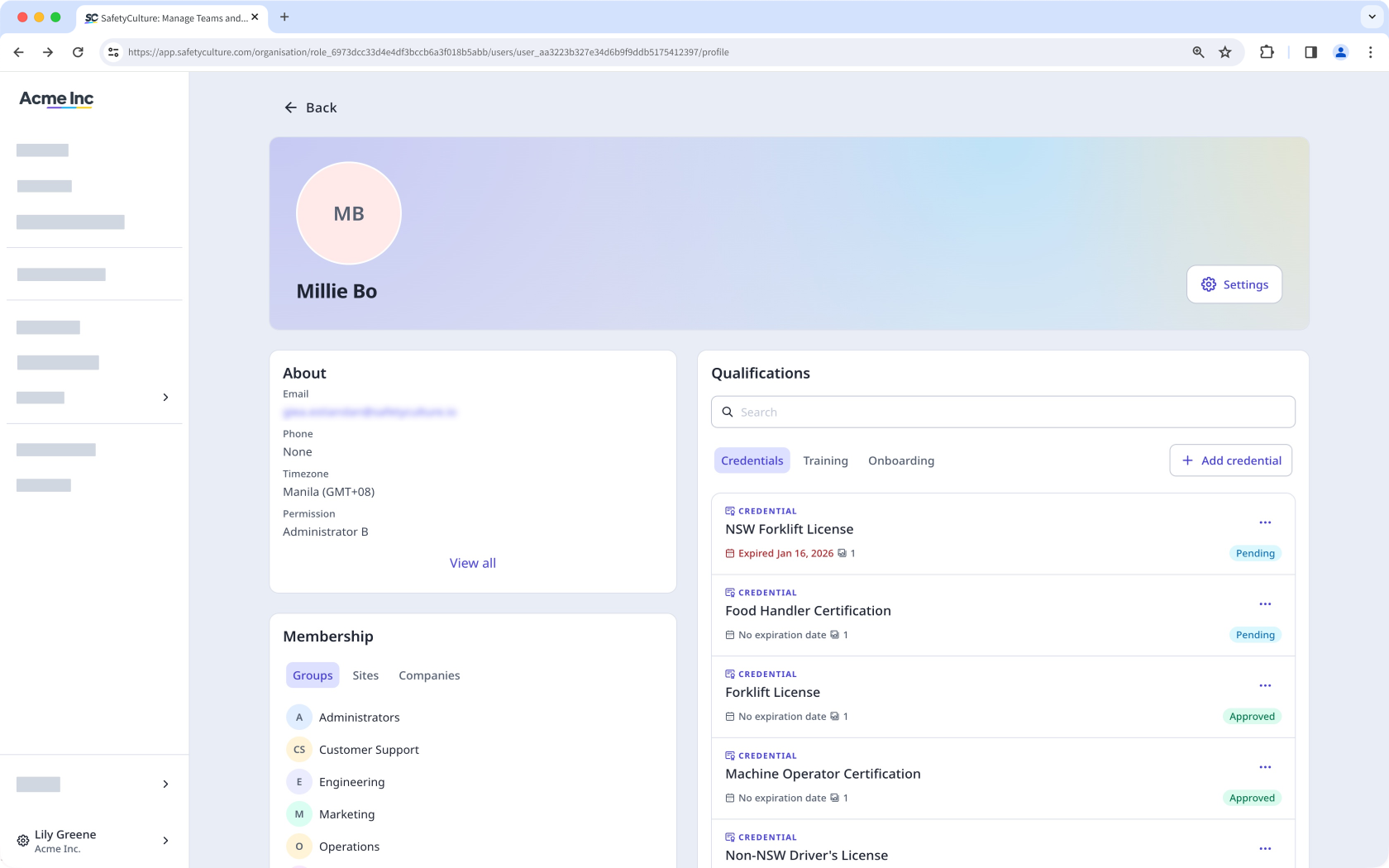
Use invite links to add multiple users with the same seat type, permission set, and group or site membership. Invite links only work for users with an email address. You can also set up an HR integration to add and update users automatically each day if you prefer.
Add a user
Before you can add users, you need to confirm your account's email address. If you haven't received the confirmation email, check your spam folder or request a new one via the web app.
Click your organization name on the lower-left corner of the page and select Users.
Click Add users on the upper-right corner of the page.
Enter the email address or username of the new user. Fill in their details accordingly.
Set a password, and select a seat type. A password is required for username login users.
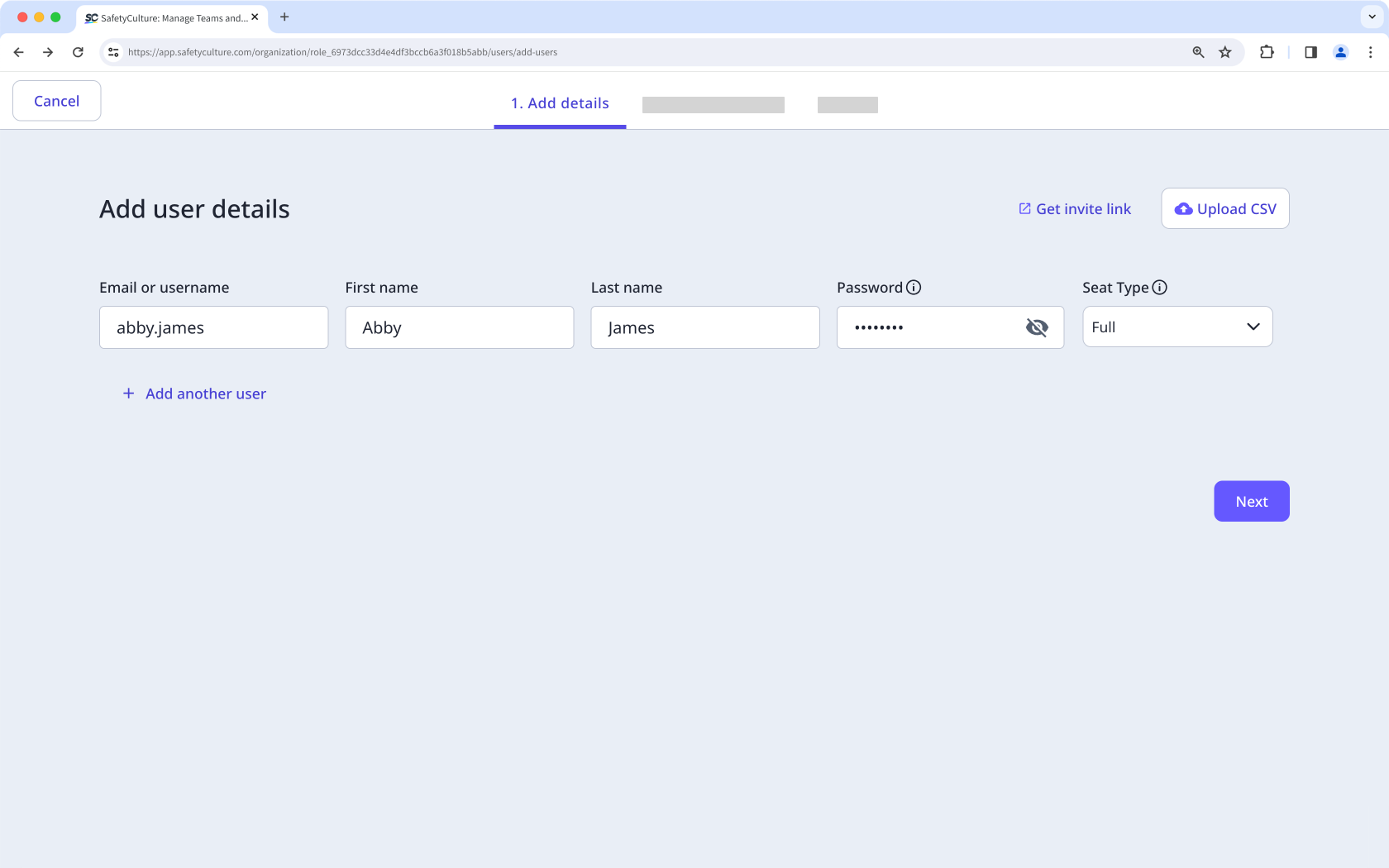
Click Next.
If you have the "Platform management: Permissions" permission (opens in new tab), you can select the permission set (opens in new tab) you want to assign to the user. If required, you can also add the user to groups (opens in new tab) and sites (opens in new tab).
Click Add on the right-hand side of the page. In the side panel, enter the user's field details, then click Done.
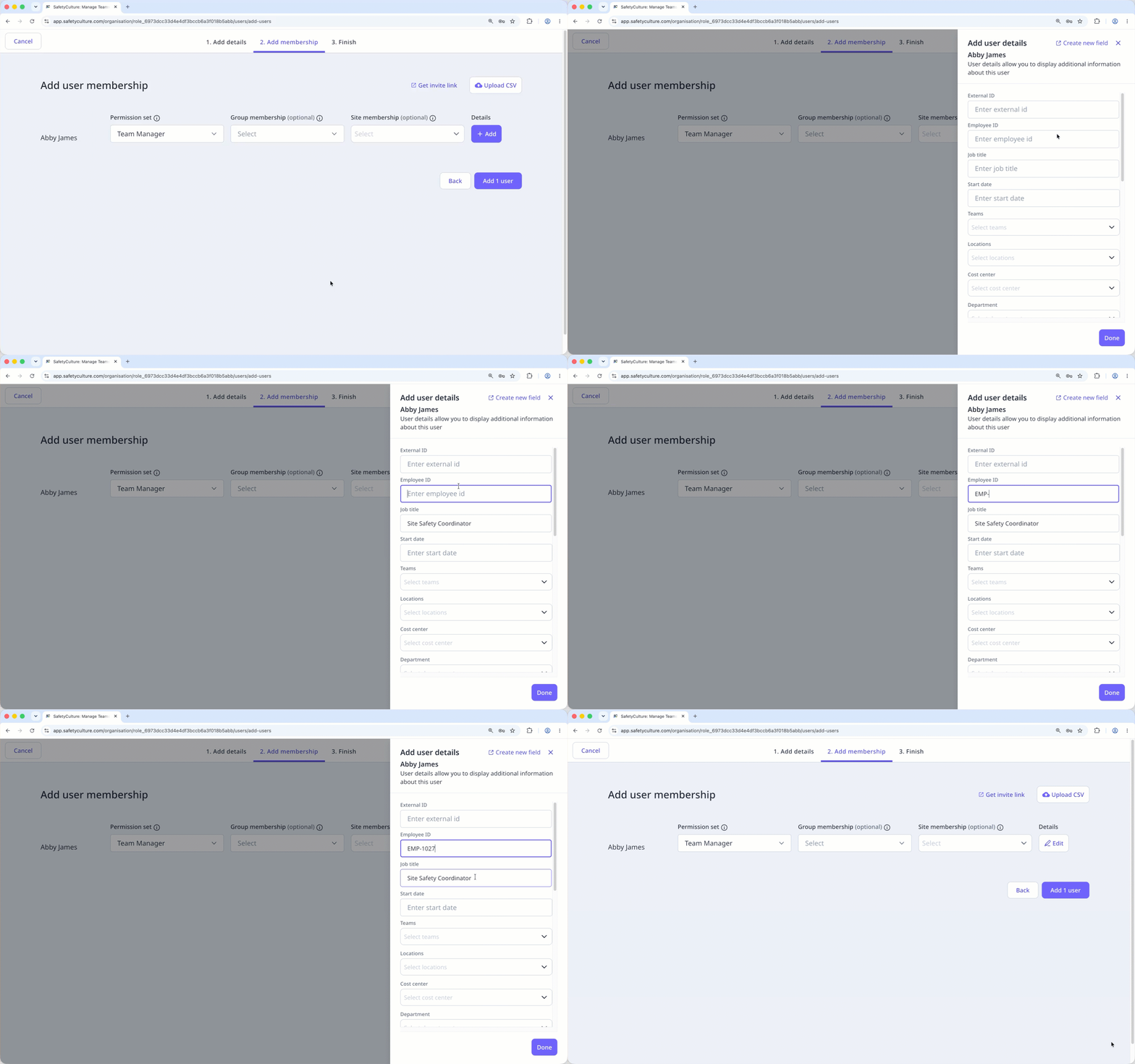
Click Add users.
In the pop-up window, you can:
Send password instructions via email to an email-based user.
Turn "Require password reset" on if you want the new user to reset their password when they log in for the first time. It applies to users with and without an email address. This feature is currently in Early Access.
Click Continue.
Mitti will either purchase a seat automatically or block the user from being added if your organization doesn't have available seats when a user is added. This depends on whether automatic seat purchasing is turned on for your organization.
Your organization's default permission set for full seats can't include "Platform management" or "Override permissions" permissions while your organization has users without an email address.
This restriction applies for as long as the username login setting is on for your organization, including when you add new users who have an email address. If needed, users with an email address can be assigned another permission set after they're added to your organization.
Bulk add users
Click your organization name on the lower-left corner of the page and select Users.
Click on the upper-right corner of the page and select Bulk manage via CSV.
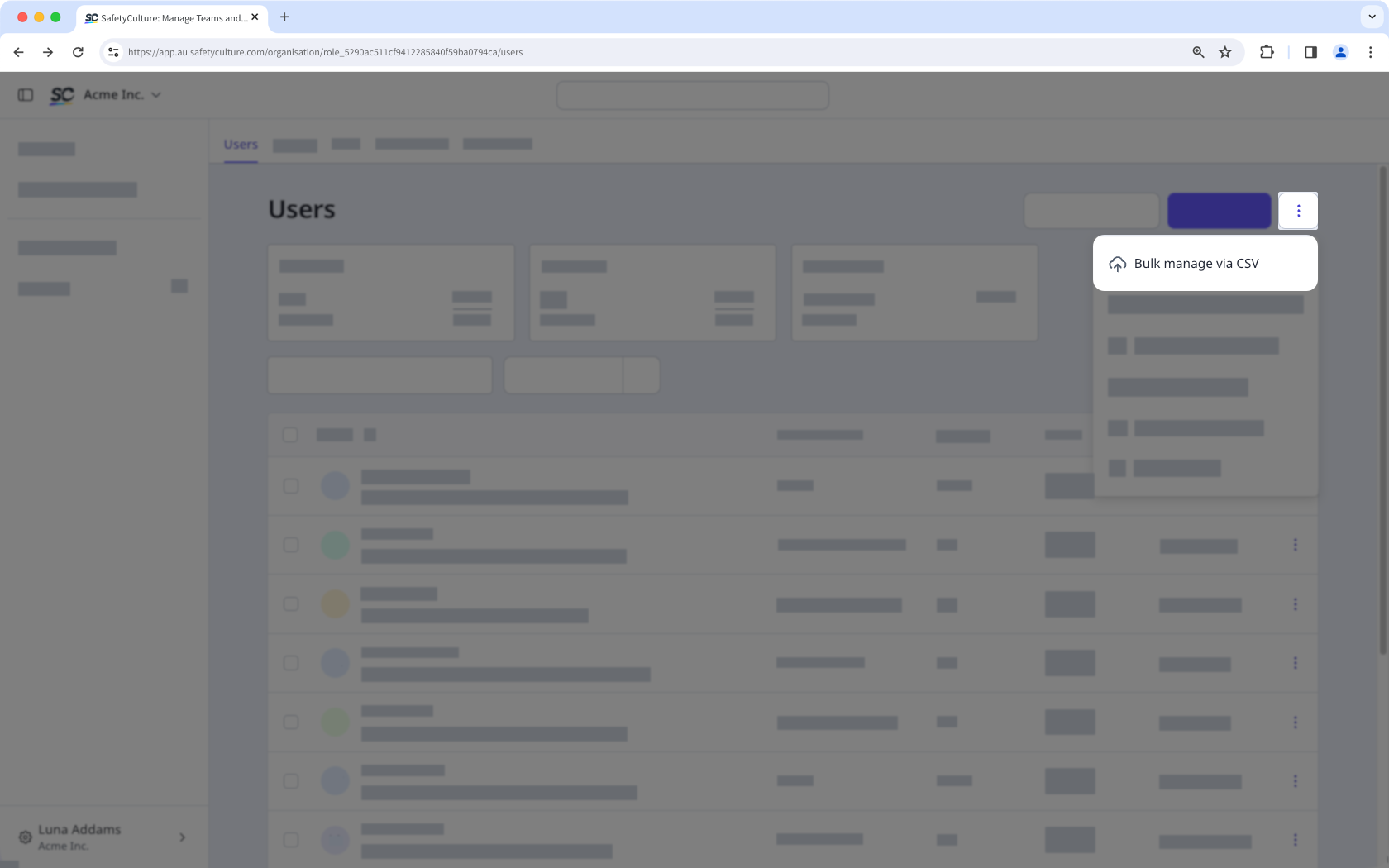
Follow the steps to bulk manage your users via CSV or Excel.
Frequently asked questions
Need more help?
Was this page helpful?
