Last updated: September 7, 2026
What does it mean to manage users in bulk via CSV or Excel?
Managing users in bulk via a CSV or Excel file allows you to add new users and update existing ones at the same time. You can use a single file to keep details like seat types, permission sets, sites, groups, and user fields current across your entire user list. If username login is turned on for your organization, the same file can include both users with an email address and users without an email address.
CSV or Excel is the right fit when you're doing a one-off bulk add or update, or when your organization doesn't use a supported HR system. If your HR system is supported and you want user data to sync automatically each day, an HR integration is a better fit.
Mitti will either purchase a seat automatically or block the user from being added if your organization doesn't have available seats when a user is added. This depends on whether automatic seat purchasing is turned on for your organization.
You can only bulk add or update up to 10,000 users per file at a time.
Bulk manage users via CSV or Excel
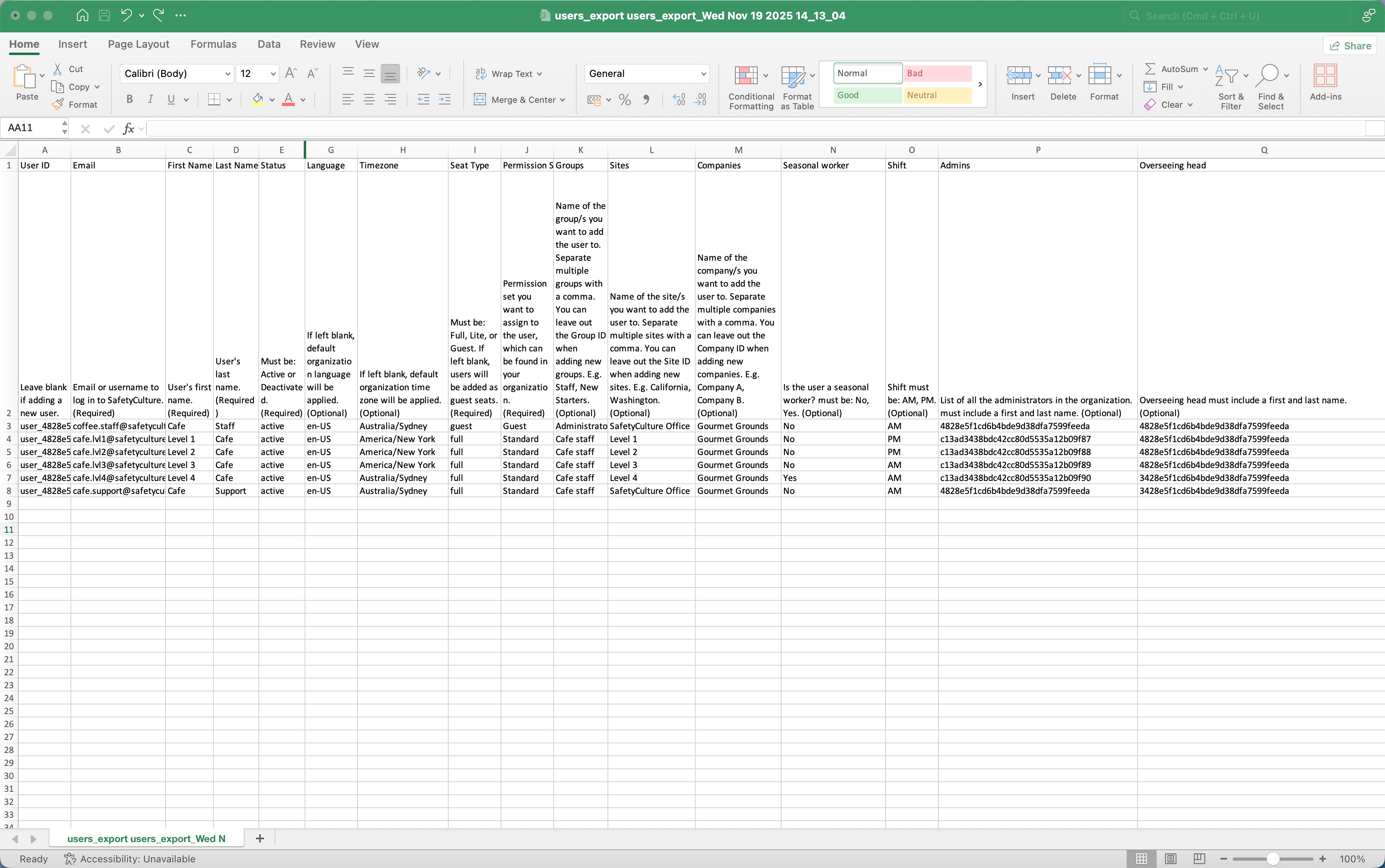
CSV and Excel column headers
Email, first name, last name, and status are required for every row in your file. For all other columns, refer to each description for what happens when a value is left blank.
Column header | Description |
|---|---|
User ID | The unique ID of each user in your organization. |
Email or username | The email address or username used to sign in. Required for every row, as either type. Enter an email address for standard users. If username login is turned on for your organization, you can enter a username instead for users without an email address. Updating an existing user's email address or username isn't currently supported. |
First name | The first name of a user. |
Last name | The last name of a user. |
Status | The account status of a user. Use "active" for new users or "deactivated" for existing users. New users can only be set as active. |
Password | The password of a user, which must be at least 8 characters, containing an uppercase letter, a number, and a special character. You can only set passwords for new users. If username login is turned on for your organization, you must set passwords for new users with no email addresses. |
Language | The account language of a user. Refer to the "ISO-639 language codes" section in this article for language codes that are supported on the web app. |
Time zone | The account timezone of a user in IANA timezone or Country/Region format. For example, "America/New_York". |
Seat type | Available on Premium Plan and Enterprise Plan only. The seat type (opens in new tab) of a user. If left blank, the user will be assigned a guest seat by default. |
Permission set | The name of the permission set (opens in new tab) of a user. Users' permission sets can only be updated if you have "Platform management: Permissions" permission. If you leave the seat type column blank when you add new users, they'll be given a guest seat and the "Guest" permission set. For username login users, the assigned permission set can't include "Platform management" or "Override permissions" permissions. |
Groups | The names of the groups (opens in new tab) of a user. If you leave the group column blank when you update existing users, their group memberships will be removed. |
Sites | The names of the sites or levels of a user. If you leave the site column blank when you update existing users, their site memberships will be removed. |
Companies | The names of the companies a user is associated with. |
Custom user fields | The custom user fields of a user. |
ISO-639 language codes
The table lists all languages supported via the web app.
Code | Language |
|---|---|
de | Deutsch |
en-US | English (United States) |
en-UK | English (United Kingdom) |
es | Español (España & México) |
fr | Français |
it | Italiano |
nl | Nederlands |
pt-BR | Português (Brasil) |
Frequently asked questions
Need more help?
Was this page helpful?
