Last updated: July 13, 2026
Why bookmark templates?
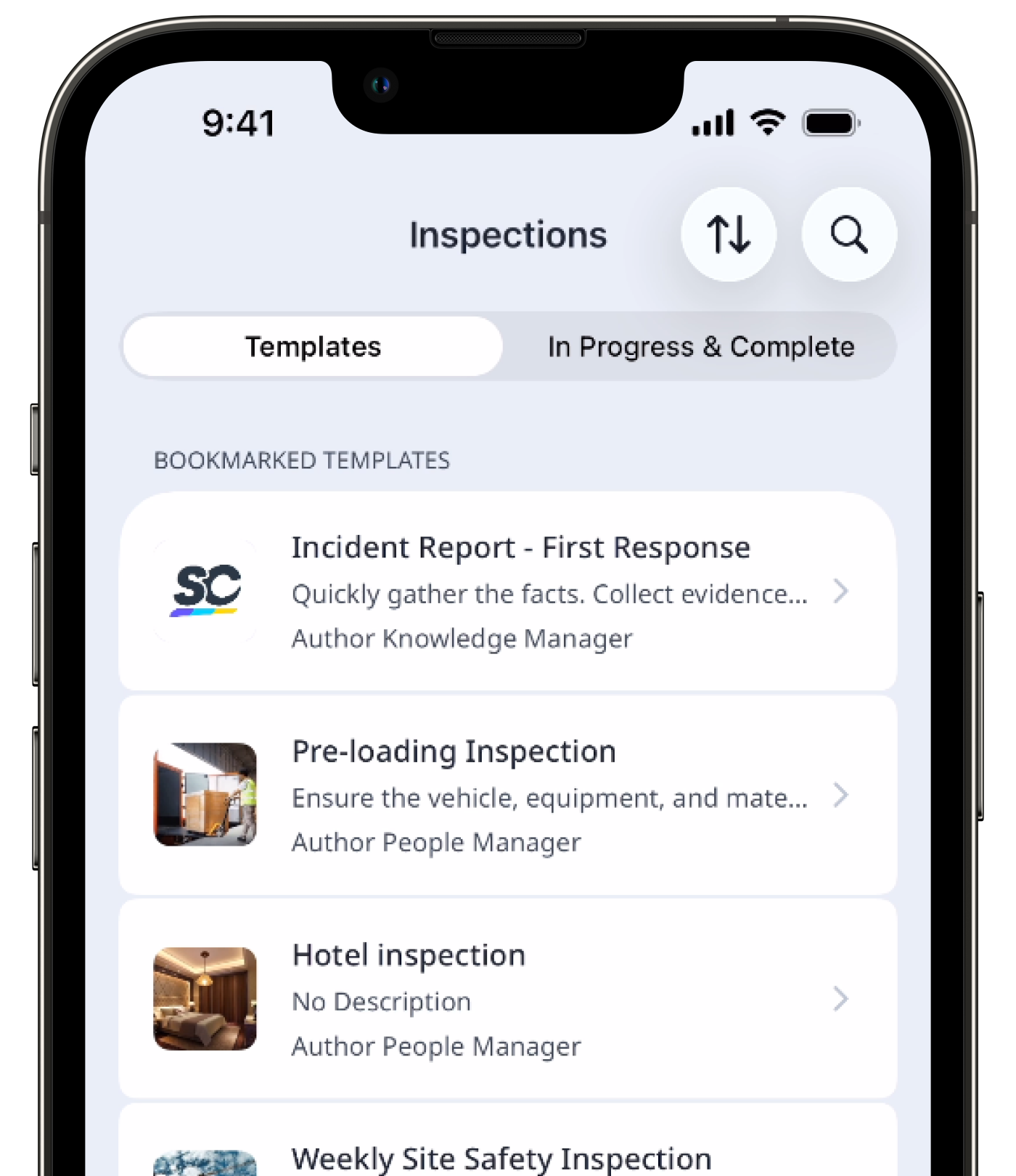
Bookmarking templates is a great way to easily pin templates that you frequently use at the top of your list. Rather than looking for the template, you'll have it readily available whenever you want to conduct new inspections.
What you'll need
Your bookmarked templates are only visible to you and no one else in your organization.
Bookmark a template
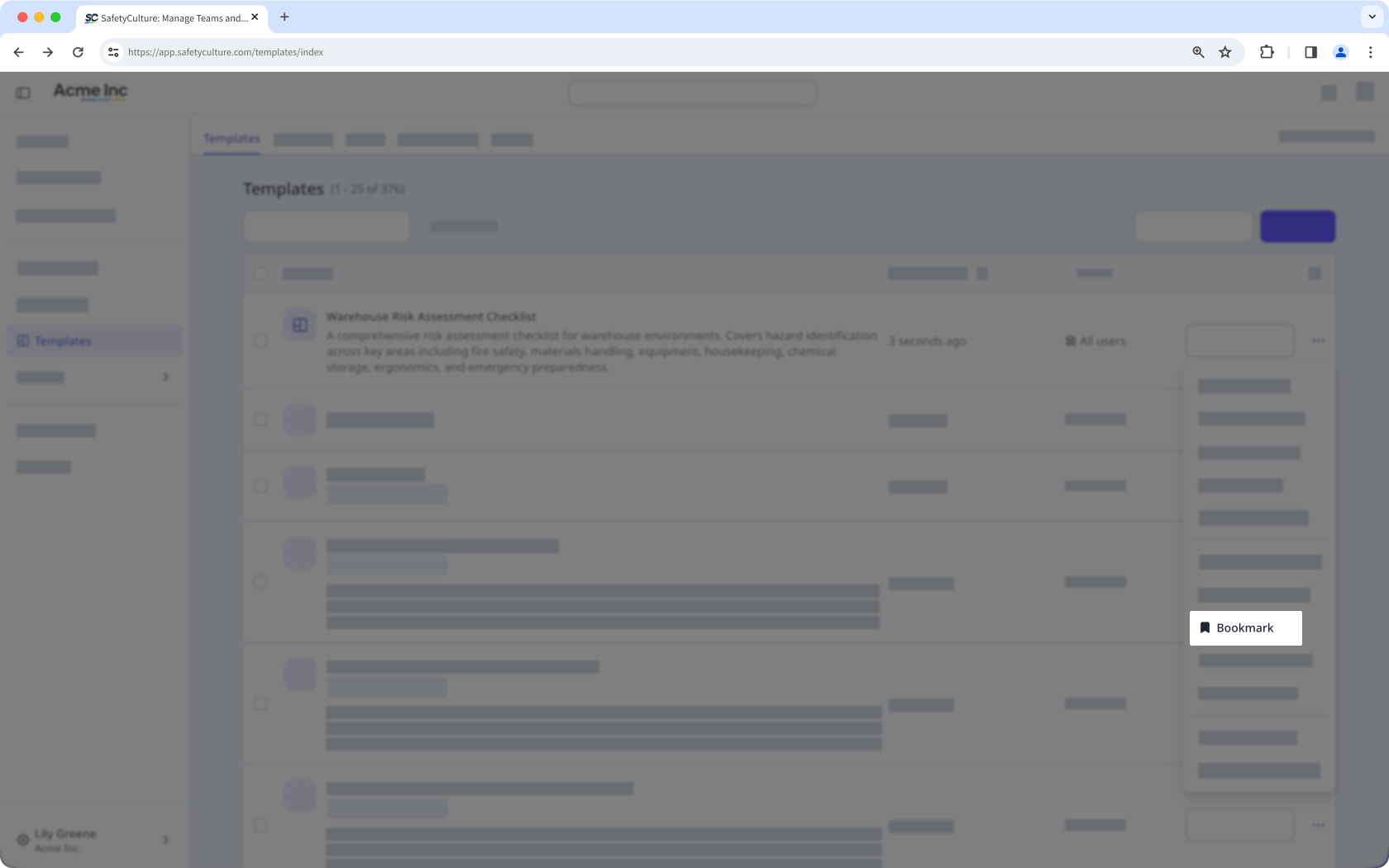
Click Templates from the sidebar or in More.
Click on the template's right-hand side and select Bookmark.
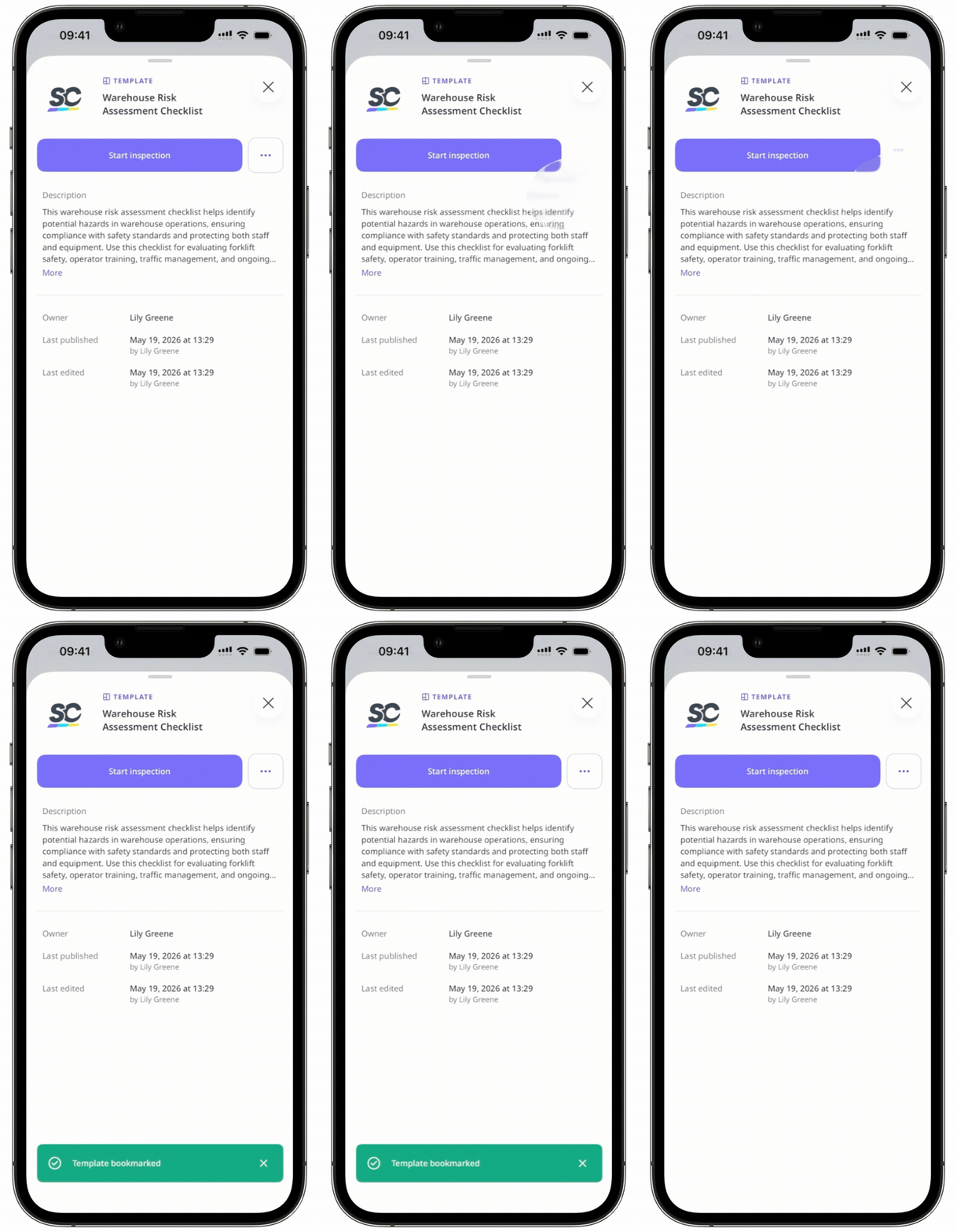
Open the mobile app.
Tap Inspections from the navigation bar or in More.
Select Templates tab at the top of your screen.
Tap the template you want to bookmark.
Tap and select Bookmark.
You can only bookmark up to 20 templates. If you've reached the template bookmark limit, you can unbookmark existing templates to bookmark new ones.
Unbookmark a template
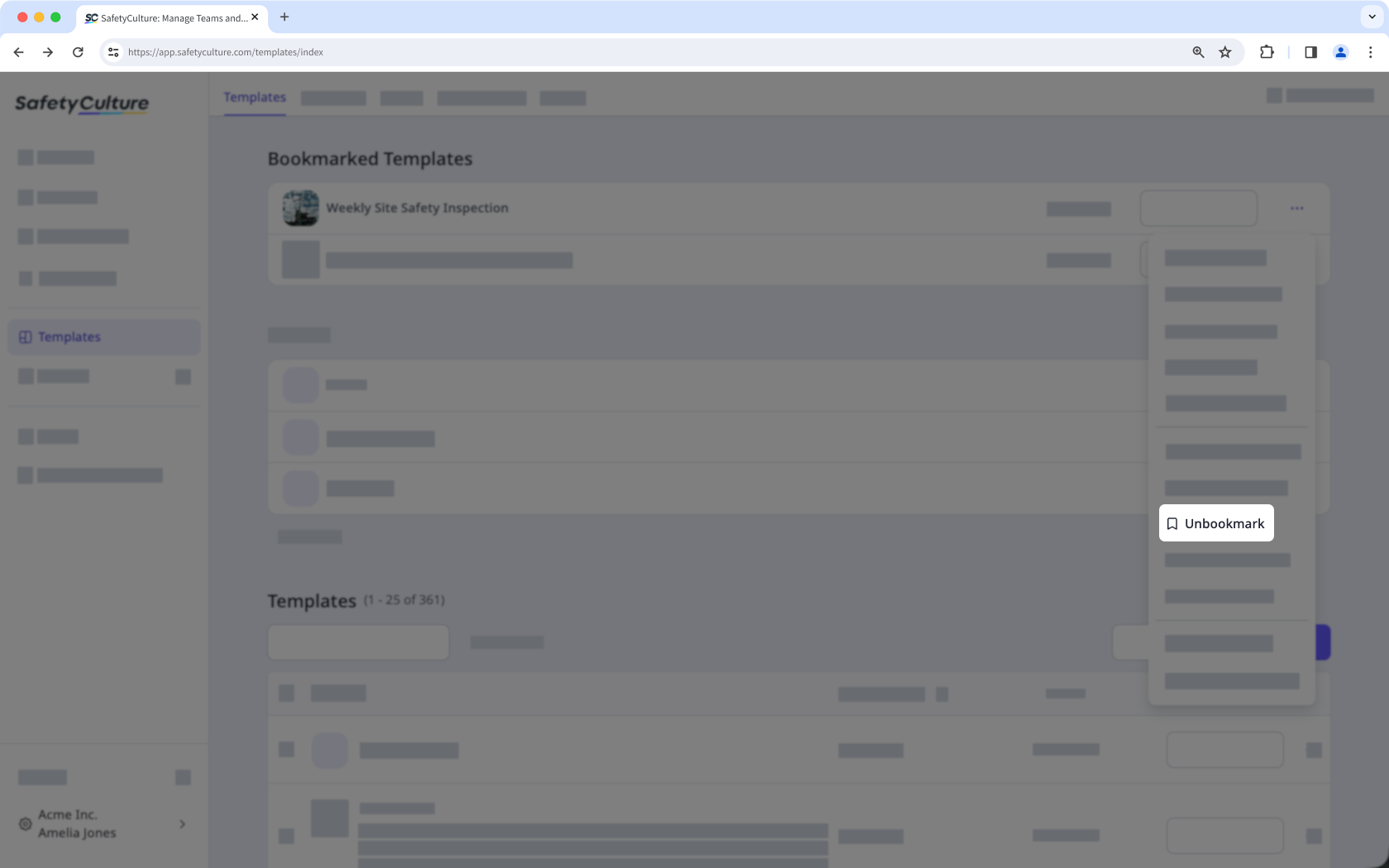
Click Templates from the sidebar or in More.
Click on the template's right-hand side and select Unbookmark.
Open the mobile app.
Tap Inspections from the navigation bar or in More.
Select Templates tab at the top of your screen.
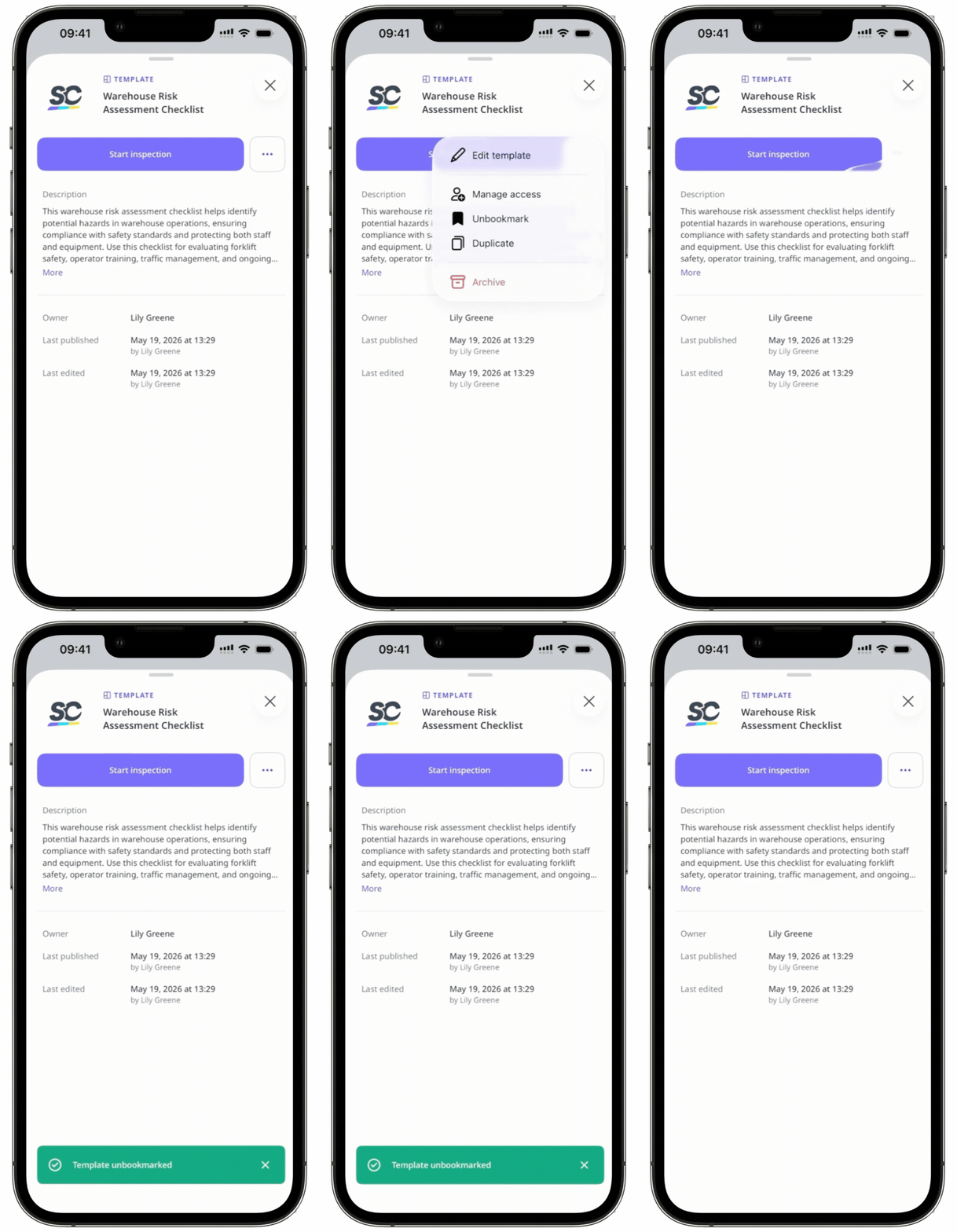
Tap the template you want to remove from your bookmarked list.
Tap and select Unbookmark.
Need more help?
Was this page helpful?