Last updated: May 10, 2025
What are sections?
Adding sections allows you to group related questions within your templates, creating a more structured flow for your team to progress inspections more efficiently and ensure no critical steps are overlooked. Sections also improve report readability by breaking down information into digestible parts, making it easier for relevant stakeholders to review key details at a glance.

What you'll need
You can only add up to 40 nested sections at a time.
Add a section
Select Templates in the sidebar or in More.
Click the template and select Edit template in the side panel.
Select the question where you want to insert the section.
Click Section on the left-hand side. This creates a new section below with a question nested within.
You can also click Add new at the bottom of the page and select Section to add a new section.
Start typing to name the section.
Add new questions or drag and drop existing ones into the section.

Click Publish on the upper-right of the page to publish the template. If you're not ready to publish the template, you can go back to the templates list and come back when you're ready.
Open the mobile app.
Tap Inspections in the navigation bar or select it from More.
Select Templates tab at the top of your screen.
Tap the template and select Edit template from the pop-up options.
Select the question where you want to insert the section.
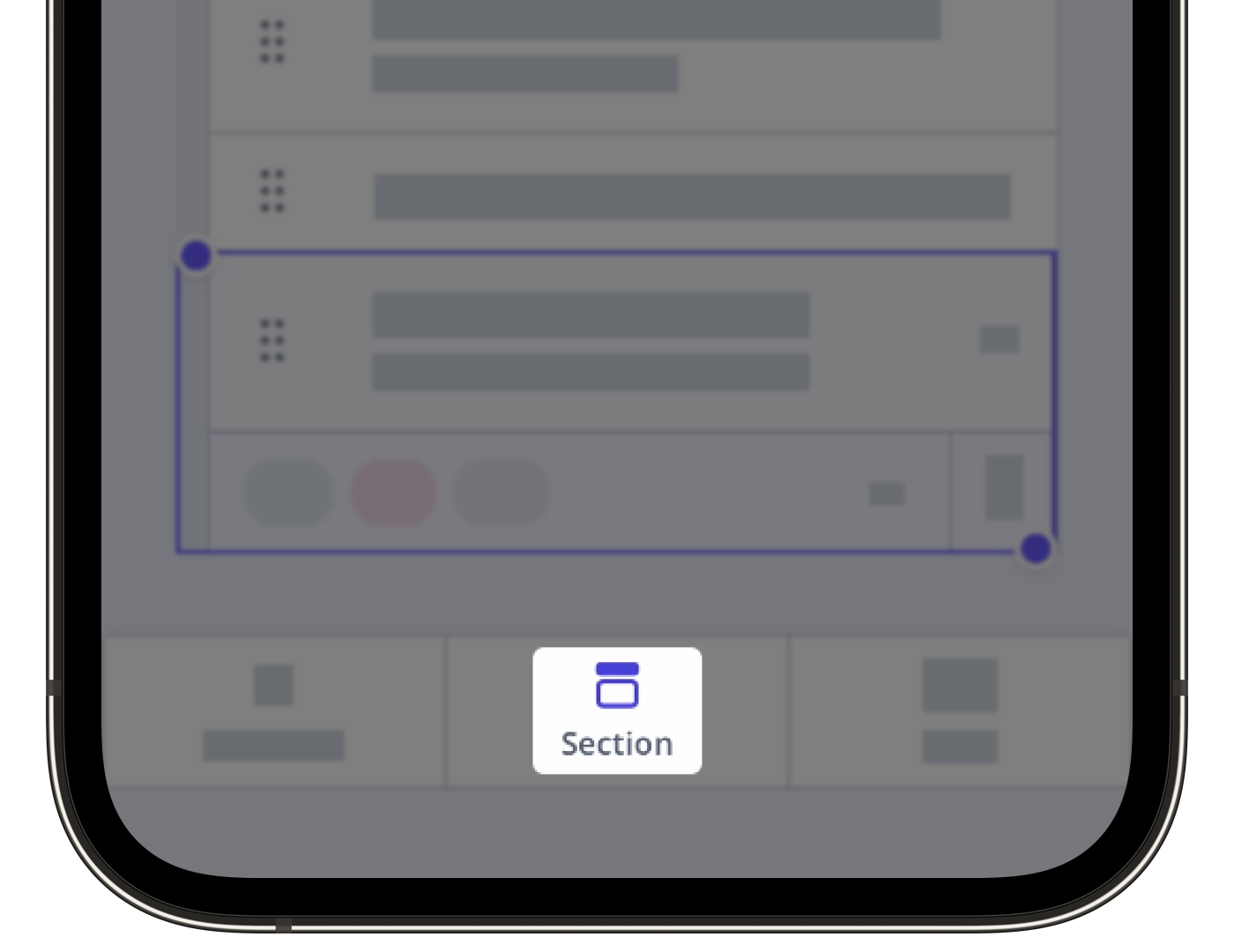
Tap Section in the navigation bar or select it from More.This creates a new section below with a question nested within.
Start typing to name the section.
Add new questions or drag and drop existing ones into the section.
Tap Publish on the upper-right of your screen to publish the template. If you're not ready to publish the template, you can go back to the templates list and come back when you're ready.
You can convert sections into repeat sections, allowing your team to repeat the same set of questions as many times as needed in a single inspection.
Deleting a section will also delete questions nested within it.
Delete a section
Select Templates in the sidebar or in More.
Click the template and select Edit template in the side panel.
Select the section you want to delete.
Click on the right-hand side to delete the section.

Click Publish on the upper-right of the page to publish the template. If you're not ready to publish the template, you can go back to the templates list and come back when you're ready.
Open the mobile app.
Tap Inspections in the navigation bar or select it from More.
Select Templates tab at the top of your screen.
Tap the template and select Edit template from the pop-up options.
Tap on the left-hand side of the section you want to delete.
Tap at the lower-left of your screen, then select Delete.

Tap Publish on the upper-right of your screen to publish the template. If you're not ready to publish the template, you can go back to the templates list and come back when you're ready.
Published changes made to templates only apply to new inspections moving forward.
Frequently asked questions
Need more help?
Was this page helpful?
