Last updated: August 10, 2026
What does it mean to manage SSO login settings?
When you manage SSO login settings, you control how your team logs in to Mitti once single sign-on is set up for your organization. You can enforce SSO for everyone, allow users to choose between SSO and their password, or enforce it only for specific email domains. This allows you to match your organization's access requirements without limiting how your team gets to work.
What you'll need
Manage SSO login type
Click your organization name on the lower-left corner of the page and select Organization settings.
Select Security at the top of the page.
Click Edit in the "Single sign-on (SSO)" box.
Click the dropdown menu for "Login type" and select one of the options accordingly.
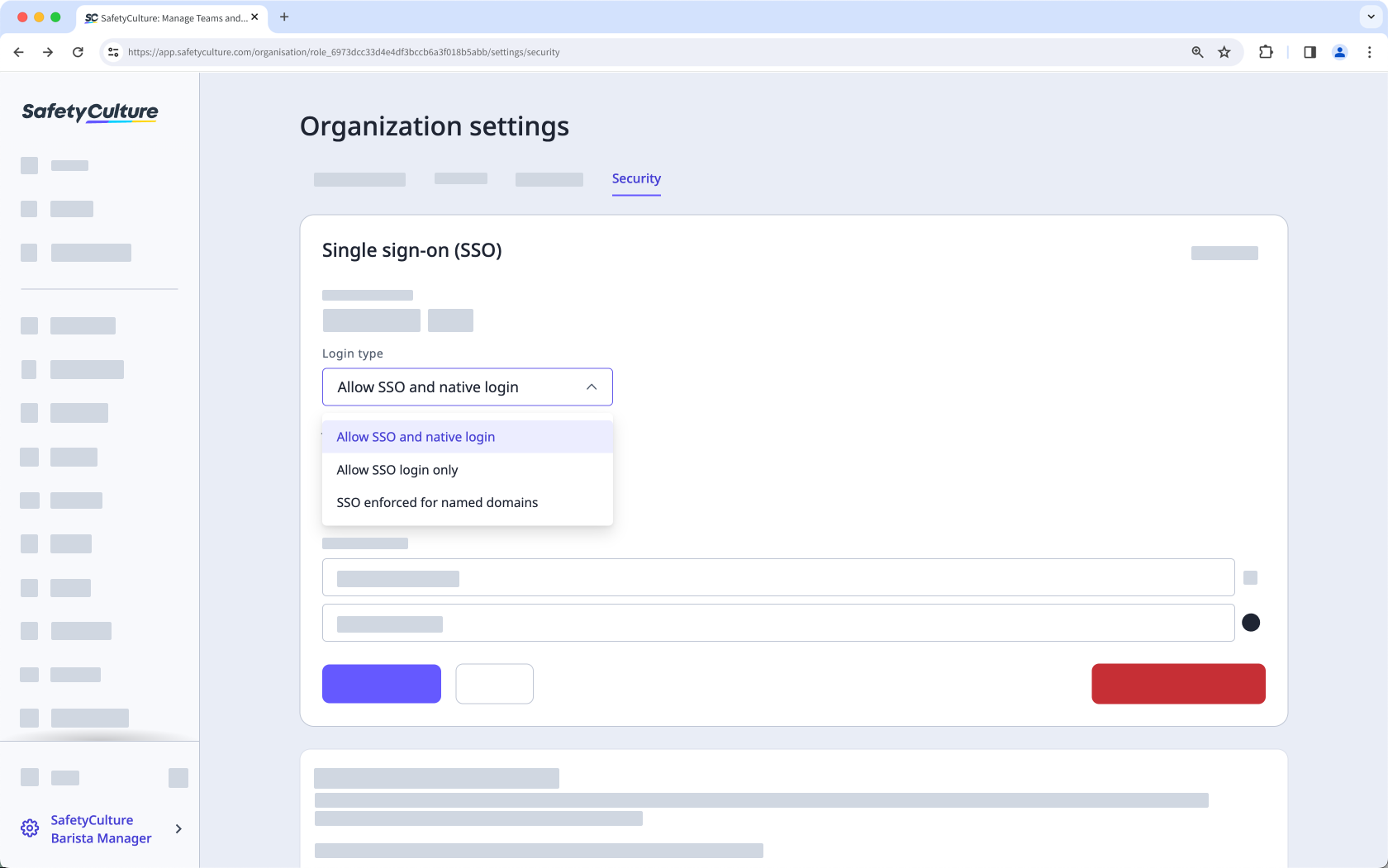
Allow SSO and native login: Users can log in with either their SSO account or their Mitti password.
Allow SSO login only: Users can only log in with their SSO account. Requires Enterprise Plan.
SSO enforced for named domains: Users log in with SSO or their password depending on their email domain. Requires Enterprise Plan.
Click Save changes.
Turn IdP-initiated login on or off
IdP-initiated login controls whether users can start their Mitti session from your identity provider's portal instead of logging in through Mitti directly. Some identity providers don't support this method.
Click your organization name on the lower-left corner of the page and select Organization settings.
Select Security on the top of the page.
Click Edit in the "Single sign-on (SSO)" box.
Turn "IdP-initiated login" on or off accordingly.
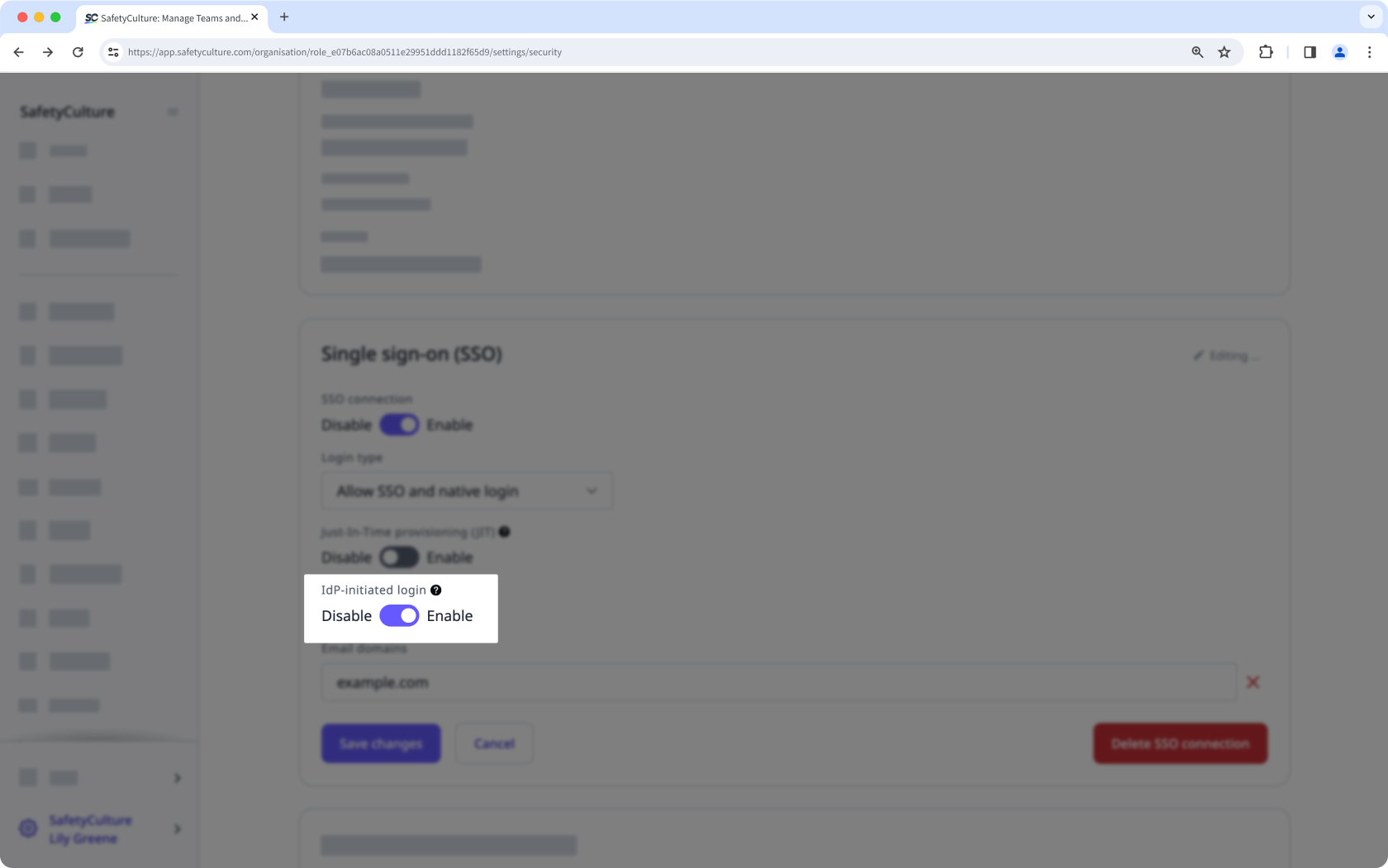
Click Save changes.
We advise against turning "IdP-initiated login" on as it may pose security risks.
Frequently asked questions
Need more help?
Was this page helpful?
