Last updated: August 20, 2024
What you'll need
Here are a few things to check to guarantee successful syncing:
The Mitti mobile app is up to date.
Your mobile device has an internet connection.
Retry syncing an inspection
Open the mobile app.
Tap Inspections in the navigation bar or select it from More.
Select In Progress & Complete tab at the top of your screen.
Inspections with errors should appear at the top of the list.
Tap the inspection, and then tap Retry.
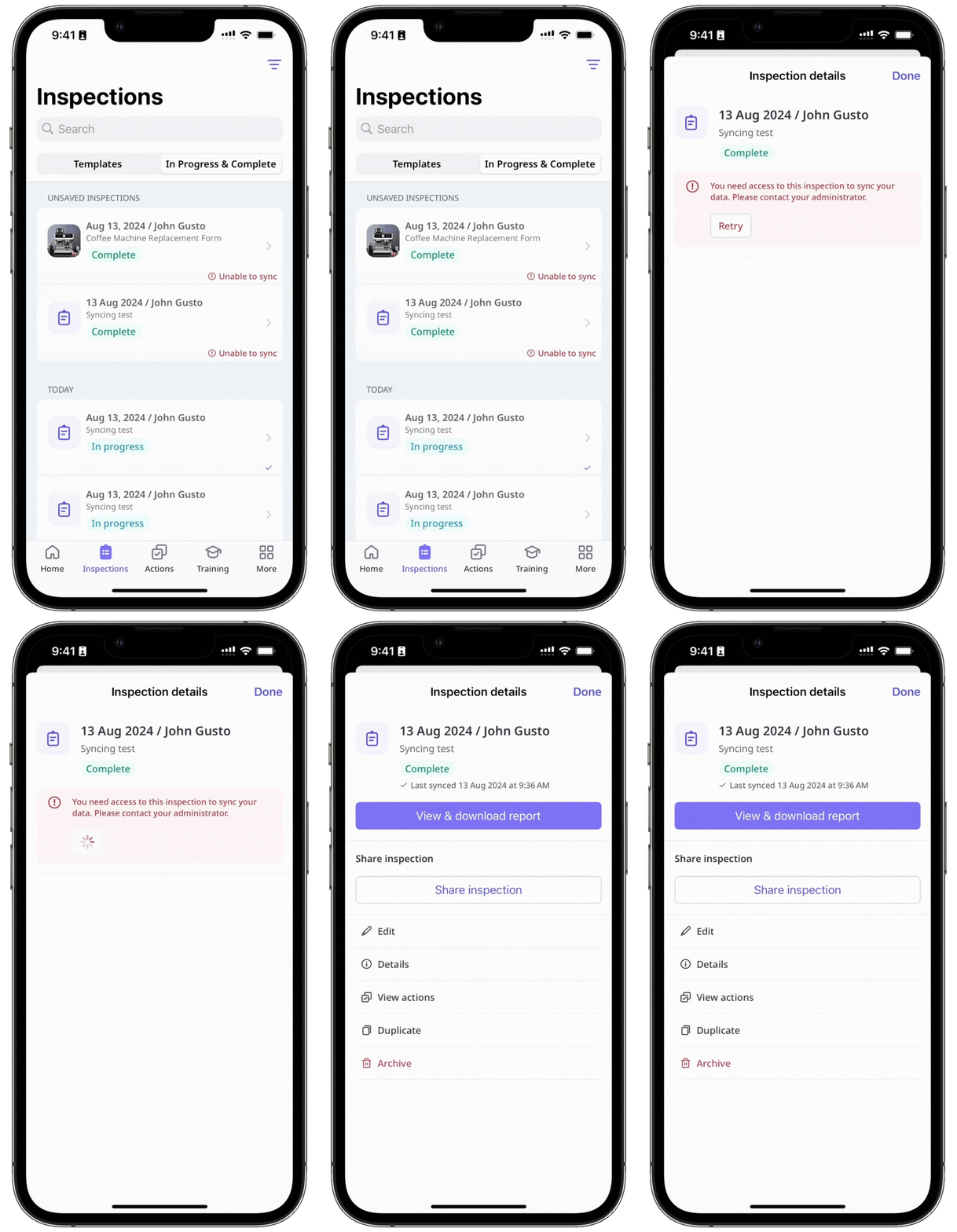
Depending on the error, the retry may succeed. If retrying continues to fail, please refer to the inspection errors outlined in this article and resolve the error accordingly.
Edit inspection error
Start inspection error
Duplicate inspection error
Archive inspection error
Access error
Need more help?
Was this page helpful?