Last updated: July 30, 2026
What can I do with the Global Search?
Global Search lets you search for and access key information across Mitti from one place. It supports both everyday tasks and more complex workflows, whether you’re working with a small set of records or navigating a large, active workspace. This makes it easier to move between different areas of the platform, helping teams stay aligned, respond faster, and keep work moving without unnecessary context switching.
With Global Search, you can find:
For example, instead of navigating through multiple areas of the platform to locate an inspection, asset, or site, you can search once and jump directly to what you need.
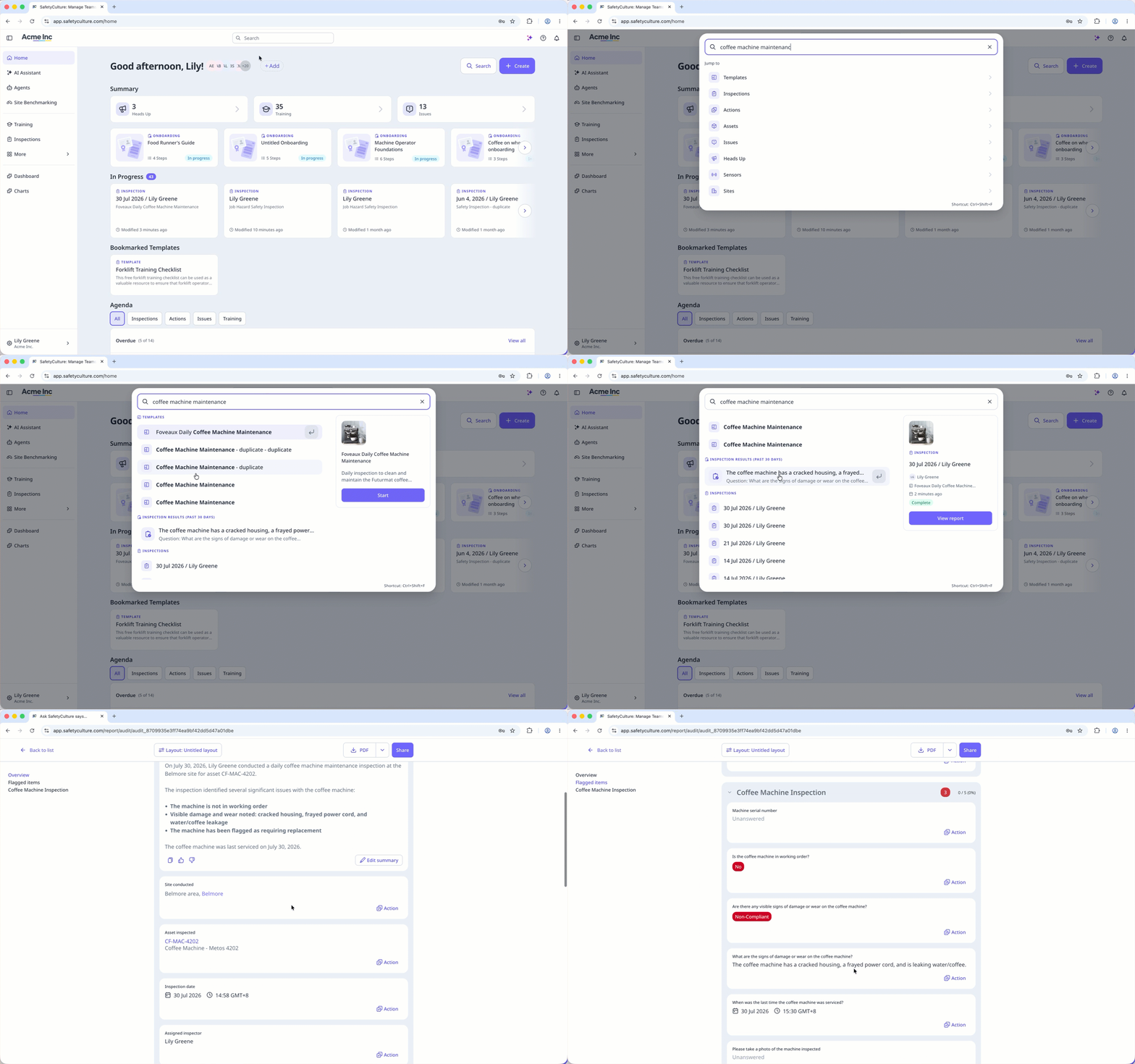
Global Search can also return results that match answers recorded in inspections within the last 30 days.
What you'll need
Global Search can only return results based on the access and permissions assigned to you.
Perform a search using Global Search
Select Search from the right-hand side of the top bar to perform a search.
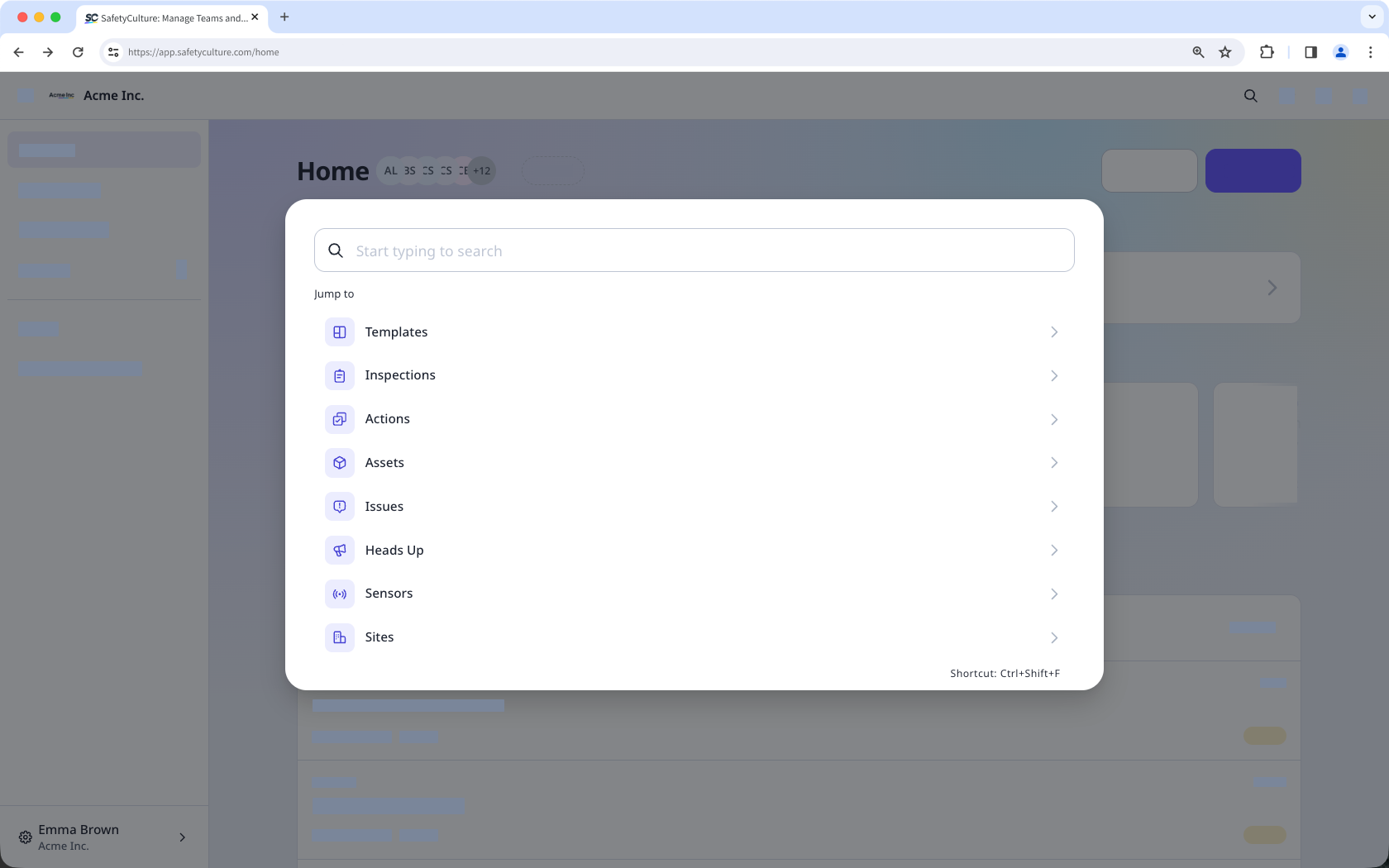
You can also use the shortcut Ctrl+Shift+F or click Search on the upper-right of the Home page to open Global Search.
Click on the search result to navigate to the relevant area of Mitti.
Archived inspections or templates, and deactivated users aren't shown in search results.
Need more help?
Was this page helpful?
