Last updated: October 6, 2026
What you'll need
Join via invite link
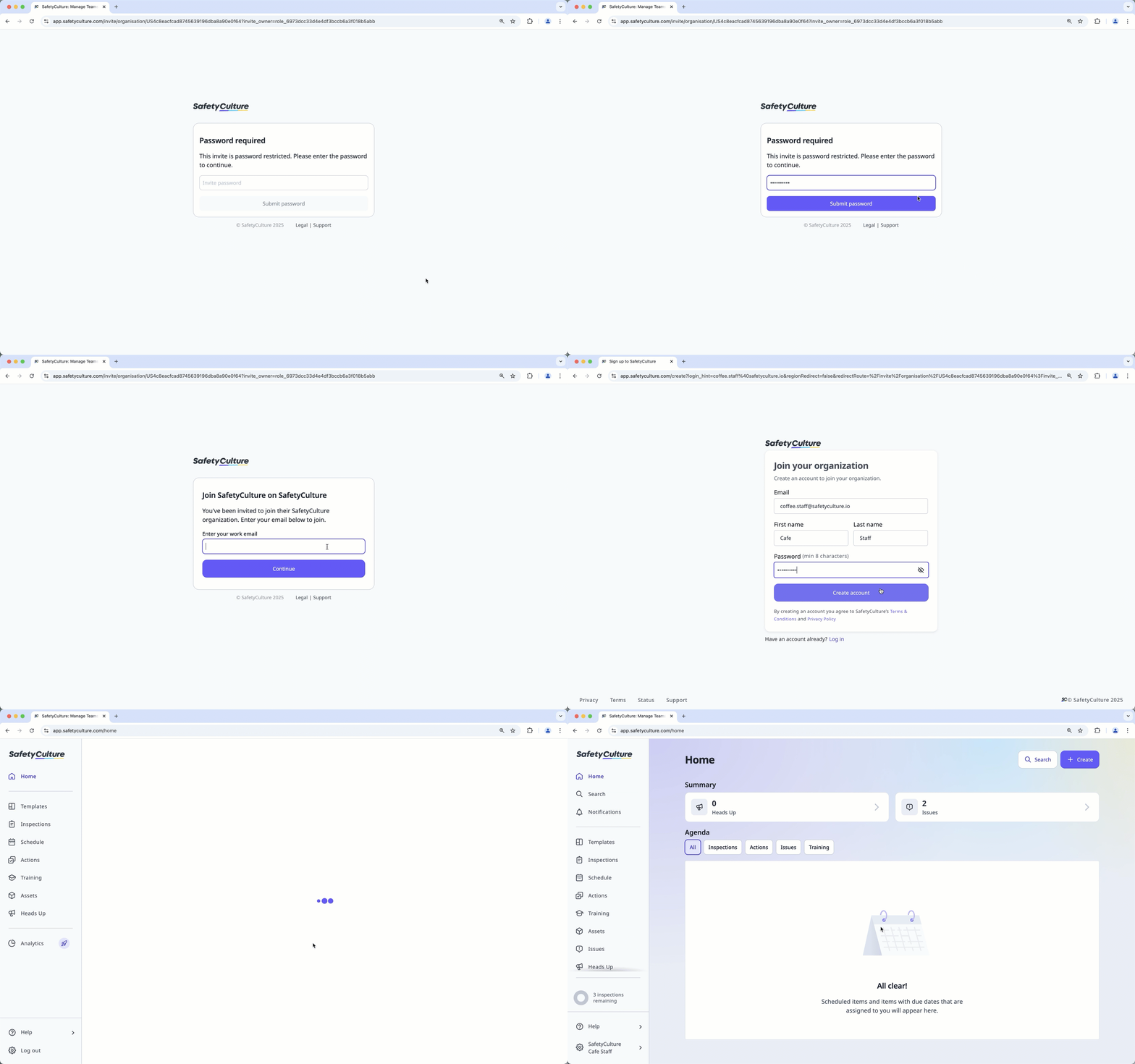
Open the invite link.
This should open a page via your device's default web browser.
If the link is password-protected, enter the invite link password, then click Submit password.
Enter your email address and click Continue.
Join the organization based on the steps most relevant to you.
If you don't have a Mitti account, click Create new account to register for an account.
If you have an existing account, log in to your account and click Join organization.
If you already have an account in the organization that was deactivated, log in to your account. If the invite link allows reactivation, your account will activate automatically, and you can access the organization. If the invite link doesn't allow reactivation, contact your admin to activate your account.
Join via QR code
Scan the invite QR code.
This should open a page via your device's default web browser.
If the link is password-protected, enter the invite link password, then tap Submit password.
Enter your email address and tap Continue.
Join the organization based on the steps most relevant to you.
If you don't have a Mitti account, tap Create new account to register for an account.
If you have an existing account, log in to your account and tap Join organization.
If you already have an account in the organization that was deactivated, log in to your account. If the invite link allows reactivation, your account will activate automatically, and you can access the organization. If the invite link doesn't allow reactivation, contact your admin to activate your account.

Join via SMS link
Tap the invite link in the SMS message sent by your organization admin.
This should open a page via your device's default web browser.
Enter your email address and click Continue.
Join the organization based on the steps most relevant to you.
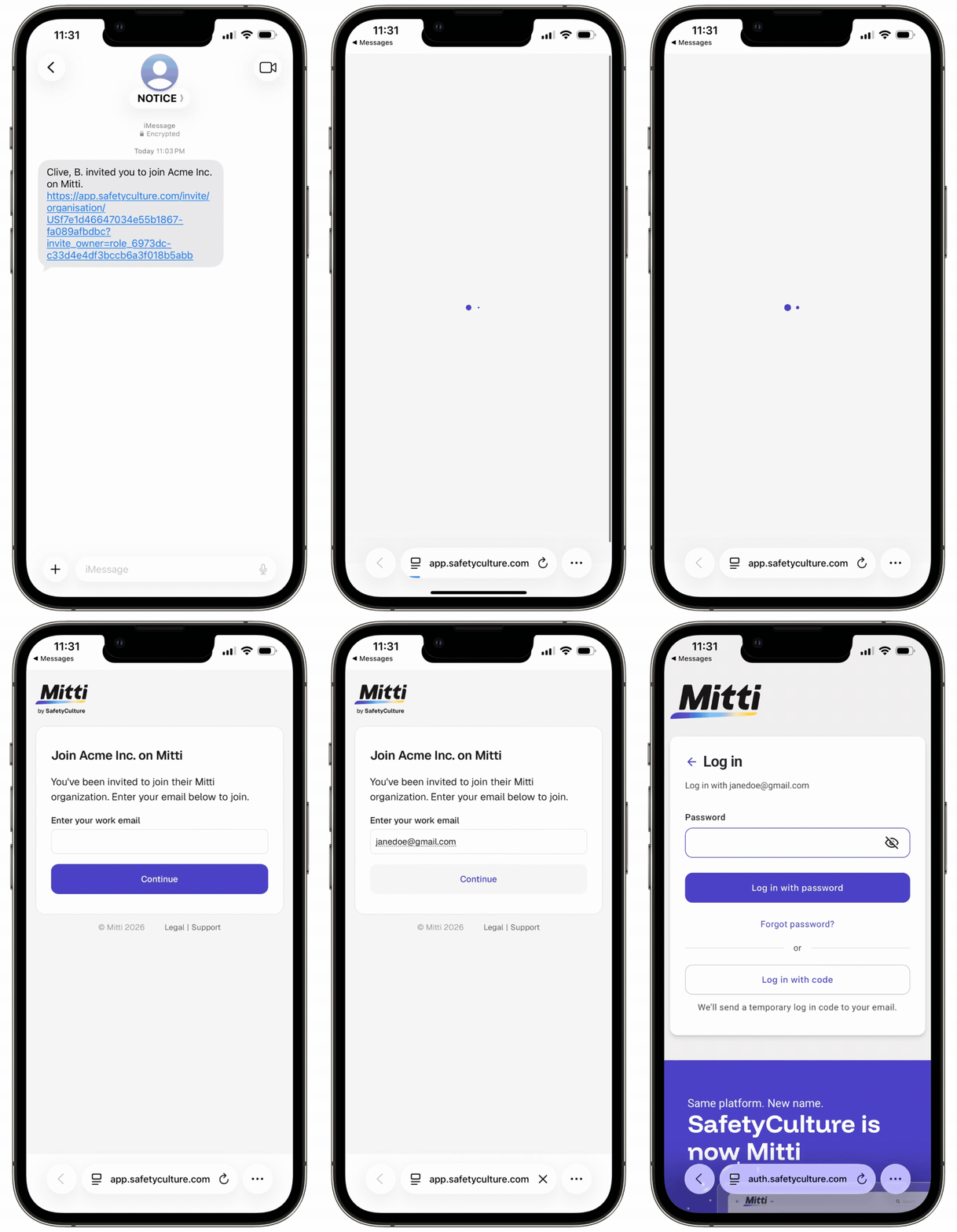
If you don't have a Mitti account, click Create new account to register for an account.
If you have an existing account, log in to your account and click Join organization.
Join via an email link
Open the email you received from Mitti.
Click or Tap Accept invitation.
This should open a page via your device's default web browser.
Enter your email address and click Continue.
Join the organization based on the steps most relevant to you.
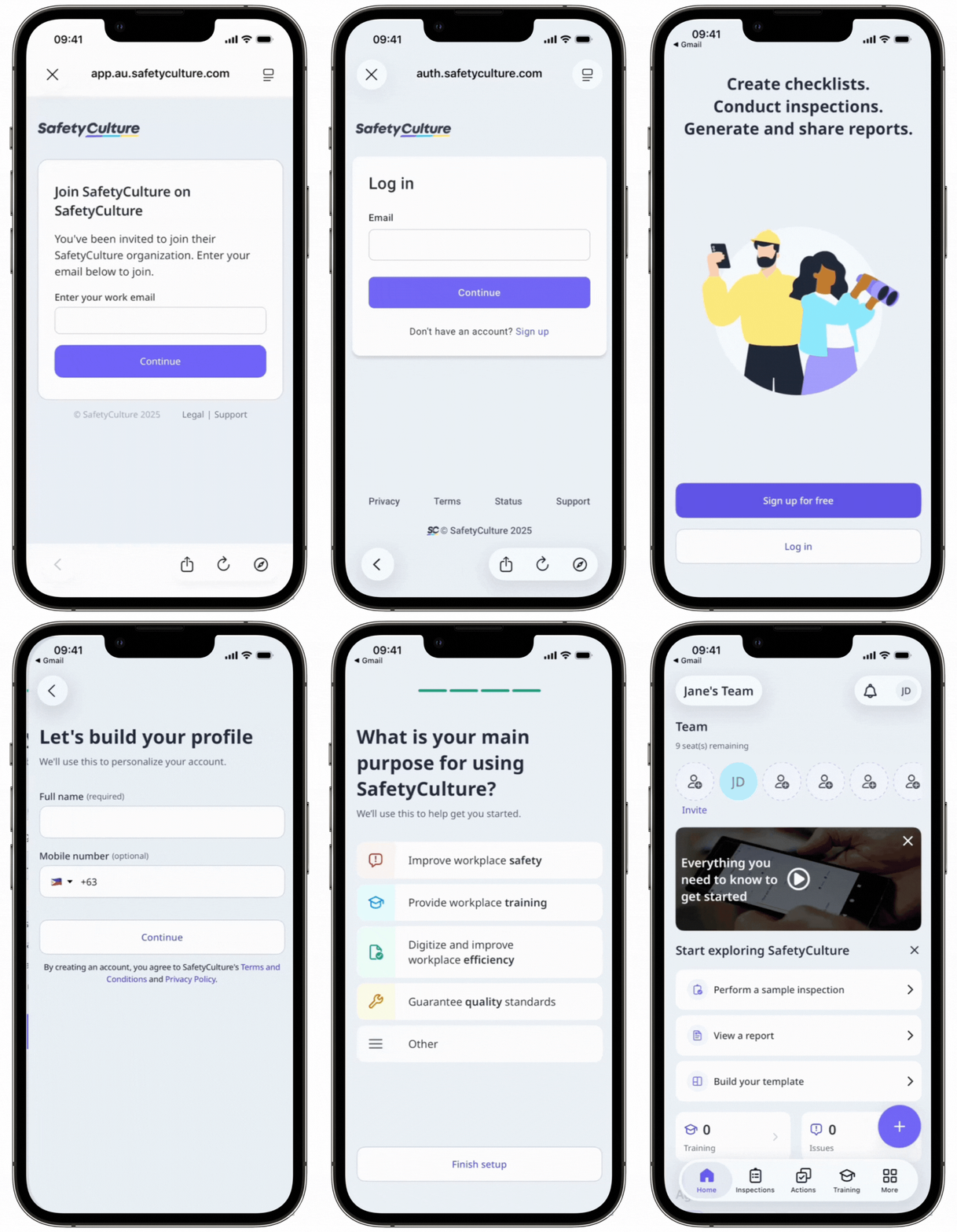
If you don't have a Mitti account, click Create new account to register for an account.
If you have an existing account, log in to your account and click Join organization.
If you don't have an email address, you won't be able to join using these methods. Instead, log in using your username and password with the login link your admin provides.
Need more help?
Was this page helpful?