Last updated: July 7, 2025
Submitting approval requests while offline on the mobile app isn't currently supported. If a user attempts to submit an approval request, the approver will only receive the notification once the user's mobile app is back online.
What you'll need
Request approval for an inspection
Select Templates in the sidebar or in More.
Click Start inspection on the template's right-hand side.
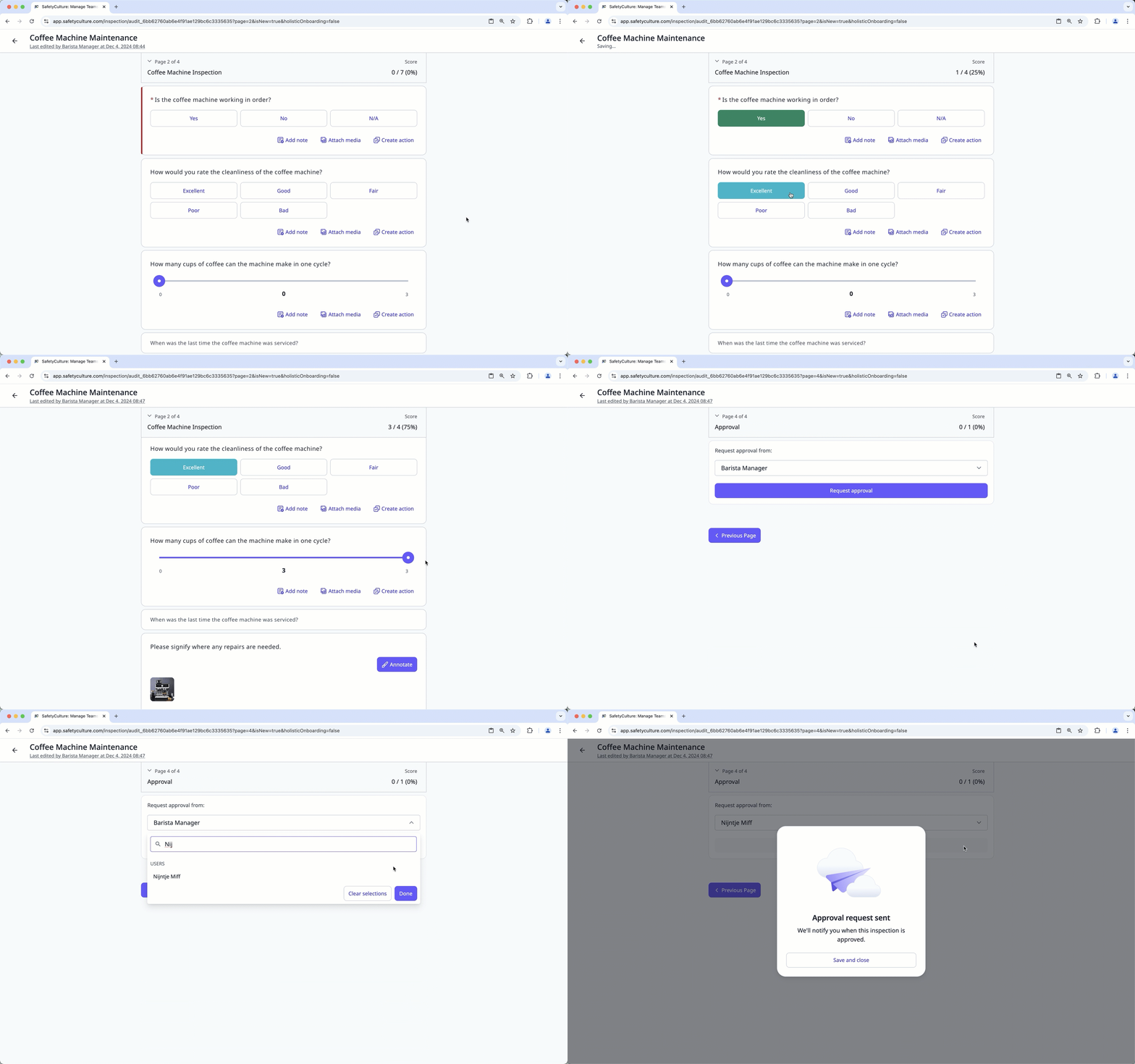
Progress through the inspection accordingly and take note of any required questions, which can be identified by an asterisk next to the question label.
Once you reach the end of the inspection, click Request approval. If the template has "Allow users to select approver" turned on, you can select a user from the dropdown menu to approve the inspection.
The approver will be notified when their approval is requested. Approval notifications depend on the recipient's notification settings.
Open the mobile app.
Tap Inspections in the navigation bar or select it from More.
Select Templates tab at the top of your screen.
Tap the template and tap Start inspection from the pop-up options.
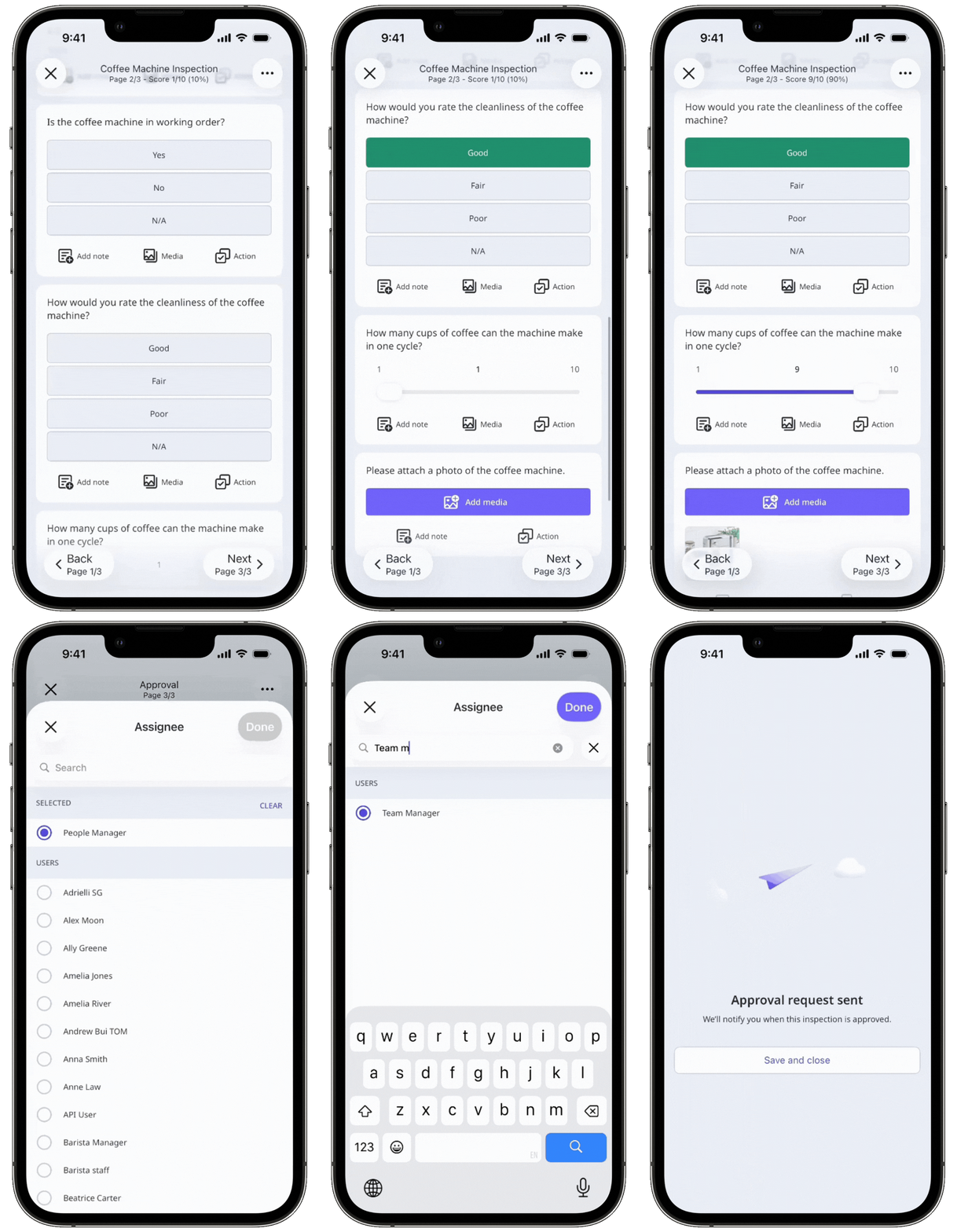
Progress through the inspection accordingly and take note of any required questions, which can be identified by an asterisk next to the question label.
Once you reach the end of the inspection, tap Request approval. If the template has "Allow users to select approver" turned on, you can select a user from the dropdown menu to approve the inspection.
The approver will be notified when their approval is requested. Approval notifications depend on the recipient's notification settings.
Users must have Mitti version 24.23 or above to submit inspections for approval on the mobile app.
Frequently asked questions
Need more help?
Was this page helpful?
