Last updated: October 31, 2024
Why add images, videos, and documents to actions?
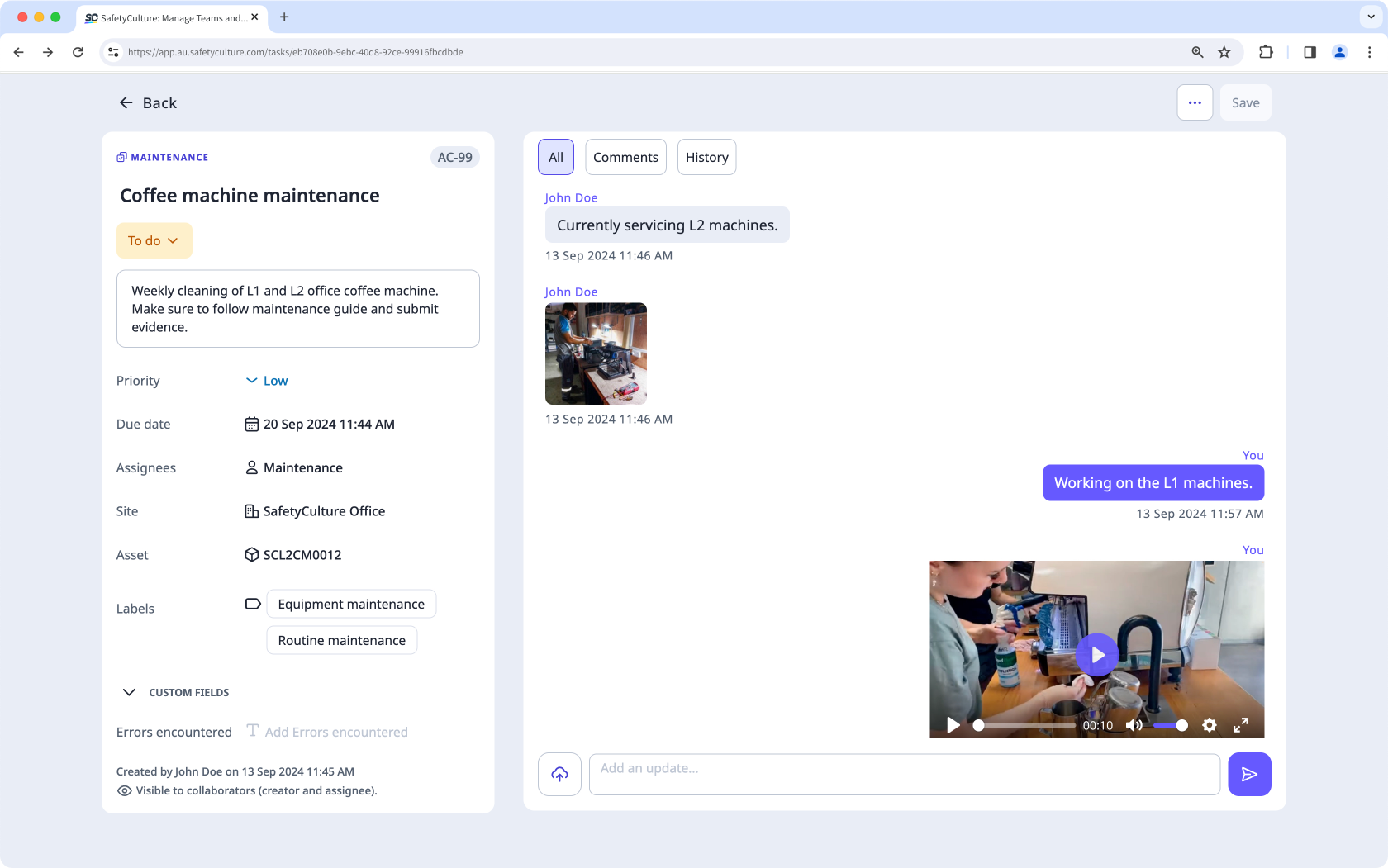
Adding images, videos, and documents to actions allows teams to provide specific details and additional contexts to their actions that texts alone may not capture. These attachments can act as evidence, support accurate record-keeping, and help track the progress of your team's actions.
What you'll need
You can upload the following supported file types: GIF, JPEG (JPG), PNG, and WEBP files up to 10MB, MP4, and MOV files up to 1.5GB or 3 minutes long, and PDF files up to 20 MB.
Attach an image, video, or document to an action
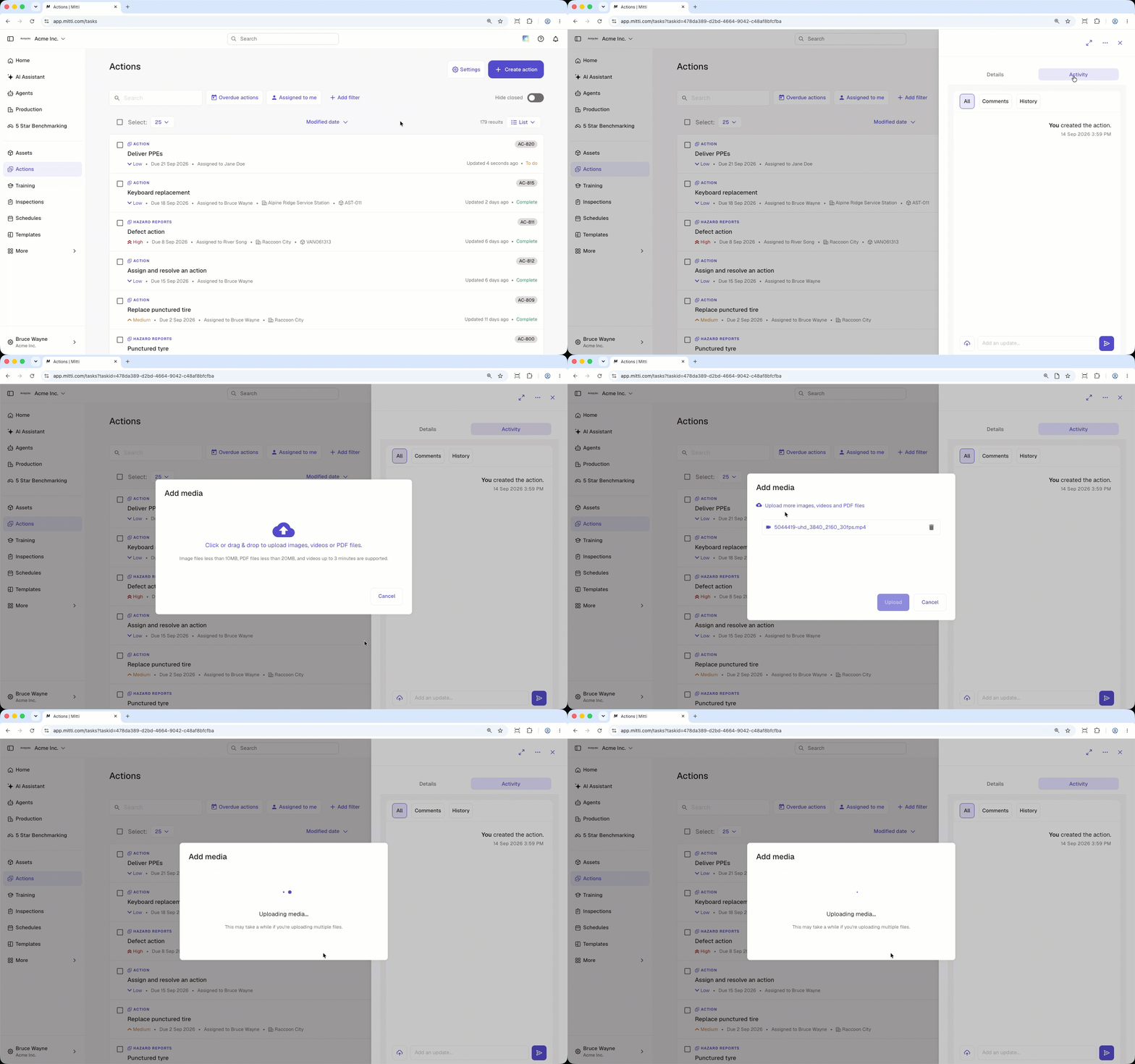
Select Actions in the sidebar or in More.
In the side panel, click Activity at the top. You can also expand the side panel by clicking on the upper-right of page.
Click on the lower-left of the page.
Drag and drop your file to the pop-up window or click to select your files.
Click Upload.
Open the mobile app.
Tap Actions in the navigation bar or select it from More.
Tap Activity at the top upper-right of your screen.
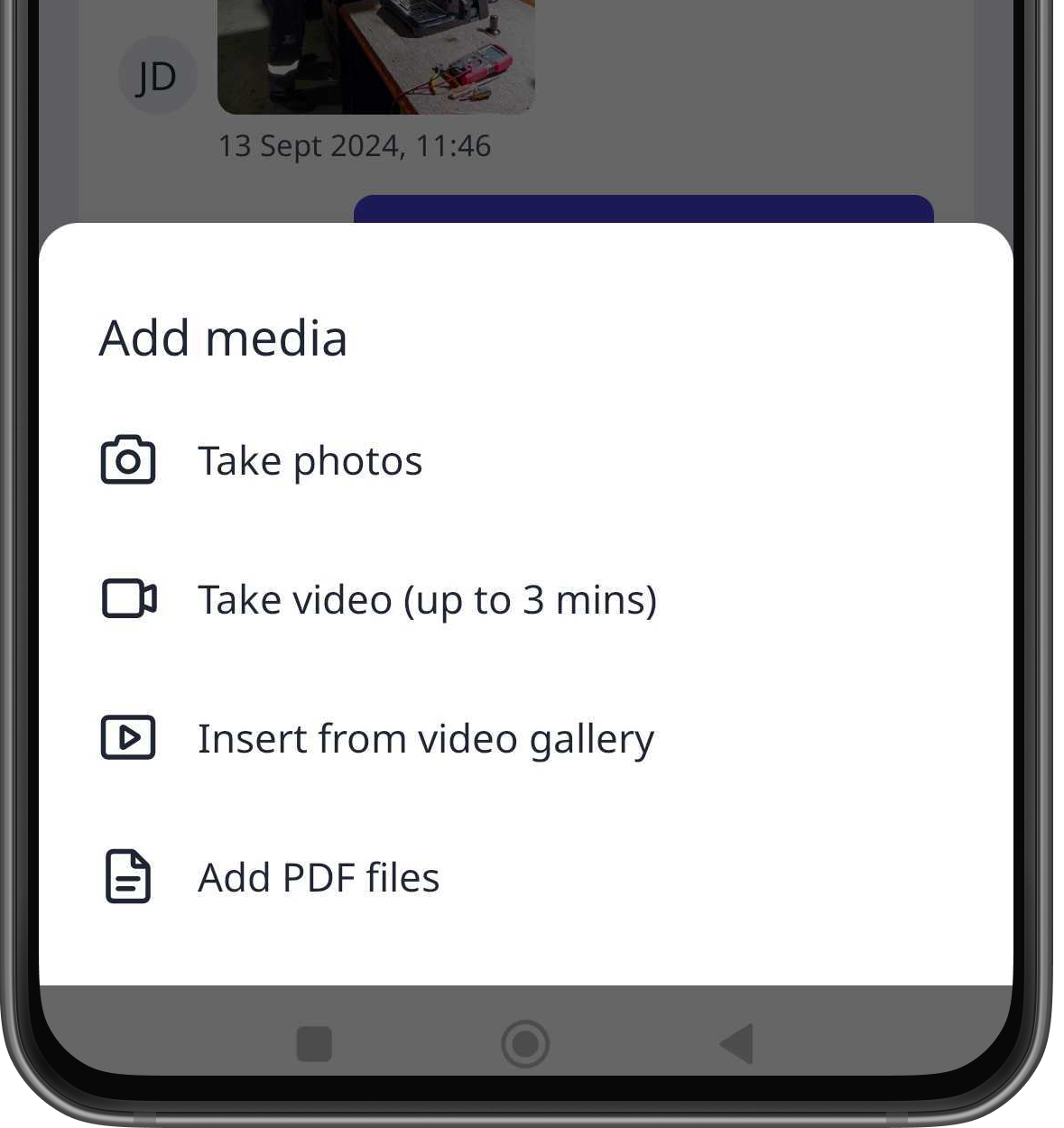
Tap at the lower left of your screen and select the following:
To take a photo: Tap Take photos and proceed accordingly. Tap Next at the lower-right of your screen and tap Next.
To upload an image: Tap Take photos and tap the images at the lower-left of your screen. Select you image and tap Add at the lower-right of your screen. Tap Next at lower-right of your screen and tap Next.
To take a video: Tap Take video (up to 3 mins) and proceed accordingly. Tap Next at lower-right of your screen and tap Next.
To upload a video: Tap Insert from video gallery, select your video, and tap Add.
To attach a document: Tap Add files and proceed accordingly.
Open the mobile app.
Tap Actions in the navigation bar or select it from More.
Tap Activity at the top upper-right of your screen.
Tap at the lower left of your screen and select the following:
To take a photo: Tap Take photo and proceed accordingly. Tap Next at the upper-right of your screen and tap Done.
To upload an image: Tap Photo library, select your images, and tap Add at the upper-right of your screen.
To take a video: Tap Take video and proceed accordingly. Tap Upload video.
To upload a video: Tap Video library and select your video.
To attach a document: Tap Add files, select your documents, and tap Open at the upper-right of your screen.

Need more help?
Was this page helpful?
