Last updated: August 27, 2026
Why view live and historical jobs?
Viewing live and historical jobs gives you real-time visibility into where workers are during an active job or shift. You can also see where they went after the job ended, so you can act quickly if something goes wrong.
Each job and shift appears as a pin on the Live map with a full location timeline behind it. The pins make it easier to keep every group you manage in one view. If you lose contact with a worker, you can send help right away to their last confirmed location. After a job closes, that same route stays in job history, so you always have a factual record to act on for incident reviews.
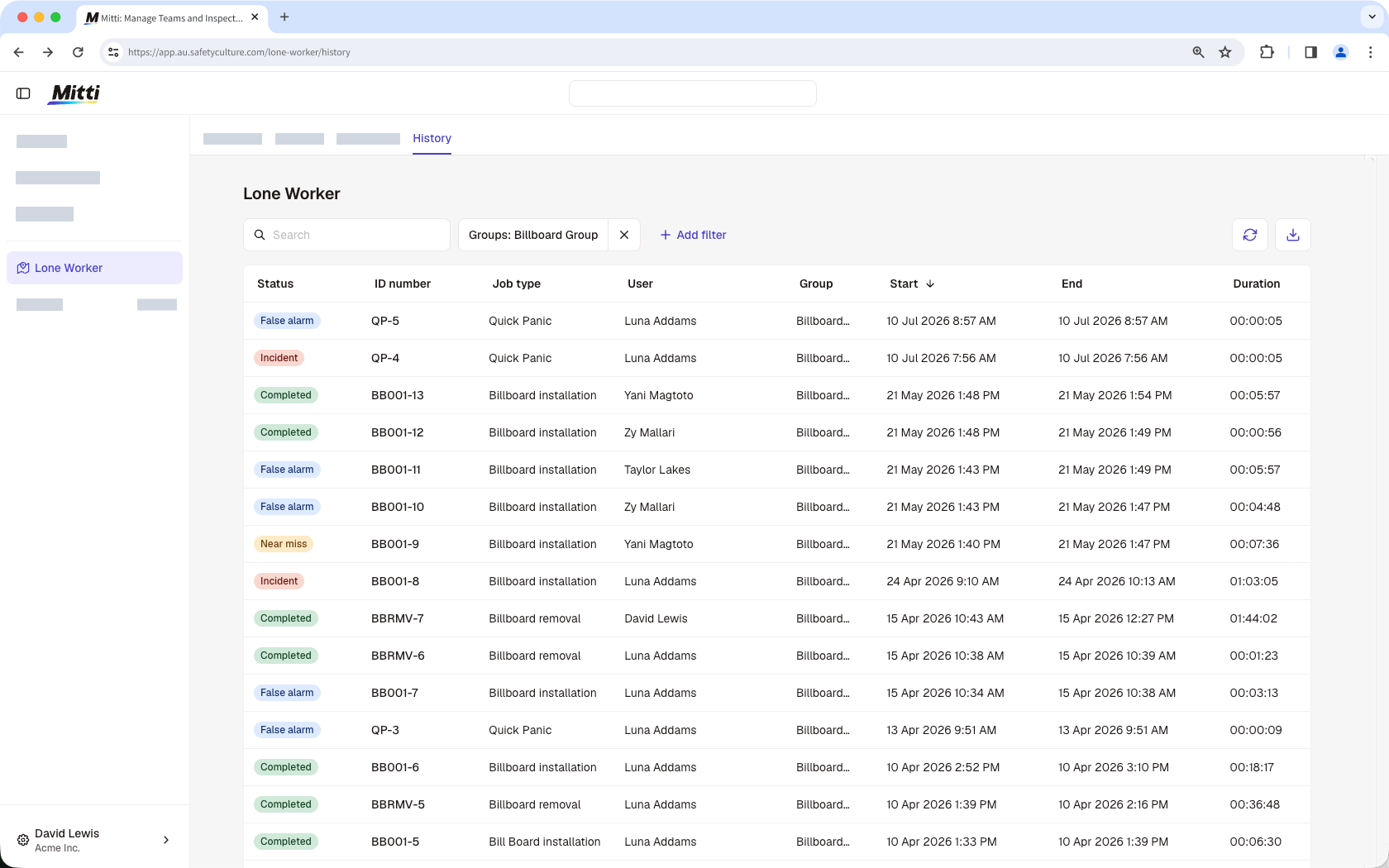
Users with "Lone Worker: Settings" permission can see all workers in the organization across the Live map, job history, and group filters.
View live lone-work jobs
Select Lone Worker in the sidebar or in More.
Click Live map at the top of the page.
Each active job can be viewed on the live map. Click the job on the side panel to see the full details. If you want to view a job's full timeline of location updates, click View journey.
You can also view active jobs in the Lone Worker dashboard.
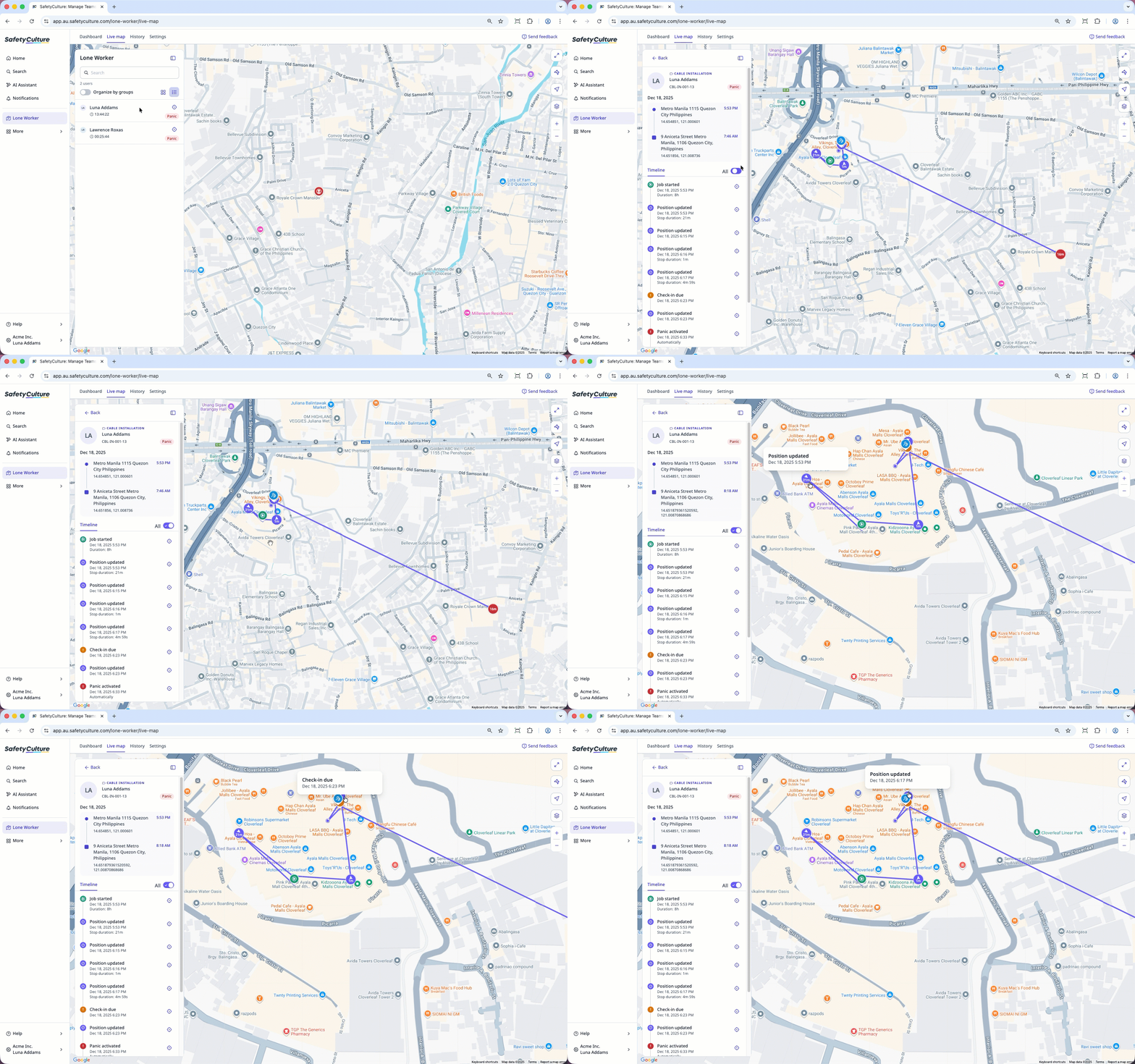
Workers who start a job with an assigned satellite device also appear on the live map. A satellite icon on the live map and in job history identifies workers who are using a satellite device.
If multiple jobs are happening at the same time, you can turn Organize by groups on to group jobs together for easy viewing.
View historical lone-work jobs
Select Lone Worker in the sidebar or in More.
Select History at the top of the page.
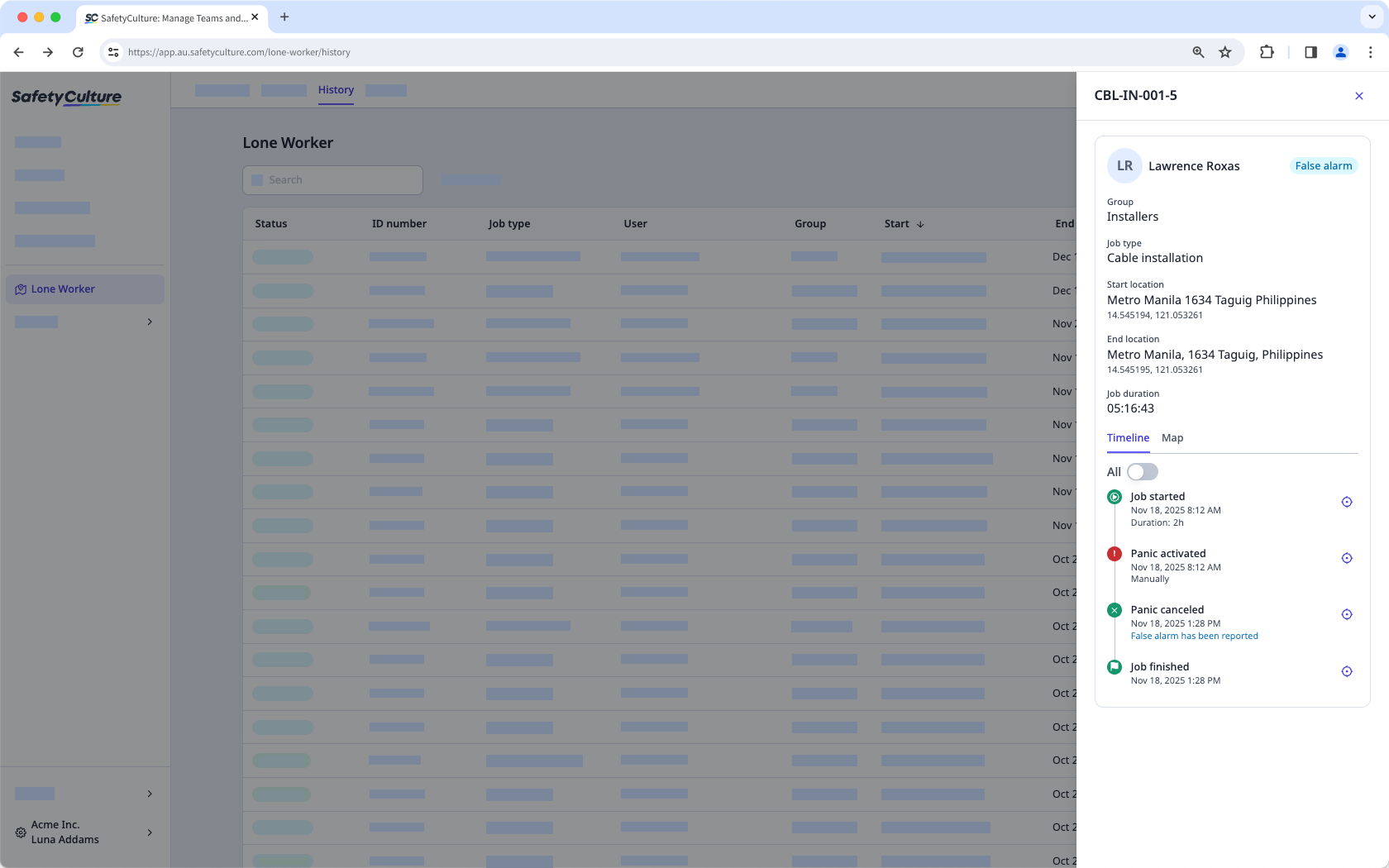
Click on the job to view the full details in the side panel. You can also select the Map tab to view a job's full journey.
Frequently asked questions
Need more help?
Was this page helpful?
