Last updated: December 16, 2025
Depending on asset access settings, the assets you can view and manage may vary based on your site membership.
View an asset with open actions
Click Assets from the menu on the left-hand side.
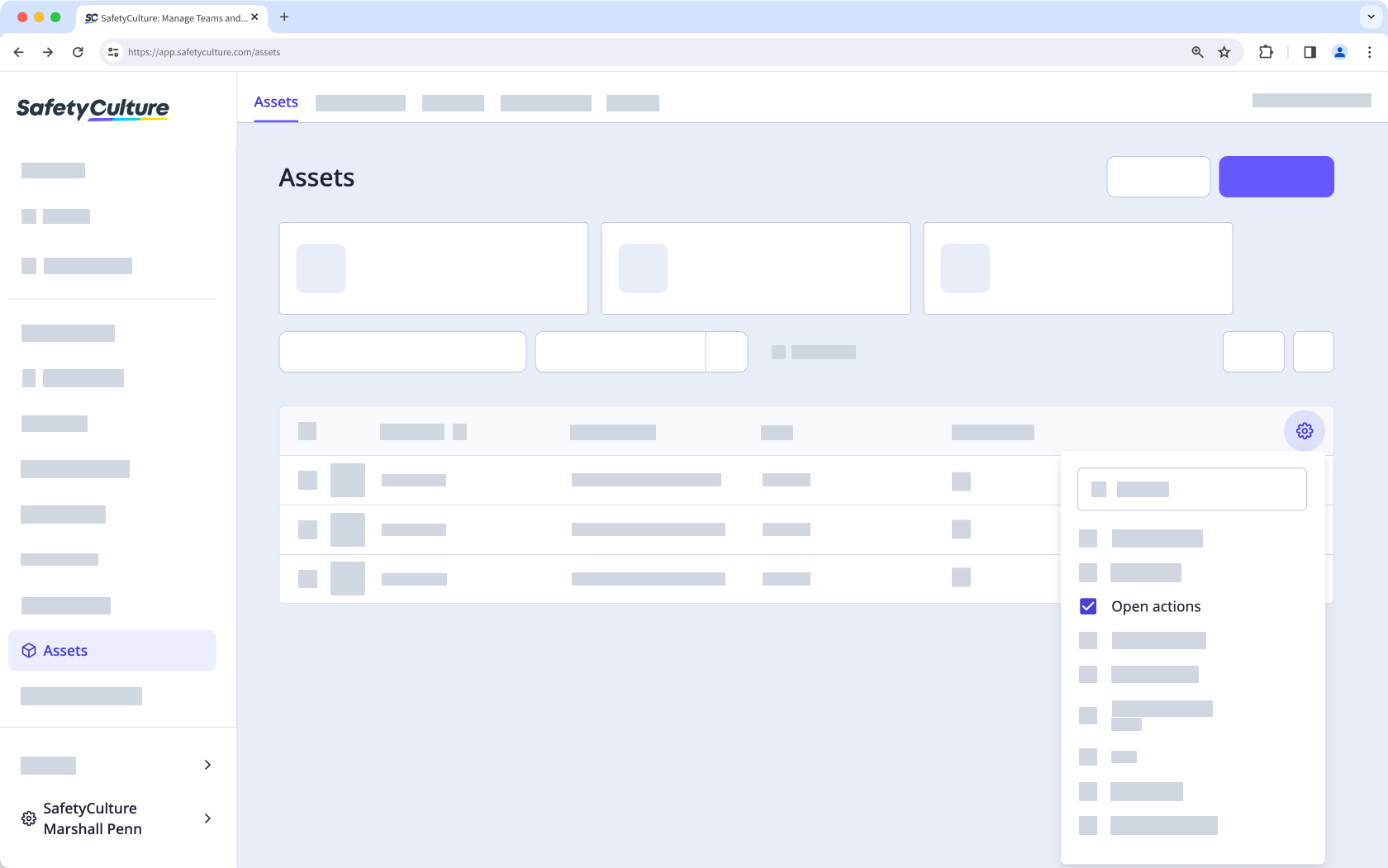
To view open actions for each asset in the list, add the Open actions column:
Click the at the upper-right of the asset list.
Select Open actions.
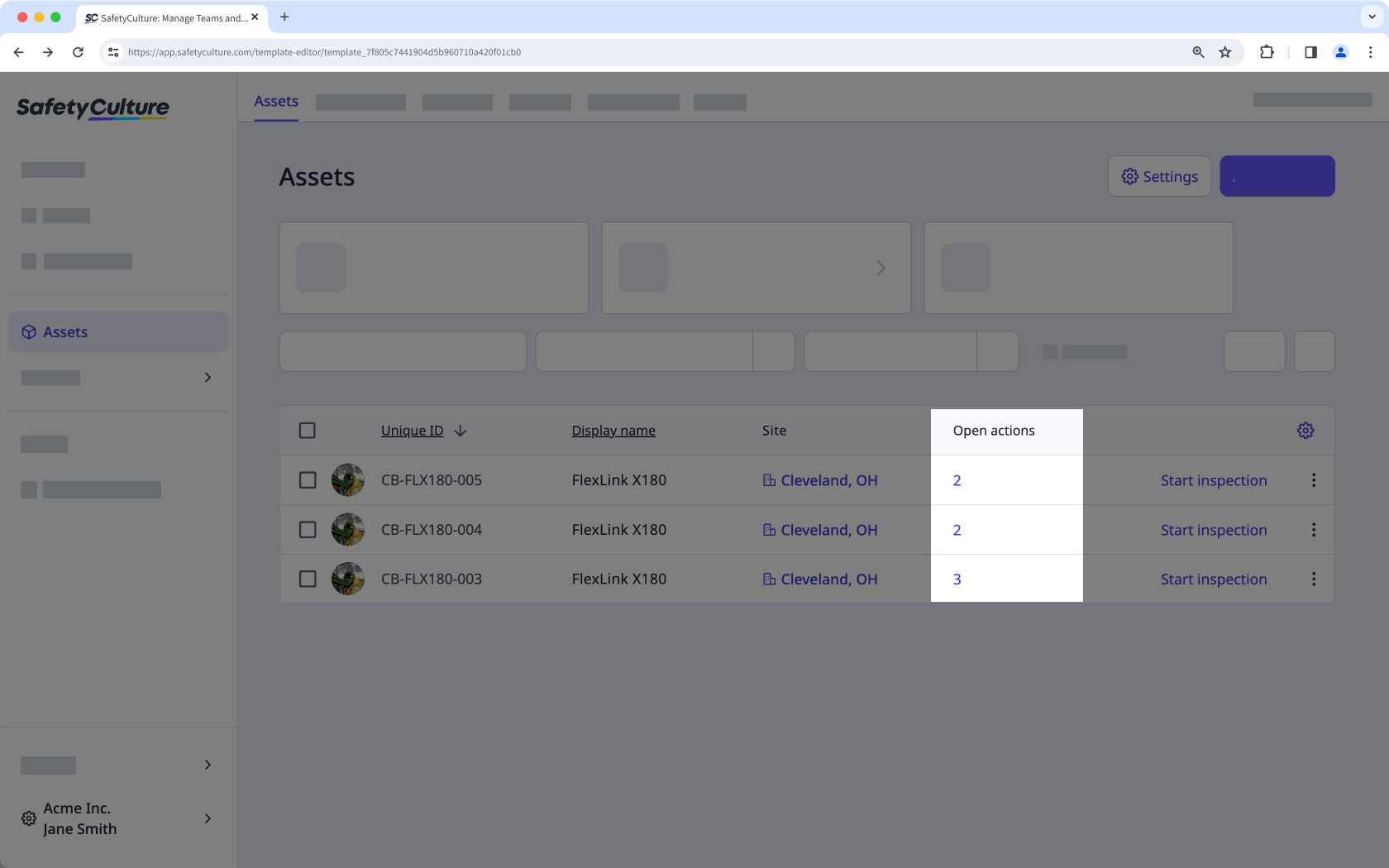
Select the number of actions on the asset list for a specific asset.
View the open actions on the side panel.
Open the mobile app.
Tap More at the lower-right corner of your screen.
Select Assets from the list of options.
Tap and then select Customize view.
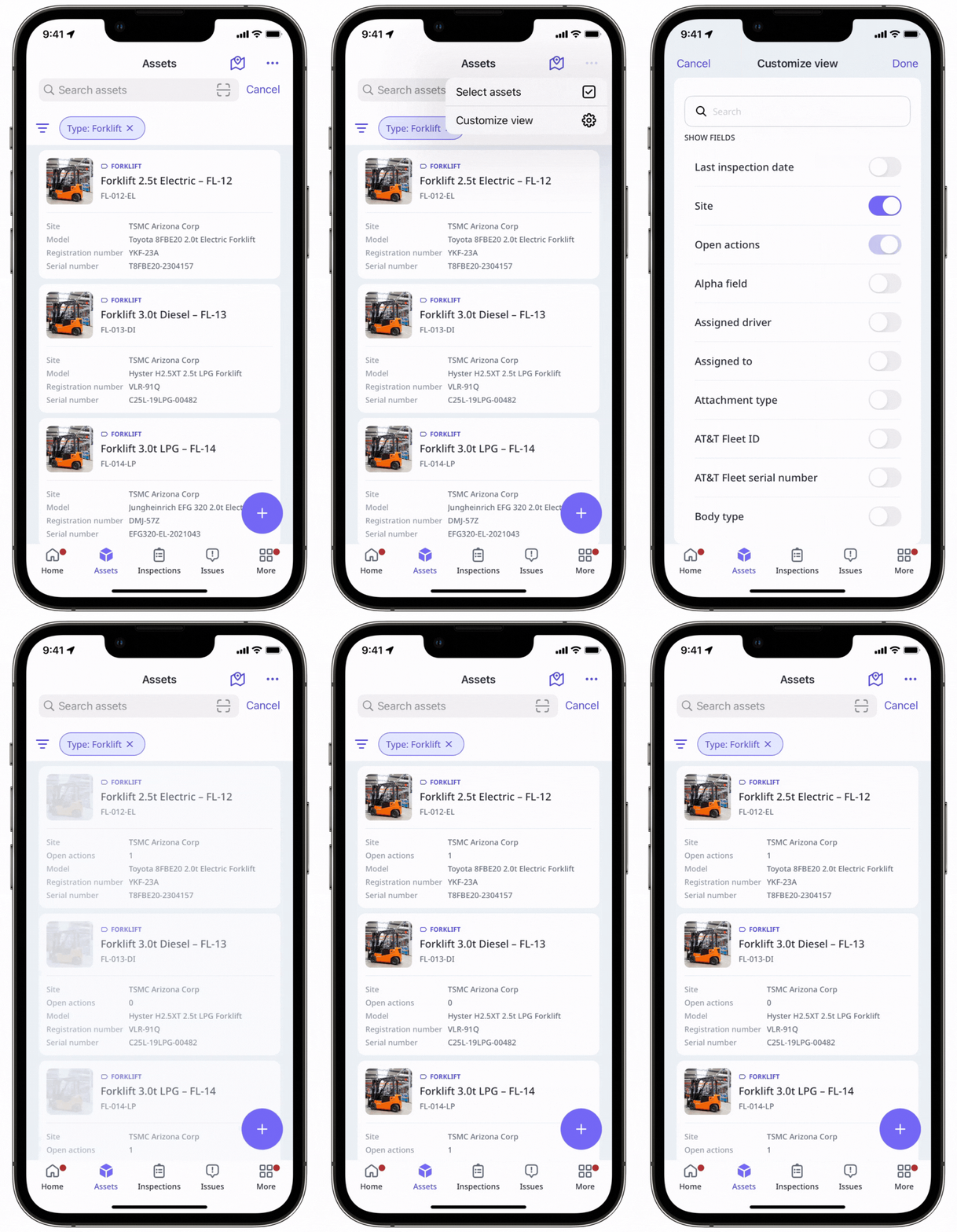
Turn "Open actions" on.
Tap Done at the upper-right of your screen. The number of open actions for each asset is shown on the list.
Tap any asset to view its open actions.
View assets with open actions in your organization
Select Assets in the sidebar or in More.
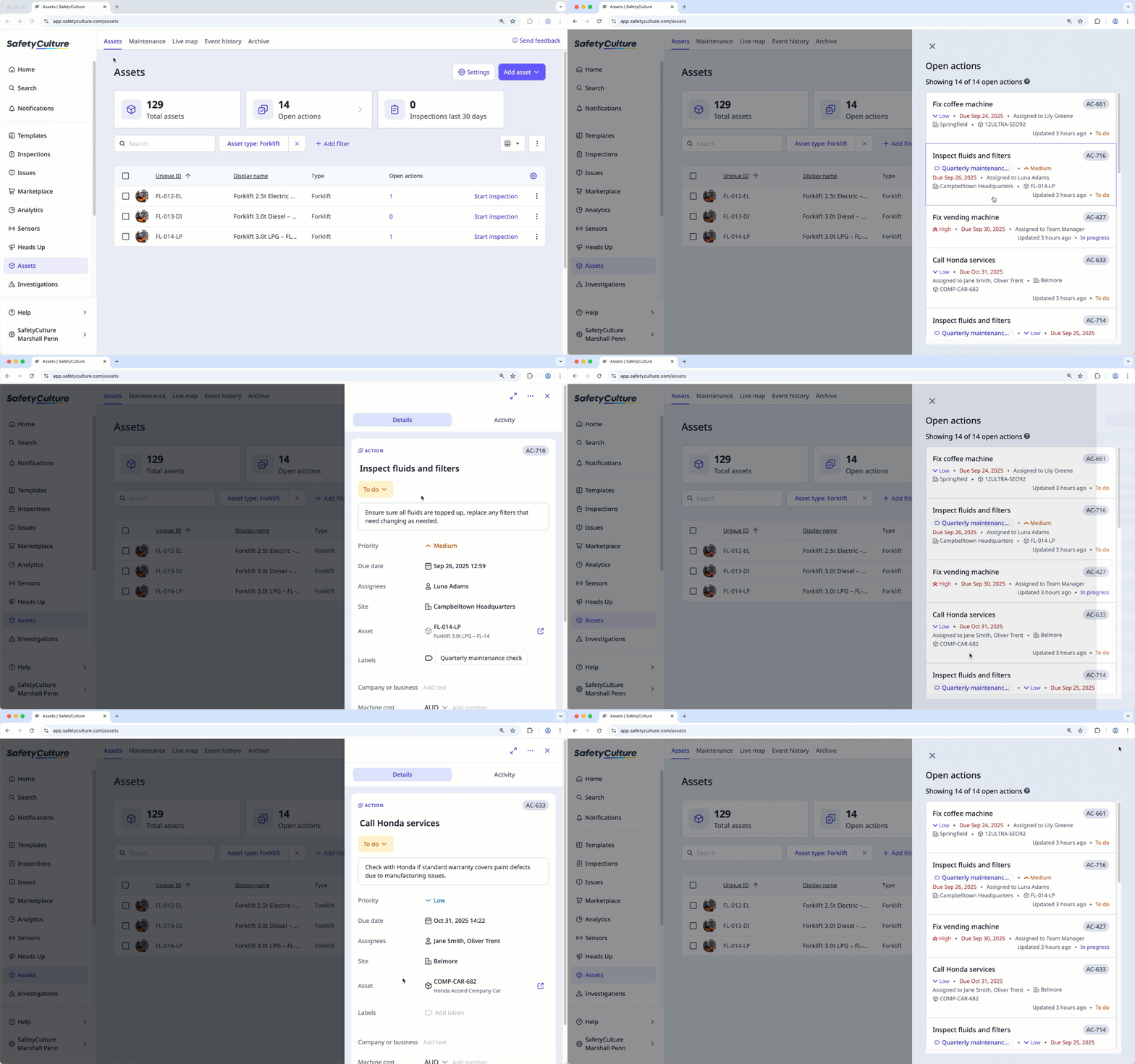
Click Open actions at the top of the page.
In the side panel, select an action to view more details.
Open the mobile app.
Tap More at the lower-right corner of your screen.
Select Assets from the list of options.
Tap and then select Customize view.
Turn "Open actions" on.
Tap Done at the upper-right of your screen. The number of open actions for each asset is shown on the list.
Tap at the upper-left of your screen.
Turn "Show only assets with open actions" on.
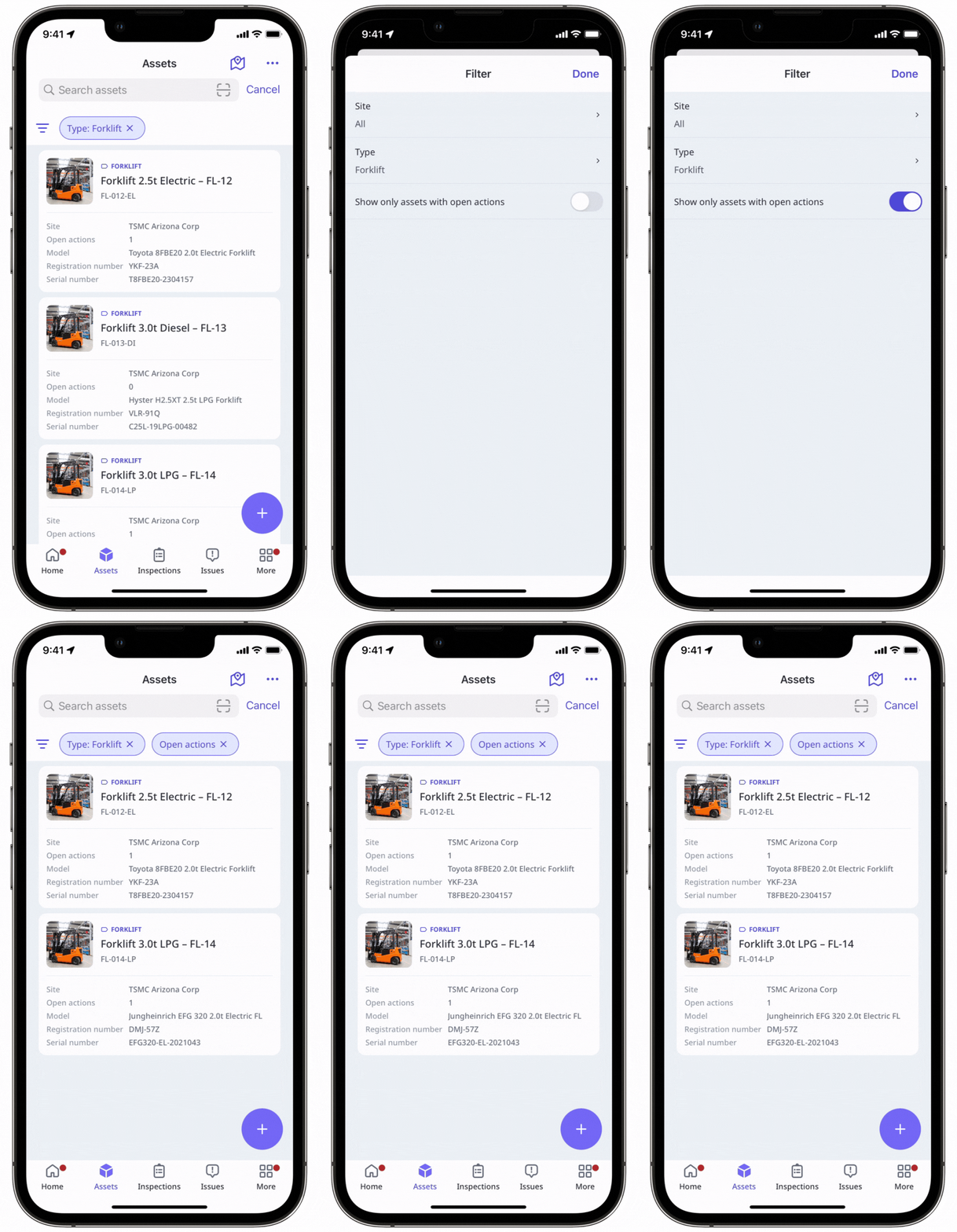
Tap Done at the upper-right of your screen to view only assets with open actions in your organization.
Need more help?
Was this page helpful?
