Last updated: April 7, 2026
You can only assign or unassign issues to an individual user.
Assign an issue
Select Issues in the sidebar or in More.
Report an issue or select an existing issue.
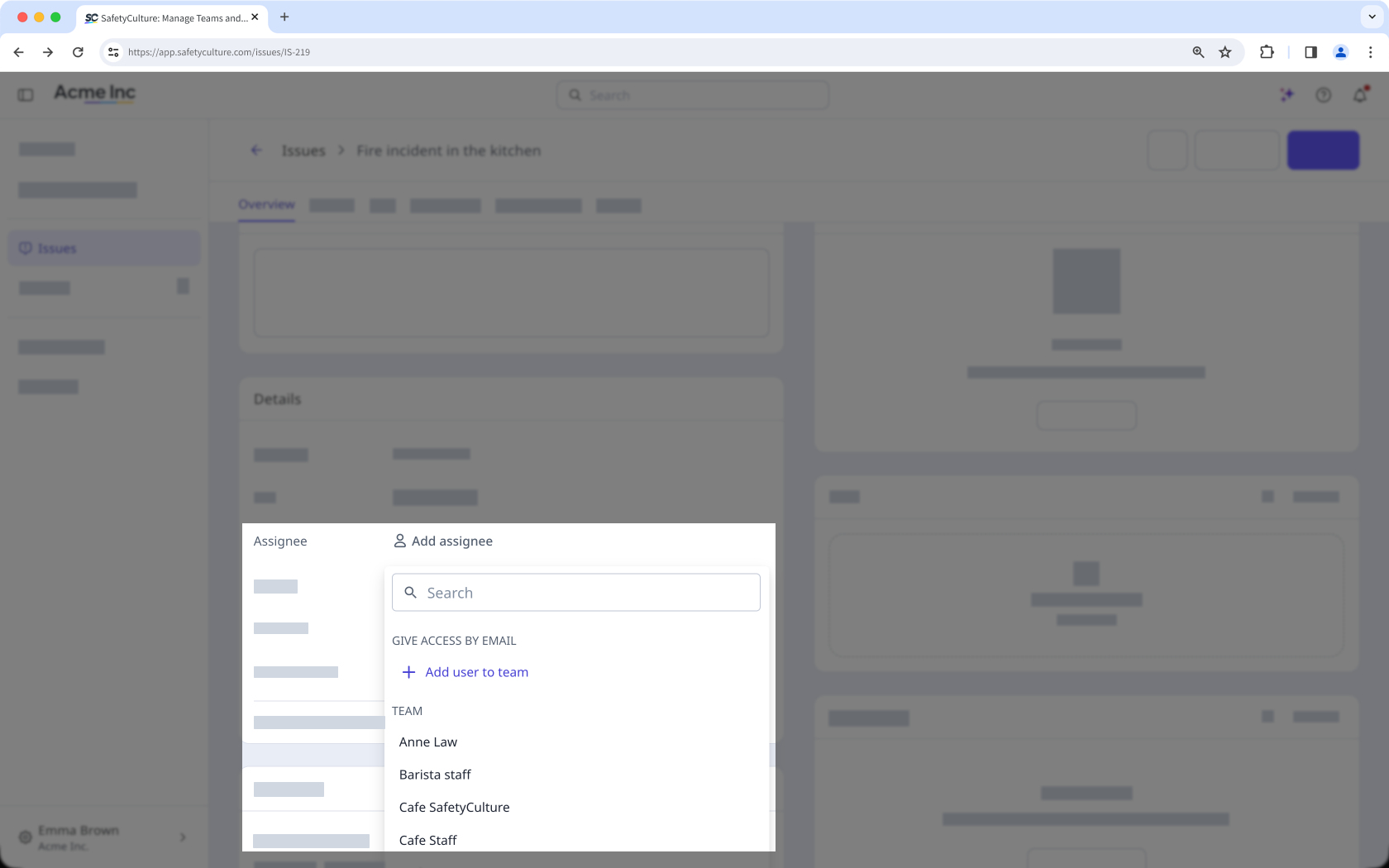
In the 'Details' section, click Add assignee or the existing assignee.
In the dropdown menu, select the user you want to assign.
Open the mobile app.
Tap More at the lower-right corner of your screen.
Select Issues from the list of options.
Report an issue or select an existing issue.
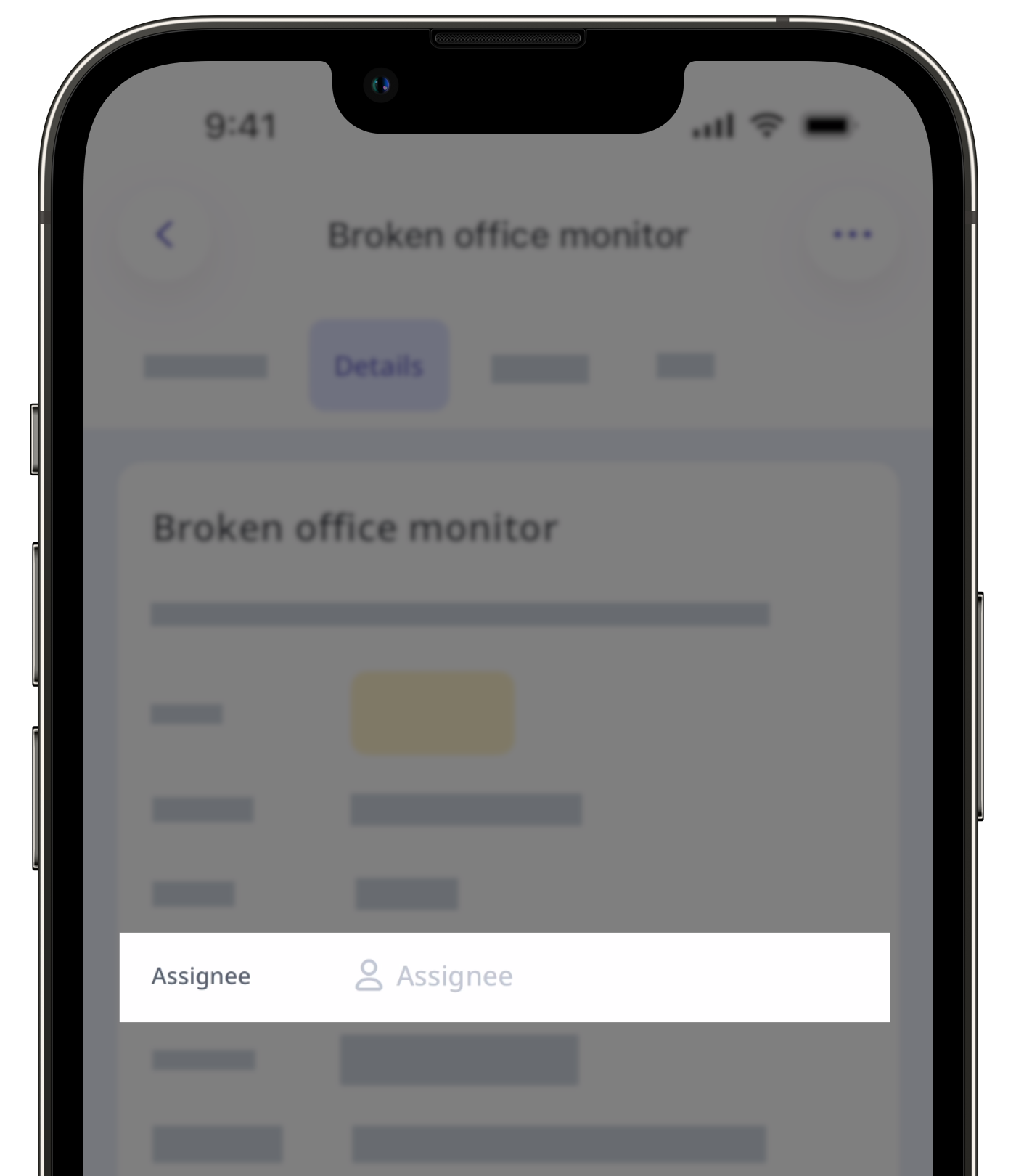
In the Details tab, tap Add assignee or the existing assignee.
In the pop-up menu, select the user you want to assign.
Tap Done.
You won’t receive a notification when you assign an issue to yourself.
Unassign an issue
Select Issues in the sidebar or in More.
Report an issue or select an existing issue.
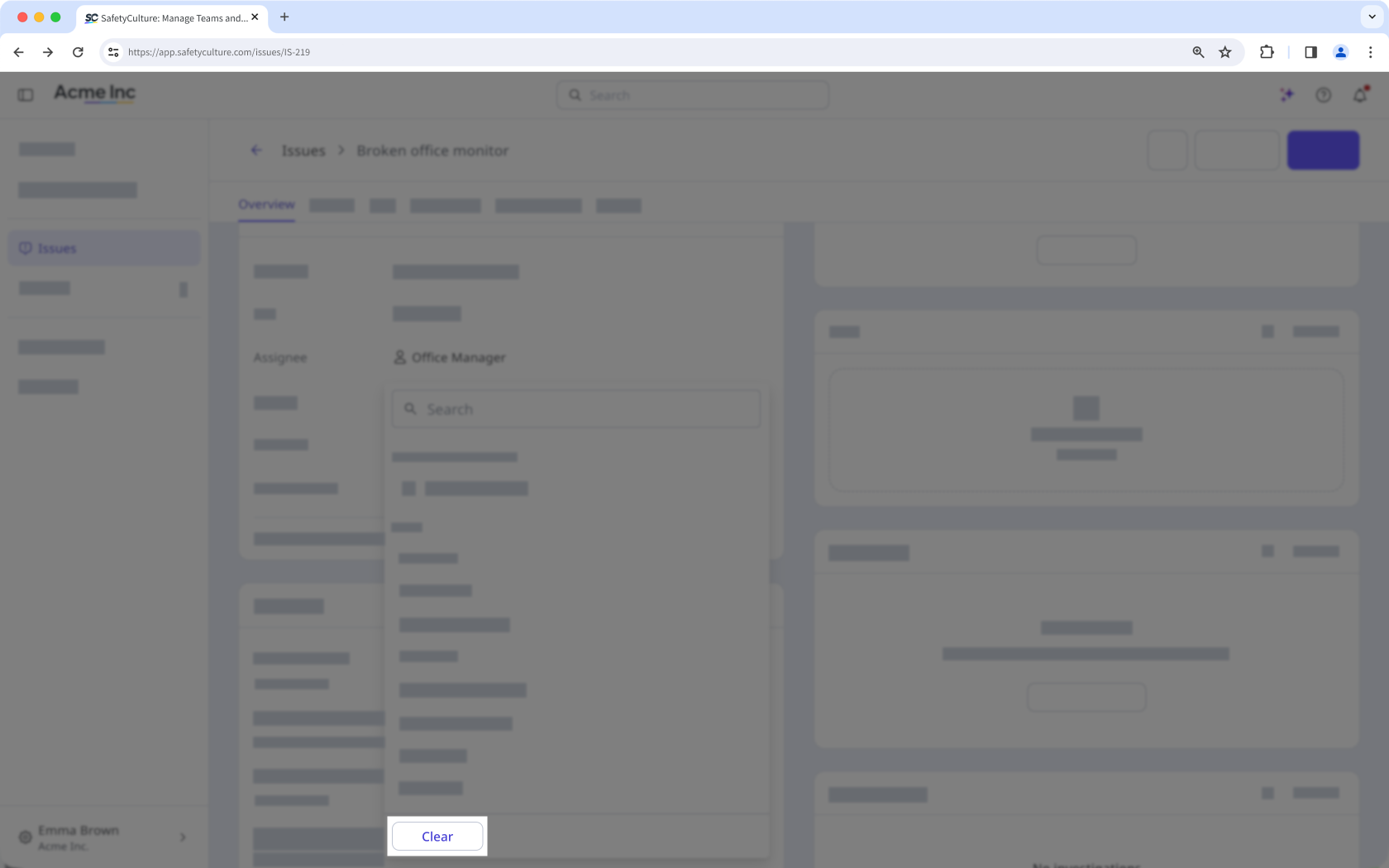
In the 'Details' section, click the existing assignee.
In the dropdown menu, click Clear.
Open the mobile app.
Tap More at the lower-right corner of your screen.
Select Issues from the list of options.
Report an issue or select an existing issue.
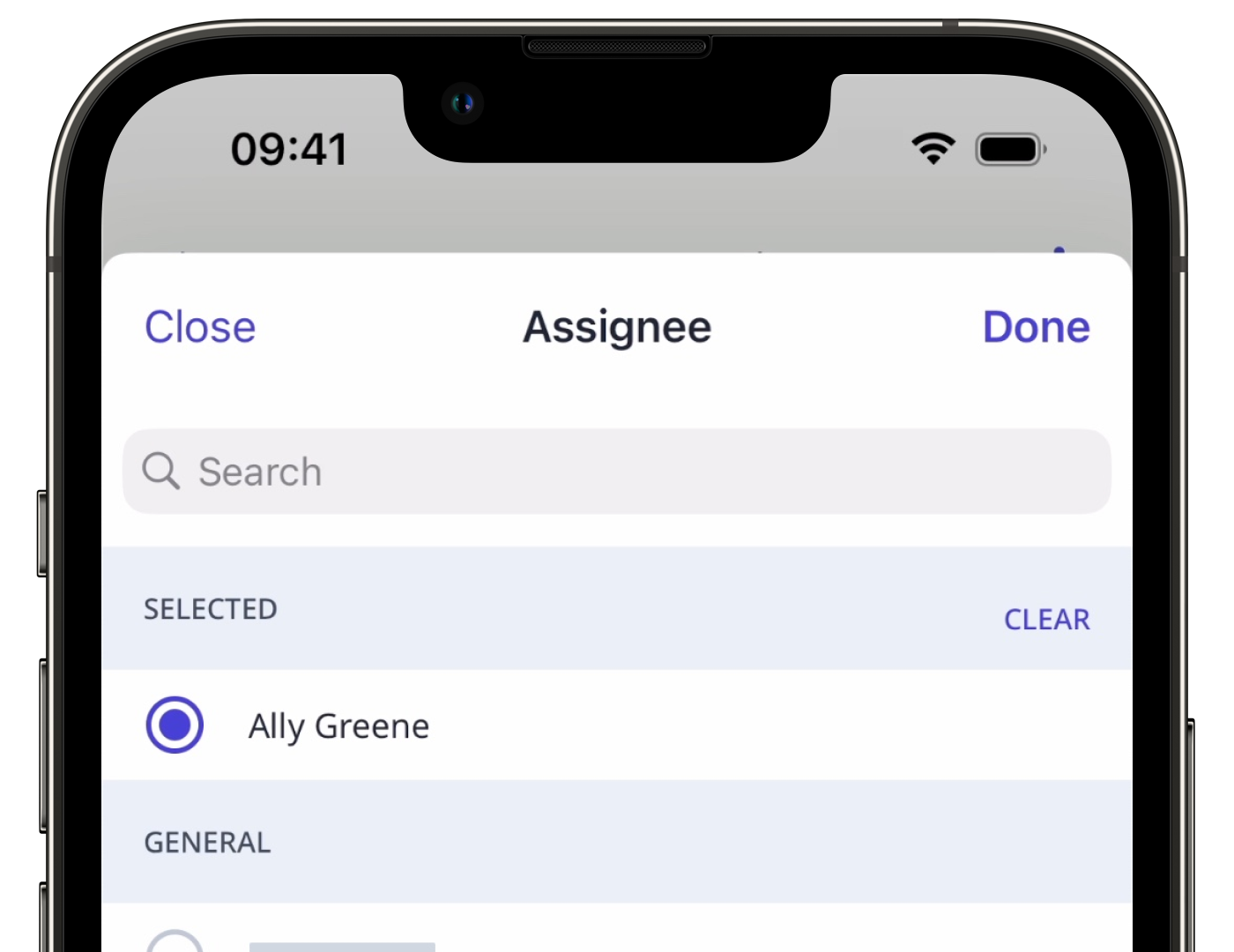
In the Details tab, tap the existing assignee.
In the pop-up menu, you can either unassign a user individually in the "SELECTED" section or tap CLEAR to unassign them.
Tap Done.
Bulk edit issue assignees
Select Issues in the sidebar or in More.
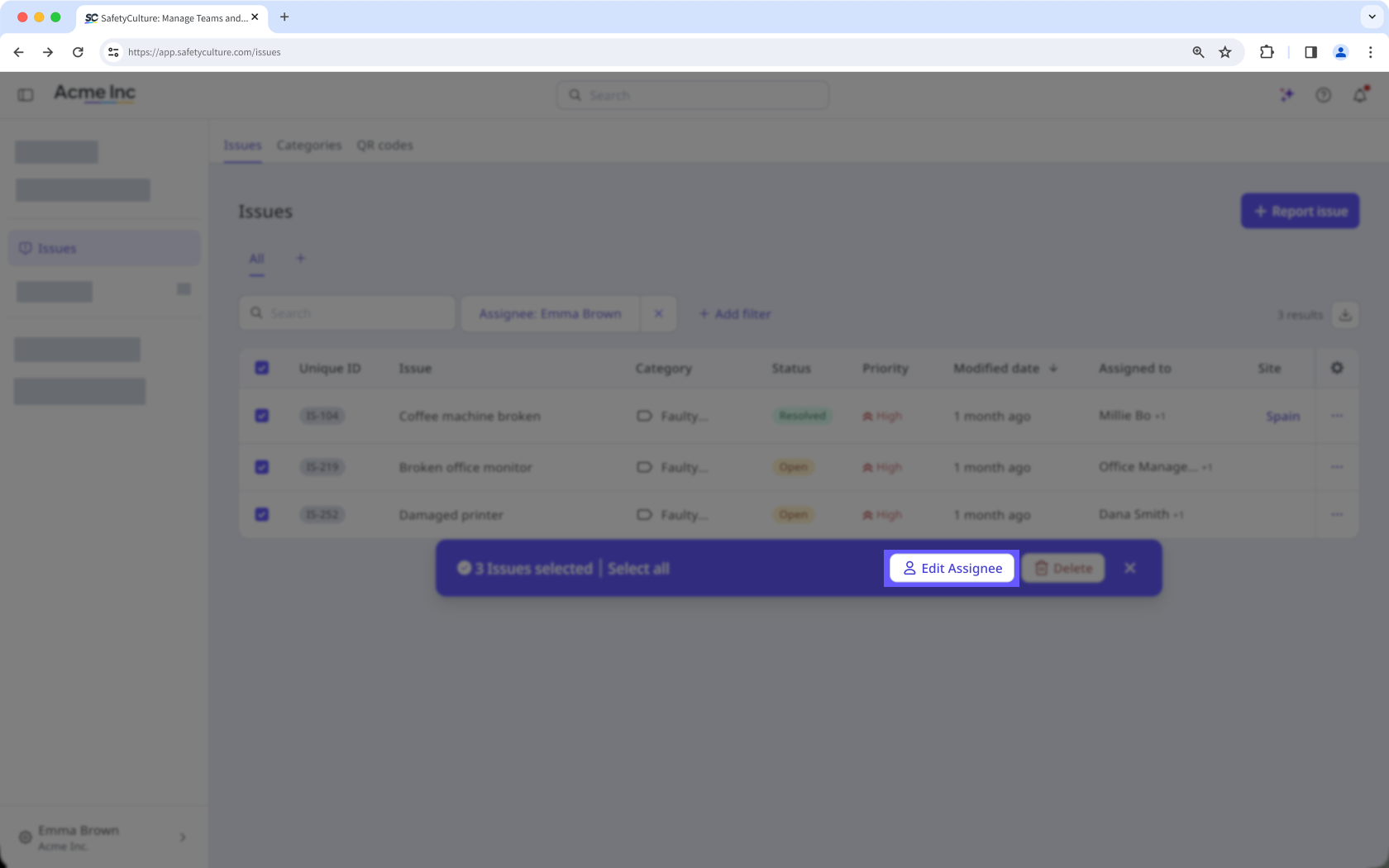
Select the issues you want to delete by checking the boxes on the left-hand side of each issue.
C lick Edit Assignee at the bottom of the page.
In the pop-up window, select the user you want to assign and click Edit assignee.
Need more help?
Was this page helpful?
