Last updated: August 27, 2026
Deleting is irreversible, and we cannot restore permanently deleted items. Confirmation is always required before any deletion, so be sure you're not accidentally deleting the wrong item.
Delete a document from an asset
Select Assets in the sidebar or in More.
You can choose how you want to view your assets by selecting Table, Gallery, or Map on the upper-right of the page. You can also filter by type or site.
Search and select the asset.
In Overview, go to the "Documents" section.
Click on the right-hand of the file, and then select Remove.
In the pop-up window, click Remove.
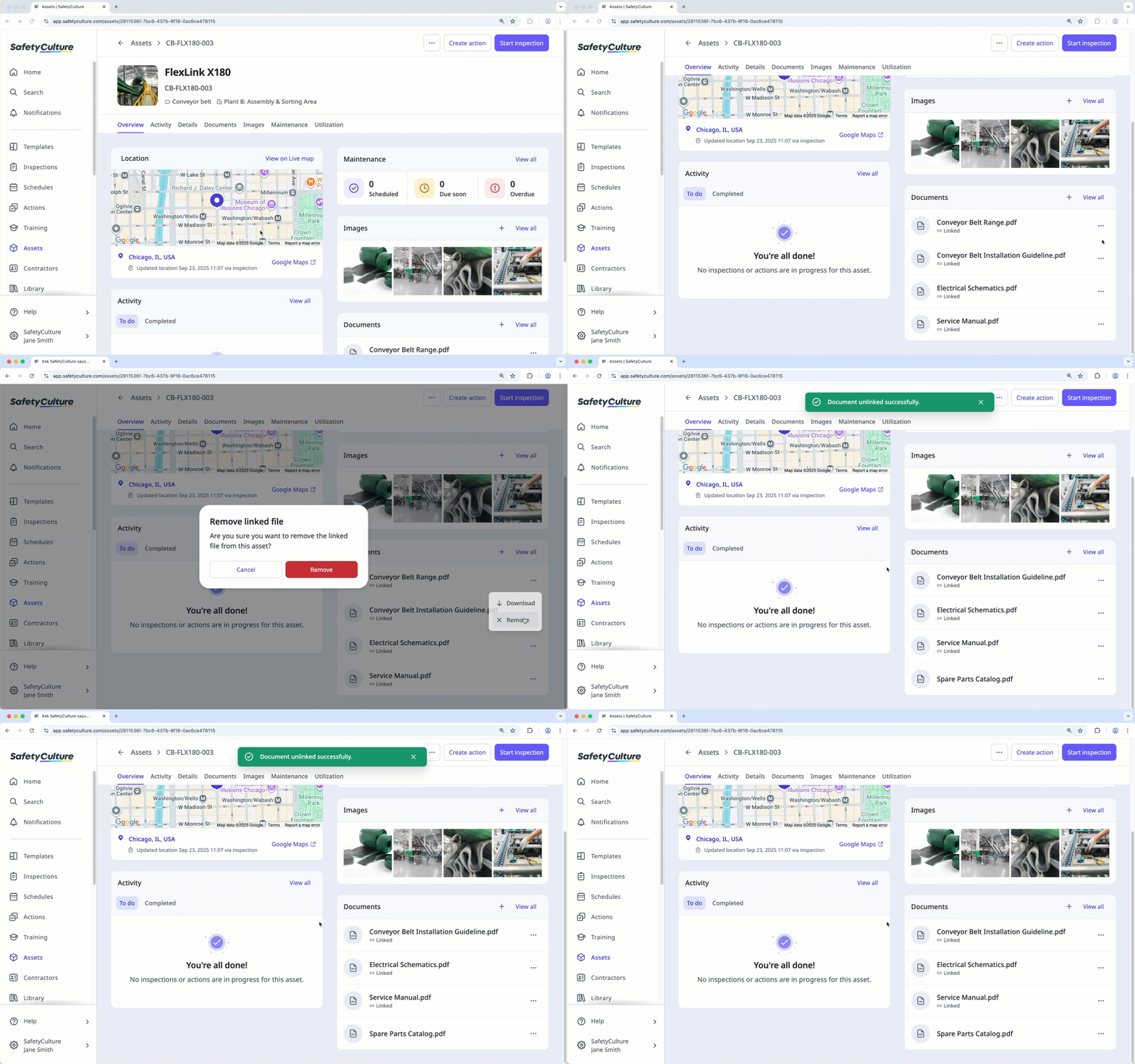
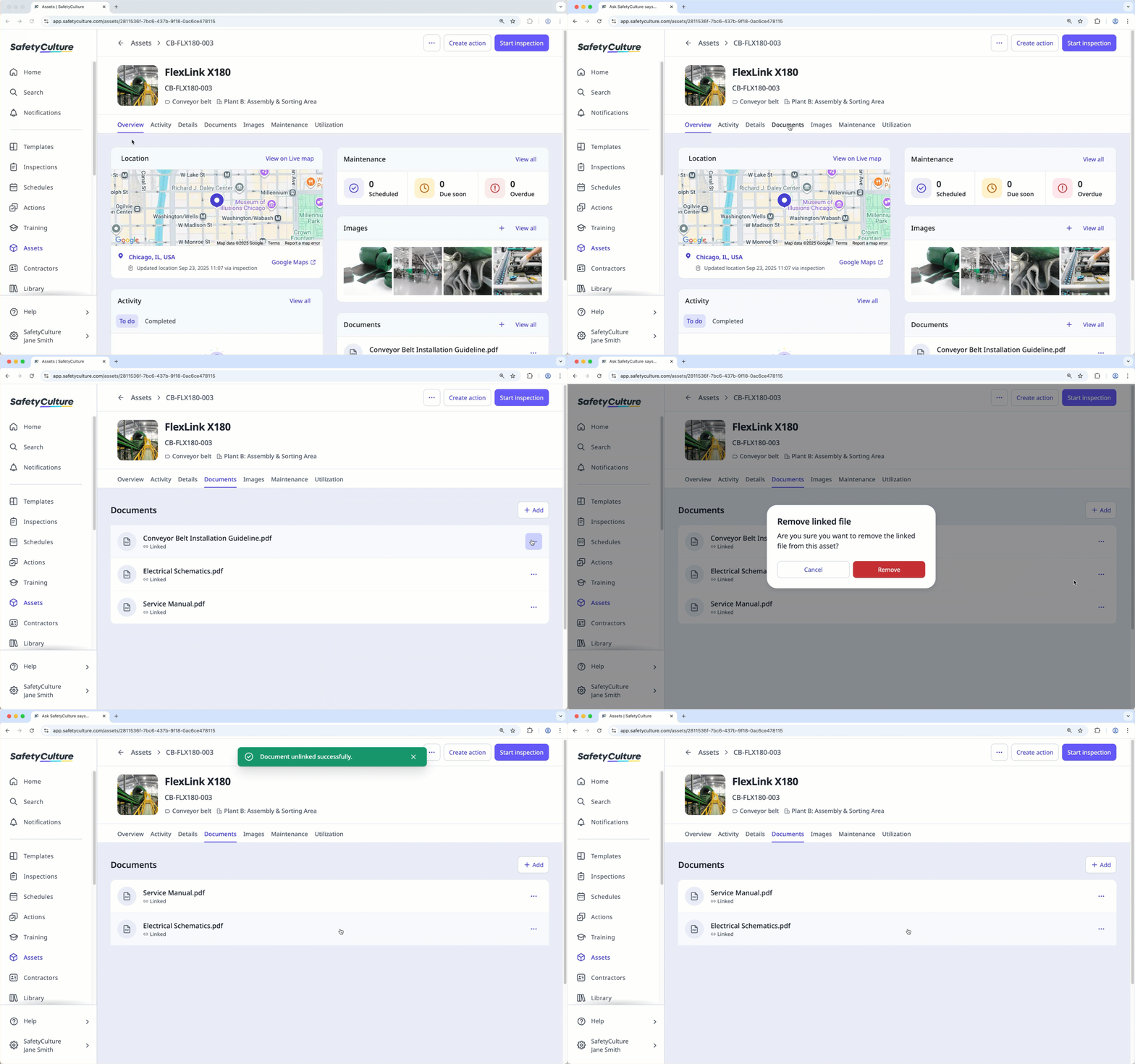
Alternatively, click Documents at the center of the page.
Click on the right-hand of the file, and then select Remove.
In the pop-up window, click Remove.
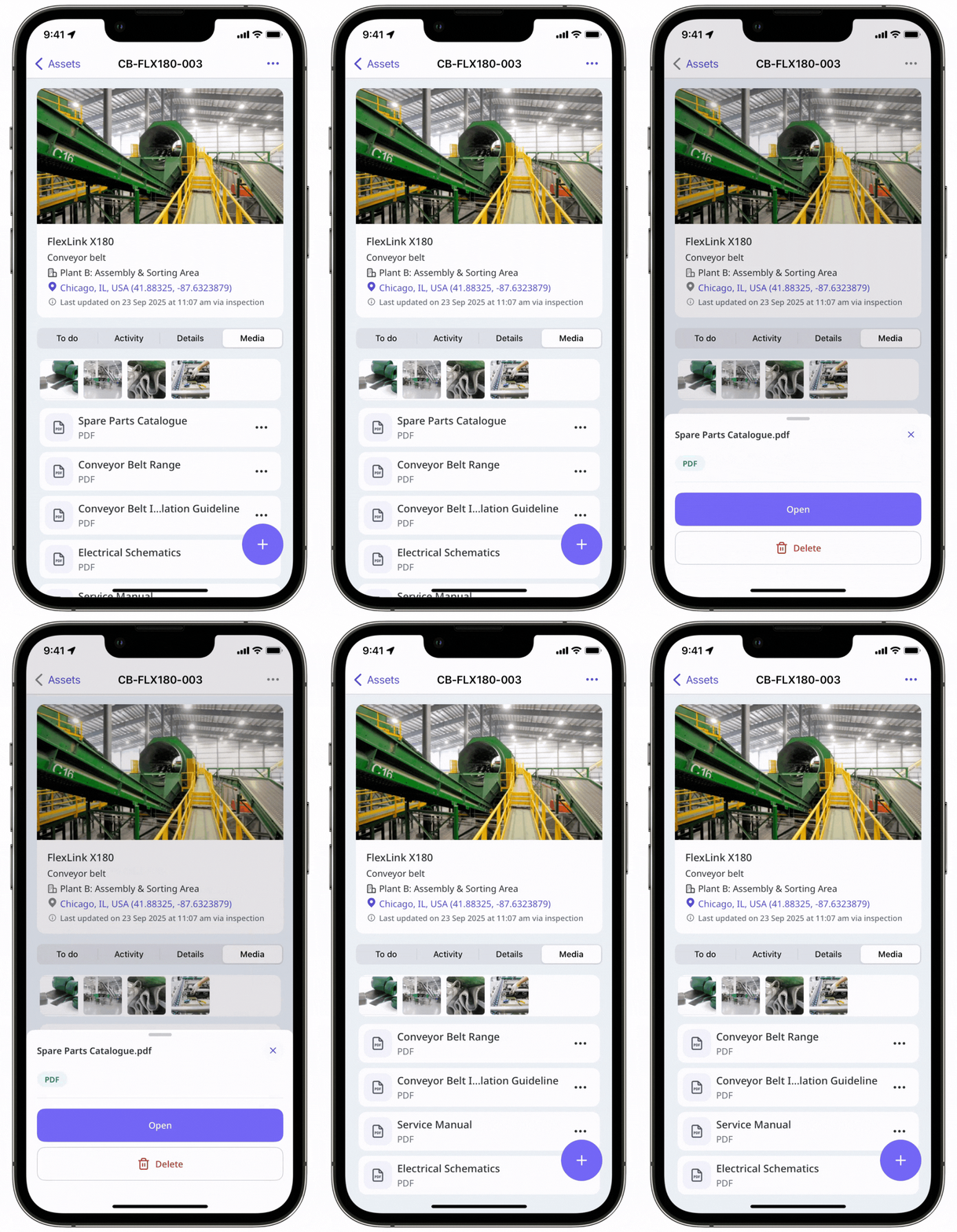
Open the mobile app.
Tap More at the lower-right corner of your screen.
Select Assets from the list of options.
Filter your assets by type or site or search for the asset.
Tap the asset.
Tap Media.
Tap on the right-side of the document.
In the pop-up menu, tap Delete.
Tap Delete to confirm.
Delete an image from an asset
Select Assets in the sidebar or in More.
You can choose how you want to view your assets by selecting Table, Gallery, or Map on the upper-right of the page. You can also filter by type or site.
Search and select the asset.
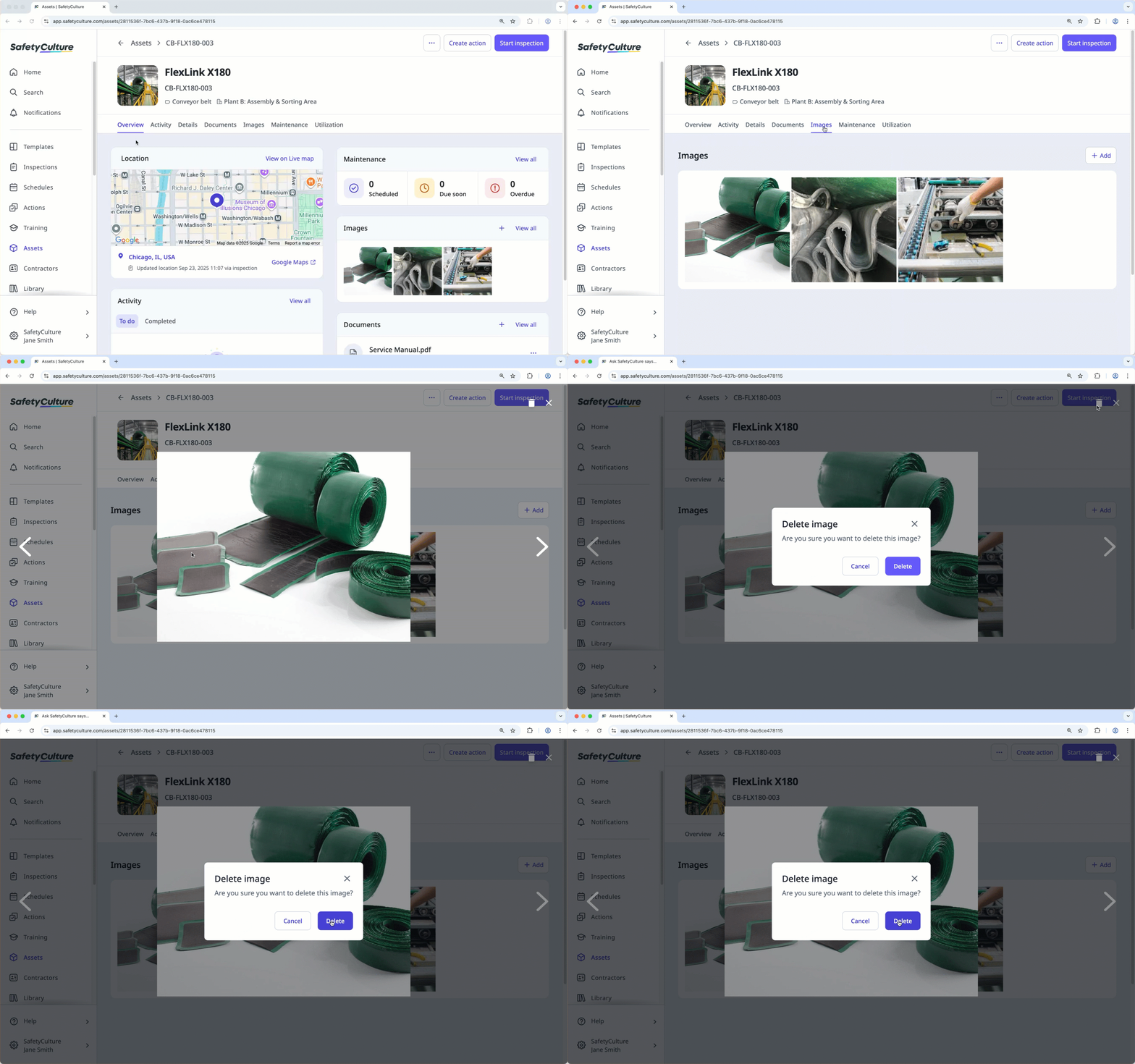
In Overview, go to the "Images" section.
Select the image.
Click on the upper-right of the page.
In the pop-up window, click Delete.
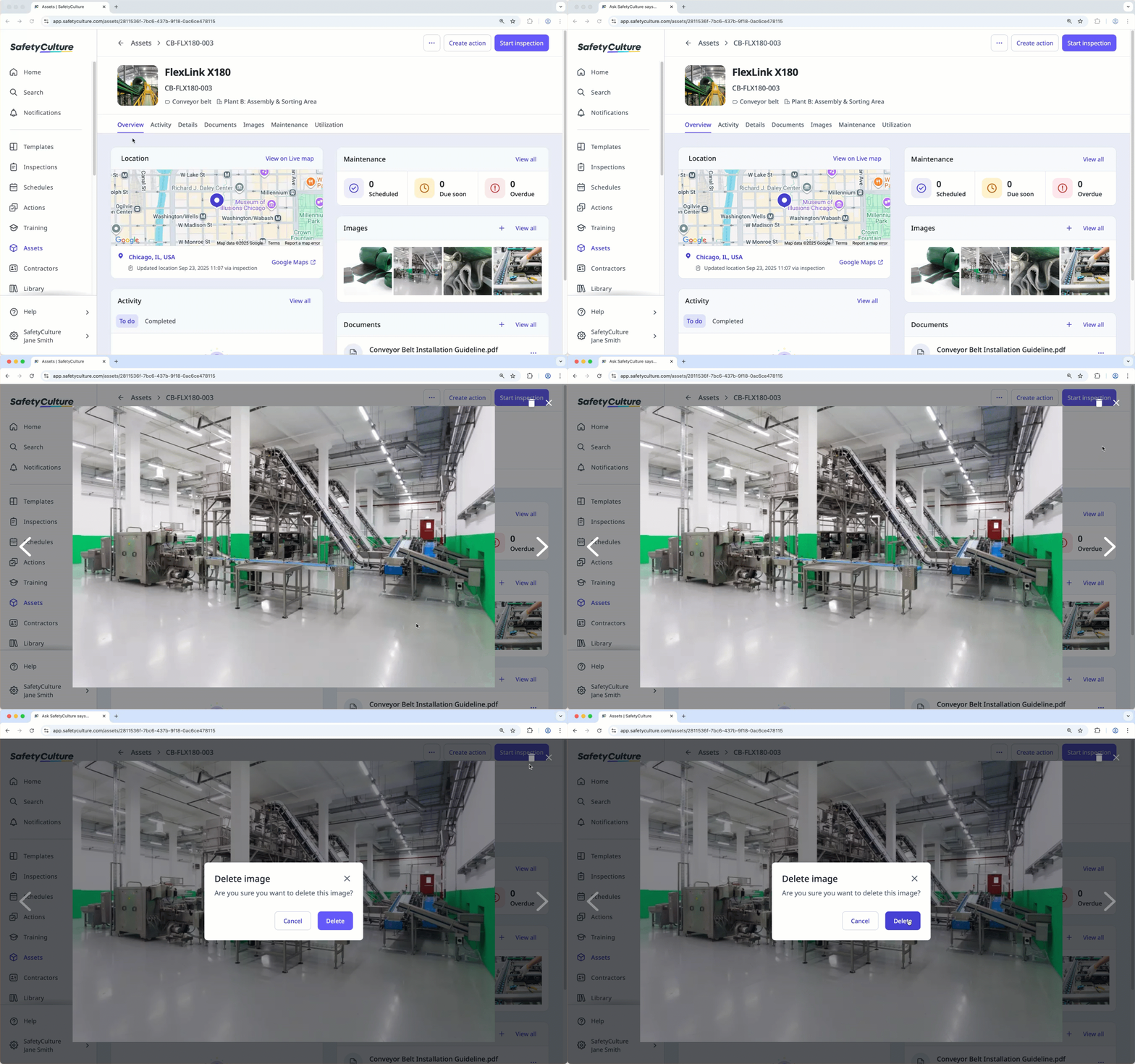
Alternatively, click Images at the center of the page.
Select the image.
Click on the upper-right of the page.
In the pop-up window, click Delete.
Open the mobile app.
Tap More at the lower-right corner of your screen.
Select Assets from the list of options.
Filter your assets by type or site or search for the asset.
Tap the asset.
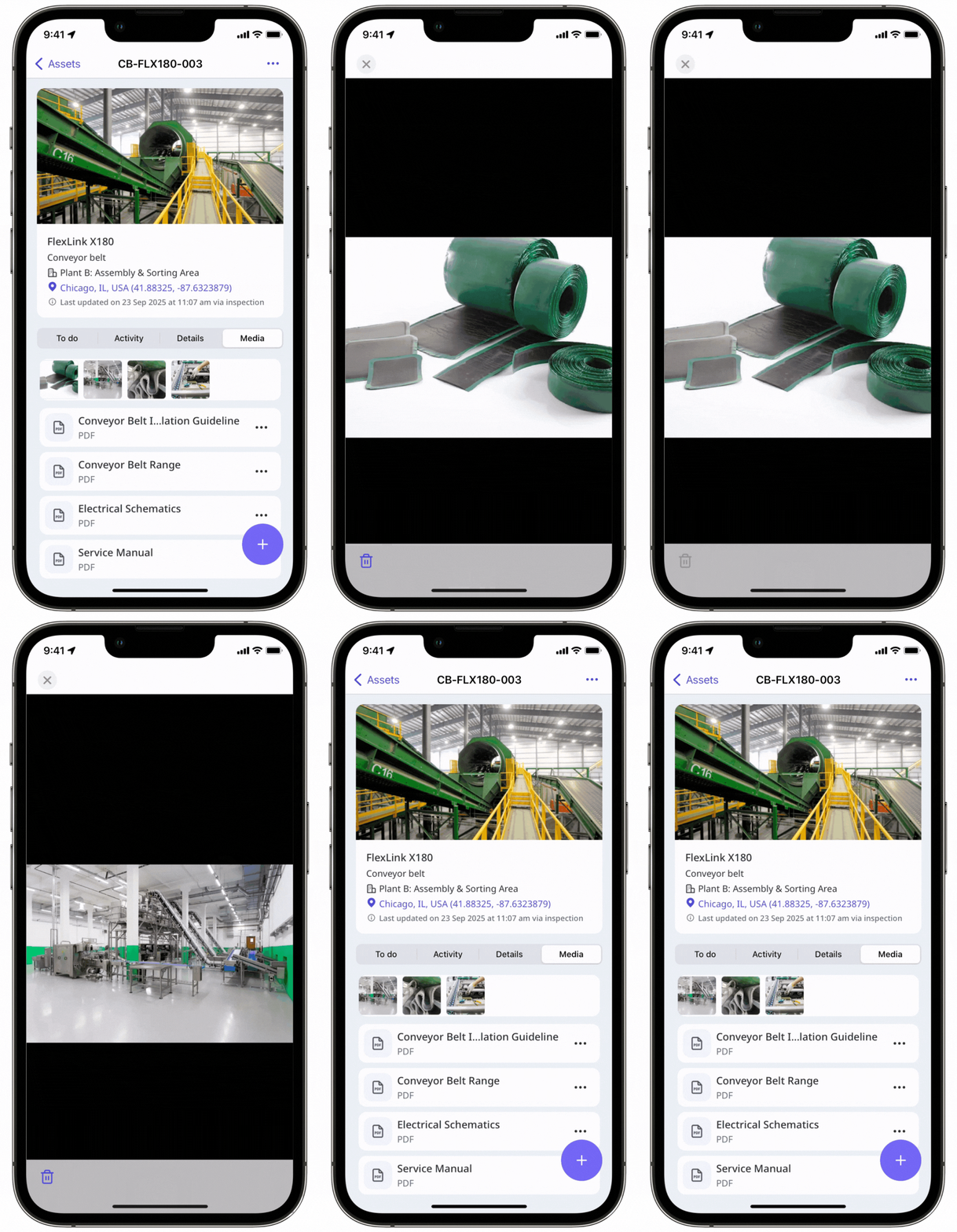
Tap Media, and then select an image.
Tap at the lower-left of your screen.
on the right-side of the document.
In the pop-up menu, tap Delete.
Unlink a file from an asset
Select Assets in the sidebar or in More.
You can choose how you want to view your assets by selecting Table, Gallery, or Map on the upper-right of the page. You can also filter by type or site.
Search and select the asset.
In Overview, go to the "Documents" section.
Click on the right-hand of the file, and then select Remove.
In the pop-up window, click Remove.
Alternatively, click Documents at the center of the page.
Click on the right-hand of the file, and then select Remove.
In the pop-up window, click Remove.
Need more help?
Was this page helpful?
