Last updated: September 6, 2026
What does it mean to calculate scoring for multiple choice responses?
Multiple choice response scoring allows you to assign numeric values to each response in a custom response set, converting qualitative answers into measurable data. Once applied to a template, the total score of all selected responses is automatically calculated during an inspection. This helps teams quantify results, track performance, and make data-driven decisions through analytics, reporting, and automation workflows.
For example, during a cargo loading inspection, each response option can be assigned a value based on the severity of the issue, with higher scores assigned to major issues and lower scores to minor ones. As inspectors record their findings, the total score is calculated to reflect the severity of the loading issues. This allows the team to quickly determine whether it's safe to proceed with loading or if corrective actions are needed before continuing operations.
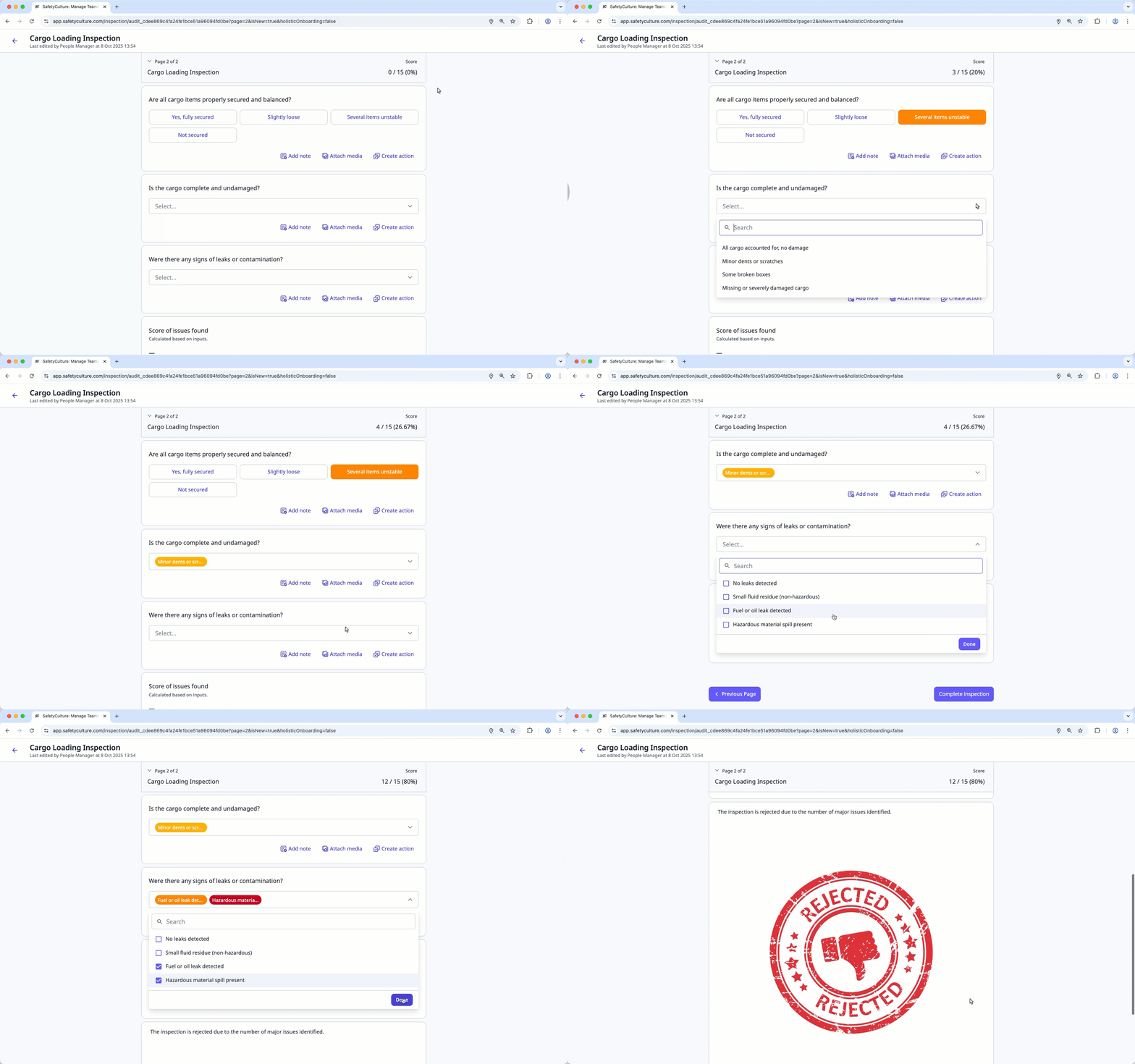
Only custom response sets can be referenced in a calculation formula.
What you'll need
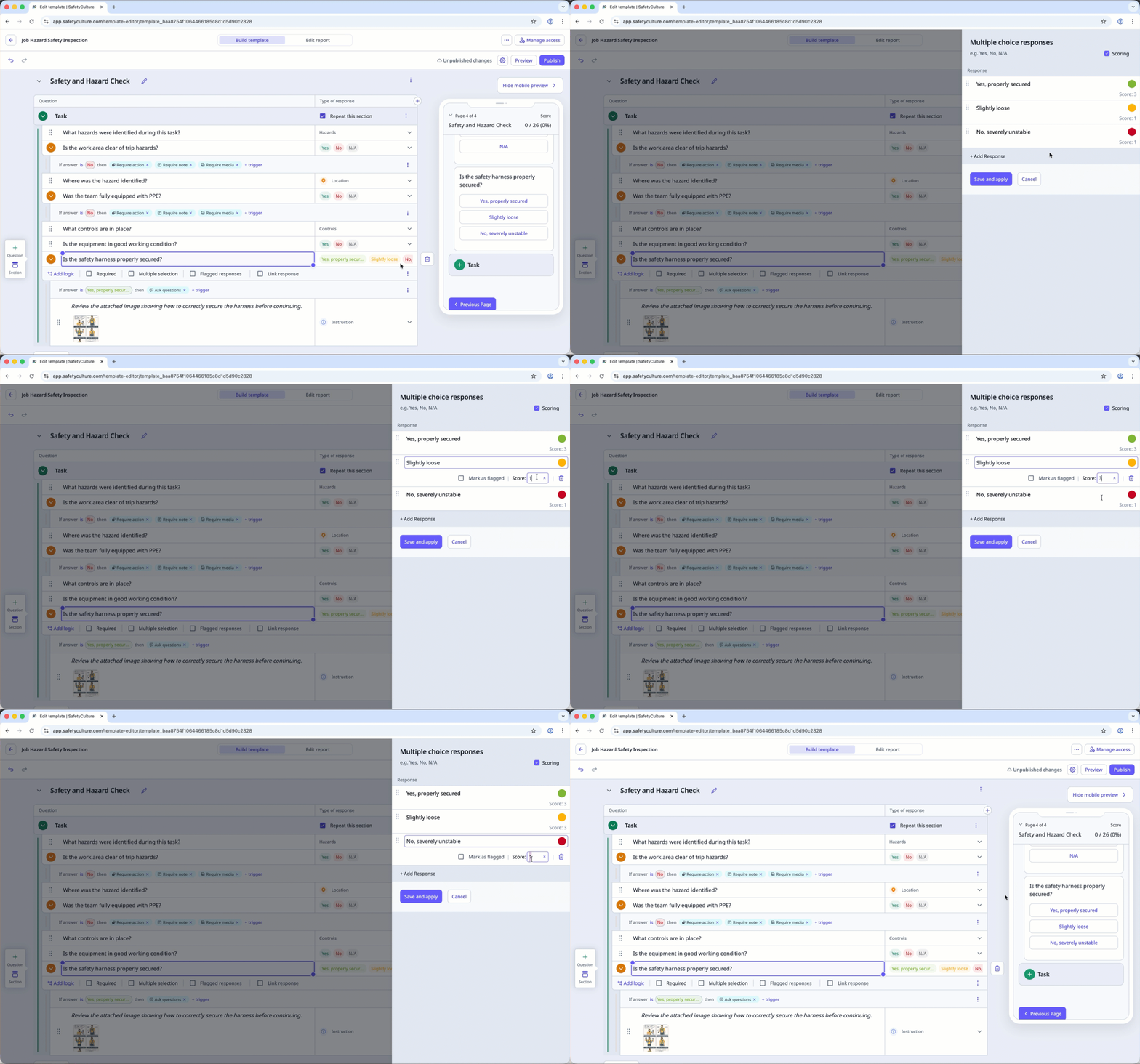
Changes made to a custom response set's scoring apply to all questions that use the same custom response set.
Calculate a multiple choice response's scoring
Select Templates in the sidebar or in More.
Click the template and select Edit template in the side panel.
Add a new question (opens in new tab) or select an existing one.
Click under the "Type of response" column on the right-hand side and select any custom response sets.
Create calculation response questions or edit an existing one.
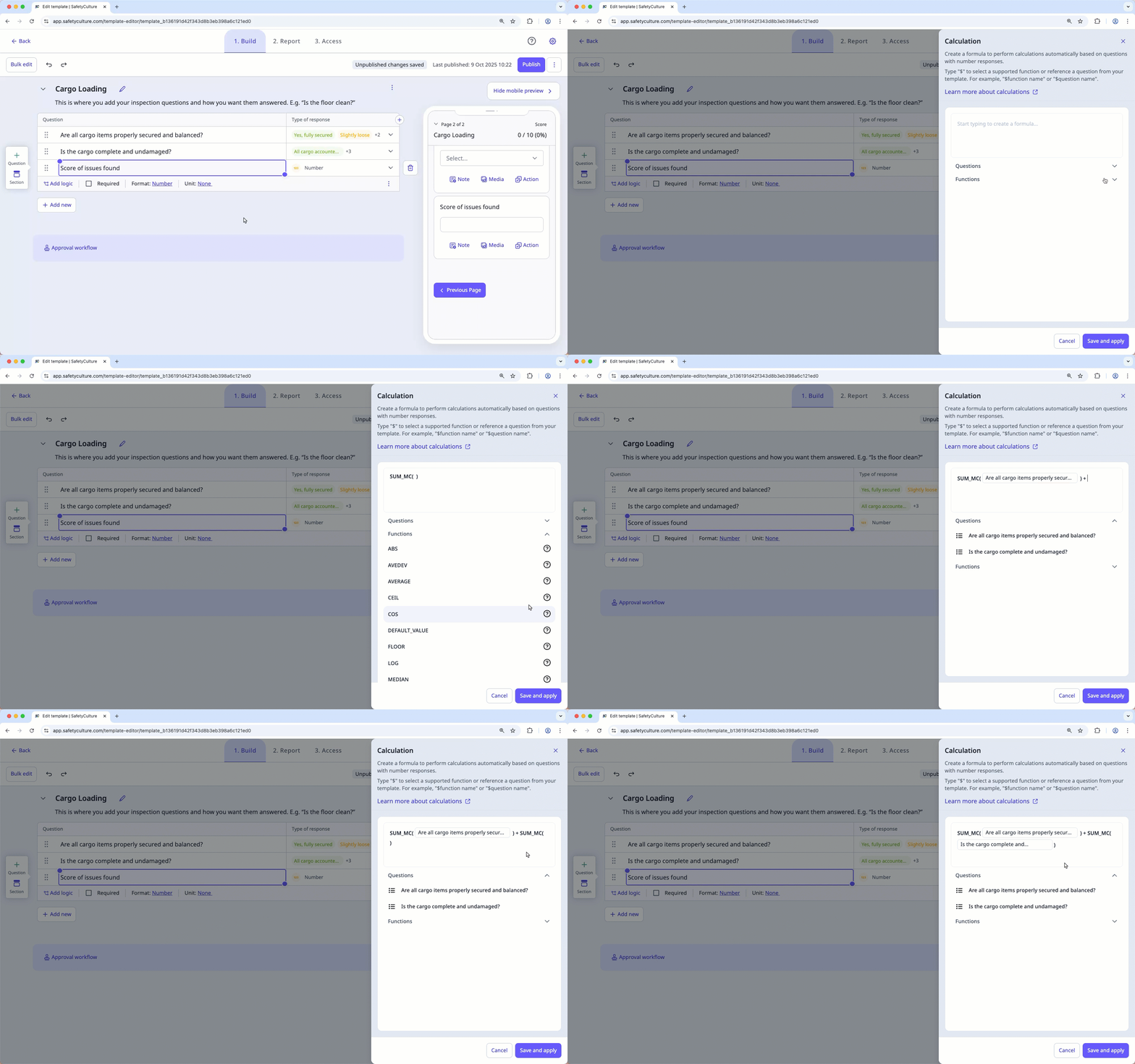
Click on the right-hand side of "Functions" and select SUM_MC, then click on the right-hand side of "Questions" and select the multiple choice question you want to calculate.
You can also type $ followed by SUM_MC function or $ followed by a question's label to use it in your formula.
Click Save and apply.
Click Publish on the upper-right of the page to publish the template. If you're not ready to publish the template, you can go back to the templates list and come back when you're ready.
Open the mobile app.
Tap Inspections in the navigation bar or select it from More.
Select Templates tab at the top of your screen.
Tap the template and select Edit template from the pop-up options.
Add a new question (opens in new tab) or select an existing one.
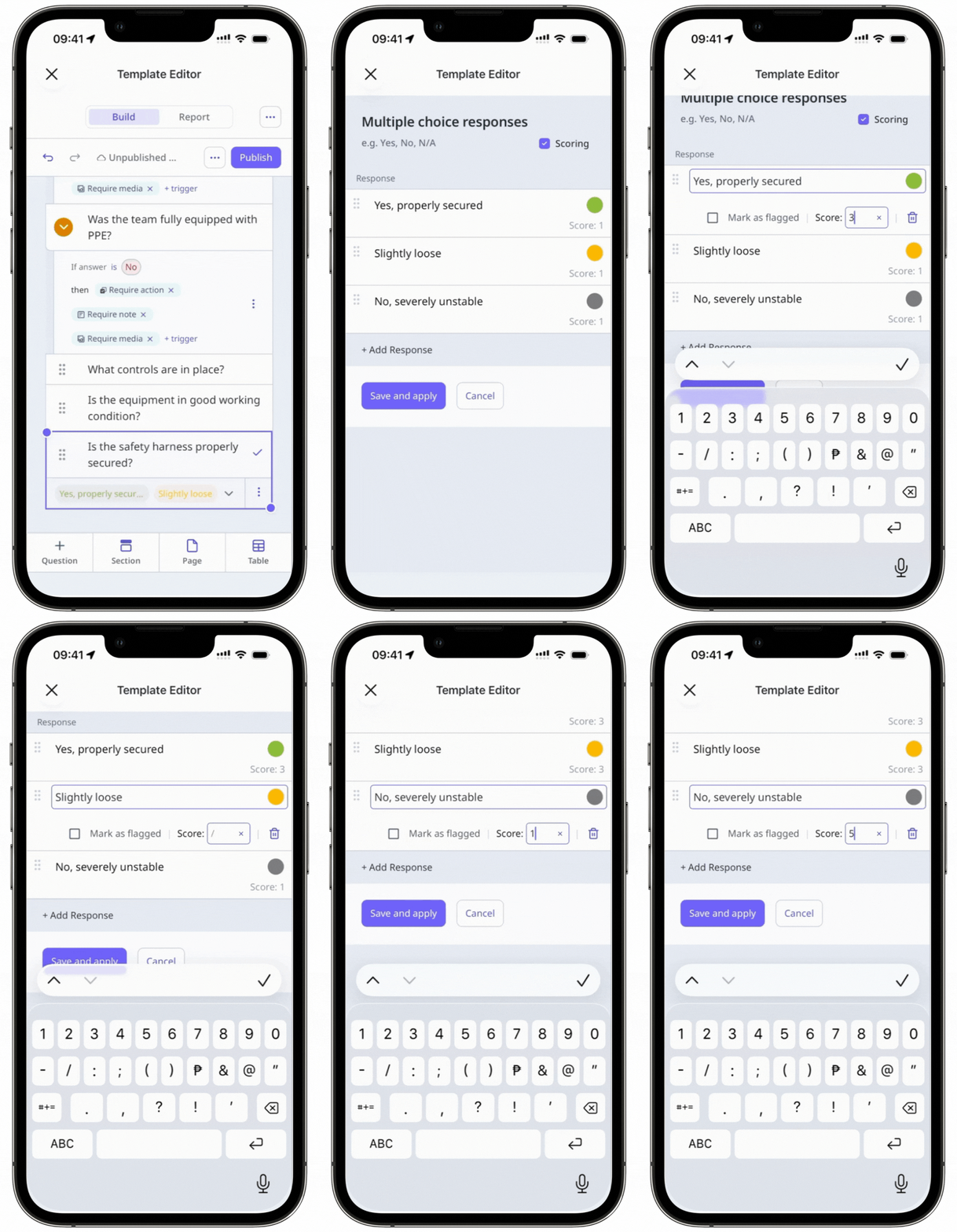
Under the question label, tap and select any custom response sets.
Create calculation response questions or edit an existing one.
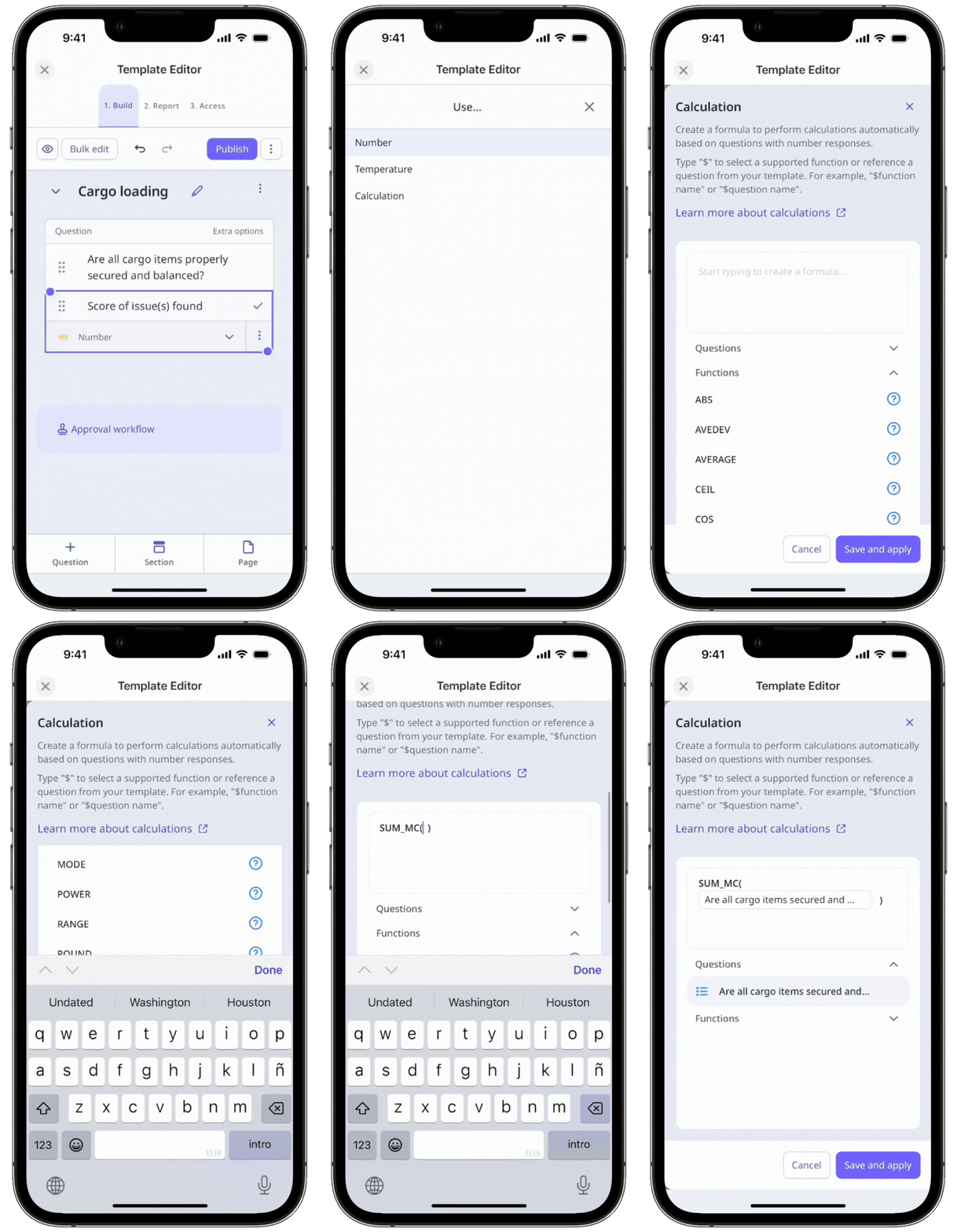
Tap on the right-hand side of "Functions" and select SUM_MC, then tap on the right-hand side of "Questions" and select the multiple choice question you want to calculate.
You can also type $ followed by SUM_MC function or $ followed by a question's label to use it in your formula.
Tap Save and apply.
Tap Publish on the upper-right of the screen to publish the template. If you're not ready to publish the template, you can go back to the template list and publish the changes when you're ready.
Add a number as the second argument to set the default score when a question has no response during an inspection.
Published changes made to templates only apply to new inspections moving forward.
Frequently asked questions
Need more help?
Was this page helpful?
