Last updated: September 6, 2026
What does it mean to duplicate schedules?
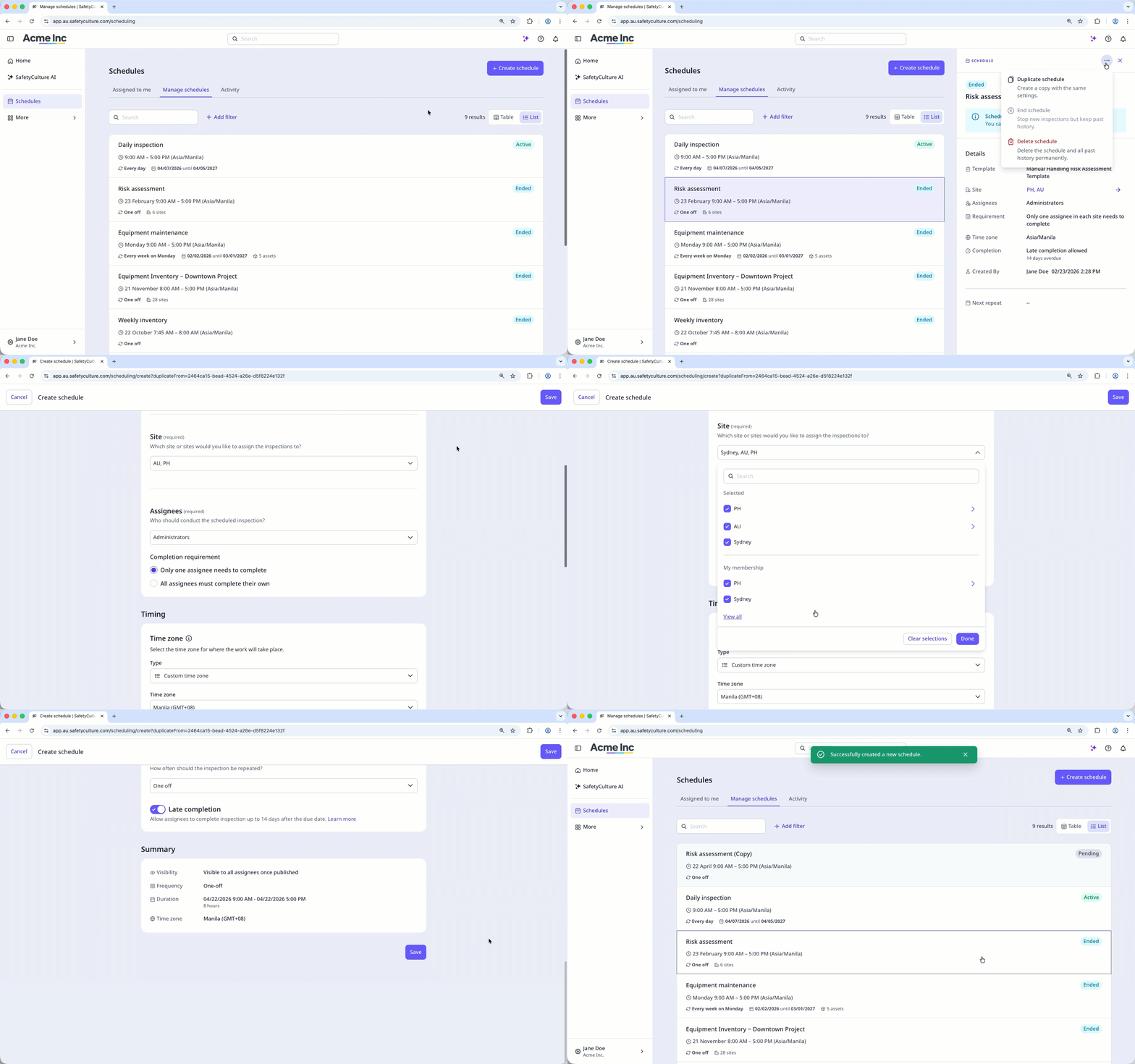
Duplicating a schedule allows you to copy an existing schedule and use it as a starting point for a new one. Instead of creating a schedule from scratch, the duplicate opens with all the original settings ready to review and edit before saving. This allows teams to set up new schedules faster and more consistently, reducing errors when rolling out similar schedules across the organization.
If assets in your organization can only be accessed by site membership, t he duplicate of asset-based schedules will include only the assets you can access.
What you'll need
If you have "Schedules: Manage" permission, you can duplicate all schedules in your organization.
Duplicate a schedule
Select Schedules in the sidebar or in More.
Select Manage schedules tab at the top of the page.
Click the schedule.
Click on the upper-right corner of the side panel and select Duplicate schedule.
Edit the schedule's details and timing settings accordingly.
Once you're ready, you can check your updated settings in the "Review" section.
Click Save.
You can only duplicate active, paused, or ended schedules. Schedules in “Pending” and “Error” statuses cannot be duplicated.
Frequently asked questions
Need more help?
Was this page helpful?
