Last updated: September 23, 2026
What does it mean to import lesson slides?
Importing lesson slides copies slides from an existing course directly into the lesson you're editing, so you don't need to recreate the content. This saves you time on common content, like company policies, onboarding material, and safety procedures, that need to appear in more than one course. Importing also keeps your courses consistent because each course uses the same source content.
What you'll need
Import lesson slides
Click Training from the sidebar or in More.
If you're on the "Learn" page, click Content at the top of the page and select Courses.
Create a new course or click View or Edit on an existing one.
If you're editing a published course, click Edit on the upper-right of the page.
Create a new lesson or click an existing one. If you need some help to get started, use AI to create a lesson or lesson slide.
Click New slide at the bottom of your selected lesson.
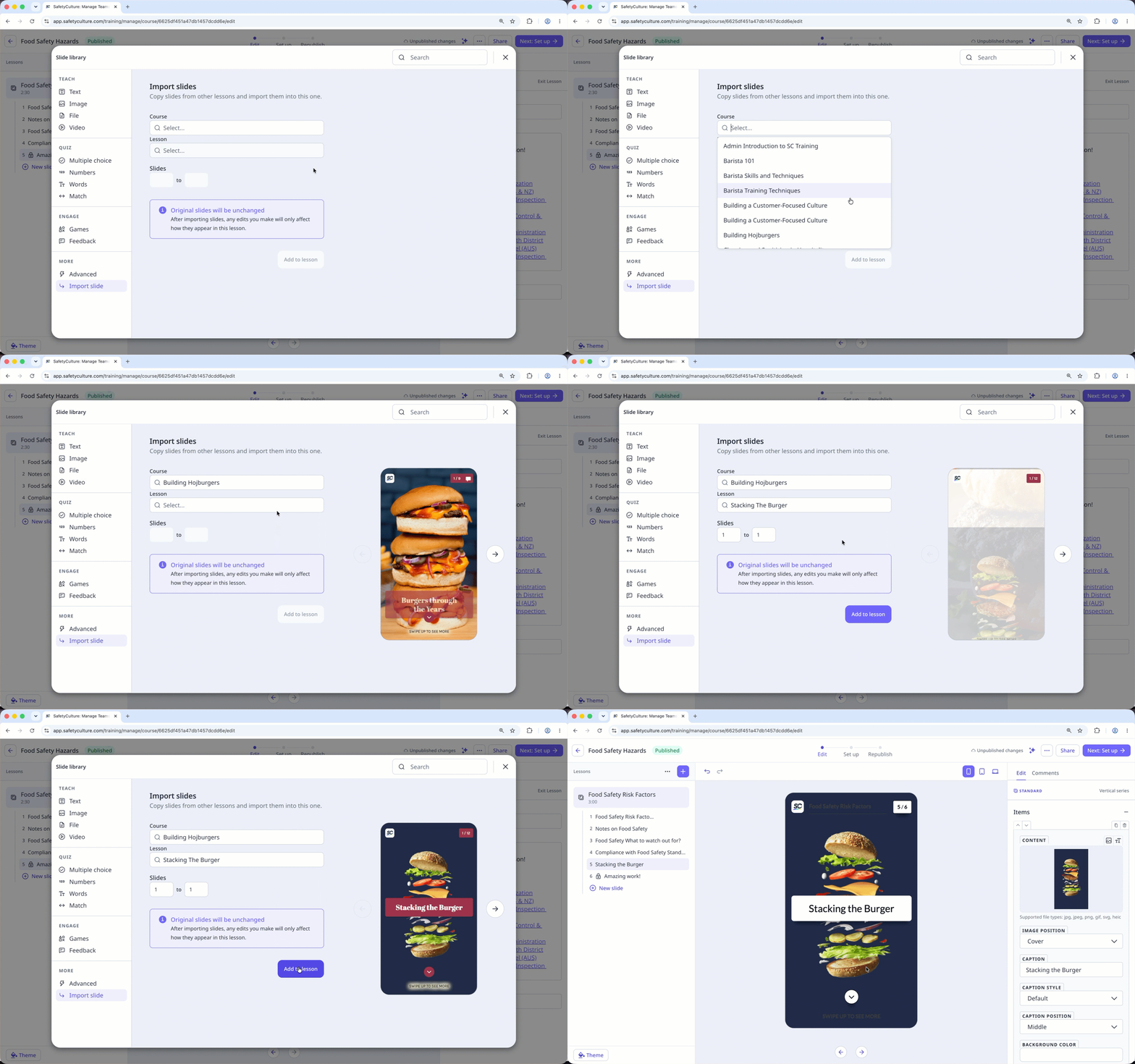
Click Import slide under "More" on the lower left-hand side.
Select the relevant course, lesson, and range of slides you would like to import.
Click Add to lesson, and these slides will appear in the lesson.
Need more help?
Was this page helpful?
