Last updated: June 3, 2026
What happens when you delete files from issues?
When you delete files from issues, it's permanently removed from the issue and can't be recovered. A record of who deleted it and when is added to the issue's activity timeline, so there's still a traceable history of what changed. This keeps issue records accurate, so your team can make faster decisions based on the right information.
What you'll need
Delete a file in an issue
Select Issues in the sidebar or in More.
Select an issue.
You can delete a file in any of the following ways:
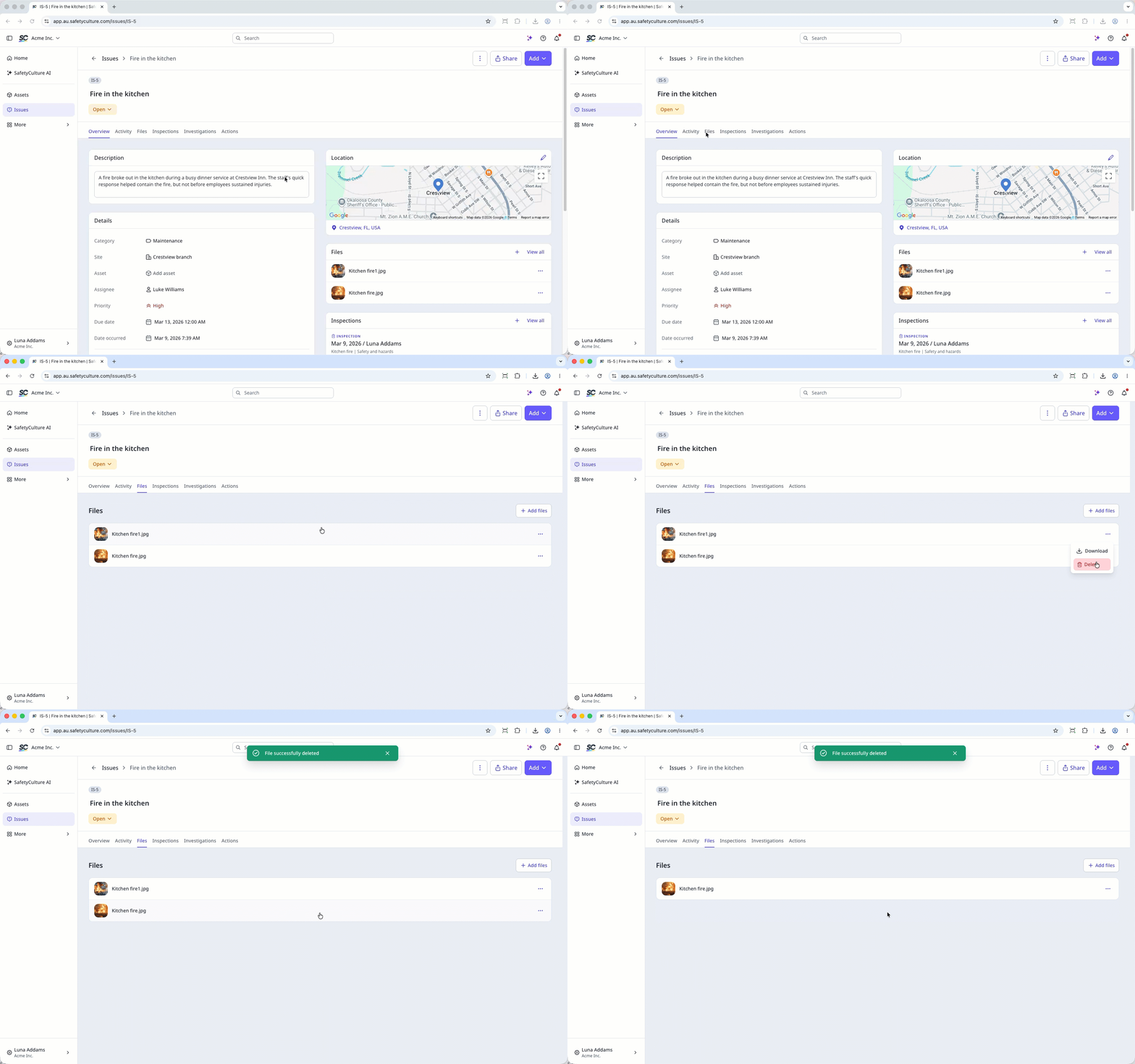
In Files tab, click on the right-hand side of the file and select Delete.
In Overview tab, scroll down to Files section. Click on the right-hand side of the file and select Delete.
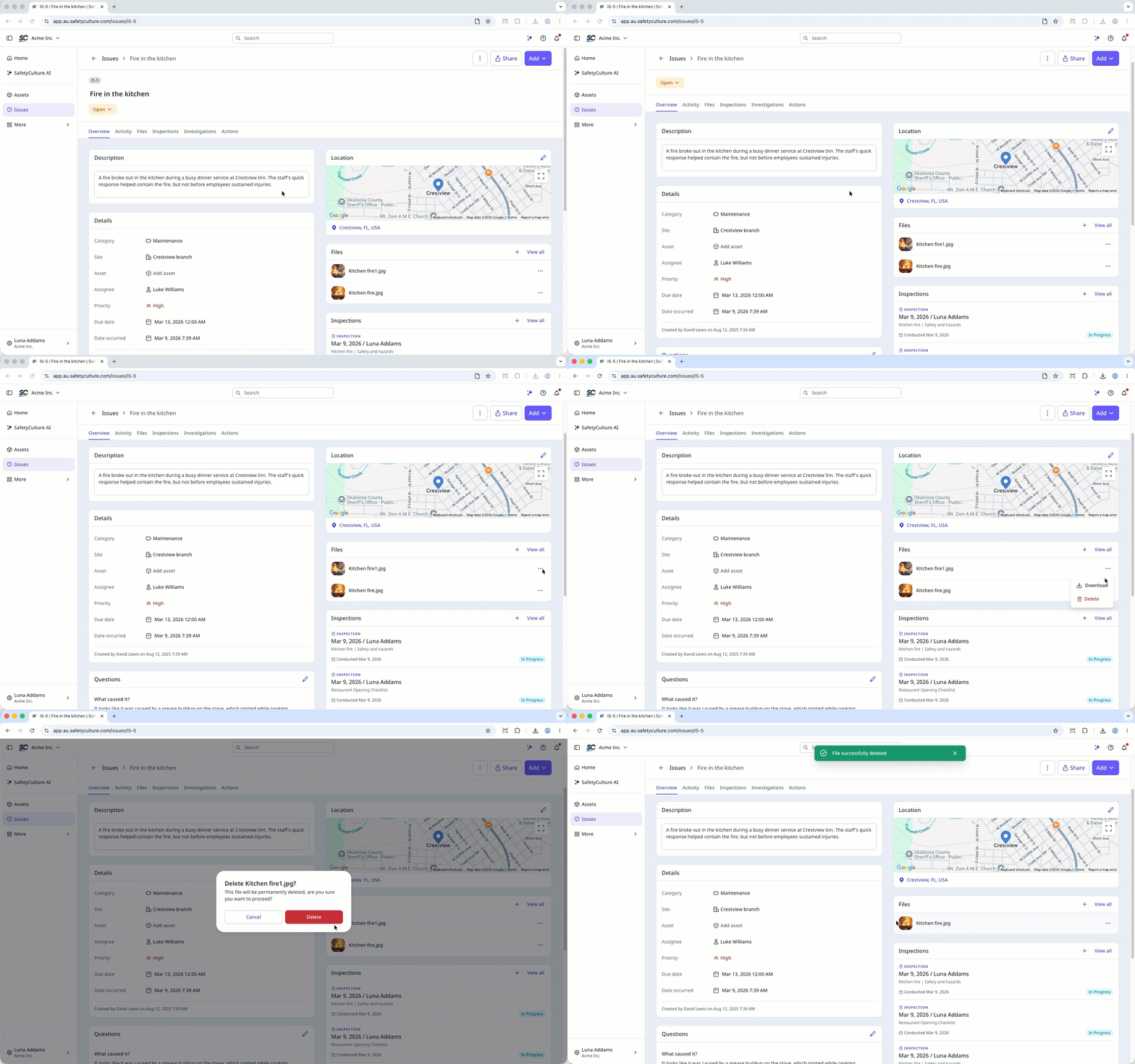
Click the file to preview. Then, click on the upper-right of the page.
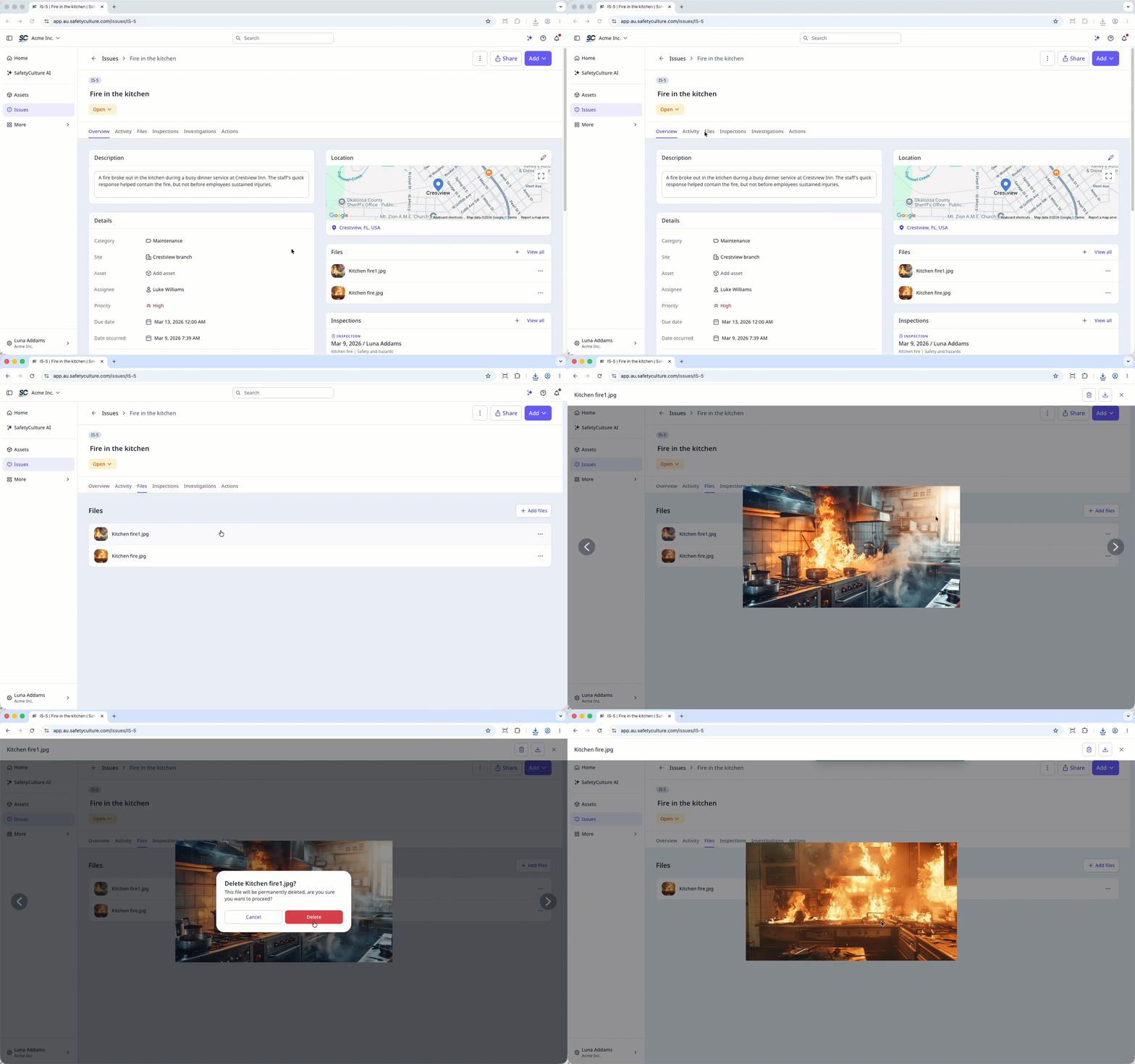
In the pop-up window, click Delete.
Open the mobile app.
Tap Issues in the navigation bar or select it from More.
Tap the issue.
Tap Overview or Files tab at the top of your screen. If you're in Overview, scroll down to the "Files" section.
Tap the file and tap at the bottom of your screen.
In the pop-up window, tap Delete.
Frequently asked questions
Need more help?
Was this page helpful?
