Last updated: June 29, 2026
You need to have "Platform management: Users" permission to manage another user's credentials.
View credential history
Click your organization name on the lower-left corner of the page and select Credentials.
Select the credential type.
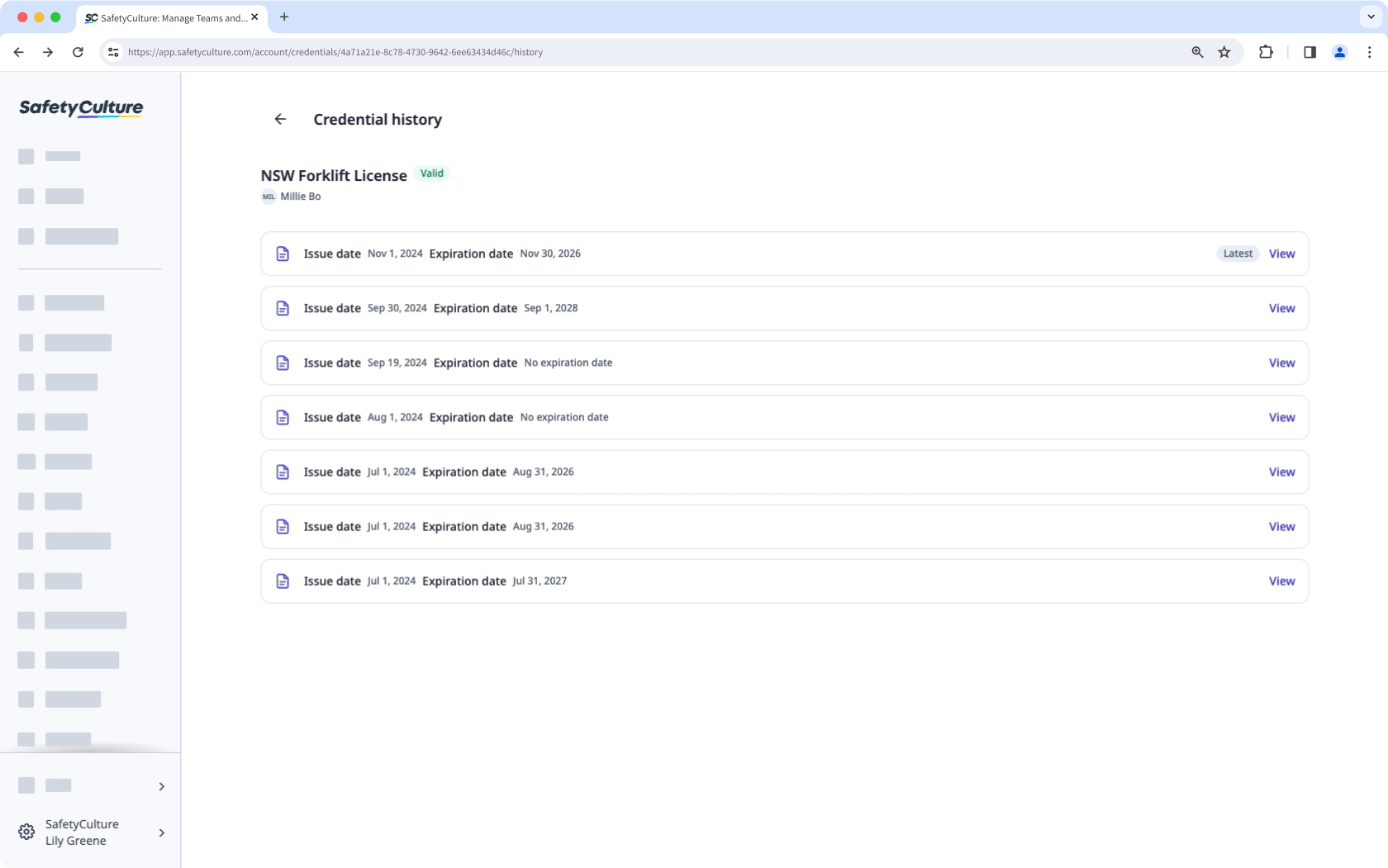
Click on the credential's right-hand side, and select View history.
On this page, you can view all versions of the credential and select any of the versions to view more details.
View credential version activity
Click your organization name on the lower-left corner of the page and select Credentials.
Select the credential type.
Select the credential.
Click Activity from the tab on the left-hand side of the page.
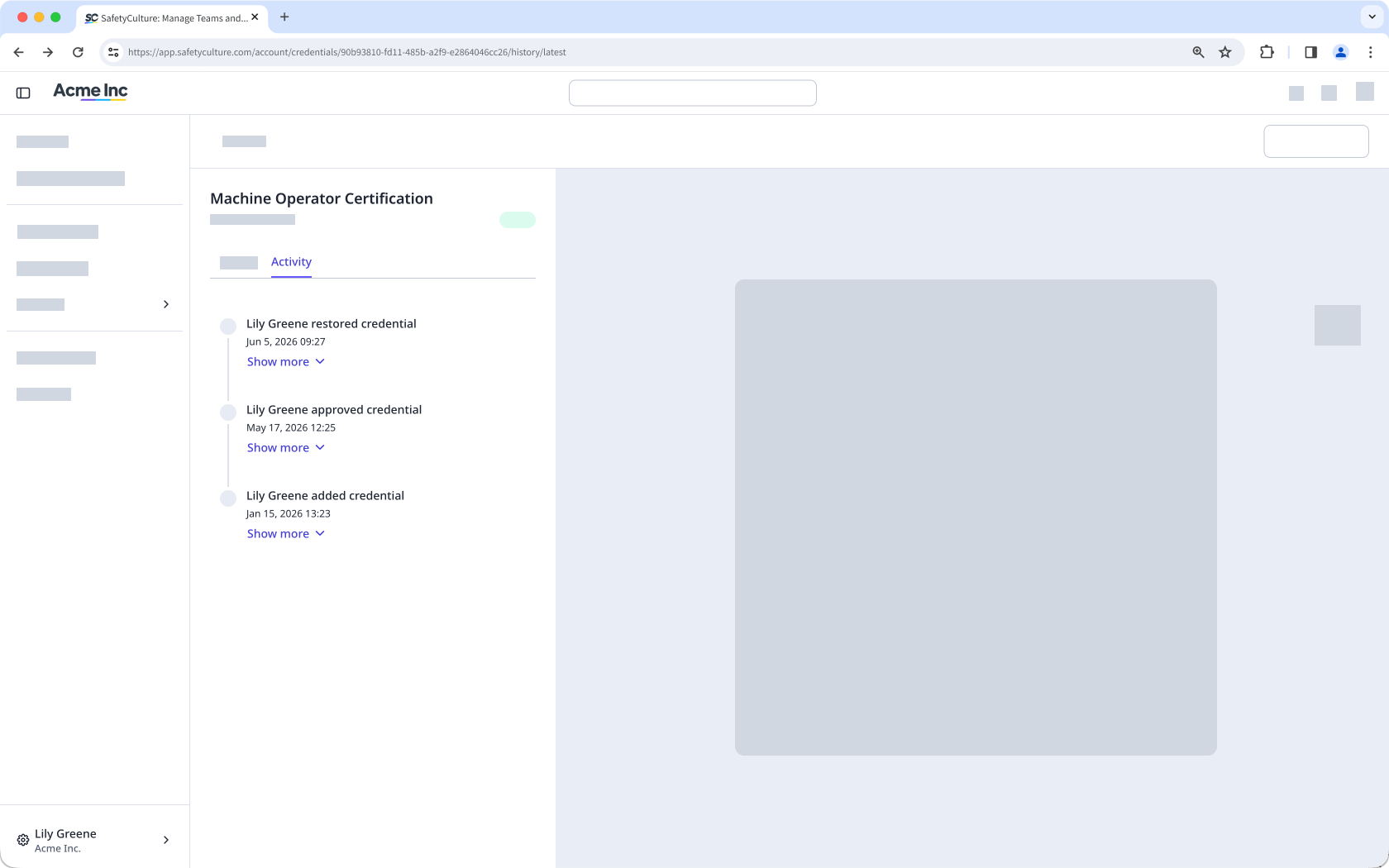
In this tab, you can view changes made to the following fields of the user's credential over time:
Issue date
Expiration date
Media files
Need more help?
Was this page helpful?
