Last updated: September 14, 2026
We currently have a legacy and a new experience with the Schedules feature.
This article covers the new Schedules experience. Please ensure you're in the new experience by using the toggle on the upper-left of the Schedules page.
What's the difference between a main schedule and a sub-schedule?
When you create a schedule for multiple sites or assets, Mitti generates a sub-schedule for each one, and the schedule you created becomes the main schedule. For example, creating a schedule for a site with 15 sites nested under it creates a main schedule and 15 sub-schedules, one for each site.
Sub-schedules take their settings from the main schedule. Any change you make to the main schedule applies to every sub-schedule automatically, so you don't need to update each one separately.
What you'll need
If you have "Schedules: Manage" permission, you can pause or resume all schedules in your organization.
Pause or resume a main schedule
Pausing or resuming the main schedule will automatically pause or resume all of its sub-schedules.
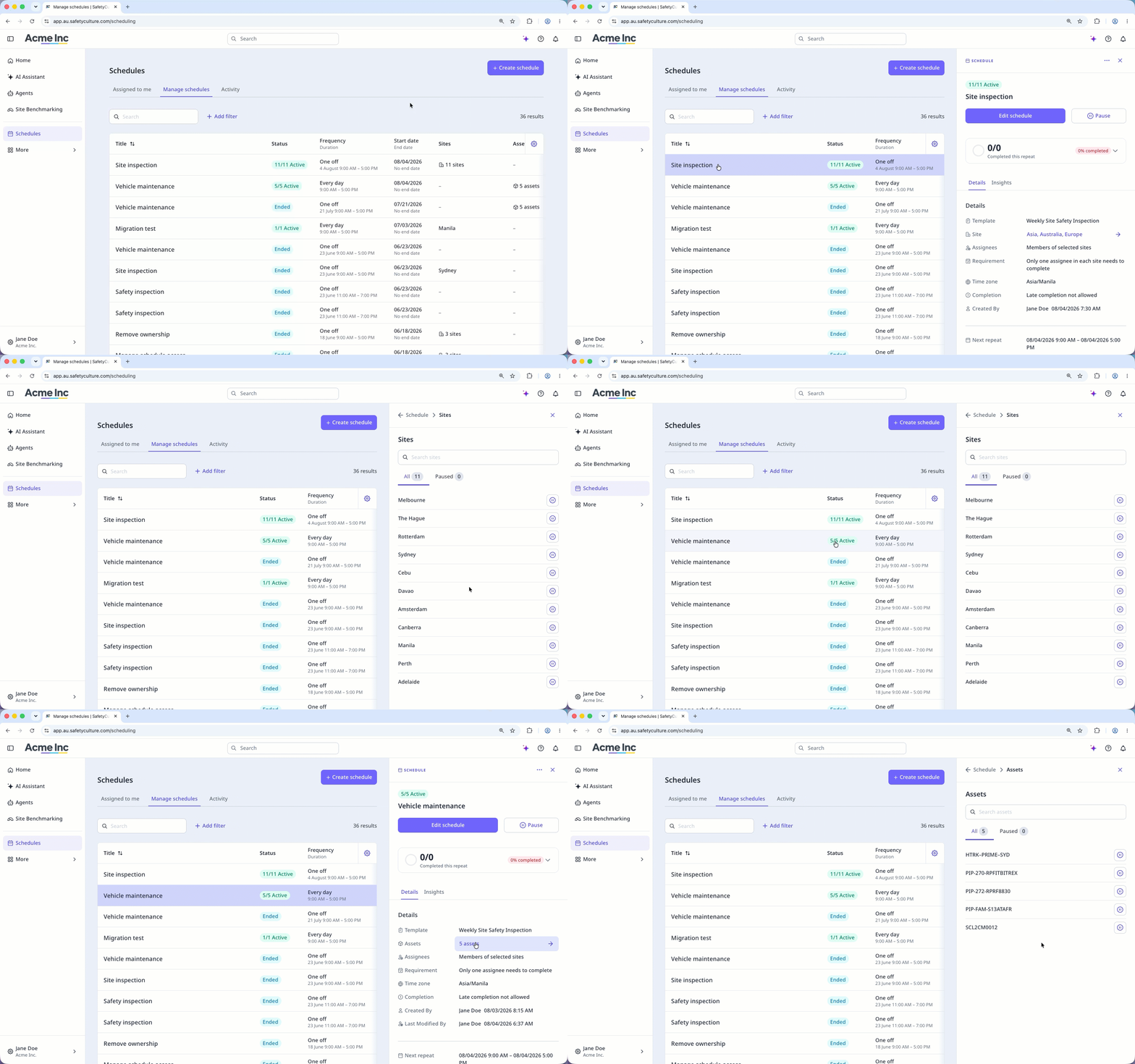
Select Schedules from the sidebar or in More.
Click Manage schedules on the top of the page.
Click the schedule.
In the side panel, click Pause or Resume.
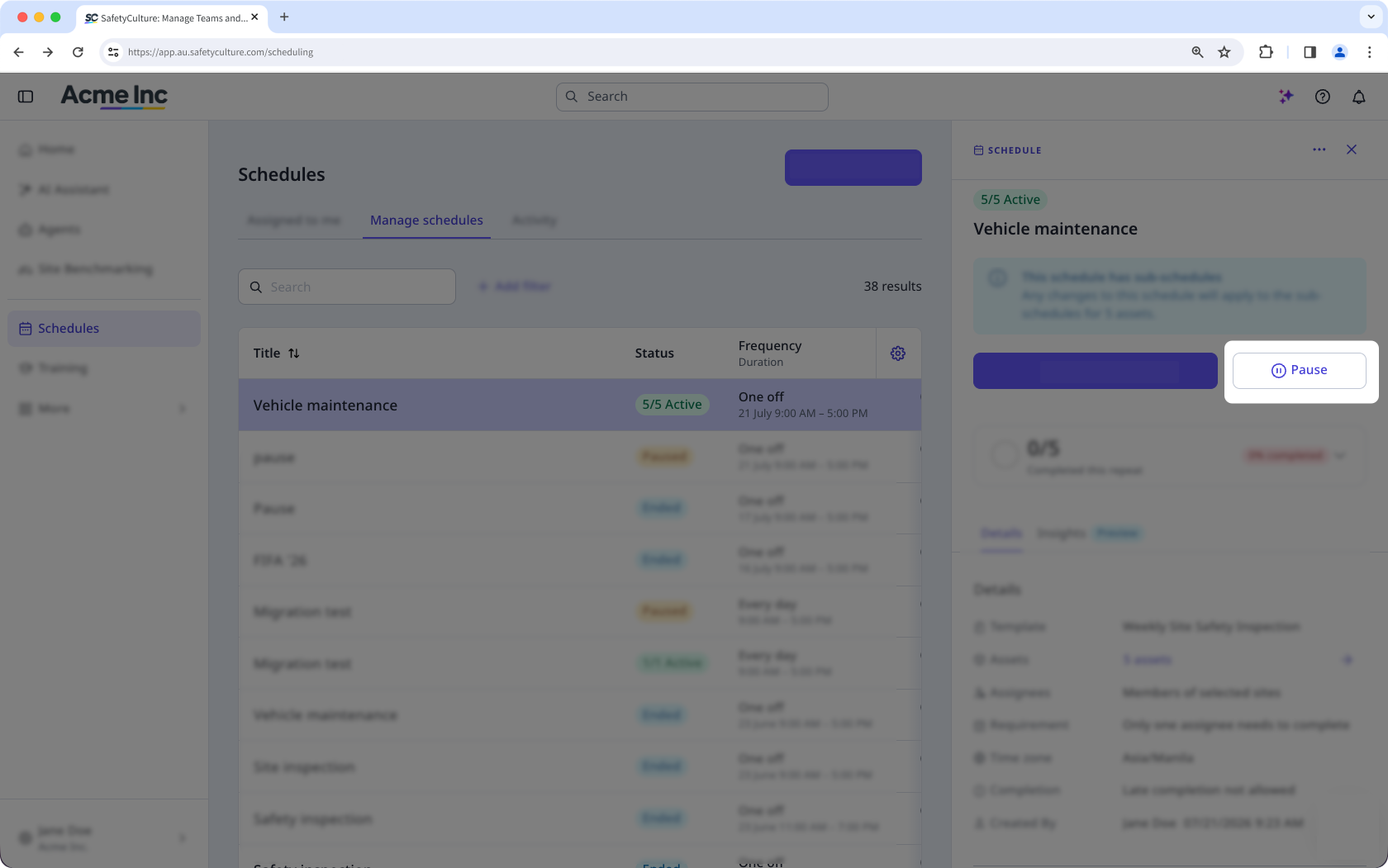
In the pop-up window, click Pause or Resume.
Bulk pause or resume main schedules
You can bulk pause or bulk resume up to 1,000 main schedules at a time.
Select Schedules from the sidebar or in More.
Click Manage schedules at the top of the page.
Check the box next to each schedule.
Click Pause or Resume at the bottom of the page.
In the pop-up window, click Pause or Resume.
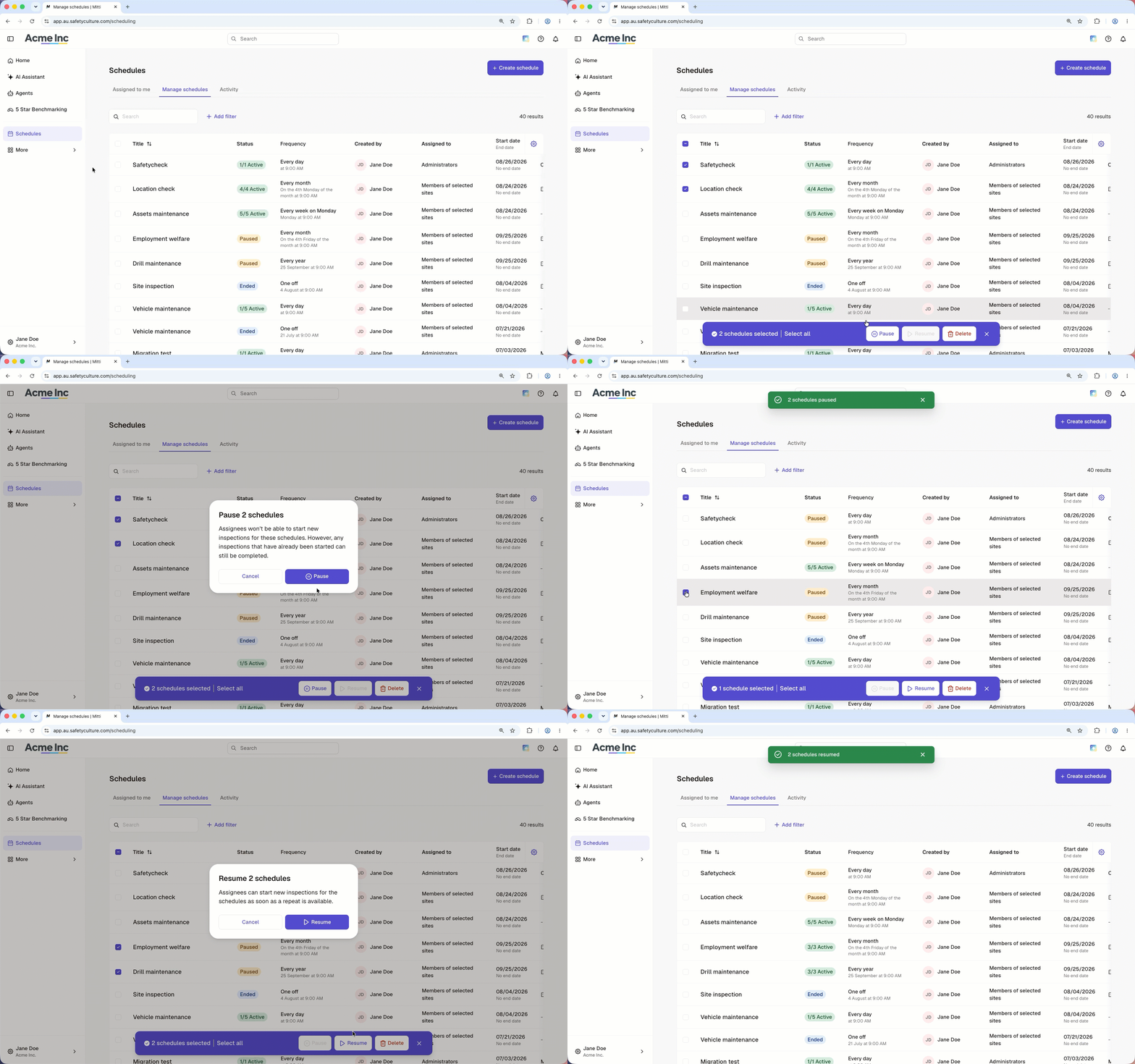
Bulk pause and bulk resume only work when every schedule in your selection has the same status. If your selection includes both active and paused schedules, narrow it to a single status to use either option.
Pause or resume a sub-schedule
Pausing or resuming a sub-schedule does not affect other sub-schedules.
Select Schedules from the sidebar or in More.
Click Manage schedules on the top of the page.
Click the schedule.
In the side panel, click the site or asset listed next to the "Sites" or "Assets" field.
Click or on the right of the sub-schedule.
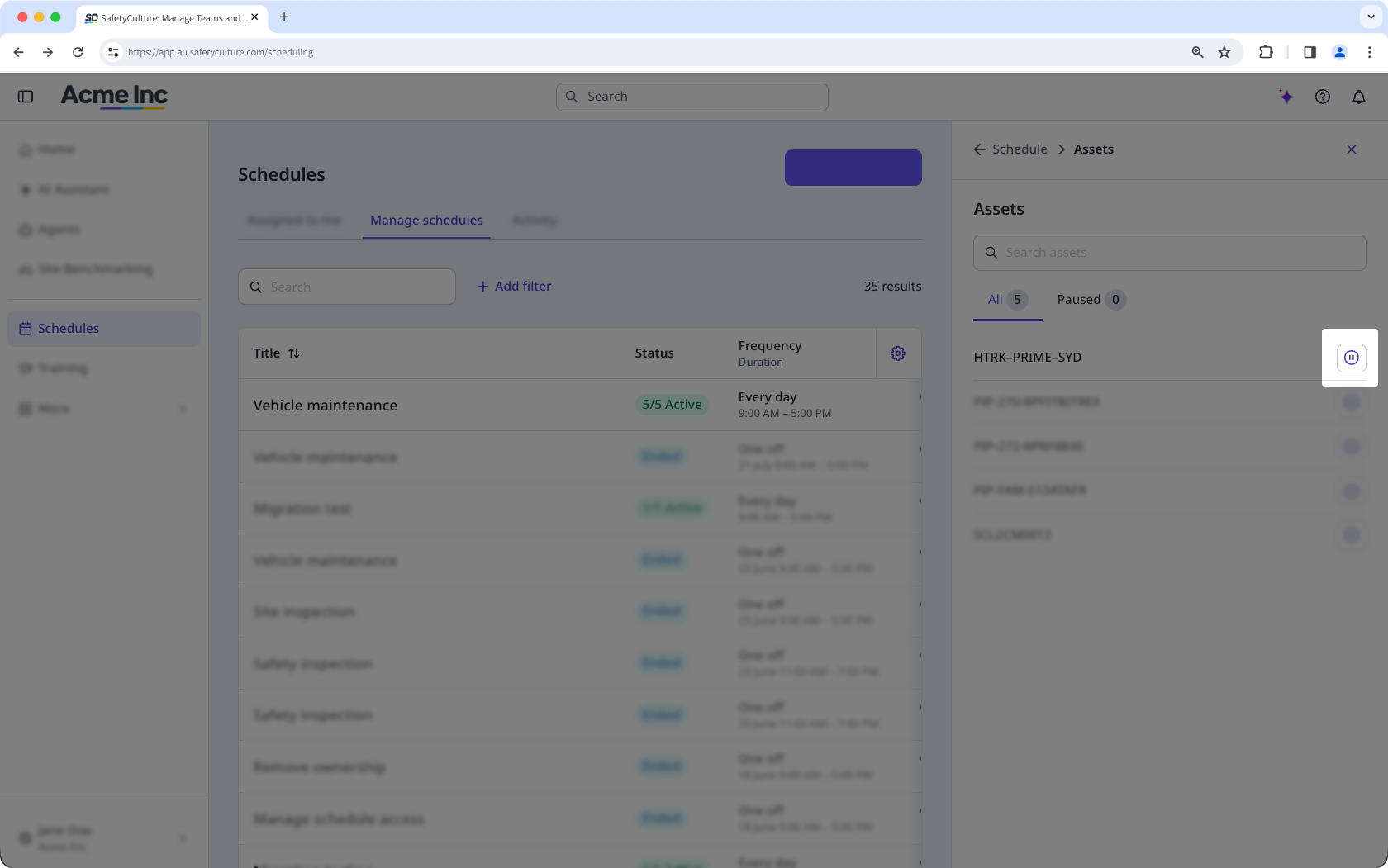
In the pop-up window, click Pause or Resume.
Frequently asked questions
Need more help?
Was this page helpful?
