Last updated: August 30, 2026
How do company document versions work?
Every company document keeps a version history. When you upload a new version, it becomes the current version, and earlier versions stay available to view from the same document. You can add a company document directly, or request a new version from a company's key contact.
Add a new document version
Select Contractors from the sidebar or in More.
Select the company.
Click Documents tab in the company profile.
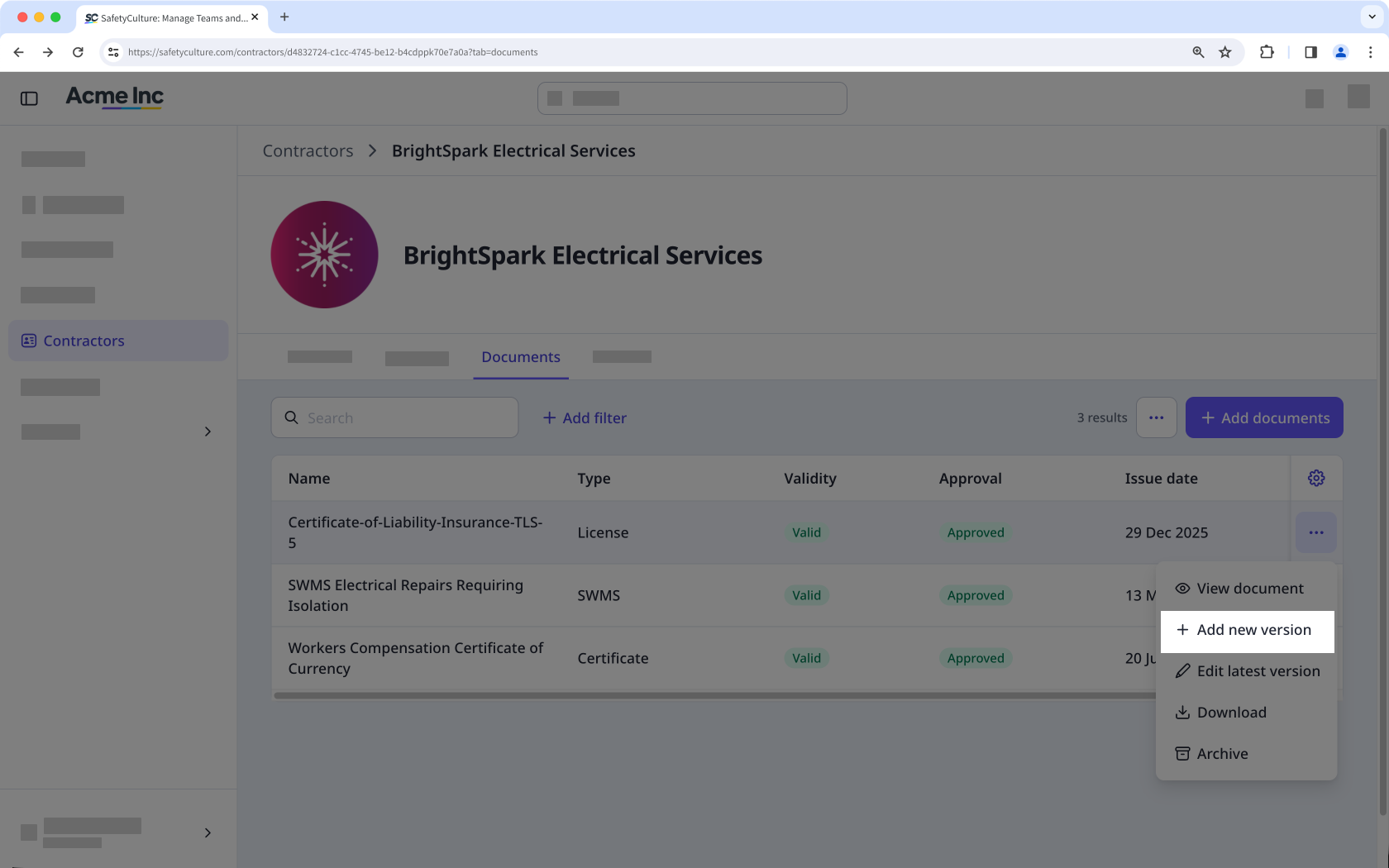
Click on the right-hand side of the document, and select Add new version.
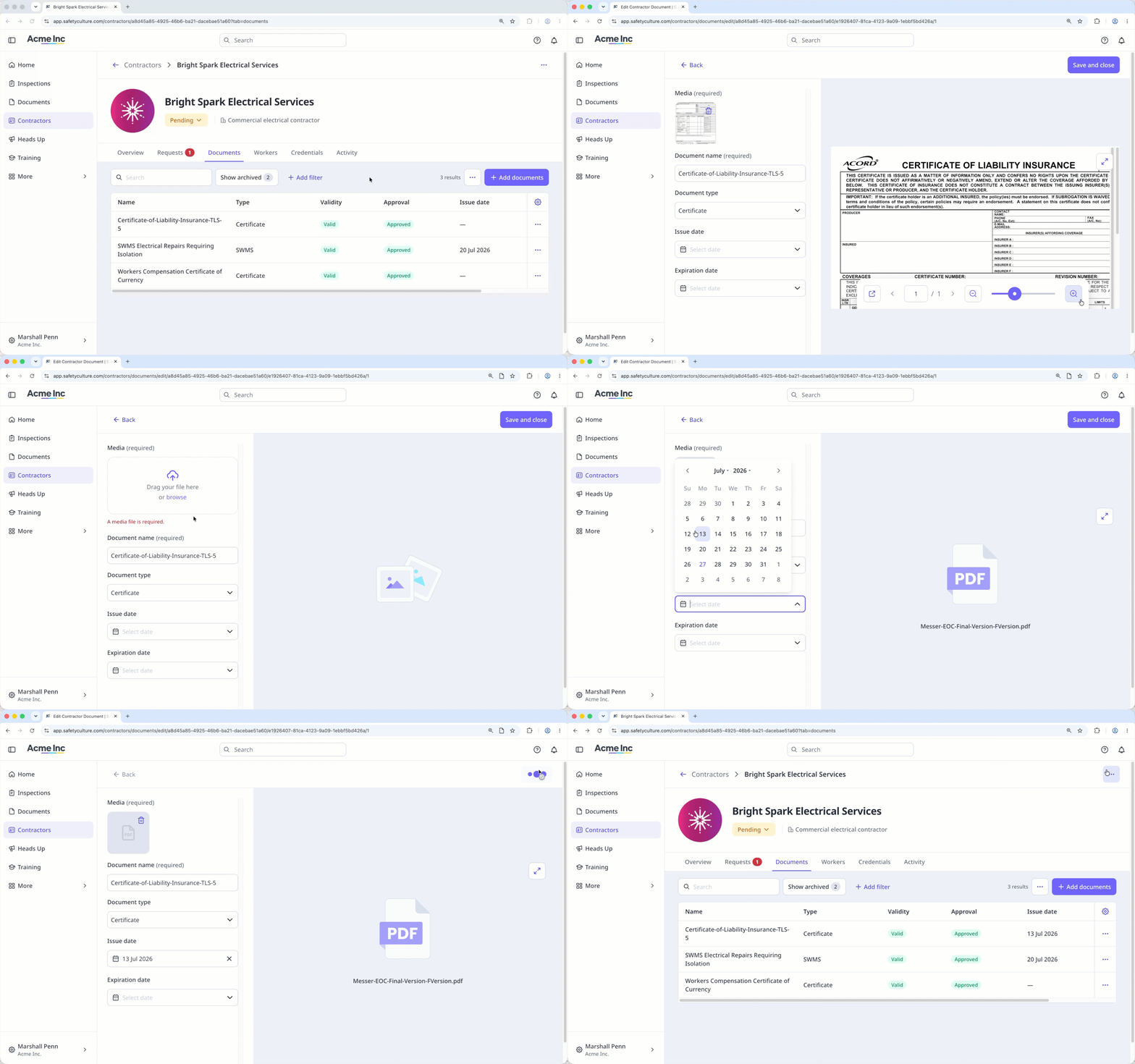
Upload the media file.
Update the details as needed.
Click Save and close.
Edit the latest company document version
Select Contractors from the sidebar or in More.
Select the company.
Click Documents tab in the company profile.
Click on the right-hand side of the document, and select Edit latest version.
Upload the new media file.
Update the details as needed.
Click Save and close.
Request a new document version
Select Contractors from the sidebar or in More.
Select the company.
Click Documents tab in the company profile.
Click on the right-hand side of the document you want to edit.
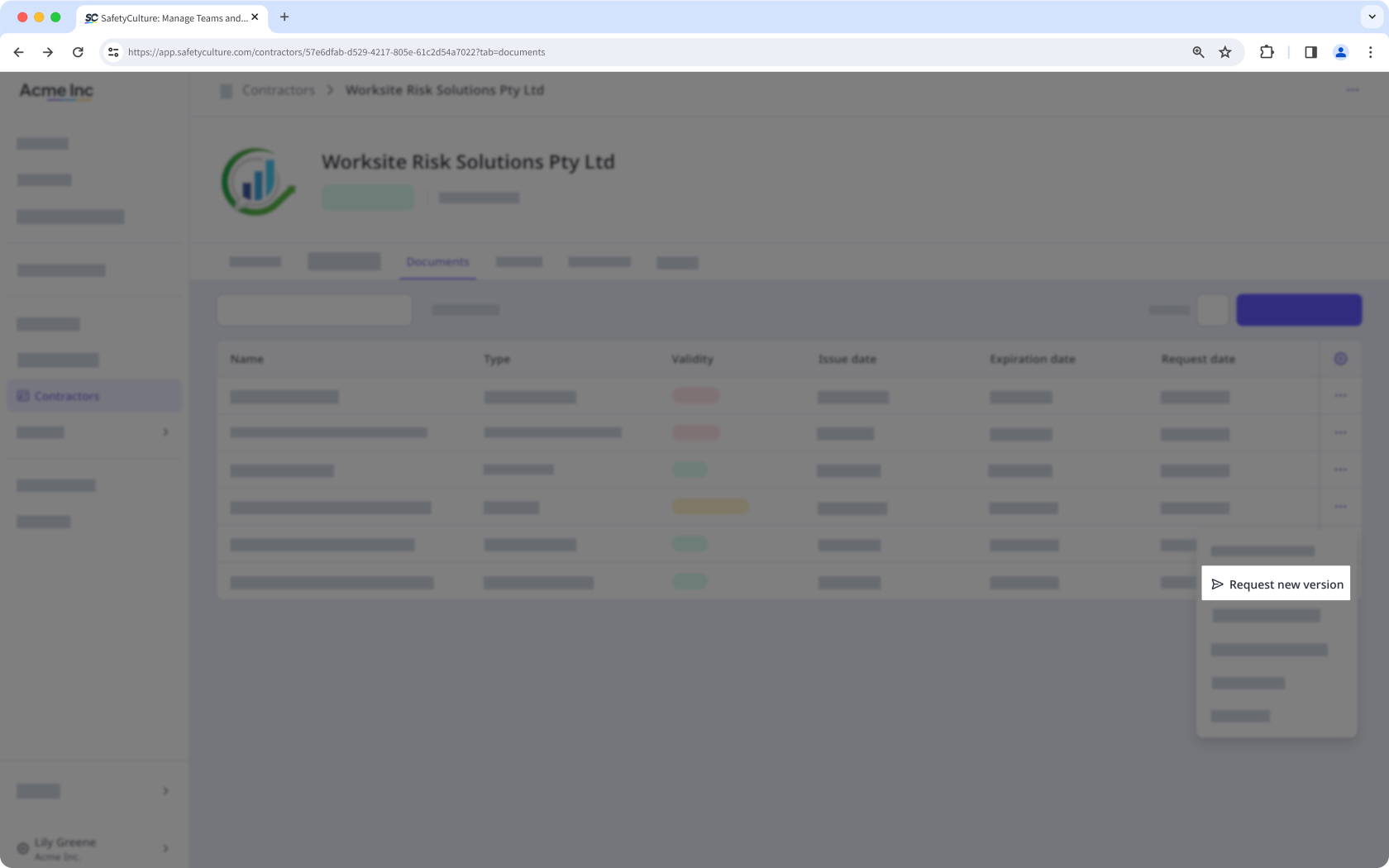
Select Request new version to request an updated version of the document from key contacts.
View a document's a version history
Select Contractors from the sidebar or in More.
Select the company.
Click Documents tab in the company profile.
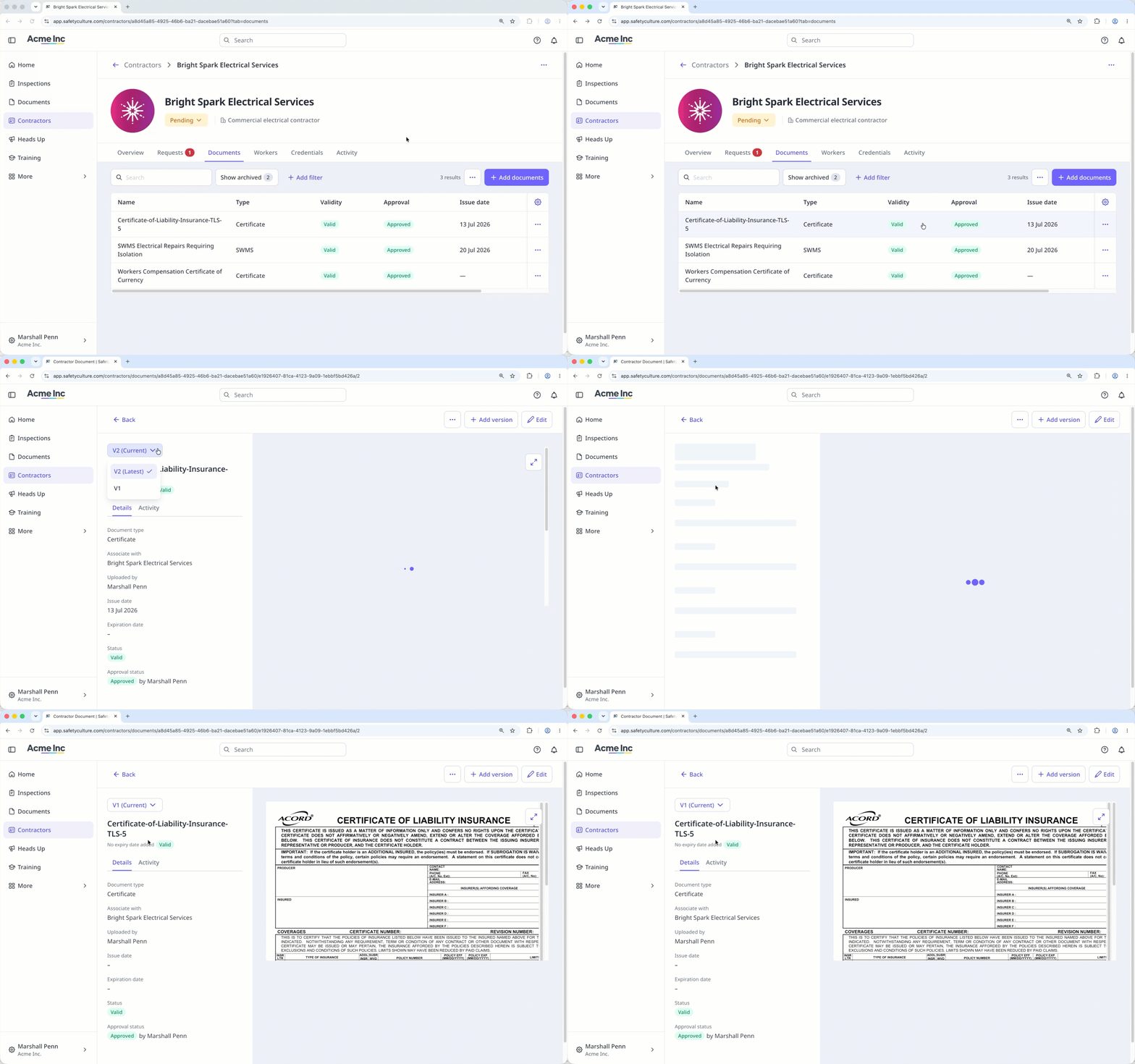
Select the document.
Click the version of the document on the upper-left of the page, and select a different version.
Frequently asked questions
Need more help?
Was this page helpful?
