Last updated: August 24, 2026
Set up a recurring inspection program using schedules
For more detail on frequency, sub-schedules, and assignment, see what schedules are and how they work.
Confirm the schedule is active
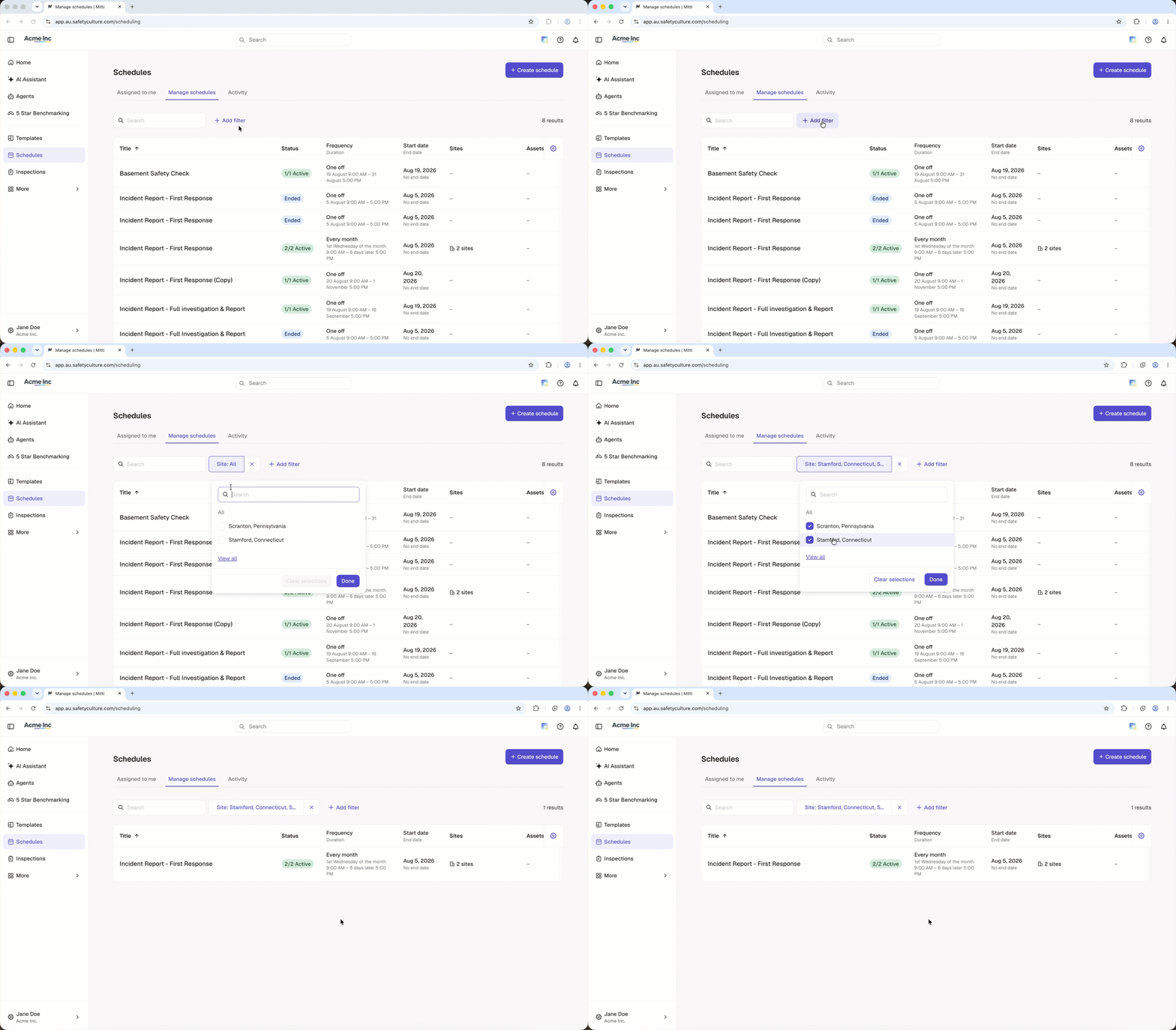
Select Schedules in the sidebar or in More.
Click Manage schedules on the top of the page.
Click Add filter.
Select Site in the filter options dropdown menu.
Select the sites where the sub-schedules were created.
Click Done.
Check that each sub-schedule shows an Active status.
If a sub-schedule is missing for a site you expected to see, search for the site by name. You can also check if the site is included in the site level you selected. Sites added to a site level after the schedule is created won't automatically be assigned the schedule.
Need more help?
Was this page helpful?