Last updated: August 16, 2026
Open an investigation linked to the logged issue
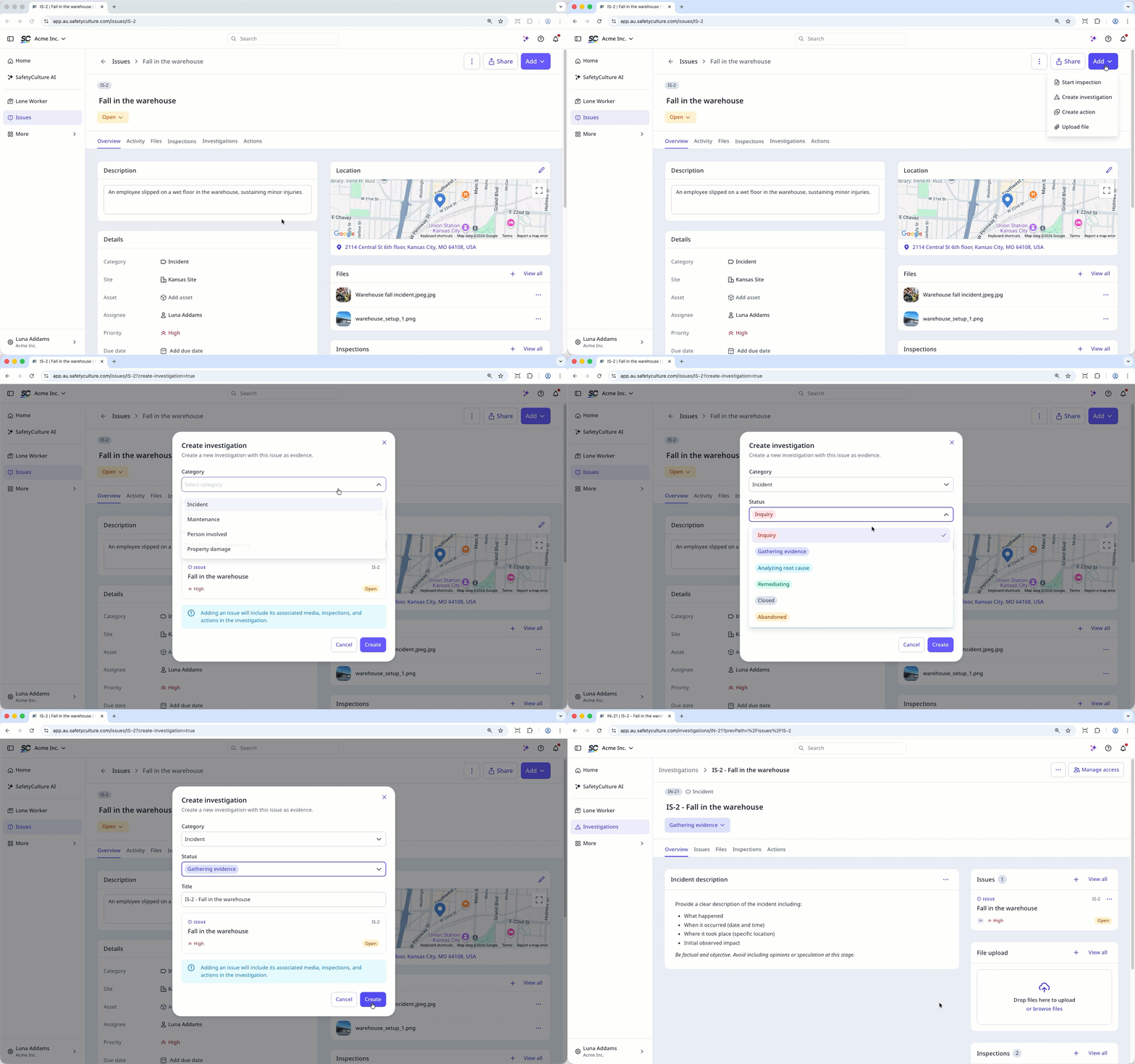
Select Issues in the sidebar or in More.
Report an issue or select an existing one.
Create an investigation using one of the following methods:
Click Add on the upper-right of the page, and select Create investigation.
In Overview tab, scroll down to Investigations and click on the upper-right or click Create investigation.
In Investigations tab, click Create investigation.
In the pop-up window, select the category and status, then enter a title or use the generated title from the issue.
Click Create.
Fill out the investigation details.
Track to resolution
Confirm corrective actions and course completion, confirm controls are effective, close the investigation, then resolve the issue. (opens in new tab)
Resolving the issue is not the same as completing the investigation. Actions don’t close issues, so close the investigation and resolve the issue separately.
Raise actions from investigation findings
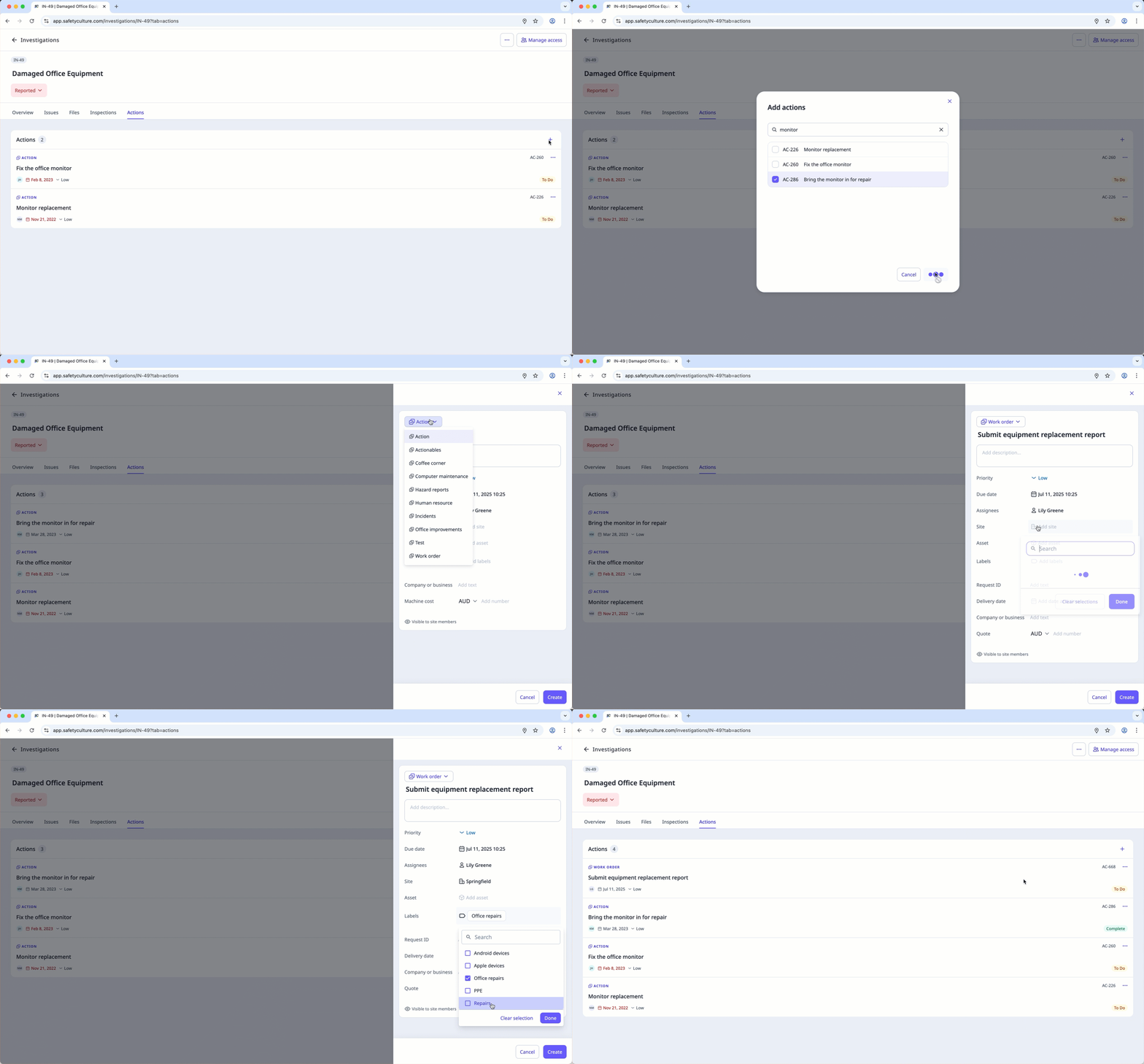
Select Investigations in the sidebar or in More.
Create an investigation or select an existing one.
Click Actions at the top of the page.
Click on the upper-right of the page and select any of the following options:
Need more help?
Was this page helpful?