Last updated: October 4, 2026
Why share AI Assistant chats?
Share an AI Assistant chat to give your team the full context behind an answer. A shared chat is view-only, but a recipient can copy it into a new chat of their own to continue the conversation. Share an AI Assistant chat when a colleague needs to see how the AI Assistant reached an answer, or wants to continue the conversation themselves.
What you'll need
Share an AI Assistant chat
Click AI Assistant in the sidebar or click on the right-hand side of the top bar.
On the left-hand side of the page, select the chat you want to share, or click if you're in the AI Assistant chat window.
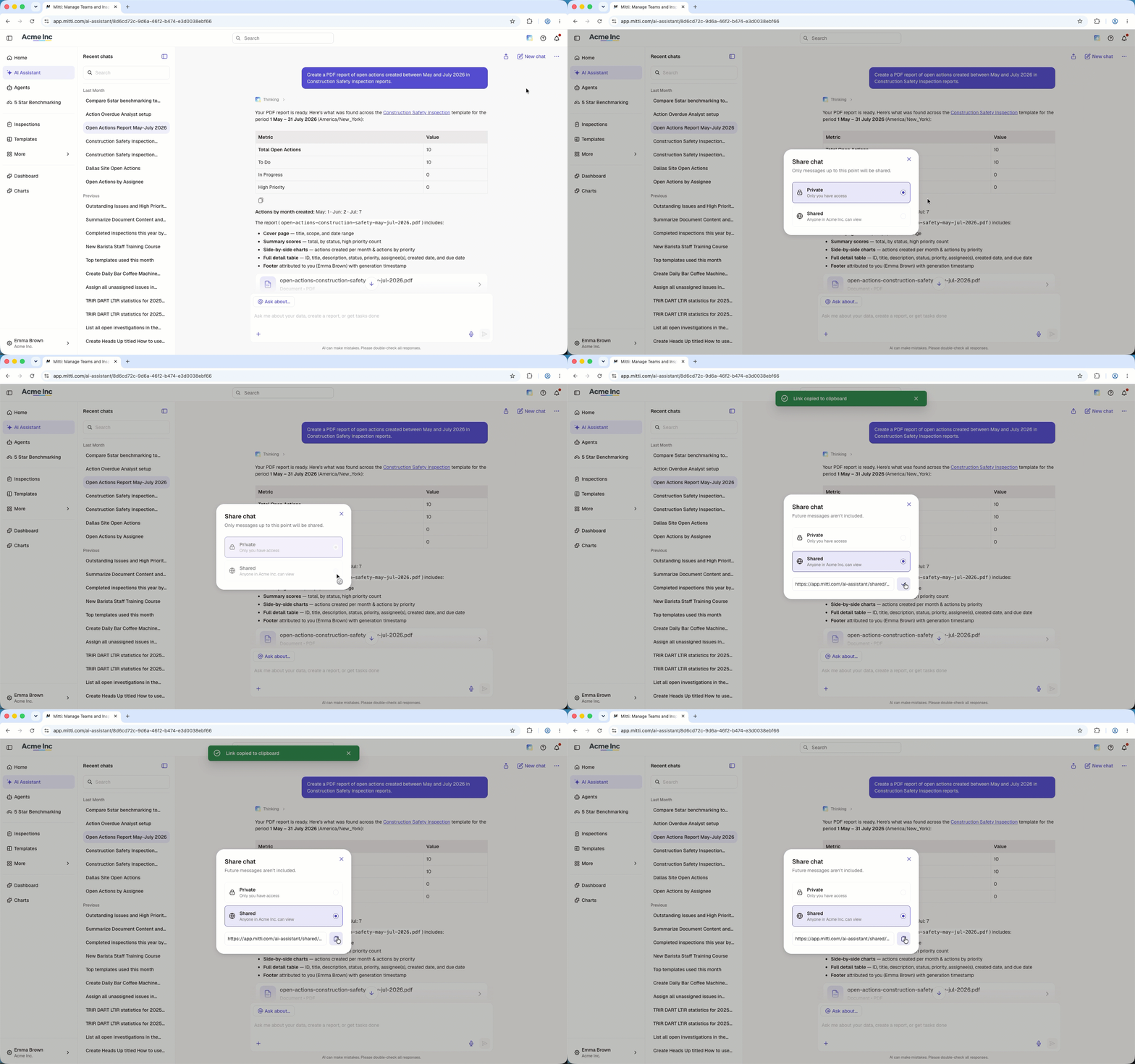
Click on the upper-right of the chat.
In the pop-up window, click Shared to view the shareable link.
Click to copy the link. You'll see a confirmation that the link was copied.
Share the copied link with your team so they can view the chat.
A shared AI Assistant chat shows the conversation as it was at the time you shared it. Any messages sent after that point do not appear in the shared chat.
Frequently asked questions
Need more help?
Was this page helpful?