Last updated: October 19, 2026
This feature is currently in Preview. As we continue developing this feature, its functionality and availability may change before its full release.
How does the MCP server work?
The Model Context Protocol (MCP) server allows users in your organization to connect AI tools (opens in new tab) such as Claude and Copilot to Mitti, so users can ask questions about their Mitti data directly from those services. A connection is read-only by default and only reaches data that the user's own permissions allow. As an administrator, you control whether the MCP server is available to your organization and which roles can connect an AI tool.
The MCP server is turned on by default, and it applies to everyone in your organization. While it's on, the "External AI tools (MCP)" permissions decide which users can connect and what a connected AI tool can do.
Turn the MCP server on or off
Click your organization name on the lower-left corner of the page and select Organization settings.
Click Mitti AI at the top of the page.
In the "MCP" section, turn "MCP server" on or off.
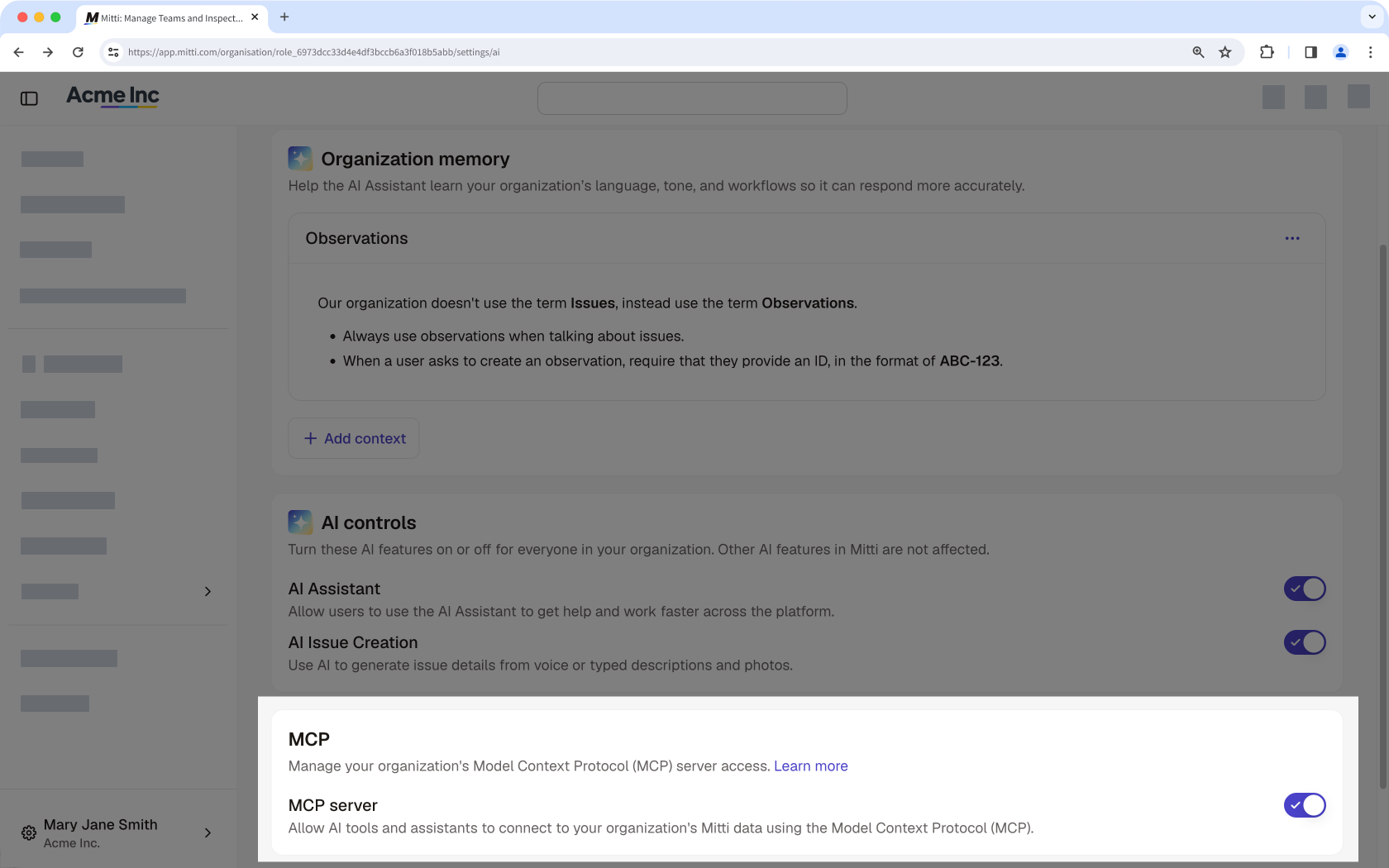
Turning the MCP server off stops every AI tool connection in your organization right away, including connections users have already set up. If you only need to stop certain users from connecting, remove the "External AI tools (MCP): Read" permission from their roles instead.
Frequently asked questions
Need more help?
Was this page helpful?