Last updated: October 22, 2025
Why use repeat sections?
Repeat sections let you add the same set of questions multiple times in a single inspection. They're especially helpful when you need to check the same items, like equipment, rooms, or vehicles, without creating new inspections or manually duplicating questions in your template. They’re also useful when you don’t know how many items you’ll need to inspect. Instead of creating too few or too many sections in your template, you can simply add repeat sections as you go.
Using repeat sections also makes inspections faster, more consistent, and easier to complete. For example, if you're inspecting multiple guest rooms, you don’t need to copy the same "room inspection" questions for each room. Instead, just use a repeat section to generate the same set of questions as many times as needed, and capture all your results in a single streamlined inspection.
What you'll need
Published changes made to templates only apply to new inspections moving forward.
Create a repeat section
Select Templates in the sidebar or in More.
Click the template and select Edit template in the side panel.
Create a new section or select an existing one.
Check Repeat this section on the section name's right-hand side. If you want users to answer questions within the repeat section at least once in every inspection, click on the right-hand side and check Required.
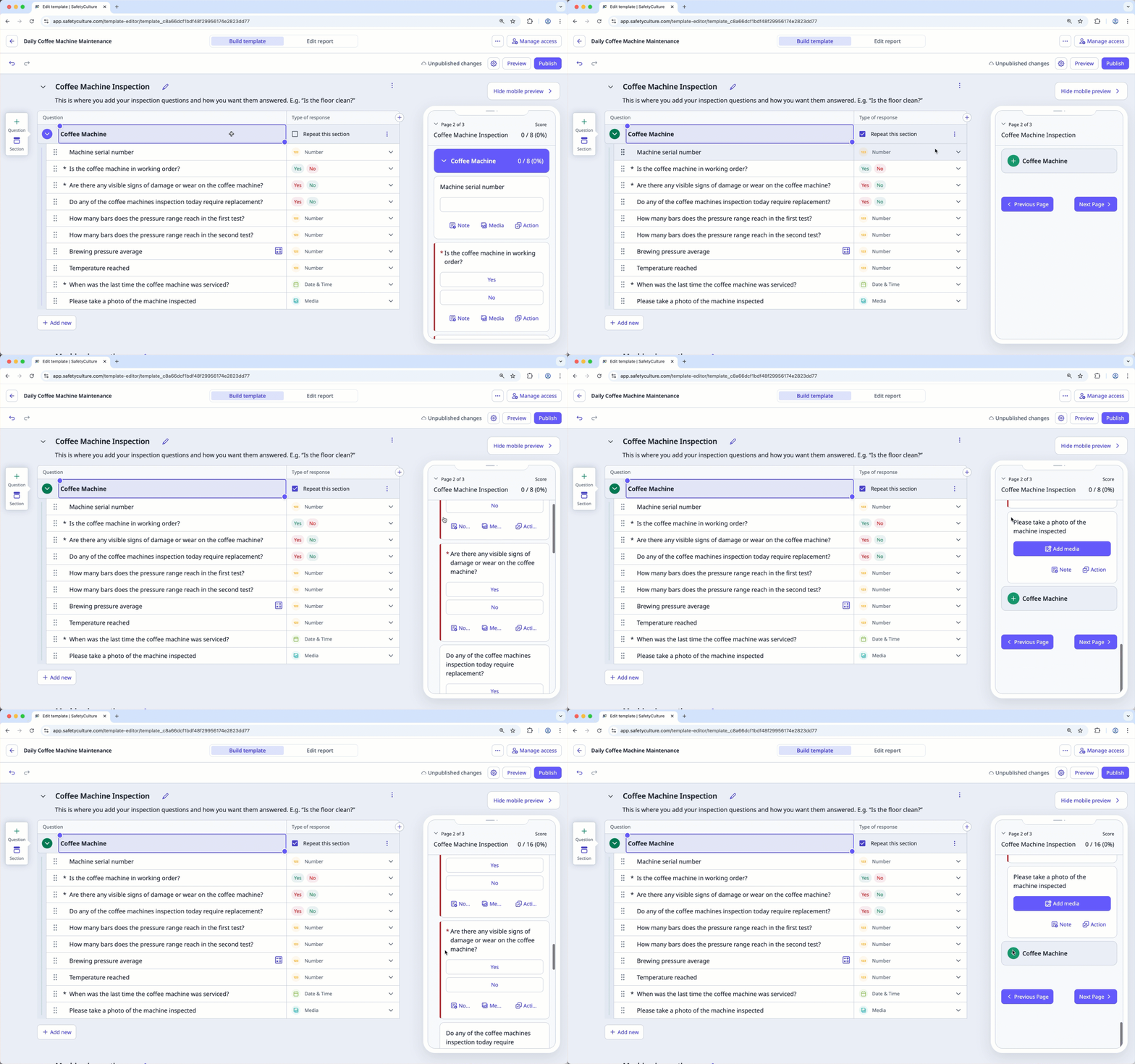
You can add new questions or drag and drop existing ones into the repeat section for users to dynamically repeat them in inspections.
Click Publish on the upper-right of the page to publish the template. If you're not ready to publish the template, you can go back to the templates list and come back when you're ready.
Open the mobile app.
Tap Inspections in the navigation bar or select it from More.
Select Templates tab at the top of your screen.
Tap the template and select Edit template from the pop-up options.
Create a new section or select an existing one.
Tap on the section name's right-hand side and check Repeat this section. If you want users to answer questions within the repeat section at least once in every inspection, tap again and check Required.
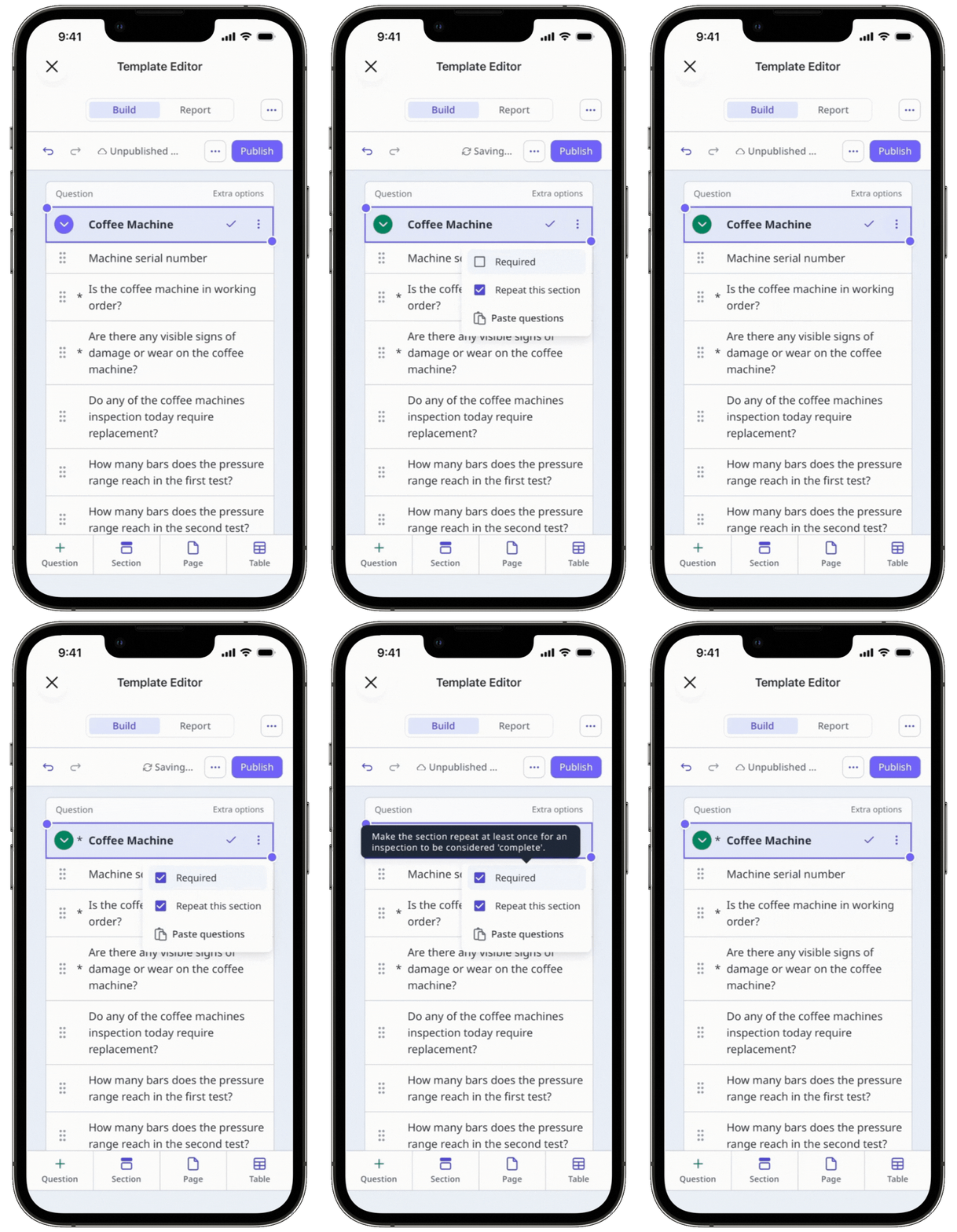
You can add new questions or drag and drop existing ones into the repeat section for users to dynamically repeat them in inspections.
Tap Publish on the upper-right of your screen to publish the template. If you're not ready to publish the template, you can go back to the templates list and come back when you're ready.
While there's no limit on the number of times a section can be repeated in an inspection, an excessive number of repeat sections may impact the app's performance.
Frequently asked questions
Need more help?
Was this page helpful?