Last updated: May 19, 2024
What are Critical Alerts?
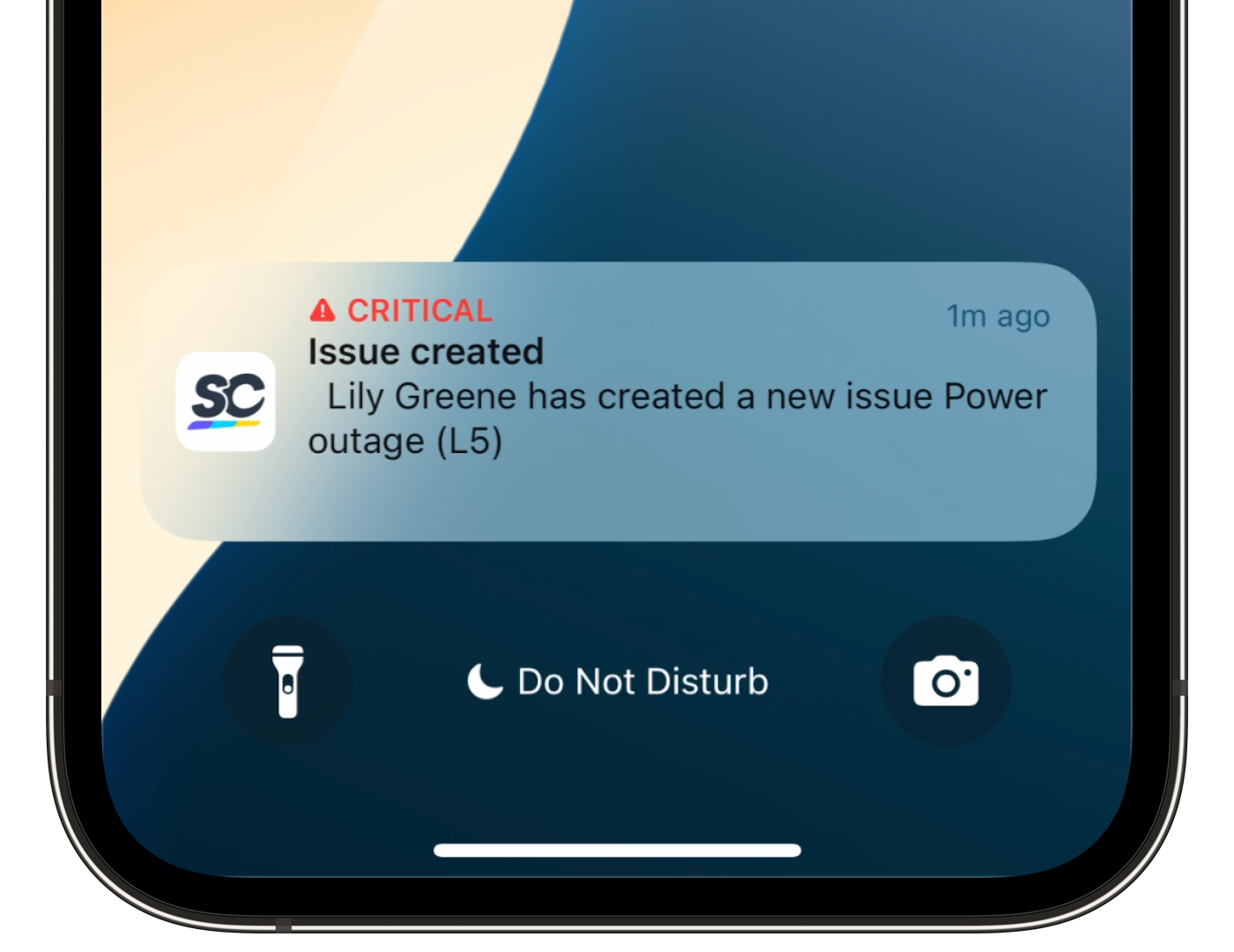
Critical Alerts notify designated responders when an issue is reported in a category with Critical Alerts enabled, or plays a looping alarm on a worker's device when a lone-work check-in is missed or a job goes into overtime.
This is especially important in industries like construction, manufacturing, and mining, where a delayed response to a safety issue or a missed check-in can put people at risk.
What you'll need
Users who should be notified of a category’s issues must also turn on push notifications and Critical Alerts for the Mitti app on their mobile device.
Set up Critical Alerts for an issue category
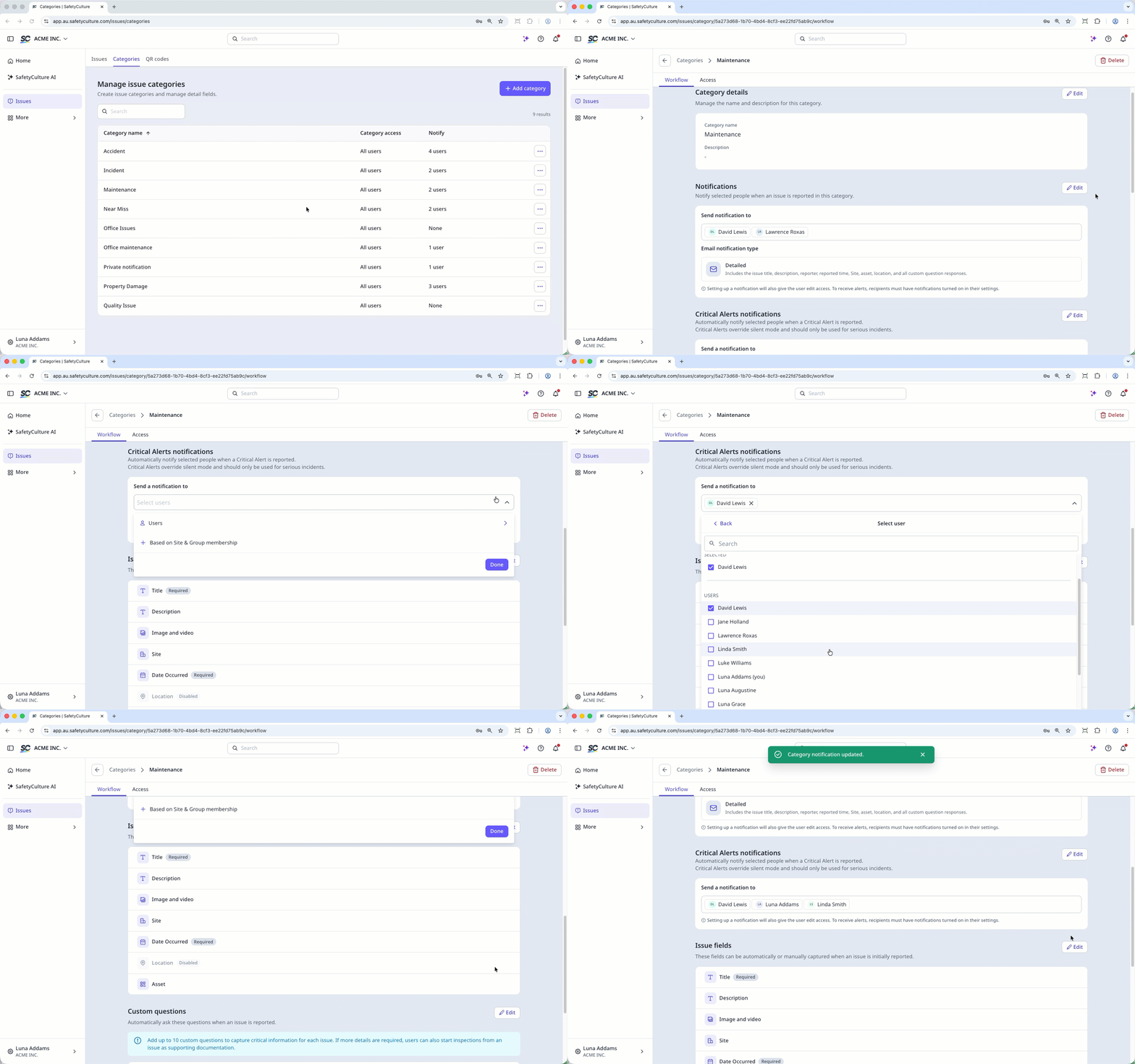
Select Issues in the sidebar or in More.
Select Categories at the top of the page.
Click on the right-hand side of the category and select Edit.
In the Workflow tab, go to the "Critical Alert notifications" section and click Edit.
Under "Send a notification to", click the dropdown menu and select the users who should be notified for each reported issue from this category accordingly. Then, click Done.
Click Save.
Critical Alerts are triggered by the issue category, not the issue's priority level. Any issue reported in a category with Critical Alerts enabled sends a notification regardless of priority.
Need more help?
Was this page helpful?
